What matters when choosing
Start with your current animation software, then decide whether charging flexibility or headroom for future 3D work should shape the laptop configuration.
| Concern |
What to check |
Who this matters to |
| Charging flexibility |
Confirm USB-C PD input on the exact model, its accepted wattage and the charger required for that wattage. |
When I move between rooms with few free sockets, I want to know whether a compatible USB-C charger will cover my lighter animation sessions. Around 40% of consumers put charging flexibility first. |
| Room for 3D work |
Check the exact RAM and VRAM against your software needs, and whether memory or storage can be expanded. |
If my sprite projects grow into Blender or heavier game-engine work, I want a configuration that fits those applications rather than choosing by screen size alone. Around 30% of consumers prioritise that future-workload headroom. |
| Fit for current 2D work |
List your animation and drawing applications, check their requirements and allow for the tools you run together. |
For work centred on 2D sprites, I would rather match the laptop to the software I use now than assume I need a more powerful GPU. Roughly 30% of consumers place that fit first. |
Joybuy product choices
These models offer compact and larger-screen options for sprite work and possible later 3D projects. For any model you intend to charge by USB-C, confirm PD input and charger requirements for its exact configuration before choosing it for a socket-limited setup.
 No image available
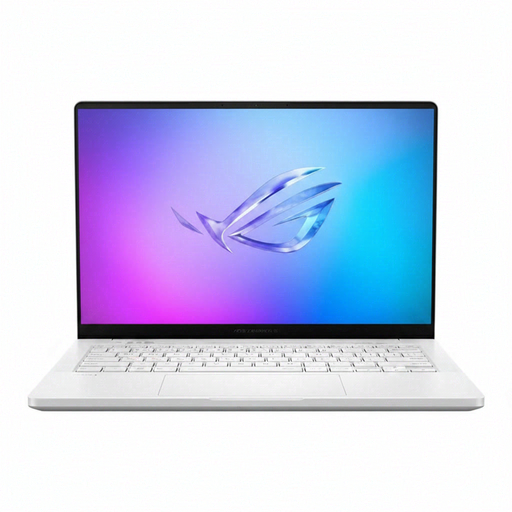
ASUS ROG Zephyrus G14 GA403WR-QS088W, 32 GB, 2 TB, RTX 5070 Ti
The 14-inch format is worth considering if you move your sprite work between rooms.
The listed configuration has an AMD Ryzen AI 9 HX 370, a WQXGA+ display, 32 GB RAM and a 2 TB SSD. Check this exact model’s USB-C PD input, compatible charger, GPU memory and keyboard layout before relying on it for your setup.
View on Joybuy
 No image available
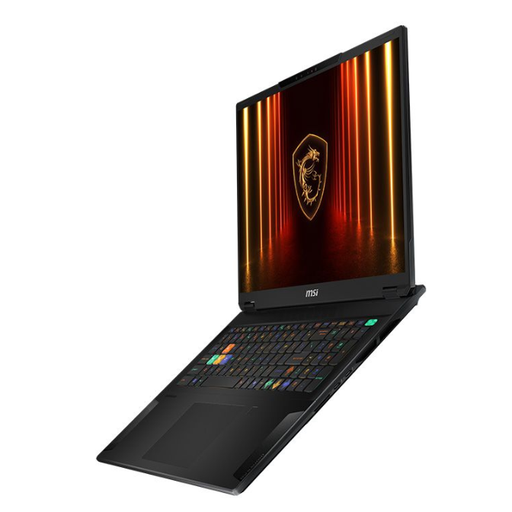
MSI Stealth 18 AI Studio A1VGG-001UK, 32 GB, 2 TB, RTX 4070
Consider this 18-inch model if your animation setup is mainly desk-based and you want a larger built-in screen.
Its title lists an Intel Core Ultra 9, 32 GB RAM, a 2 TB SSD and an NVIDIA GeForce RTX 4070. Check the exact USB-C charging input and charger requirements before planning to use it where sockets are scarce.
View on Joybuy
 No image available
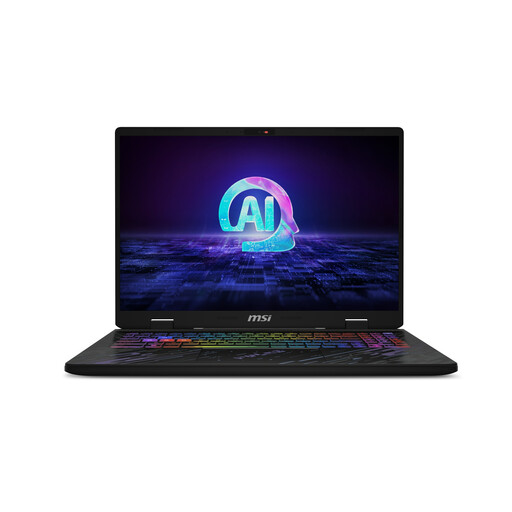
MSI Pulse 16 AI, 16 GB, 1 TB, RTX 4060
The 16-inch screen may suit sprite timelines and other tools at a desk, but check the memory configuration if Blender is part of your plans.
The title lists a QHD+ 240 Hz display, 16 GB DDR5 RAM, a 1 TB SSD and an NVIDIA GeForce RTX 4060. Its 16 GB RAM is below the Blender Foundation’s 32 GB Windows recommendation. Confirm the delivered processor configuration, USB-C PD input and charger requirements before ordering.
View on Joybuy
 No image available
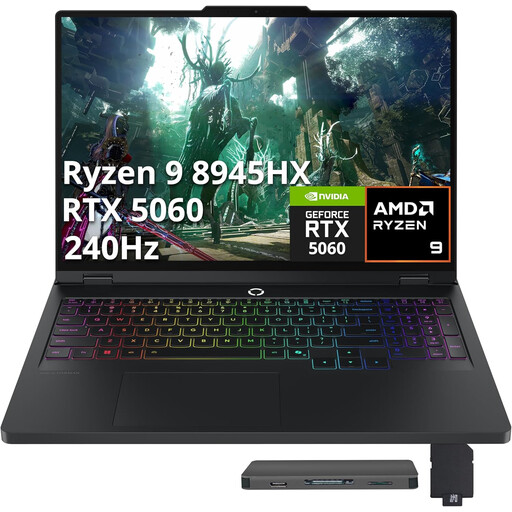
Lenovo Legion Pro 5 LEG P5 R9, 32 GB, 2 TB, 5060
The listed 32 GB RAM and 2 TB storage may appeal if you expect to keep several creative tools and growing project files on one laptop.
Check the exact GPU configuration and VRAM against any planned 3D software. Also confirm whether this model accepts USB-C PD input and which charger it requires; the Legion Slim 5 charging specification does not establish the requirements of this Legion Pro 5.
View on Joybuy
Common questions
Can USB-C charging replace a gaming laptop’s supplied adapter?
Not for every laptop or workload. Confirm PD input and charger requirements for the exact model: ASUS Support describes 65 W or 100 W charging on qualifying ROG laptops without heavy CPU or discrete-GPU load, while Lenovo says the Legion Slim 5 16AHP9 needs its own adapter for its stated 140 W PD input. Keep the supplied adapter available for demanding sessions that require it.
Does every USB-C port charge the laptop?
No. A USB-C port may provide data or display connectivity without accepting laptop power input. Check the exact model’s port diagram or manual for PD input and its supported wattage.
How should I use an extension lead when sockets are limited?
Use one appropriately rated extension device per socket and keep the combined connected load within its marked rating. Electrical Safety First advises against daisy-chaining extension leads and says to fully unwind a cable reel when using its full current rating.
What should I check on a charger supplied with a regional laptop variant?
Check the supplied plug and any conversion adaptor before use, as well as the charger specified for the exact laptop. Electrical Safety First advises checking for a standard UK plug or a suitable conversion adaptor and checking that the plug meets British Standard BS 1363.
Do I need a high-end gaming GPU to animate 2D sprites?
Not necessarily; start with the requirements of your drawing, animation and game-development applications. If you also plan to use Blender, the Blender Foundation lists 8 GB RAM and 2 GB VRAM as its minimum Windows specification and 32 GB RAM and 8 GB VRAM as its recommended specification. Those Blender figures should not be treated as a universal requirement for 2D sprite work.


