For frame-by-frame sprites and coursework, choose a laptop for the screen, storage and portability you need rather than paying for GPU-rendering capability you do not plan to use. If Blender or 3D assets are likely, use the Blender Foundation’s Windows recommendations of 32 GB RAM and 8 GB VRAM as checks on the exact configuration; also consider the charger and how much desk space the laptop will occupy.
Who is this for?
Pixel-art and sprite-animation students
You mainly make frame-by-frame sprites, sprite sheets or animated GIFs alongside coursework. Aseprite’s documented tools include layers, frames, onion skinning and sprite-sheet export; assess the laptop as a place to do that daily work, not as a 3D rendering machine by default.
Students planning 3D game assets
You animate sprites now but expect to learn Blender or render 3D scenes later. The Blender Foundation recommends 32 GB RAM and 8 GB VRAM for Windows, making the precise memory and graphics configuration more important to your decision.
Room-to-campus laptop carriers
You need the same laptop at your desk, in class and in the library. Screen size and carrying weight both matter; for a specific compact example, ASUS lists its ROG Zephyrus G14 (2026) GA403 family at 1.5 kg, but check the weight of the exact model you order.
What matters when choosing?
Decide whether your projects are likely to extend beyond sprites before choosing a memory and graphics configuration. Then balance screen space and storage against what you will carry between your room and campus.
| Concern | What to check | Who this matters to |
|---|
| 3D headroom |
For planned Blender work, check installed RAM and dedicated-GPU VRAM against the Blender Foundation’s recommended Windows figures of 32 GB and 8 GB. |
If I expect to make 3D assets after starting with sprites, I want the laptop’s memory and graphics specification to accommodate that plan. Around 40% of consumers put future 3D headroom first. |
| Carrying and screen space |
Compare the exact model’s weight, charger and screen size; a smaller screen also leaves less physical room for art tools and coursework windows. |
Moving between my student room and campus makes carrying the laptop important, but I still need a workable screen at my desk. For around 30% of consumers, that balance is the primary concern. |
| Practical capacity |
Compare installed RAM and SSD capacity with your software and files, and check whether either can be upgraded. |
I mainly make sprites and do not want to pay for a configuration I will not use, though my projects still need space. Avoiding an ill-fitting memory or storage choice comes first for around 30% of consumers. |
Buying pitfalls
-
Treating a GPU name as the whole specification
An RTX model name alone does not identify a laptop’s installed RAM, storage or configuration-specific GPU power. ASUS publishes different GPU wattages across G14 configurations.
Compare full model numbers, GPU memory and stated GPU power where available, as well as the display and warranty on the listing you intend to buy.
-
Choosing 16 GB RAM without thinking about later modules
HP lists an OMEN 16 configuration with 16 GB RAM and a 512 GB SSD, while the Blender Foundation recommends 32 GB RAM for Windows. A sprite-first choice may therefore need reassessment if 3D work becomes part of your course.
If Blender and several creative applications are likely, compare a 32 GB configuration and check whether memory and storage can be upgraded.
A later change of projects could mean arranging a RAM or SSD upgrade, or using external storage.
-
Assuming a compact laptop makes a compact setup
A cited Lenovo Legion 5 Gen 10 configuration uses a 245 W UK power adapter. Your desk also needs suitable space around the laptop and any peripherals you use.
Check the supplied charger for the exact model, clearance around its vents and the ports needed for a mouse, display or backup drive.
-
Confusing similar Legion listings
The AMD Lenovo Legion 5 Gen 10 part number 83F1CTO1WWGB3 and Intel Legion 5 15IRX10 model 83LY0009UK are different products, even though their names share the Legion 5 range.
Match the full model or part number and core configuration before relying on a specification from another listing.
Relevant brands to consider
Lenovo
Lenovo’s Legion 5 Gen 10 range includes a 15-inch AMD configuration relevant to students planning sprite work alongside Blender.
- Lenovo lists a configuration with 32 GB RAM, a 1 TB SSD and an RTX 5060 with 8 GB graphics memory, aligning on memory and VRAM with the Blender Foundation’s Windows recommendations.
- The cited configuration uses a 245 W UK power adapter. Check the part number, weight and supplied configuration rather than applying its specifications to every Legion 5.
HP
HP’s OMEN 16 provides a 16-inch gaming-laptop configuration to consider if most work will be done at a desk.
- HP lists an OMEN 16 configuration with a 2560×1600 display and an RTX 5060 with 8 GB graphics memory.
- That configuration has 16 GB RAM and a 512 GB SSD; its RAM is below the Blender Foundation’s 32 GB recommended Windows figure.
ASUS ROG
The ROG Zephyrus G14 (2026) GA403 family is relevant when a 14-inch laptop is easier to accommodate in a room-to-campus routine.
- ASUS lists a 14-inch display, 1.5 kg weight and 1.59 cm thickness for the GA403 family.
- Memory, ports and GPU power can vary by configuration. Check the exact model rather than transferring family-page details to another G14.
Joybuy products for this workflow
These listings span larger-screen laptops for sprite work with possible 3D expansion, a creator-focused alternative and a 14-inch gaming model for a smaller workspace. Match each exact configuration to your software plans and carrying needs.
 No image available
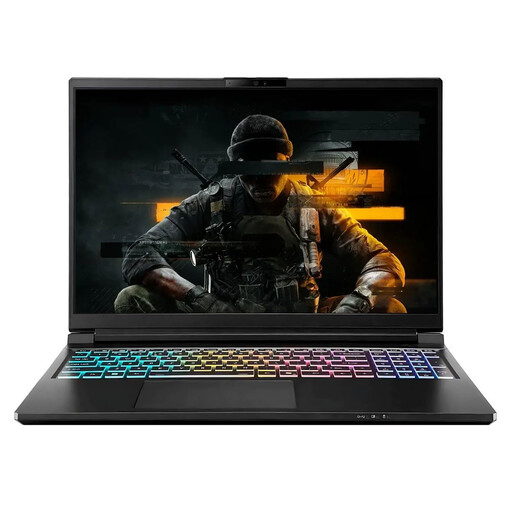
Stormforce Exobook 16 QHD+, Ultra 9, 32 GB, 4 TB, RTX 5080
Consider this 16-inch model if your sprite projects may expand into Blender work and you want the listed 32 GB RAM and 4 TB storage. Confirm the supplied charger and GPU configuration for the exact laptop before ordering.
View on Joybuy
 No image available
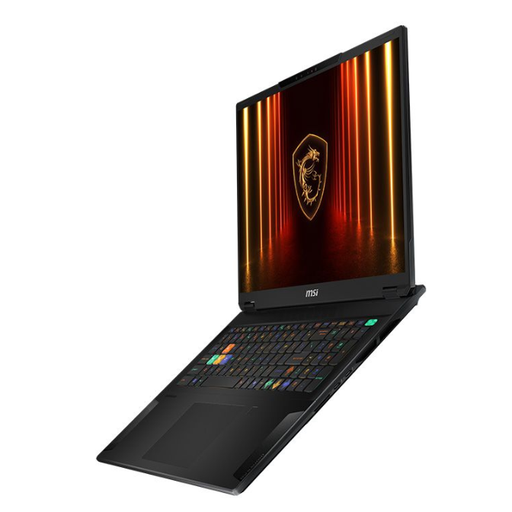
MSI Stealth 18 AI Studio A1VGG-001UK, 32 GB, 2 TB, RTX 4070
The 18-inch size makes this a desk-oriented option for students who want a large laptop screen for art and coursework. Its title specifies 32 GB RAM and a 2 TB SSD; consider how often you will need to carry an 18-inch machine.
View on Joybuy
 No image available
ASUS ProArt P16 H7606WW-SE006W, 16-inch 4K OLED, 64 GB, 2 TB
This creator-focused alternative is worth considering if the work may extend well beyond sprites; do not assume its gaming performance from the creator label. The title specifies an RTX 5080 with 16 GB graphics memory, 64 GB RAM and a 2 TB SSD. Check gaming-specific behaviour if playing games is also a priority.
View on Joybuy
 No image available
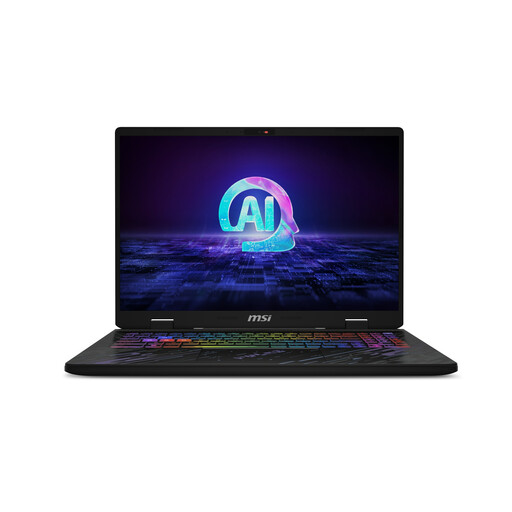
MSI Pulse 16 AI, Core Ultra 7 155H, RTX 4060, 16 GB, 1 TB
This 16-inch QHD+ model suits a sprite-first shortlist if its configuration meets your current software needs. Its title specifies 16 GB DDR5 RAM and a 1 TB SSD; for planned Blender use, check memory upgradeability against the Blender Foundation’s 32 GB recommended Windows figure. Confirm the exact processor and supplied adapter on the product listing.
View on Joybuy
 No image available
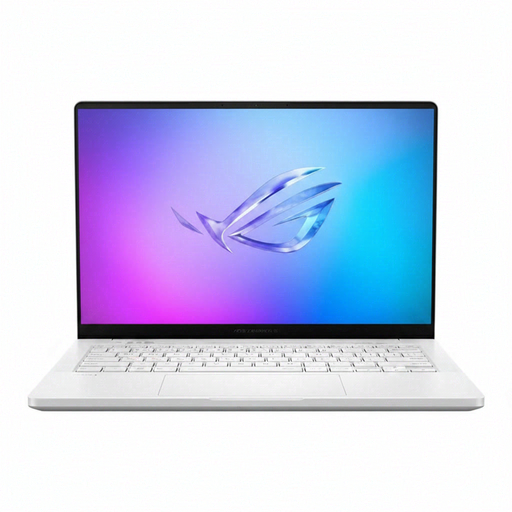
ASUS ROG Zephyrus G14 GA403WR-QS088W, RTX 5070 Ti, 32 GB, 2 TB
The 14-inch WQXGA+ screen makes this a smaller-screen option for work split between a student room and campus. Its title specifies 32 GB RAM and a 2 TB SSD. Check this exact model’s weight and GPU memory before relying on it for frequent carrying or Blender GPU rendering.
View on Joybuy
Questions about software and specifications
Do pixel-art sprites require a dedicated gaming GPU?
Not automatically. Aseprite documents frame, layer and sprite-sheet tools without establishing a gaming-GPU requirement. Give dedicated graphics more weight if your plans include Blender GPU rendering or 3D scenes; the Blender Foundation publishes separate recommendations for that work.
What RAM and graphics memory should I look for if I may learn Blender?
For Blender on Windows, the Blender Foundation recommends 32 GB RAM and 8 GB VRAM, alongside an 8-core CPU. Treat those as checks for a realistic 3D-work plan, not as requirements for every sprite-animation task.
Can I use the Aseprite trial for coursework I need to save?
Not if you need to save files in the trial itself: Aseprite warns that its trial version cannot save files. Check current licence terms and whether your institution provides software access before relying on it for coursework.
What should I check when replacing an old laptop?
Ask the retailer what take-back or recycling arrangements it offers, and remove your personal data before handing over the old machine. GOV.UK identifies the Waste Electrical and Electronic Equipment Regulations 2013, as amended, as underpinning UK WEEE rules; confirm the practical arrangements with the retailer.


