Large-screen aquarium viewers
If the aquarium will usually appear on a separate monitor or TV, compare the laptop’s documented video outputs with that screen’s inputs and the display mode you want to use.


Choose a gaming laptop after checking the virtual-aquarium application and the screen you intend to use: a desktop overlay and a detailed 3D simulator need not call for the same hardware. Match the exact laptop’s video output to your monitor or TV and its intended resolution and refresh rate; a GPU name or large built-in panel does not establish external-screen compatibility.
If the aquarium will usually appear on a separate monitor or TV, compare the laptop’s documented video outputs with that screen’s inputs and the display mode you want to use.
If you want a detailed 3D aquarium, start with the named application’s requirements before choosing a GPU and memory configuration. Steam describes Behind Glass as using an advanced 3D engine, but that description does not establish a laptop specification.
Steam describes Virtual Aquarium as an overlay above other windows. Check that application’s requirements before assuming its use calls for a high-end gaming GPU.
Identify the aquarium program and your intended screen first, then decide how much the laptop’s own display and graphics configuration matter to you.
| Concern | What to check | Who this matters to |
|---|---|---|
| External-display connection | Match the exact laptop’s video-capable output to the monitor or TV input. Confirm the supported resolution and refresh rate for the intended port and cable. | If I want the aquarium on a separate monitor or TV, I need the connection to carry the display mode I plan to use; around 44% of consumers put external-display compatibility first. |
| 3D graphics performance | Compare the named application’s requirements and intended settings with the exact Laptop GPU configuration; check GPU power information where available. | For a detailed 3D aquarium alongside demanding games or creative work, I want graphics capability suited to those tasks rather than relying on a GPU name alone; roughly 33% of consumers prioritise 3D performance. |
| Viewing away from the desk | Decide whether you will use the built-in screen, then compare panel size and the laptop’s physical size with your carrying needs. | When I also want to view the aquarium away from my external screen, the laptop’s own display and ease of carrying matter more; approximately 23% of consumers make that their primary concern. |
Steam describes Virtual Aquarium as a desktop overlay and Behind Glass as using a 3D engine. Buying around the latter’s likely workload without identifying your own application could lead you to choose graphics capability you do not need.
Find the exact program and version, then compare its published requirements with the laptop configuration and your intended display settings.
Joybuy lists HDMI and USB-C for the THUNDEROBOT Storm 17, while the GIGABYTE G6 is listed with HDMI 2.1 and Mini DisplayPort 1.4. Those port names alone do not establish every supported display mode or whether a particular USB-C port carries video.
Check the exact laptop and screen manuals for the intended resolution and refresh rate, including any cable or adapter requirements.
NVIDIA’s laptop comparison lists differing GPU subsystem-power ranges. The name of a GPU is therefore not a complete description of its implementation in a particular laptop.
Compare the full laptop configuration, documented GPU power information where available, and the aquarium application’s requirements.
GOV.UK’s electrical-equipment guidance distinguishes the marking arrangements for Great Britain and Northern Ireland.
Check the current guidance for the market where the laptop will be supplied and the marking information for the particular product.
These model-specific examples show specifications worth comparing, not a ranking or a claim about every laptop from each brand.
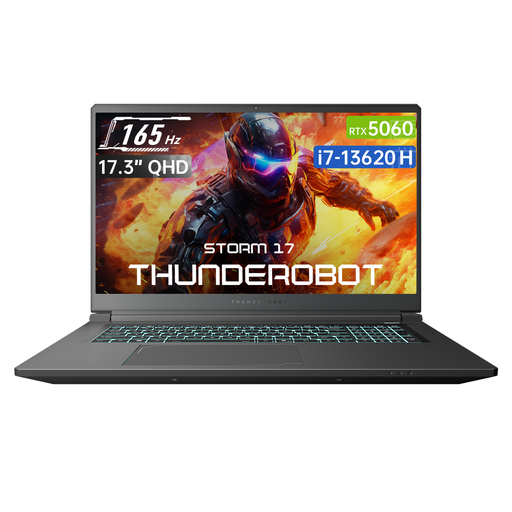
The Storm 17 5060 is an example for comparing a large built-in panel with an external-screen connection.
The researched ROG Strix SCAR 16 configuration illustrates a graphics- and memory-heavy option for use beyond an aquarium overlay.
The G6 KF-H3UK854KH provides a model-specific example for checking physical display connections.
These gaming laptops offer built-in screens for viewing an aquarium. If you will use a separate large monitor or TV, check the exact model’s video output and supported display mode before choosing between them.
 No image available
Consider its larger built-in screen if you will sometimes view the aquarium without a separate monitor.
The listed configuration has a Core i7-13620H, GeForce RTX 5060, 16GB DDR5 RAM, a 1TB SSD and a 165Hz panel. Joybuy lists HDMI, but check its supported output mode against your screen; do not assume the listed USB-C port carries video.
 No image available
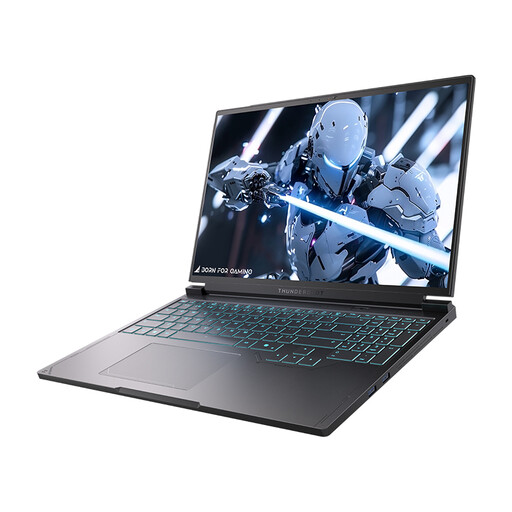
The 16-inch built-in display is relevant if you will also view the aquarium on the laptop itself.
The listed configuration has a Core i7-13650HX, GeForce RTX 5060, 16GB DDR5 RAM, a 1TB SSD and a 240Hz panel. Confirm the exact video outputs and supported modes before pairing it with your large screen; the panel’s refresh rate is not an aquarium requirement.
 No image available
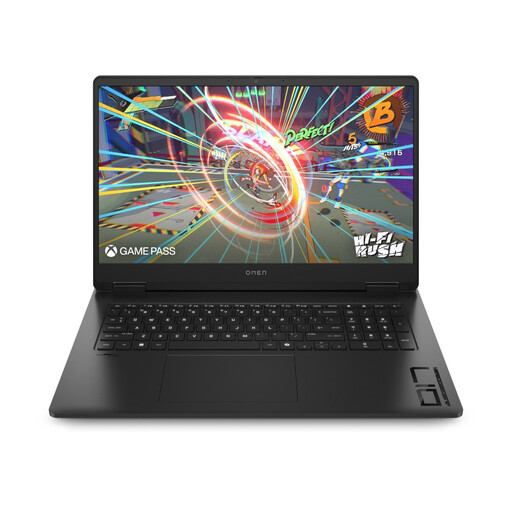
Its larger built-in screen is worth comparing if the aquarium will not always run on an external display.
The listed configuration has an AMD Ryzen AI 7 350, RTX 5060, 16GB RAM and a 1TB SSD. Check the exact laptop’s display output and supported resolution and refresh rate against your monitor or TV.
 No image available
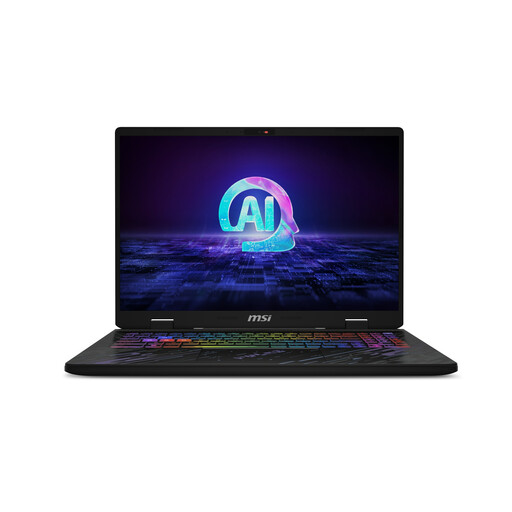
Compare this configuration with your application’s requirements if the aquarium is a detailed 3D simulator or will run alongside other demanding work.
The listed configuration has an Intel Core Ultra 7 155H, RTX 4060, 16GB DDR5 RAM, a 1TB SSD and a 240Hz panel. Confirm the exact external-display ports and modes for this variant before choosing it for a separate screen.
Not for every virtual aquarium: Steam describes Virtual Aquarium as a desktop overlay and Behind Glass as a 3D simulator. Check the exact program’s requirements and your screen before deciding whether a gaming-class GPU is useful.
Match the exact laptop’s video output to the display’s input, then confirm the resolution and refresh rate supported by that port and cable combination. A listed HDMI, Mini DisplayPort or USB-C connector does not, by itself, confirm the mode you want.
Do not assume a USB-C port carries video. Check the exact laptop manual for video-output support and the cable or adapter needed for your monitor.
Check the marking rules for the market where the laptop will be supplied. GOV.UK’s electrical-equipment table dated 31 March 2026 lists UKCA or CE for Great Britain and CE, or UKNI together with CE, for Northern Ireland; check the current guidance and the particular product before ordering.