Choose a thumb-button grid if you regularly assign many map, unit-group and menu commands to the mouse; choose a more conventional multi-button layout if you need only a smaller set of shortcuts. For a long session, check whether you can reach those controls with a relaxed grip, not just how many buttons or how high a maximum DPI the mouse offers. If you want wireless play, check the model's dedicated gaming connection and the conditions behind its battery-life claim.
Who these mice suit
Command-heavy grand strategy players
If you repeatedly open map modes, diplomacy panels and build menus or use unit groups, reachable programmable controls may matter more to you than a headline sensor specification. CORSAIR, Logitech G and Razer describe different button layouts, so consider how many commands you would actually assign.
Players focused on long-session fit
If you play for hours, check mouse shape, button reach and desk position together. The Health and Safety Executive advises keeping a mouse within easy reach, supporting the forearm and avoiding an overly tight grip; a product's ergonomic label cannot establish how it will fit your hand.
Players who prefer a cable-free desk
If cable drag bothers you, a wireless mouse may suit your setup, provided its connection modes and charging routine work for your sessions. CORSAIR and Logitech G describe dedicated wireless gaming connections on the models discussed here.
What matters when choosing
Start with the commands you want on the mouse, then check whether you can reach them comfortably for a long session. Treat scrolling and wireless connection as separate choices: neither requires a full thumb-button grid.
| Concern |
What to check |
Who this matters to |
| Reachable shortcuts |
Count your recurring commands; check thumb reach and whether the configuration software supports the assignments you want. |
If I keep returning to unit groups and menus, I want those commands within reach without changing my grip. Around 36% of consumers may put reachable shortcuts first. |
| Hand fit |
Compare shape and button position with your usual grip; keep the mouse close enough to use without stretching. |
During a long session, I need to hold the mouse without a tight grip or an awkward reach. Hand fit may come first for around 36% of consumers. |
| Map and menu navigation |
Decide whether you want tactile wheel steps, free-spin scrolling or tilt inputs for the menus and lists you use. |
When I move through long lists, I value a wheel that suits both deliberate steps and quicker scrolling. Around 21% of consumers may make navigation their primary concern. |
| Wireless continuity |
Check the gameplay connection mode and read battery-life claims alongside their lighting and connection settings. |
I want to remove cable drag without interrupting a long session to sort out the connection or charging. Wireless continuity may be the main concern for around 7% of consumers. |
Buying pitfalls
-
Choosing a thumb grid by button count alone
Extra buttons offer little practical value if reaching the outer ones changes your grip or causes mistaken presses. CORSAIR describes the SCIMITAR ELITE WIRELESS SE's side panel as repositionable, but reach still depends on your hand and grip.
List the commands you use most, then compare their proposed button positions with your natural thumb reach before choosing a dense grid.
-
Comparing battery figures across different modes
CORSAIR lists up to 150 hours for the SCIMITAR ELITE WIRELESS SE over 2.4 GHz and up to 500 hours over Bluetooth, both with RGB lighting off. Its manual describes Bluetooth as a mode for everyday computing rather than its dedicated gaming connection.
Compare runtime claims only under matching connection and lighting conditions, and check which mode the model offers for gameplay.
-
Making maximum DPI the deciding specification
A maximum DPI figure does not tell you whether the buttons, wheel and sensitivity setting will suit repeated map and menu inputs. Joybuy's gaming-mouse guidance favours reliable tracking across a practical DPI range over a headline maximum.
Consider the sensitivity you find controllable in-game, then assess the layout and navigation controls you will use.
-
Expecting a new mouse to fix an awkward desk setup
Mouse shape alone cannot account for a distant mouse position, a tight grip or an unsupported forearm during a long session.
Follow the Health and Safety Executive's advice to keep the mouse within easy reach, support your forearm and use a straight wrist where possible while checking the mouse's fit.
Brands to consider for these layouts
CORSAIR
The SCIMITAR ELITE WIRELESS SE is a command-heavy option: CORSAIR specifies 16 customisable buttons, including a repositionable 12-button side panel.
- CORSAIR specifies Key Slider™ panel adjustment and iCUE support for remaps, macros and onboard profiles.
- Check whether you can distinguish and reach the dense thumb grid without changing your grip; the adjustable panel does not establish individual comfort.
Logitech G
The G502 X LIGHTSPEED offers a more conventional multi-button layout; Logitech G specifies 13 programmable controls and LIGHTSPEED wireless.
- Logitech G specifies G HUB configuration for its programmable controls.
- Its controls are arranged differently from a dedicated 12-button thumb grid, and the stated features do not establish fit for your hand or grip.
Razer
The wired Basilisk V3 is relevant if wheel behaviour and a smaller set of shortcuts matter to you; Razer specifies 10+1 programmable buttons and configurable scrolling.
- Razer describes tactile, free-spin and automatic wheel modes, offering different ways to move through menus and lists.
- It requires a cable and does not provide a dedicated 12-button thumb grid; check which controls you would assign before choosing it for command-heavy play.
Joybuy mice for this setup
These mice offer wired and wireless ways to put a smaller set of controls on the mouse rather than a dedicated 12-button thumb grid. For grand strategy play, check the layout and configuration of the commands you intend to use.
 No image available
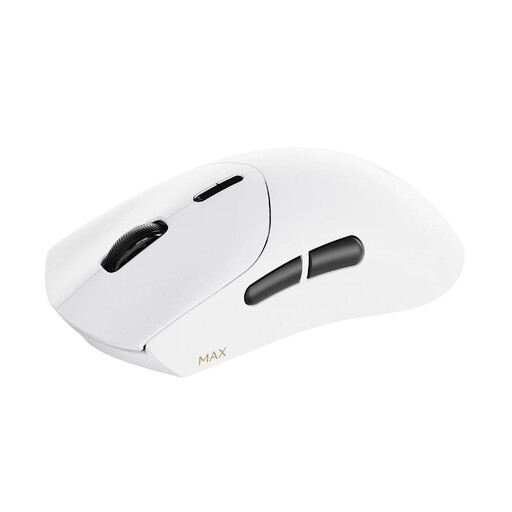
Rapoo VT7 MAX wireless gaming mouse, white
Consider this model if you want to assign several recurring game commands without using a full thumb grid; check whether its button positions suit your reach.
The listing describes 10 programmable buttons, macro support and a weight of 53 g. Its stated runtime of up to 750 hours applies at 1000 Hz with a driver update to unlock low-power mode; check the connection and settings you would use for gameplay.
View on Joybuy
 No image available
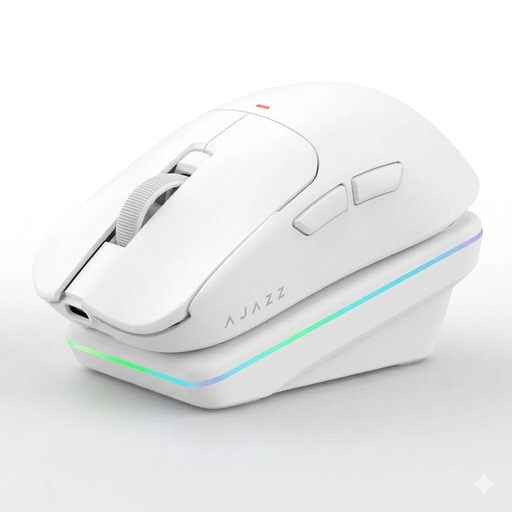
AJAZZ AJ200 AI MC wireless gaming mouse with charging dock
Consider its smaller button set if you want to map a few frequent actions rather than fill a thumb grid; check the position of those buttons against your grip.
The listing describes six buttons, remapping and macro recording, with Bluetooth, 2.4 GHz and USB-C connection modes. Check which mode suits your game setup and confirm the weight for this variant if it affects your choice.
View on Joybuy
 No image available
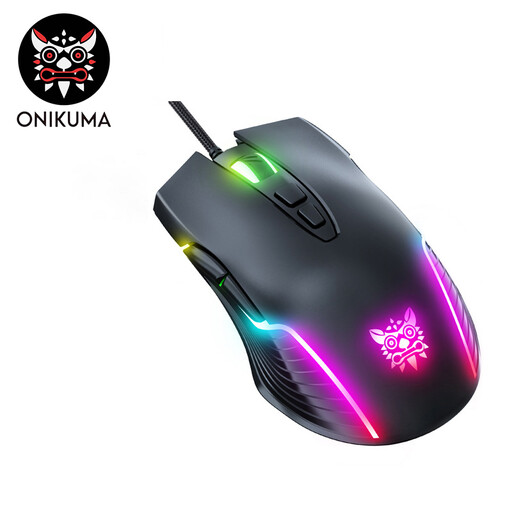
ONIKUMA CW905 wired gaming mouse
Consider a wired setup if you prefer not to manage charging during play and need several basic mouse controls.
The listing describes seven buttons, including forward and back controls, and adjustable DPI levels. Confirm how button assignments are configured before relying on it for game-specific shortcuts, and check its shape and button reach for your grip.
View on Joybuy
Common questions
Do I need the highest DPI for grand strategy games?
No: a comfortable sensitivity setting and controls you can reach are more useful selection checks than maximum DPI alone. Joybuy's gaming-mouse guidance recommends judging tracking across a practical DPI range rather than by its headline maximum.
Should I use Bluetooth or a USB receiver for gameplay?
If your mouse offers a dedicated 2.4 GHz gaming receiver, check that mode for gameplay rather than assuming its Bluetooth mode serves the same purpose. CORSAIR's SCIMITAR manual identifies its dedicated wireless connection as the gaming mode and describes Bluetooth as suited to everyday computing.
Will an ergonomic mouse prevent discomfort during a long session?
No mouse shape can guarantee that outcome for every hand and desk setup. Check your grip and button reach; the Health and Safety Executive also advises keeping the mouse close, supporting the forearm and avoiding an overly tight grip.
Can I use every programmable-button macro in every game?
Do not assume so: available assignments depend on the mouse software and the game's rules. Check software compatibility with your operating system, then confirm that your intended shortcuts and macros are permitted in the games you play.


