If avoiding mouse charging matters most, start with a wired mouse whose buttons you can comfortably reach and assign to commands you use often. Wireless removes the cable, but a rechargeable mouse needs a charging routine, while a replaceable-battery mouse requires spare cells; neither choice removes the need to check grip fit and controls.
Who this choice affects
Shortcut-heavy grand strategy players
If you repeatedly use map, camera and interface commands, reachable programmable controls may matter more to you than a headline sensor figure. Check whether the wheel and button layout suit the actions you actually use.
Players with limited plug sockets
A wired mouse avoids charging its own battery but needs a computer USB connection. A replaceable-battery wireless mouse avoids routine cable charging, provided you keep suitable spare cells available.
Players focused on long-session fit
Check shape, grip, weight and thumb-button reach before choosing by button count. SteelSeries describes the Rival 3 Wireless for claw or fingertip grip, but that guidance cannot establish how it will fit your hand.
What to prioritise
Wired multi-button mouse
Choose it when: Avoiding mouse-battery charging matters more than removing the cable, and you have a suitable USB connection.
Trade-off: The cable can add desk drag, and extra controls help only if their positions and bindings work for you.
Rechargeable wireless mouse
Choose it when: You value a cable-free desk and can accommodate charging through an existing suitable USB setup.
Trade-off: Charging remains part of ownership, and claimed runtime depends on the connection mode and settings.
Replaceable-battery wireless mouse
Choose it when: You want wireless use without routinely connecting the mouse to charge.
Trade-off: You need suitable replacement or rechargeable cells, and power use can change with settings.
| Concern |
What to check |
Who this matters to |
| Command access and navigation |
Check reachable programmable buttons, the software needed to assign them and the wheel behaviour of the exact model. |
I want recurring map and interface actions close to hand without accidentally triggering nearby buttons. Around 42% of consumers put command access first. |
| Charging and socket use |
Check the connection, power source and, for wireless models, the runtime conditions relevant to your settings. |
With few sockets available, I would rather not interrupt a session to charge the mouse; roughly 33% of consumers make avoiding charging disruption their main concern. |
| Long-session fit |
Compare shape, weight and thumb-button placement with your grip and hand size. |
Buttons are little use to me if reaching them changes my grip during a long game. Physical fit comes first for about 25% of consumers. |
Buying pitfalls
-
Assuming wireless means no power planning
A rechargeable mouse still needs charging. A replaceable-battery mouse avoids that routine but needs suitable cells on hand.
Decide whether you mainly want to remove the cable or avoid charging, then check the model’s power source and what is supplied.
Replacement cells, or the time and equipment needed for charging, remain part of using a wireless mouse.
-
Choosing the highest button count without checking reach
Closely spaced controls may be difficult to distinguish or may alter your grip, even when the mouse offers plenty of commands.
Check button placement and shape, then plan bindings for the actions you use repeatedly rather than every available control.
-
Treating battery-life claims as guaranteed session time
Razer quotes different Basilisk V3 Pro runtimes for different wireless modes, while SteelSeries says Rival 3 Wireless lighting and polling settings affect power use.
Compare claims only under the connection mode and settings you intend to use, and keep a suitable charging cable or spare cells available.
-
Using a mains adaptor without checking suitability
A separately chosen charger or dock introduces a power connection that the mouse alone does not require.
Check the mouse maker’s charging instructions and confirm that any mains adaptor and charging accessory are suitable before use.
Brands to consider
Razer
Its Basilisk models offer wired and wireless routes for players interested in mouse-side commands and adjustable wheel behaviour.
- Razer describes configurable controls and wheel modes on the relevant Basilisk models.
- For the rechargeable Basilisk V3 Pro, Razer’s claimed battery life varies by wireless mode and setup; check its shape and stated weight against your preferences.
Logitech G
Its wired G502 models are worth examining if you want programmable controls without managing a mouse battery.
- Logitech G specifies 11 programmable buttons for the G502 HERO and an adjustable thumb-button position for the wired G502 X.
- The G502 shape and control layout still need to suit your grip; features of one G502 variant should not be assumed for another.
SteelSeries
The Rival 3 Wireless represents a replaceable-battery route for players who want wireless use without routinely plugging in the mouse.
- SteelSeries says the Rival 3 Wireless can run on one or two AAA batteries.
- SteelSeries says lighting and polling-rate settings affect battery use, so its headline runtime should not be treated as a guarantee for your setup.
Joybuy product choices
These mice cover wired choices for avoiding mouse charging and a replaceable-battery wireless choice for avoiding routine cable charging. Compare their controls and fit against the grand-strategy commands you intend to use.
 No image available
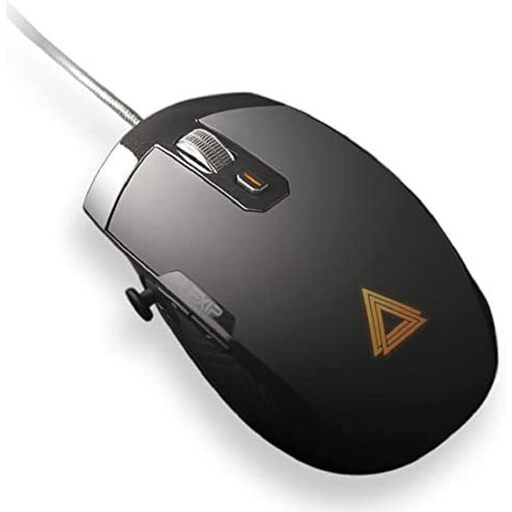
Lexip Gaming Pu94 wired mouse
Consider this wired model if mouse-side navigation and avoiding battery charging are both priorities.
Check whether its described thumb and internal joystick positions suit your grip and the commands you want to assign. Confirm that the wheel behaves as you need for maps and menus.
View on Joybuy
 No image available
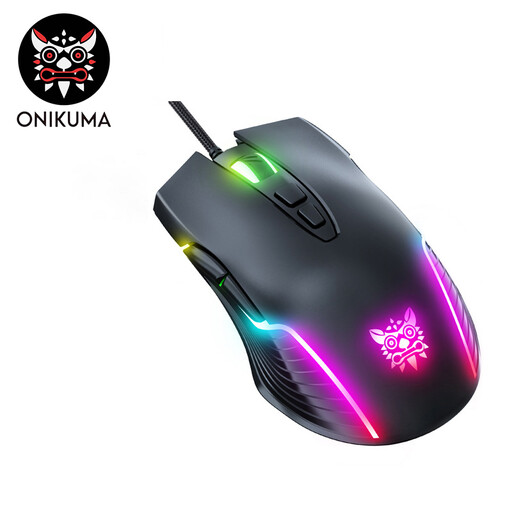
ONIKUMA CW905 wired gaming mouse
This wired choice is relevant if you want assignable controls without a mouse-charging routine.
Check that the described thumb controls are reachable in your usual grip, and confirm whether its wheel suits the way you navigate maps and menus.
View on Joybuy
 No image available
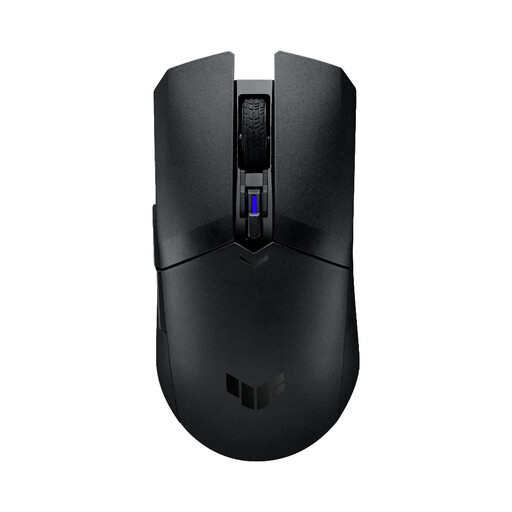
ASUS TUF Gaming M4 Wireless gaming mouse, black
Consider this wireless model if avoiding routine USB charging matters more to you than keeping replacement cells ready.
Check its supported AA or AAA battery arrangement, whether cells are supplied, and the wheel and button layout you would use for game commands.
View on Joybuy
 No image available
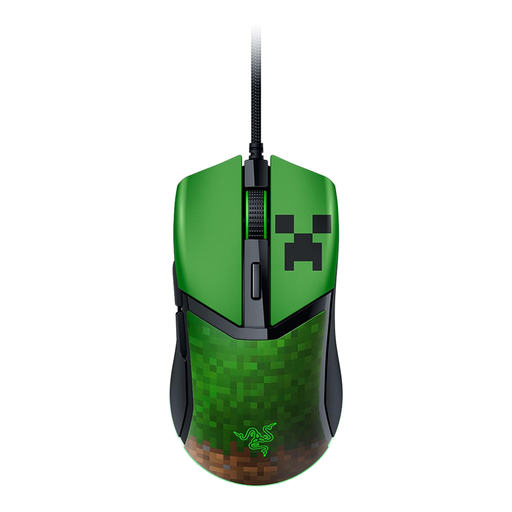
Razer Cobra wired gaming mouse, Minecraft Edition
This wired model suits a charging-free mouse setup if its available controls cover the shortcuts you actually need.
Check the programmable-button count and wheel behaviour before relying on it for several map or interface commands; assess the shape against your grip as well.
View on Joybuy
 No image available
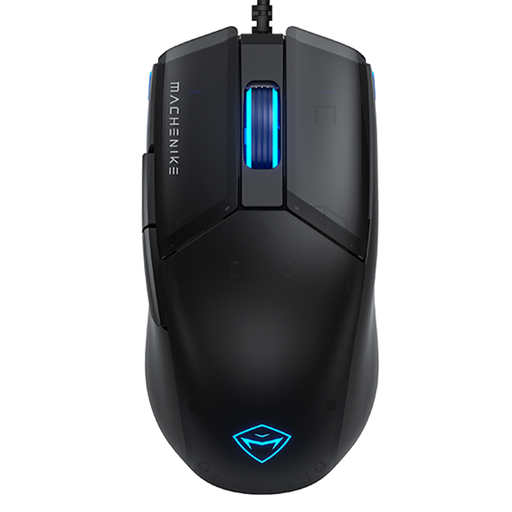
Machenike M7 Pro wired mouse, black
Consider this wired model if avoiding mouse charging is your starting point and you want to assign some commands to the mouse.
Before choosing it for shortcut-heavy play, check how many controls you can reach comfortably and whether the wheel suits your navigation habits.
View on Joybuy
Common questions
Does a wired gaming mouse need its own wall socket?
A wired USB mouse connects to a suitable computer USB port rather than needing a separate mouse-battery charger. Check that you have an available connection and that the cable will work comfortably on your desk.
Should I choose rechargeable or replaceable-battery wireless?
Choose rechargeable wireless if you can fit charging into your existing USB setup; choose replaceable-battery wireless if avoiding routine cable charging matters more. For either option, check the power source and the conditions behind battery-life claims. SteelSeries says Rival 3 Wireless lighting and polling settings affect battery use.
How many mouse buttons do I need for grand strategy games?
Choose enough reachable controls for the commands you use repeatedly, rather than buying by button count alone. Plan a small set of map or interface bindings first, and check that the model’s software supports the assignments you want.
What should I check before charging a wireless mouse from the mains?
Check the mouse maker’s charging instructions and confirm that the cable, charger and any separate dock are suitable together. A computer USB port may provide another charging option where the mouse instructions permit it; do not assume an unverified mains adaptor is suitable.


