Shortcut-heavy map creators
If you repeatedly switch tools, brushes, layers or object actions, thumb-access buttons may be useful. Check whether you can reach and remember the assignments before choosing a dense grid.


Choose a gaming mouse for map creation by counting the editor commands you want within thumb reach, then checking the shape, weight and wheel against the way you work at your desk. A conventional multi-button mouse avoids the learning curve of a dense thumb grid; a 12-button-side-panel mouse makes more sense when you regularly use enough tools or macros to justify that layout, provided you can reach its controls without changing your grip.
If you repeatedly switch tools, brushes, layers or object actions, thumb-access buttons may be useful. Check whether you can reach and remember the assignments before choosing a dense grid.
If your work involves careful pointer placement and frequent canvas or list navigation, focus on controllable settings, wheel behaviour and a manageable number of shortcuts rather than button count alone.
If you spend extended periods editing at a desk, assess the mouse as part of the whole workstation. The Health and Safety Executive advises keeping the mouse in line with the elbow and taking short, frequent breaks.
Decide how many commands need their own buttons before comparing mouse layouts; then assess pointer control, hand fit and the connection you want at your desk.
Choose when: You want several remappable controls and scrolling options without learning a full thumb grid.
Trade-off: Fewer thumb-access commands may leave more of your shortcut scheme on the keyboard.
Choose when: You repeatedly use a large set of editor tools or macros and are willing to learn their button positions.
Trade-off: The denser panel demands comfortable thumb reach and care over accidental presses.
| Concern | What to check | Who this matters to |
|---|---|---|
| Repeated commands | Count your regularly used actions; check button placement and whether the required software can assign those actions. | If I switch tools and layers constantly, I want the commands I use most within comfortable thumb reach. Around 33% of consumers would put shortcut access first. |
| Pointer control and navigation | Check adjustable pointer settings, stated weight and wheel behaviour on the particular model; maximum DPI alone does not settle the choice. | When placing objects and moving around a canvas, I need control without making navigation awkward. About 25% of consumers would make this their primary concern. |
| Long-session comfort | Assess grip and button reach at your desk. The Health and Safety Executive advises positioning the mouse in line with the elbow and taking short, frequent breaks. | For a long editing session, I need a setup that lets me work without stretching to reach the mouse. Roughly 25% of consumers would prioritise workstation comfort. |
| Desk and connection setup | Choose the connection modes you need; consider cable routing or, for wireless use, charging and the conditions on battery claims. | If my desk arrangement makes a cable inconvenient, I want a connection and charging routine that fits it. Around 17% of consumers would put desk setup first. |
A large DPI figure does not tell you whether the mouse shape, wheel and button positions will suit map editing.
Check that you can set a controllable sensitivity and reach the commands you actually use.
A thumb grid is useful only when its buttons match recurring actions and remain reachable without disrupting your grip.
List your frequent commands before deciding whether a moderate-button layout or a dense side panel makes more sense.
The Health and Safety Executive treats mouse placement and breaks as parts of display-screen work; a contoured mouse does not replace them.
Keep the mouse close enough to avoid twisting, adjust the desk setup and take short, frequent breaks or change activity.
Corsair states battery conditions with RGB lighting off for the Scimitar Elite Wireless SE, so a quoted figure may not describe every setup.
Check the connection mode, lighting conditions and charging method before deciding whether wireless use fits your routine.
Recharging also takes time and can interrupt a session if it has not been planned.
These product lines illustrate different control layouts; judge the particular mouse and its fit rather than treating a brand name as a shortcut to the decision.
The wired G502 X illustrates a conventional mouse with controls for users who want shortcuts and wheel options without a thumb grid.
The Basilisk and Naga lines illustrate conventional multi-button and MMO-style approaches respectively.
The wired Rival 5 is a moderate-button alternative for editors who do not need a full MMO grid.
The Scimitar Elite Wireless SE represents a dense side-panel option for repeated editor commands.
These wireless gaming mice offer different ways to set up shortcuts and pointer controls for map editing. Compare their stated controls and connection options with your own commands, software and desk arrangement.
 No image available
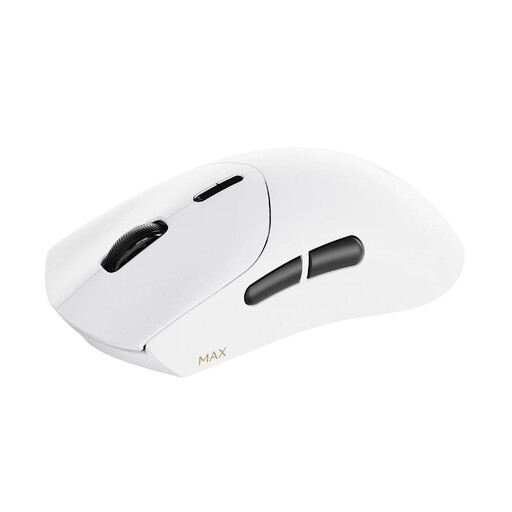
Consider this model if connection flexibility matters alongside assigning commands for map editing.
Its product title specifies a PAW3311 sensor, 24,000 DPI and Bluetooth, 2.4G and USB-C modes. Check the usable programmable-button count, driver compatibility and wheel behaviour before relying on it for your editor workflow.
 No image available
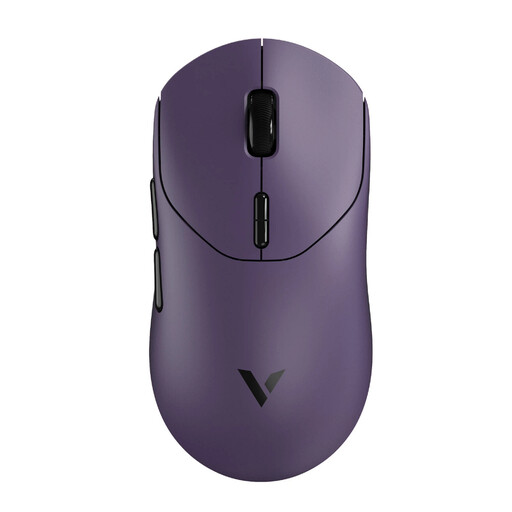
Consider its stated button capacity if you want several map-editor shortcuts without choosing a 12-button thumb grid.
The product title lists 10 programmable buttons, macro support and a weight of 53 g. Check that the remapping driver works with your computer and editor, and assess wheel behaviour and hand fit.
 No image available
This is another wireless option to assess when you want to assign a set of recurring editing commands to mouse buttons.
The product title lists 10 programmable buttons, macro support and a weight of 53 g. Confirm driver compatibility for your editor, then check the wheel and button reach against your workflow.
 No image available
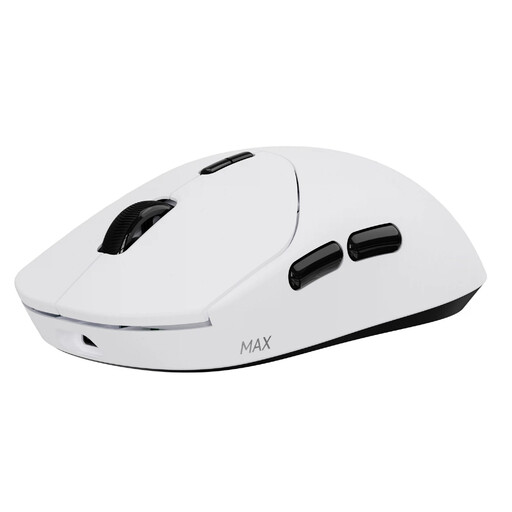
Consider this VT2 MAX variant if you want wireless operation and enough stated buttons for several repeated map-editor actions.
The product title lists 10 programmable buttons, macro support and a weight of 53 g. Check software compatibility, wheel behaviour and hand fit rather than assuming that its stated weight settles the choice.
Start with the commands you repeat often enough to want them on the mouse. A moderate-button layout may cover tool switching and navigation; a thumb grid is worth considering when you regularly use a larger set of actions or macros and can reach its buttons comfortably. Check that your required software can assign those commands.
Do not rely on the mouse alone to address discomfort. The Health and Safety Executive advises arranging the workstation so the mouse is in line with the elbow and taking short, frequent breaks; assess grip and reach as part of that setup.
Check the connection modes you will use, receiver placement, charging method and conditions attached to any battery claim. For the Scimitar Elite Wireless SE, Corsair specifies 2.4 GHz, Bluetooth and USB operation and quotes battery conditions with RGB lighting off.
For many UK online purchases, GOV.UK explains that consumers can notify the seller within 14 days of receiving an item that they wish to cancel, subject to applicable conditions and exceptions. A mouse that is faulty or misdescribed raises a separate question about remedies; check the seller’s return instructions without treating its voluntary policy as a limit on statutory rights.