Shortcut-heavy map creators
If you repeatedly place objects, change tools or switch layers, accessible thumb controls may put frequently used editor commands within reach. Count the commands you would assign before choosing a button layout.


Choose a gaming mouse for large-screen map editing by the controls you will actually assign, the sensitivity and scrolling you can adjust, and a shape that suits your grip at your desk. A dense button grid is worth considering for many repeated commands; if you mainly select, drag and navigate, accessible controls and comfortable pointer movement matter more than the highest advertised DPI.
If you repeatedly place objects, change tools or switch layers, accessible thumb controls may put frequently used editor commands within reach. Count the commands you would assign before choosing a button layout.
Extended selecting, dragging and zooming make hand fit and desk arrangement important alongside mouse features. Consider where the mouse sits in relation to your screen and keyboard.
A broad map canvas and surrounding panels call for pointer settings and scrolling that you can control without obstructing movement across your desk.
For map creation on a large screen, decide which part of editing most needs attention: repeated shortcuts, long-session fit, canvas navigation or desk connectivity. Then check the mouse in the editor and workstation where you will use it.
| Concern | What to check | Who this matters to |
|---|---|---|
| Shortcut layout | Count your repeat editor commands and check whether the buttons are distinguishable by touch. Confirm that the mouse software and editor allow the assignments you want. | If I switch tools and layers repeatedly, I want commands near my thumb without pressing the wrong button; around 36% of consumers put shortcut capacity first. |
| Long-session fit | Check handedness, grip and button placement at your usual desk. Keep the mouse within easy reach as part of the wider workstation setup. | When I spend hours placing and adjusting objects, I need a shape and desk position that feel workable throughout the session; roughly 29% of consumers prioritise long-session fit. |
| Canvas navigation | Try adjustable sensitivity in your map editor and check whether the wheel behaviour suits your zooming and panel navigation. | If I move between a wide canvas and tool panels, I want to cross the screen without losing control of fine placement; around 21% of consumers make navigation their primary concern. |
| Connection and desk space | Check the exact model's wired and wireless modes, receiver needs and charging arrangement. | At a crowded desk or when switching devices, I want a connection that fits the space without inconvenient cable or charging arrangements; roughly 14% of consumers put desk flexibility first. |
A sensor's maximum dots-per-inch (DPI) setting does not tell you which sensitivity will let you both cross the canvas and place objects precisely.
Try adjustable sensitivity settings in your actual editor and choose one that works for both broad movements and small corrections.
Extra controls offer little practical value if you cannot distinguish them reliably or have no repeat commands to put on them.
List your frequent commands, then check the button layout and remapping software. Check your game or editor's rules before relying on multi-step macros.
Mouse shape alone cannot address awkward reaching or poor screen and desk placement. The Health and Safety Executive identifies fatigue and upper-limb problems among the possible issues associated with prolonged or improper display-screen-equipment use.
Assess the mouse at your normal desk, within easy reach, and adjust chair, screen and keyboard placement as needed.
Connection modes, battery-use conditions and charging arrangements vary by model; an advertised battery figure may apply only under particular settings.
Check the exact model's receiver, cable, compatible charging accessories and the conditions attached to its battery claims.
A dock or accessory needed for a particular charging or polling setup may not be included with the mouse.
The G502 X models are relevant if you want configurable controls and a choice of wired or wireless setups.
Basilisk models offer a right-handed shape and multiple controls; the Naga V3 Pro offers a different, swappable-side-plate approach.
The SCIMITAR ELITE WIRELESS SE is a command-heavy option for editors prepared to use a large side-button layout.
Aerox 5 Wireless is relevant to buyers considering a moderate number of programmable controls and software-based adjustment.
These wired and wireless mice offer different starting points for shortcut use, sensitivity adjustment and desk layout. Check the exact control layout and hand fit against your map-editing routine.
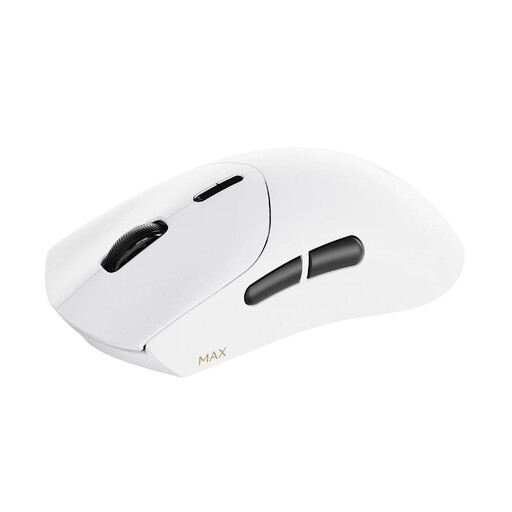 No image available
Consider this model if you want several accessible controls for repeated editor commands and a wireless desk setup. Its title specifies 10 programmable buttons and a 53 g weight; check the button positions and wheel behaviour against your editing habits.
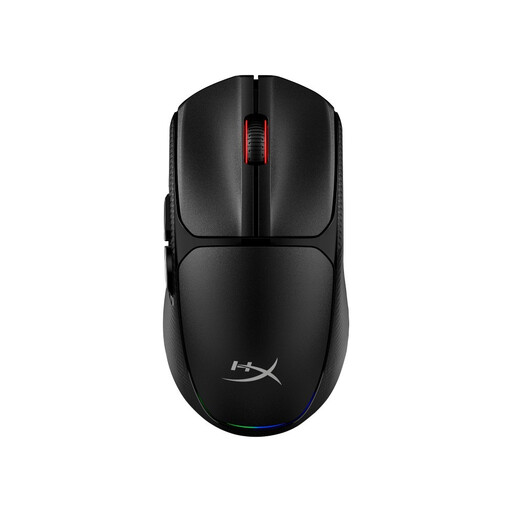 No image available
A wireless option to consider if keeping the mouse cable off your editing desk is a priority. Check its button layout, sensitivity controls and wheel behaviour if you plan to assign editor shortcuts or navigate long panels.
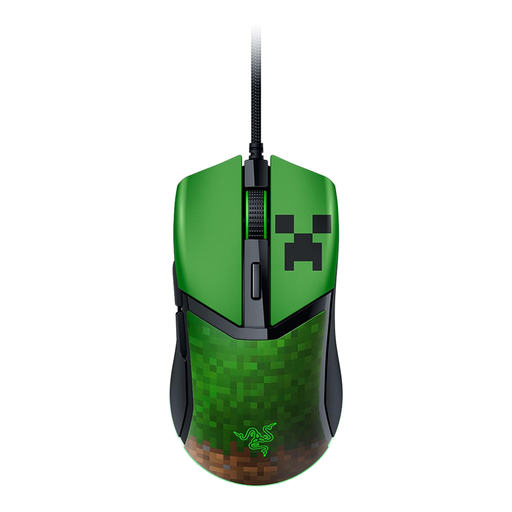 No image available
Consider this wired variant if you prefer a permanently connected editing desk. If handling weight affects your choice, confirm the exact variant's specification before relying on a weight figure; also check that its controls suit your editor commands.
 No image available
Its titled Bluetooth, 2.4G and USB-C modes make it worth considering if connection choice matters at your desk. The title also specifies a PAW3311 sensor and up to 24000 DPI; choose a usable sensitivity in your editor rather than judging by the maximum. Confirm the exact weight and wheel behaviour before relying on either for handling or navigation.
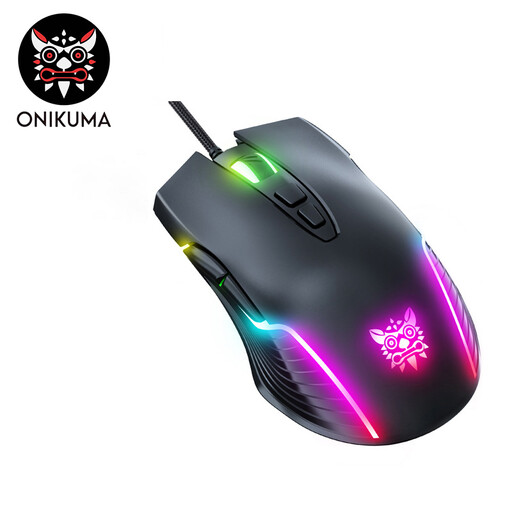 No image available
A wired option to assess if you want adjustable controls for a small set of editor actions. Check the exact button assignments, sensitivity levels and wheel behaviour before deciding whether they cover your map-editing routine.
No: adjustable sensitivity is more useful than a high maximum DPI figure on its own. Try settings in your actual editor until you can cross the canvas and still make controlled small movements; a manufacturer's maximum is not a recommended editing setting.
Choose enough distinguishable buttons for the commands you repeatedly use, rather than starting with the largest available count. A dense side-button layout is more relevant if you will consistently assign many commands; confirm that your editor and game permit any macros you intend to use.
Keep the mouse within comfortable reach and consider chair, desk, keyboard and screen placement together. The Health and Safety Executive advises attention to posture when using display-screen equipment; take breaks and reassess the setup if repeated reaching or an awkward position develops.
For most eligible online goods orders, the UK Consumer Contracts Regulations 2013 provide a cancellation period ending 14 days after the day you or someone you nominate receives the goods; exceptions apply. Check the seller's cancellation instructions and requirements for handling and returning the mouse. Remedies for faulty goods are separate from a change-of-mind cancellation.
Check an electrical-waste collection or retailer take-back route rather than treating the mouse as ordinary household rubbish. GOV.UK describes in-store take-back requirements for very small electrical items at retailers with electrical sales areas over 400 square metres, subject to the applicable conditions; check what your retailer or local authority accepts.