Choose a wireless gaming mouse with enough reachable controls for the transport-simulation commands you use regularly, rather than choosing by button count or sensor figures alone. Bluetooth can leave a USB port free if your computer supports it; a receiver uses a port, and either arrangement still needs a workable charging plan. Check the shape and button layout as carefully as the connection options.
Who needs which controls?
Players who use frequent shortcuts
If you regularly change game speed, move the camera or open menus, programmable mouse controls may put a few repeat actions closer to hand. The Transport Fever 2 Wiki documents hotkeys for speed, menus and overlays; you need not move every shortcut off the keyboard.
Players with scarce sockets or USB ports
Wireless play avoids a mouse cable across the desk, but charging still needs a power source. If USB ports are scarce too, check whether both your computer and chosen mouse support Bluetooth before relying on it instead of a receiver.
Players planning long sessions
For extended map navigation, consider handedness, grip, weight and whether your thumb can reach the controls comfortably. A larger button array is useful only if its layout works for your hand and the commands you intend to assign.
What matters when choosing?
Start with the shortcuts you actually repeat, then check which connection and charging arrangement fits your desk. Treat shape and button reach as part of that decision, not an afterthought.
| Concern |
What to check |
Who this matters to |
| Recurring commands |
Count the controls you would assign and check their positions and configuration options. |
If I keep reaching for speed controls or menus, I want a few familiar commands under my mouse hand. Around 39% of consumers put shortcut access first. |
| Sockets and ports |
Check computer Bluetooth support, receiver requirements and how the mouse charges. |
With few free USB ports, I want to know whether wireless play will occupy one and where I can recharge. For around 38% of consumers, connection and power arrangements are the primary concern. |
| Long-session control |
Check handedness, grip, weight and whether side buttons fall within comfortable reach. |
During long planning sessions, I would rather reach each button reliably than have more buttons than I can comfortably use. Comfort comes first for around 23% of consumers. |
Buying pitfalls
-
Assuming wireless means no charging plan
A battery-powered mouse frees you from a mouse cable during play, not from recharging. CORSAIR instructs owners of the SCIMITAR ELITE WIRELESS SE to connect it to a PC USB port for charging; Razer lists the Basilisk V3 Pro charging dock and puck as optional accessories.
Identify an available powered USB port or suitable charger, check the cable connection and confirm whether any dock you want comes with the exact product.
-
Choosing the largest button array without a binding plan
The Transport Fever 2 Wiki lists many hotkeys, but that does not mean every command needs its own mouse button. A dense side panel also takes time to learn and may not suit every thumb position.
List the actions you repeat most, then choose a layout you can distinguish and reach reliably.
-
Reading maximum battery life as everyday runtime
Published figures depend on test conditions. CORSAIR specifies its SCIMITAR ELITE WIRELESS SE battery maximums with RGB lighting off, while Razer’s Basilisk V3 Pro figures vary by connection and polling conditions.
Compare claims under the stated settings, particularly the connection mode and lighting you expect to use.
-
Assuming an ergonomic label guarantees a fit
Right-handed shapes and adjustable button panels still differ in size and reach. Neither feature establishes that a mouse will feel comfortable in your hand.
Check handedness, dimensions, weight and your preferred grip, especially before choosing a large side-button array.
Brands to consider
Logitech G
A reference point for wireless play with a moderate set of configurable controls: Logitech G lists 13 fully customisable controls for the G502 X LIGHTSPEED.
- The stated control count allows a shortlist of repeat commands without requiring a 12-button thumb grid.
- Check the G502 X LIGHTSPEED shape and button positions for your own hand; control count does not establish reach.
Razer
The right-handed Basilisk V3 Pro is relevant if you want Bluetooth and 2.4 GHz wireless options alongside 11 programmable buttons.
- Razer also specifies wired USB-C connectivity and a configurable tilt scroll wheel for this model.
- Check its stated battery conditions and do not assume the optional charging dock or puck is included.
CORSAIR
The SCIMITAR ELITE WIRELESS SE suits consideration when a dense shortcut layout is a priority: CORSAIR specifies 16 customisable buttons, including an adjustable 12-button side panel.
- Bluetooth and 2.4 GHz wireless provide a choice of connection for compatible setups.
- The side panel takes configuration and a thumb-reach check; CORSAIR’s battery maximums for this model specify RGB lighting off.
Joybuy product choices
These wireless gaming mice offer different approaches to the socket-constrained setup: some specify Bluetooth alongside receiver use, while others call for closer attention to the controls and USB ports your setup needs. Compare each exact model with your shortcut list and charging arrangement.
 No image available
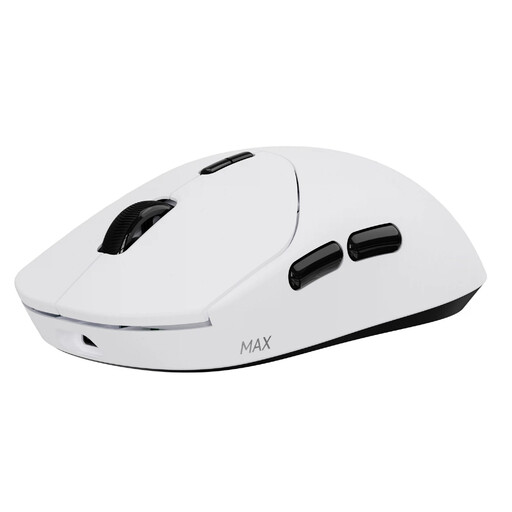
RAPOO VT2 MAX Wireless Gaming Mouse, White
Consider this model if you want to assign a defined set of repeat simulation commands rather than use a dense thumb grid.
The product name specifies 10 programmable buttons, a 53 g weight and an advertised battery maximum of up to 750 hours. Check the conditions for that runtime claim, and confirm Bluetooth support if keeping a USB port free is essential.
View on Joybuy
 No image available
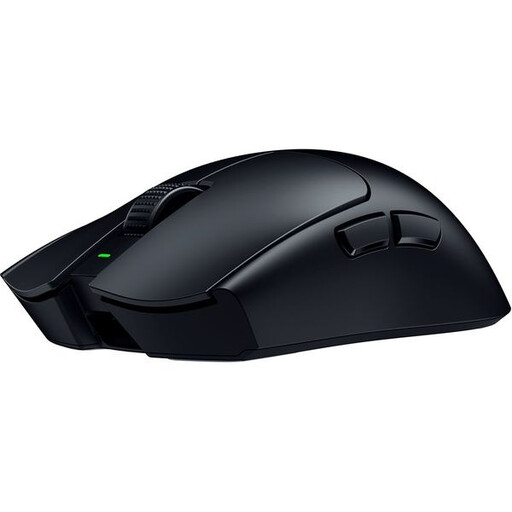
Razer Viper V3 Pro Wireless Gaming Mouse, Black
This is an option to assess if you prefer a lighter mouse and need only a modest selection of mapped actions; check its control layout against your shortcut list.
The product name specifies 54 g, a Focus Pro 35K Sensor Gen-2 and HyperPolling 8KHz. Check the connection and charging arrangements before relying on it in a setup with few free USB ports.
View on Joybuy
 No image available
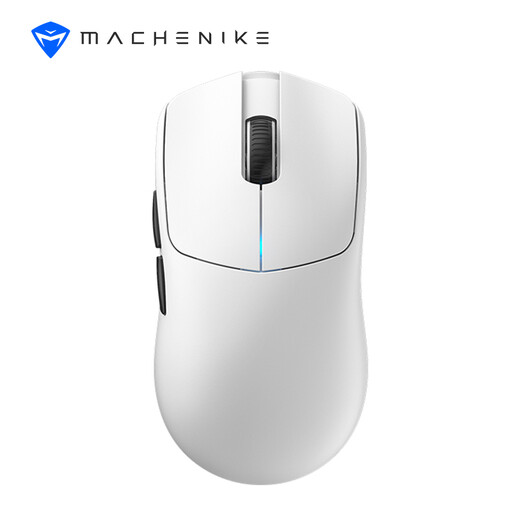
MACHENIKE L9X1 Advanced Wireless Mouse
Consider its connection choices if you sometimes need to leave a USB port available. Confirm that its button layout covers the commands you plan to map.
The product name specifies Bluetooth, 2.4G and wired modes, plus a 49 g weight. Check how the exact mouse charges before deciding where it will fit in your setup.
View on Joybuy
 No image available
AJAZZ AJ200 AI MC Wireless Gaming Mouse with Charging Dock
The included-in-title dock makes its charging arrangement worth examining if desk cables are a concern, but check how the dock itself receives power.
The product name specifies Bluetooth, 2.4G and USB-C modes. Confirm the programmable-control layout and the exact variant’s weight before choosing it for long sessions.
View on Joybuy
 No image available
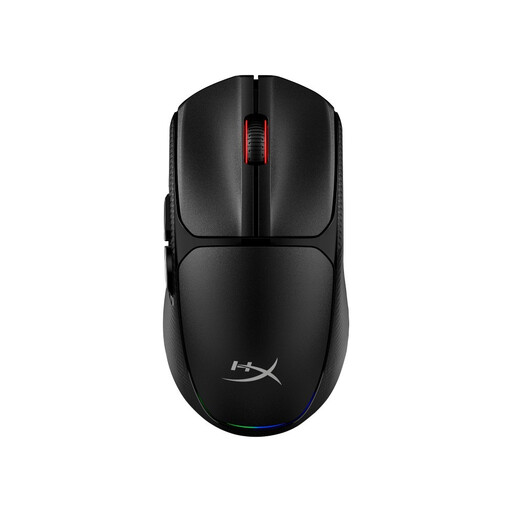
HyperX Pulsefire Fuse Wireless Gaming Mouse
Consider this wireless option only after checking whether its available controls and connection suit your recurring commands and scarce ports.
Confirm the programmable-button count, charging arrangement and battery conditions on the exact product page before deciding.
View on Joybuy
Frequently asked questions
Will a wireless mouse solve a shortage of wall sockets?
It can avoid using a wall socket for the mouse while you play, but the mouse still needs recharging. CORSAIR’s instructions for the SCIMITAR ELITE WIRELESS SE specify charging through an available PC USB port, so check where your chosen model will draw power.
Can Bluetooth leave a USB port free?
Yes, when both the mouse and computer support Bluetooth. Razer lists it for the Basilisk V3 Pro, and CORSAIR lists it for the SCIMITAR ELITE WIRELESS SE; check the exact model rather than assuming every wireless mouse offers it.
How many mouse controls do transport simulations need?
Choose enough reachable controls for the actions you repeat, not for every available hotkey. The Transport Fever 2 Wiki documents speed, menu and overlay shortcuts; a dense side-button array is worth considering only if you intend to configure and use it.
What should I do with a rechargeable mouse at the end of its life?
Use an appropriate electrical-waste or battery-recycling route for the mouse and its battery. GOV.UK warns that some lithium-ion batteries can catch fire if discarded in ordinary rubbish.


