For squad-survival matches in a bright room, start with screen finish, stated typical SDR brightness and a position that limits reflections. A QHD IPS monitor around 180Hz is a practical route if your source can use that mode; consider a higher refresh rate for high-frame-rate competitive play, or OLED when its stated response time and reflection treatment suit your setup. Neither a refresh-rate figure nor an HDR label settles the bright-room question on its own.
Who is this for?
Bright-room squad players
If daylight or room lighting makes darker areas and squad information difficult to follow, compare typical SDR brightness and the stated screen finish. Check whether you can angle the display away from windows and lamps before prioritising refresh rate.
Competitive motion-first players
If rapid target tracking is the priority and your PC can sustain high frame rates, compare refresh rate, the conditions attached to response-time figures and adaptive-sync support. A headline response-time number is not a complete motion test.
QHD balance seekers
If you want 2560 × 1440 detail alongside a high refresh rate, check the frame rates your hardware can produce in the games you play. Confirm the intended resolution and refresh rate over the port you will actually use.
What matters when choosing?
Decide how the screen will handle your room lighting before choosing between QHD detail and higher refresh rates. Then check the exact input and source combination: Dell UK, for example, specifies QHD up to 144Hz over HDMI but 180Hz over DisplayPort 1.4 for the Alienware AW2725DM.
| Concern |
What to check |
Who this matters to |
| Visibility and reflections |
Compare typical SDR brightness in cd/m², the stated screen finish and where windows or lamps will appear in the panel. |
If light catches the screen during a match, I need terrain and squad information to remain readable without relying on an HDR label. Around 36% of consumers put bright-room visibility first. |
| Motion and variable frame rates |
Check refresh rate at your chosen resolution, the stated response-time mode and compatible variable refresh rate (VRR) support. |
In fast encounters, I want to follow moving targets while my game’s frame rate changes. For around 29% of consumers, motion and sync are the primary concern. |
| QHD and GPU load |
Check your likely in-game frame rate at 2560 × 1440 before choosing a refresh-rate target. |
I want QHD detail, but not a display mode my graphics hardware cannot make useful during play. That balance comes first for around 21% of consumers. |
| Desk and connection fit |
Measure the desk, check stand or mount adjustment, and confirm the required mode on the intended input. |
If I cannot position the panel away from glare or connect my device at the intended mode, the other specifications will not resolve my setup problem. Around 14% of consumers prioritise fit and connections. |
Buying pitfalls
-
Choosing by the HDR label alone
An HDR designation does not tell you everything about everyday brightness or reflections. LG UK lists typical brightness of 400 cd/m² for the IPS 32GS75QN-B, while it separately describes anti-glare and low-reflection treatment for the OLED 27GS95QE-B.
Compare the exact model’s typical SDR brightness and screen finish, then consider where it will sit relative to windows and lamps.
-
Assuming every input reaches the headline refresh rate
Port choice can change the available mode. Dell UK specifies QHD up to 144Hz over HDMI and QHD 180Hz over DisplayPort 1.4 for the Alienware AW2725DM.
Check the monitor’s input-by-input modes against your graphics card or console and the cable you intend to use.
-
Reading response time as a complete motion test
Figures such as 1ms GtG describe a manufacturer-stated measurement condition, not every aspect of motion across refresh rates.
Use the figure to identify models worth examining, then check their refresh modes, VRR compatibility and exact-model motion testing where available.
-
Overlooking screen position and desk depth
A large panel may be difficult to place at a comfortable distance or angle away from a light source. LG UK specifies a 31.5-inch panel and height, tilt and pivot adjustment for the 32GS75QN-B, but those details cannot establish fit on your desk.
Measure the usable space and check the stand footprint, adjustment range, mounting pattern and monitor weight before choosing a stand or arm setup.
If the supplied stand cannot achieve the position you need, a compatible monitor arm may be required.
Relevant brands to consider
These product lines illustrate different specifications to compare; features vary by model and do not establish how every screen will perform in your room.
LG UltraGear
LG UK lists both QHD IPS and QHD OLED options relevant to this choice.
- The 32GS75QN-B is specified at QHD, 180Hz and 400 cd/m² typical brightness.
- The 27GS95QE-B lists anti-glare and low-reflection treatment and 240Hz; check its own brightness and placement rather than transferring the IPS model’s specification to it.
ASUS ROG
ASUS ROG UK lists QHD Fast IPS models at different refresh rates.
- The XG27ACS-W is specified at 1440p and 180Hz, with a USB-C connection option; the XG27AQMR is specified at QHD and 300Hz.
- Choose between those refresh rates using the modes your PC and intended connection can deliver, not the larger figure alone.
BenQ MOBIUZ
The BenQ UK EX271Q listing provides a 27-inch QHD route with desk-connection features.
- BenQ specifies 180Hz, AMD FreeSync, USB Type-C and KVM for the EX271Q.
- Its DisplayHDR 400 designation does not replace checking normal-use brightness, reflection handling and the required input mode.
Alienware
The Dell UK AW2725DM listing is a useful reminder to compare modes by connection.
- Dell specifies QHD, a Fast IPS panel and a maximum 180Hz mode over DisplayPort 1.4.
- Dell specifies QHD up to 144Hz over its HDMI inputs, so the intended source and port matter.
Gaming monitors on Joybuy
These models offer OLED, Fast IPS and curved VA options for high-refresh squad play. Compare each one against your room lighting, desk space and source connections; their different sizes and resolutions make the same setup checks important.
 No image available
Samsung Odyssey G6 S27DG612 27-inch QHD OLED, 240Hz
Consider this OLED model if QHD high-refresh play is your priority and you can assess its screen against the light sources in your room.
Its title states a 0.03ms GtG response time; treat that as a stated mode rather than a complete motion result. Check typical SDR brightness and the input mode you plan to use.
Joybuy
 No image available
LG UltraGear 34GX900A-B 34-inch WQHD OLED, 240Hz
Consider this wider OLED format if it suits your preferred game view and available desk space.
Before choosing it for a bright room, check typical SDR brightness and how its surface looks in your intended position. Confirm that your games and source support the mode you want to use.
Joybuy
 No image available
HKC G27H2DPro 27-inch QHD Fast IPS, 220Hz
This is a QHD Fast IPS option for players whose source can make use of a refresh rate above 180Hz.
The title specifies 2560 × 1440. Check the screen finish against your room’s reflections, along with the stand adjustment and refresh mode available through your intended port.
Joybuy
 No image available
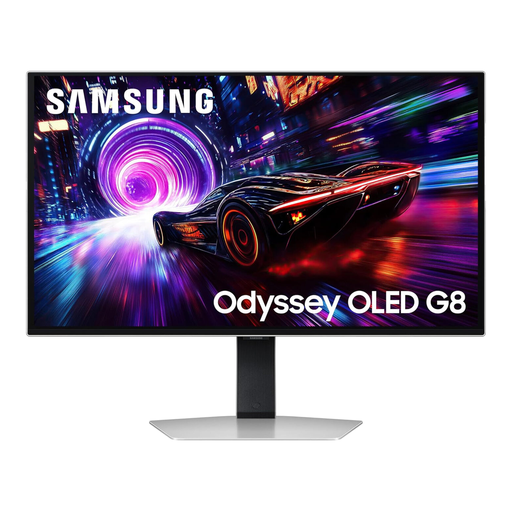
Samsung Odyssey OLED LS32FG810SUXXU 32-inch monitor
Consider the 32-inch format only if it fits your desk and keeps game and squad information within a comfortable field of view.
For bright-room use, check typical SDR brightness and reflection handling. Confirm the resolution and refresh rate available from your source through the intended input.
Joybuy
 No image available
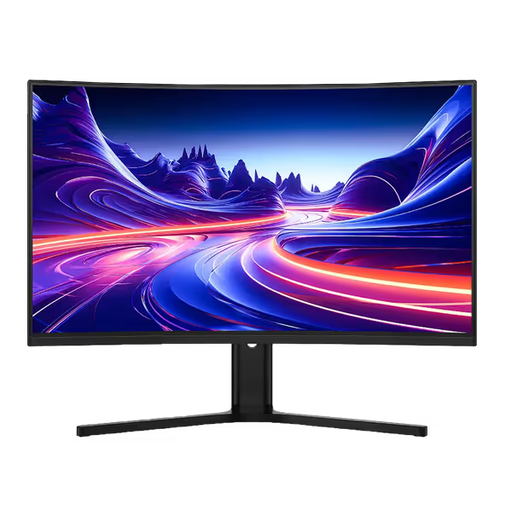
Dahua 32-inch curved QHD VA gaming monitor, 180Hz
This curved QHD model may suit a setup with room for a larger screen, provided its position works with your room lighting.
The title states 2560 × 1440 and 1ms MPRT, as well as HDMI and DisplayPort connections. Check the screen’s reflection handling and adaptive-sync support, and confirm the refresh mode available on the port you will use.
Joybuy
Common questions
Is OLED automatically suited to a bright room?
No. Check the exact OLED monitor’s brightness, surface treatment and position relative to windows or lamps. LG UK specifies anti-glare and low-reflection treatment for the 27GS95QE-B, but that feature alone cannot determine how the screen will look in your room.
Should I choose 180Hz or 300Hz for squad-survival matches?
Choose a 300Hz-capable model if high-frame-rate competitive play is your priority and your PC can feed the mode you intend to use. ASUS ROG UK lists QHD models at both 180Hz and 300Hz; for either one, check your game’s frame rate and the required connection rather than choosing by refresh rate alone.
Will HDMI run a monitor at its advertised maximum refresh rate?
Not necessarily: the limit depends on the exact monitor and input. Dell UK specifies QHD up to 144Hz over HDMI but QHD 180Hz over DisplayPort 1.4 for the Alienware AW2725DM. Check your source, cable and intended port against the model’s supported modes.
What should I check before using a monitor arm?
Check the exact monitor’s mounting pattern and weight against the arm’s rating, then make sure the arm can position the panel away from light sources. LG UK specifies a 100 × 100 mm VESA pattern for the 32GS75QN-B; another model may have different mounting requirements.


