What to check before buying
Start with the device and games you use, then confirm the input mode, resolution and refresh rate you can actually access before choosing panel type or screen format.
| Priority |
What to check |
Your needs |
| Source-device compatibility |
Check the monitor input for the resolution, refresh rate and VRR mode your console or PC can output. For PS5 or Xbox Series X 4K/120Hz use, confirm the HDMI capability and cable path. For a QHD PS5 monitor, use the console’s 1440p output test. |
I want the monitor to accept the modes my device can genuinely send, rather than paying for a headline specification I cannot use. |
| Motion and responsiveness |
Match refresh rate to the frame rate your PC can sustain in the games and settings you use. Check the stated response-time measurement and whether G-SYNC Compatible, FreeSync or Adaptive-Sync support applies to your GPU and connection. |
For competitive play, I care more about a smooth, responsive route at my chosen settings than about maximum 4K pixel density. |
| Image detail and room conditions |
Compare resolution at the intended screen size, panel type, HDR specification and glare handling. Treat OLED and HDR labels as starting points for comparison rather than equivalent picture-performance promises. |
I want detailed games and dark scenes to look right in my room, while keeping the screen size practical for my desk distance. |
| Format and static use |
Check whether your PC games support 21:9 or 32:9 before choosing an ultrawide. If you use persistent HUDs, desktop applications or text for long sessions, compare the written OLED-care and burn-in warranty terms for the exact model. |
I want a wider game canvas or more desktop space, but I also need a format and panel type that fit how I use the screen outside games. |
Joybuy product options
Joybuy monitor options for PC players balancing 4K detail, high-refresh competitive modes, console-oriented inputs and ultrawide desktop gaming.
 No image available
LG UltraGear G8 27G850A 27-inch 4K Dual-Mode Monitor
A PC-focused option for alternating between detail-led games and esports-style play.
Listed specifications include Nano IPS Black, 4K at 240Hz or Full HD at 480Hz, 1ms GtG, DisplayHDR 600, AMD FreeSync Premium Pro, DisplayPort 2.1 and HDMI 2.1.
Confirm the current manual and console video-output test for input-specific PS5 or Xbox modes and VRR behaviour. Your PC must support the selected resolution and frame rate.
Joybuy
 No image available
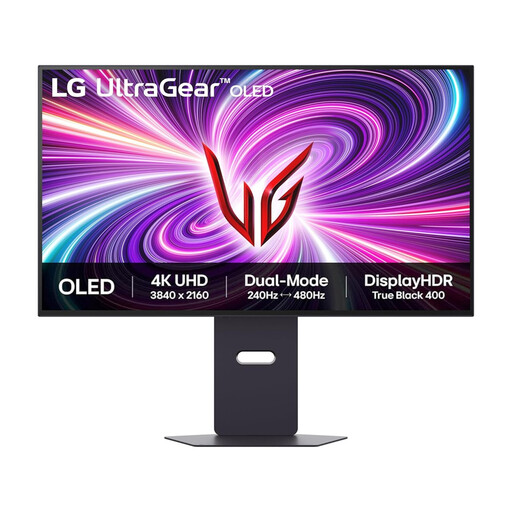
LG UltraGear OLED 32GS95UV-B 32-inch 4K Dual-Mode Monitor
Designed for a PC setup that moves between detailed 4K gaming and a lower-resolution competitive mode.
The listing states an OLED panel, 4K at 240Hz or Full HD at 480Hz, 0.03ms response time, HDMI 2.1, DisplayPort, G-SYNC Compatible and FreeSync Premium Pro support.
OLED static-content and image-retention considerations apply. Verify desired console refresh-rate and VRR modes with a direct HDMI connection before purchase.
Joybuy
 No image available
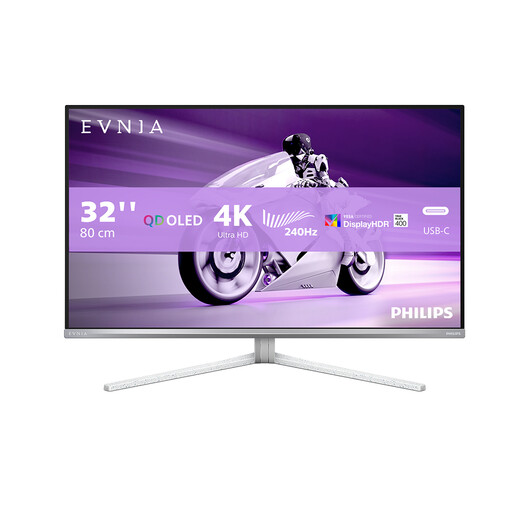
Philips Evnia 32M2N8900 32-inch 4K OLED Monitor
A 4K PC-gaming option for a multi-device desk setup needing high-refresh capability and several connections.
Listed specifications include a 3840×2160 OLED panel, 240Hz, 0.03ms response time, HDR400, two HDMI 2.1 ports, DisplayPort 1.4, USB-C power delivery and a USB hub.
Consider OLED static-content use before choosing it for long desktop or productivity sessions. Confirm exact PS5 or Xbox 4K/120Hz and VRR behaviour for the game you play.
Joybuy
 No image available
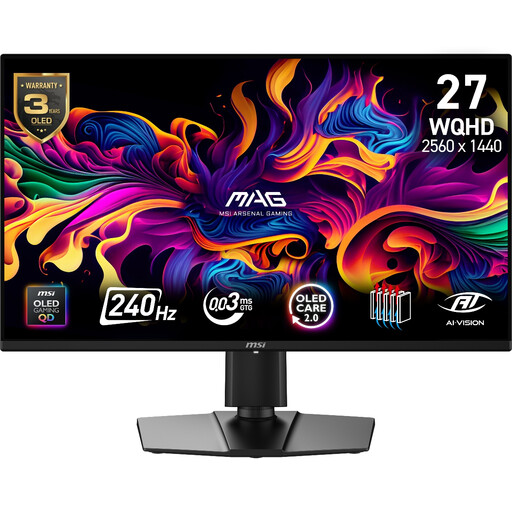
MAG 274QP QD-OLED X24 27-inch QHD 240Hz Monitor
A QHD option for competitive PC play and console users specifically seeking stated 1440p 120Hz support.
The listing states a 2560×1440 QD-OLED panel, 240Hz, 0.03ms GtG, Adaptive-Sync, two HDMI 2.1 ports, and PS5 and Xbox VRR with 1080p or 1440p 120Hz console modes.
It is a QHD rather than 4K route. Review the written warranty conditions and OLED-care settings if long static-content sessions are part of your use.
Joybuy
 No image available
Acer Predator X49X 49-inch 32:9 QD-OLED Ultrawide Monitor
A desk-based PC ultrawide route for players who have checked 32:9 support in the games they play.
Listed specifications include a 49-inch curved 5120×1440 QD-OLED panel, 240Hz, 0.03ms response time, AMD FreeSync Premium, HDMI 2.1, DisplayPort, USB-C, KVM and picture-in-picture or picture-by-picture modes.
The 32:9 format is principally for PC use; check each game rather than assuming wider support. Console-first buyers should confirm supported 16:9 modes and VRR behaviour.
Joybuy
Frequently asked questions
Do I need HDMI 2.1 for PS5 or Xbox Series X gaming at 4K and 120Hz?
For the relevant 4K/120Hz console route, verify HDMI 2.1 capability on the display and use a suitable cable. PlayStation states that PS5 supports HDMI 2.1 and can enable 120Hz output for supported games and displays; Xbox Support states that the Series X supplied Ultra High Speed HDMI cable supports HDMI 2.1 features including 4K gaming at 120Hz.
Will a 240Hz or 360Hz monitor make my PS5 run games at 240Hz or 360Hz?
No. The monitor’s maximum refresh rate is its own capability, not a higher console output mode. PlayStation documentation describes a 120Hz output setting for games and displays that support it, so buy above 120Hz for a PC use case or another supported source-device benefit.
How should I check whether VRR will work with my PC graphics card?
Check both sides of the connection. NVIDIA says G-SYNC requires a G-SYNC or G-SYNC Compatible display, while AMD describes FreeSync as synchronising a compatible Radeon graphics card and display over supported HDMI or DisplayPort connections. Set the monitor to its intended refresh rate and enable the feature in your graphics-control software.
Can a PS5 use a 1440p monitor?
Yes, where the monitor supports the relevant output. PlayStation provides a PS5 1440p output test for SDR and HDR at 60Hz or 120Hz, plus VRR. Set the console to 1440p, run the test and check results for the specific display and game.
Is OLED suitable if I leave desktop apps or HUDs on screen for long periods?
It can suit mixed use, but the trade-off needs attention. TFTCentral notes OLED’s dynamic gaming and per-pixel dimming strengths while identifying static-content text rendering and image retention or burn-in as important considerations. Review OLED-care functions and the written burn-in warranty for the exact UK model.


