Choose a monitor around the games and device you actually use: a compact, high-refresh screen can suit PC play focused on frame rates, while console buyers should check which resolution, refresh rate and variable refresh rate (VRR) modes work through the monitor’s HDMI input. Compare connection-specific specifications and motion behaviour before prioritising more resolution or refresh rate; a curved ultrawide is a format choice that also depends on your games, desk space and PC.
Who this guide is for
Competitive PC players
If you prioritise motion and achievable frame rates over screen size, compare the refresh mode available through your chosen connection and look beyond a single response-time figure. TFTCentral explains why response behaviour and overshoot need to be considered across settings.
Fast-game console players
Check that the monitor’s HDMI modes match the console and games you use, rather than relying on a headline refresh rate intended for a PC connection. PlayStation’s 1440p output test, for example, checks 60 Hz, 120 Hz and VRR modes.
Mixed-game PC players
If you want fast play as well as image detail, weigh resolution, adaptive sync, panel characteristics and available desk space against the frame rates your PC can deliver in your games.
What to check before buying
| Concern |
What to check when buying |
Who this matters to |
| Motion clarity and usable refresh rate |
Check your PC’s achievable frame rate, the refresh rate available through your intended input, and measured response behaviour or overshoot where available. |
If fast movement is your priority, you’ll want a refresh mode your PC can actually use and motion performance that goes beyond one advertised response figure; around 28% of consumers put motion first. |
| Console and monitor connection |
Match the console and game to the monitor’s HDMI resolution, refresh modes and supported VRR features. |
If you mainly play on a console, you’ll want its intended output to work through the monitor’s HDMI input; around 22% of consumers put console compatibility first. |
| Smoothness as PC frame rates vary |
Check VRR compatibility between the graphics output, monitor and selected input, including the supported range and response behaviour. |
If your PC games run at varying frame rates, you’ll want compatible variable refresh rather than relying on a feature label alone; around 22% of consumers prioritise this kind of smoothness. |
| Resolution and screen size |
Compare resolution and physical screen size with the frame rates your PC achieves in the games you play. |
If you play a mix of games and value image detail, you’ll want a resolution your PC can drive at a suitable frame rate; around 17% of consumers put detail first. |
| Wide or curved screen format |
Check game aspect-ratio support, screen dimensions and stand fit, as well as the monitor’s input modes. |
If you want a wide gaming view, you’ll need games and desk space that suit the format; around 11% of consumers prioritise a wide screen. |
Buying pitfalls
-
Buying for the headline refresh rate without checking the port
A monitor can have different maximum refresh rates over HDMI and DisplayPort. For example, Dell specifies 320 Hz over DisplayPort and 255 Hz over HDMI for the Alienware AW2525HM.
Match your device, cable and intended input to the exact model’s resolution and refresh-rate specifications before comparing headline figures.
-
Treating one response-time figure as a complete measure of motion
A single response-time figure does not describe every pixel transition or how much overshoot you may see across different settings.
Distinguish GtG from MPRT and look for measured motion behaviour at the refresh rates you plan to use.
-
Assuming PC adaptive sync guarantees console VRR
The monitor, HDMI connection, console and game all need to support the intended mode; a PC feature label does not establish console compatibility.
Check the monitor’s HDMI specifications and the console’s reported output or available display test.
-
Choosing OLED or ultrawide without checking the conditions
A wide display needs suitable space and game support. AOC’s burn-in warranty coverage for the Q27G4ZD is conditional on following its screen-maintenance instructions.
Measure the available space, check game aspect-ratio support, and read the care instructions and warranty terms for the exact model.
Gaming monitor brands to consider
Dell Alienware
The cited models illustrate different routes: compact Full HD Fast IPS and QHD QD-OLED.
- Dell specifies 320 Hz over DisplayPort and 255 Hz over HDMI for the AW2525HM. Its separate AW2725DF model is QHD QD-OLED and rated at 360 Hz.
- Those specifications apply to their respective models; check the exact model and connection rather than applying one model’s figures to another.
AGON by AOC
The Q27G4ZD is a QHD QD-OLED option for shoppers considering refresh rate alongside image detail.
- AOC specifies 280 Hz, Adaptive Sync and HDMI 2.1 for this model.
- AOC makes burn-in warranty coverage conditional on screen maintenance being carried out according to its instructions.
ASUS TUF Gaming
The VG27AQL3A is a 27-inch QHD Fast IPS option with Adaptive-Sync.
- ASUS specifies a maximum 180 Hz for the model.
- ASUS lists 48–144 Hz for HDMI and 48–180 Hz for DisplayPort. Its 1 ms GtG figure is a manufacturer specification, not a measurement across all settings.
Samsung Odyssey
The cited Odyssey OLED G95SD is a 49-inch Dual QHD option for buyers considering a wide screen.
- Samsung specifies a 240 Hz refresh rate for this model.
- Its large format is a screen-size choice, not evidence of an advantage for competitive play. Check the exact version and physical fit rather than generalising across Odyssey G9 models.
MSI
The MPG 271QR QD-OLED X50 illustrates a high-refresh QHD PC option.
- MSI specifies QHD and 500 Hz for this model.
- Check whether your PC and chosen connection can use the advertised mode. MSI’s input-lag and competitive-performance statements are manufacturer claims.
Joybuy gaming monitor choices
These Joybuy listings cover fast PC gaming, variable-frame-rate setups and console use, with QHD and 4K options.
 No image available
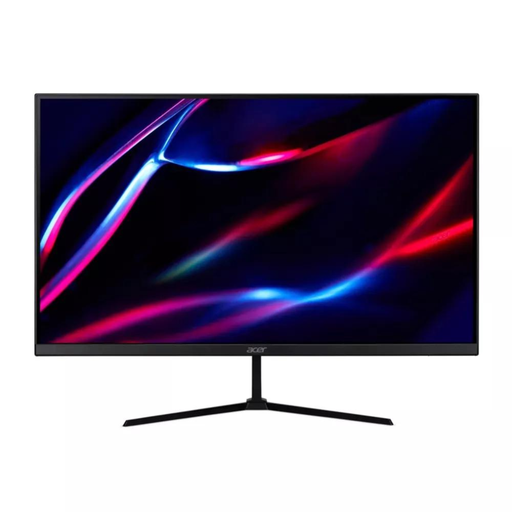
Acer X Predator X27U W3 QD-OLED Gaming Monitor
Consider it for fast PC gaming if you want a QHD QD-OLED display with adaptive-sync support.
The listing specifies 2560 × 1440 resolution, 240 Hz, 0.03 ms response time, HDMI 2.1 and DisplayPort 1.4.
View on Joybuy
 No image available
27-inch QHD IPS 180Hz Gaming Monitor
Consider this option if you want a QHD IPS gaming display for fast-paced play and variable frame rates.
The listing specifies 27 inches, QHD, 180 Hz and FreeSync Premium, with HDMI 2.0 and DisplayPort 1.4. It also lists a tilt-adjustable stand and VESA mounting.
View on Joybuy
 No image available
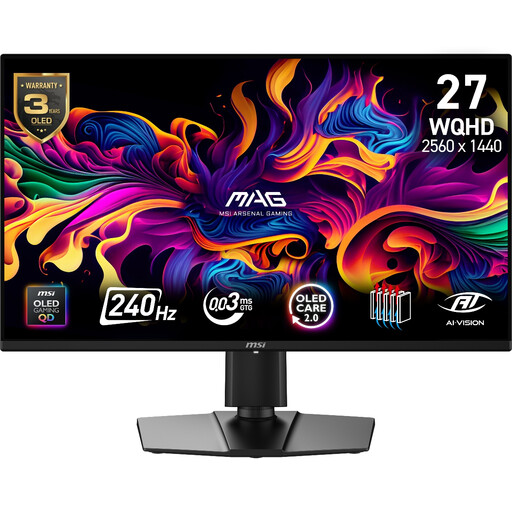
MSI MAG 274QP QD-OLED X24 Gaming Monitor
Consider it for fast-moving games or console play if its listed display modes match your setup.
The listing specifies 27 inches, 2560 × 1440 resolution, 240 Hz and 0.03 ms response time, with Adaptive-Sync and HDMI 2.1. It lists 1080p and 1440p at 120 Hz and console VRR support.
View on Joybuy
 No image available
LG UltraGear G8 27G850A Gaming Monitor
Consider it if you want the listed choice between a higher-resolution mode and a faster Full HD mode.
The listing specifies 4K at 240 Hz and 1080p at 480 Hz, with Nano IPS, DisplayPort 2.1, HDMI 2.1 and AMD FreeSync Premium Pro.
View on Joybuy
 No image available
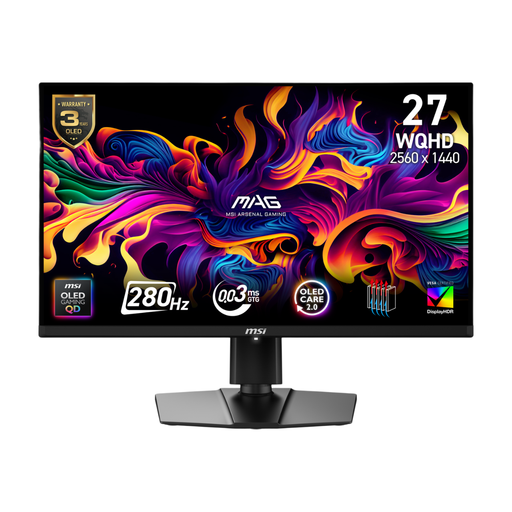
MSI MAG 271QP QD-OLED X28 Gaming Monitor
Consider it for fast-paced PC gaming if you want a QHD QD-OLED display.
The listing specifies 280 Hz and 0.03 ms response time, with DisplayPort 1.4a and HDMI 2.1.
View on Joybuy
Gaming monitor FAQs
Does a PS5 need a monitor advertised above 120 Hz?
No; a monitor advertised above 120 Hz is not required for 120 Hz PS5 output. PlayStation says the display and game must support 120 Hz, and its 1440p test checks 60 Hz, 120 Hz and VRR modes. Check the output reported through your intended HDMI connection.
Why does my PC not offer the monitor’s advertised maximum refresh rate?
Check the selected input, cable and display settings first. Dell specifies different HDMI and DisplayPort maxima for the AW2525HM, and ASUS lists different refresh ranges for HDMI and DisplayPort on the VG27AQL3A.
Does a stated 1 ms response time prove that fast movement will look clear?
No. As TFTCentral’s response-time testing guidance explains, measurement methods and settings matter; pixel-transition results and overshoot across the refresh rates you use provide more context than one advertised figure.
What should I check about OLED care and warranty coverage?
Read the care instructions and written warranty terms for the exact model. AOC says burn-in coverage for the Q27G4ZD depends on carrying out screen maintenance as instructed; that condition should not be assumed to apply to other monitors.


