What matters when choosing?
Start with your PC or console and the mode you want to play in, then match the display’s input and screen format to your setup.
| Concern |
What to check when buying |
Who this matters to |
| Source and input compatibility |
Check the exact resolution, refresh rate and VRR supported on the input you will use. For PS5, PlayStation Support describes a 1440p output test; Xbox Wire advises checking the display’s specific modes and HDMI ports. |
If I need my console or PC to deliver a particular mode through the intended input, I want to confirm that pairing before choosing. Around 36% of consumers put source-and-input compatibility first. |
| Motion and achievable refresh |
Compare the refresh rate on the intended port with the frames your PC and games can deliver; consider independent motion assessments as well as rated response time. |
When fast PC games are my focus, I care most about usable refresh and motion behaviour rather than screen area alone. Around 29% of consumers prioritise fast-game motion. |
| Game detail and shared-desk use |
Compare screen size and native resolution with your game settings and viewing distance; check stand adjustment and the exact OLED warranty terms if relevant. |
If I also use my desk for everyday tasks, I want game detail and screen positioning to work for both uses. Around 21% of consumers prioritise detail and shared-desk use. |
| Immersion and physical fit |
Measure the desk and viewing position, then check the exact model’s dimensions, stand or mounting arrangement, curve and aspect ratio. |
When I want a more immersive viewing area, I need the screen to fit my room and the games I play. Around 14% of consumers prioritise immersion and physical fit. |
Joybuy gaming monitor options
These Joybuy options include QHD gaming monitors for console or PC use, high-refresh models and curved displays for wider desk setups.
 No image available
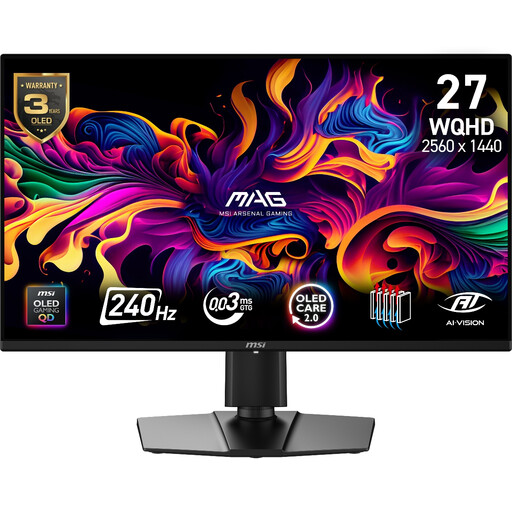
MAG 274QP QD-OLED X24 27-inch QD-OLED gaming monitor
Consider this QHD option if you want to check console modes as well as PC refresh capability.
2560 × 1440 resolution and 240 Hz. The description lists two HDMI 2.1 ports and DisplayPort, with 1080p and 1440p at 120 Hz and VRR options for PS5 and Xbox.
View on Joybuy
 No image available
LG UltraGear G8 27G850A gaming monitor
Consider this model if you want a choice between a detailed 4K mode and a faster, lower-resolution mode.
27-inch Nano IPS panel. Dual-Mode lists 4K at 240 Hz or 1080p at 480 Hz; these are alternatives. The description lists HDMI 2.1, DisplayPort 2.1 and an adjustable stand.
View on Joybuy
 No image available
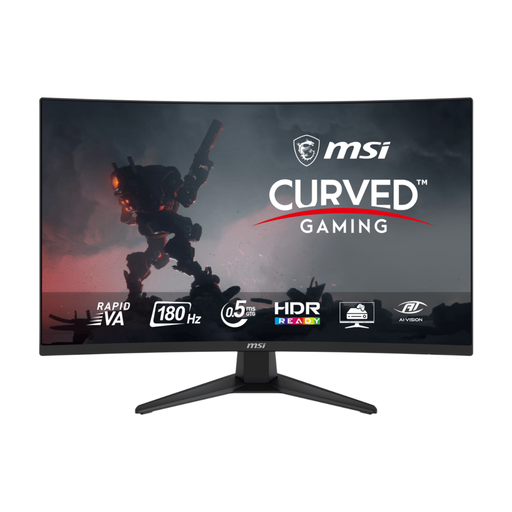
MSI MAG 321CQF E18 32-inch curved WQHD gaming monitor
Consider this 32-inch curved option if you have room for a wider desk display.
1500R curve. The description lists WQHD up to 180 Hz over DisplayPort and up to 144 Hz over HDMI, plus Adaptive Sync. Check the input for your intended mode.
View on Joybuy
 No image available
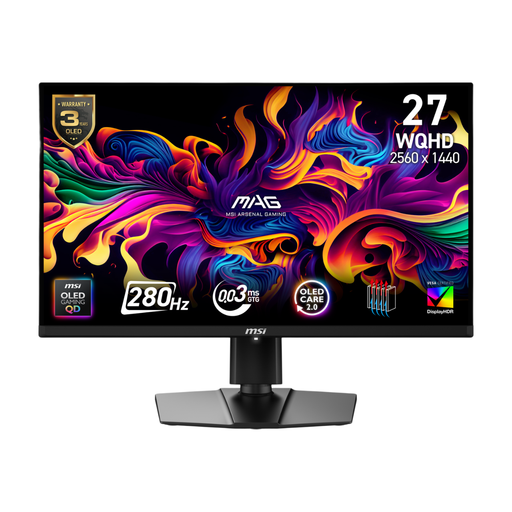
MSI MAG 271QP QD-OLED X28 27-inch QHD gaming monitor
Consider this QHD model if you want a high listed refresh rate for PC gaming and need to check the available input.
280 Hz. The description lists DisplayPort 1.4a, HDMI 2.1 and Adaptive-Sync technologies.
View on Joybuy
 No image available
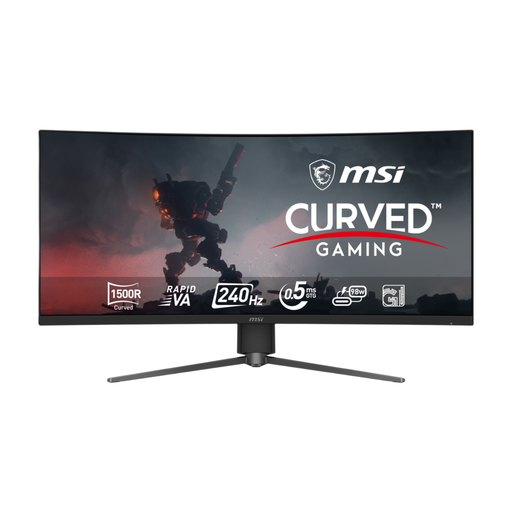
MSI MPG 346CQRF X24 34-inch curved UWQHD gaming monitor
Consider this curved ultrawide if its dimensions and aspect ratio suit your desk and games.
34-inch, 3440 × 1440 display. The description lists 240 Hz over DisplayPort 1.4a, HDMI 2.1 or USB-C, plus Adaptive Sync; check the physical fit and game compatibility.
View on Joybuy
Gaming display questions answered
How do I check whether a PS5 will output 1440p at 120 Hz or use VRR?
On a display that supports 1440p, use the PS5’s Test 1440p Output to check SDR or HDR at 60 Hz and 120 Hz, as well as VRR. Check the connected HDMI device information and enable 120 Hz output; the game and display must also support the mode. PlayStation Support specifies an HDMI 2.1 VRR-compatible display for PS5 VRR.
Will a 4K Xbox display necessarily run at 120 Hz?
No. Xbox Wire notes that some displays support 120 Hz only at certain resolutions or through particular HDMI ports. Check the exact display specifications and the console’s 4K TV details rather than relying on a 4K label.
What should I measure before installing a large curved monitor?
Measure the available desk space and viewing position, then compare them with the exact model’s dimensions and stand or mounting requirements. Large curved models vary: Samsung’s cited G95SC is 49 inches and LG’s 45GX950A-B is 45 inches.
What should I check about an OLED monitor’s warranty?
Read and keep the warranty terms for the exact model, including any conditions on coverage. AOC describes burn-in coverage in the Q27G4ZD’s three-year OLED warranty; do not assume that wording applies to another model or brand.
Do I need a TV Licence just to play games on a monitor or gaming TV?
The display’s name alone does not determine the requirement. GOV.UK guidance says a TV Licence is needed to watch or record live TV on any channel or service, or to use BBC iPlayer, including on a computer or other device; it does not identify playing games alone as a licensable activity.


