Competitive speed-first players
You mainly play fast competitive games and would trade some image detail for a compact view and a refresh rate your PC can regularly use.


Start with the frame rates your PC achieves in the games and settings you actually use, then choose a resolution and refresh rate that suit those results. Check the graphics output and the monitor’s limits for the specific input you plan to use: Dell UK specifications, for example, list different maximum refresh rates over DisplayPort and HDMI on the AW2525HM and AW2725DF.
You mainly play fast competitive games and would trade some image detail for a compact view and a refresh rate your PC can regularly use.
You switch between fast action and games where finer detail matters, so you need to balance QHD performance against refresh rate.
You want sharper visuals or a larger display for action and racing games, provided your PC, desk and preferred settings suit that choice.
Compare frame rates in your main games first, then weigh resolution, refresh rate and connection compatibility against your desk setup.
| Concern | What to check when buying | Who this matters to |
|---|---|---|
| Usable refresh rate | Compare frame rates in your main games at your intended resolution and settings with the monitor’s supported modes. | If I mainly play competitive games, I want a refresh rate my PC can use rather than a headline figure. Around 36% of consumers put usable game speed first. |
| Resolution and detail | Compare performance in your games at each prospective native resolution; decide whether image detail or faster updates take priority. | When I alternate between fast action and detail-rich games, I need a workable balance rather than choosing on resolution alone. Around 29% of consumers prioritise that resolution-and-speed balance. |
| Connection and adaptive sync | Check the PC output, the monitor’s input-specific resolution and refresh modes, VRR support and the complete cable or adapter path. | If I want the selected mode and adaptive sync to work with my current PC, I need to check the exact connection path. Around 21% of consumers put connection and sync compatibility first. |
| Desk fit and motion | Measure desk depth and viewing distance, check screen dimensions and stand adjustment, and compare independent motion tests at relevant refresh rates. | For a close desk setup, I want a screen that fits my view and motion behaviour I can assess beyond a response-time label. Around 14% of consumers prioritise desk fit and motion clarity. |
A monitor’s refresh rate describes how often its display can update; it does not mean the PC is rendering the same number of game frames.
Compare frame rates in your main games at the resolution and settings you expect to use before choosing a refresh-rate target.
A monitor can have different refresh-rate limits over HDMI and DisplayPort. HDMI 2.1 also does not guarantee every optional HDMI feature.
Match your PC output to the chosen monitor’s specifications for that exact input, including its VRR mode and the cable or adapter path.
AOC says coverage for OLED burn-in on its UK Q27G4ZD is conditional on carrying out screen maintenance according to its instructions.
Read the selected model’s written coverage terms and care instructions before choosing it.
The AW2525HM is a Full HD high-refresh option, while the AW2725DF is a QHD model. Check the exact model and input mode rather than assuming specifications apply across the range.
The TUF Gaming VG27AQL3A is a QHD option; the ROG Swift PG32UCWM offers separate high-resolution and high-refresh modes.
The UK Q27G4ZD is a QHD QD-OLED option for consumers comparing refresh rate with OLED ownership terms.
The GO27Q24G is an example of a QHD, high-refresh OLED display reviewed by TFTCentral.
PCMag UK includes the OMEN 27k as a 4K comparison option for consumers who favour detail.
These Joybuy options include high-refresh Full HD and QHD monitors, plus dual-mode displays with separate resolution and refresh-rate options. Match the mode you plan to use with your PC’s game performance and the monitor input you intend to connect.
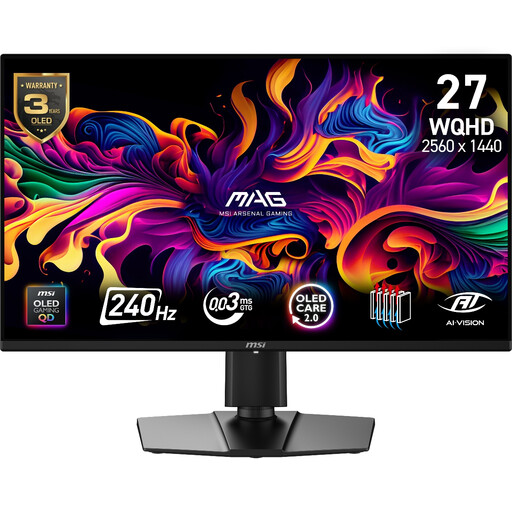 No image available
Consider this option if you want a high-refresh QHD display for fast-paced games.
The listing specifies 2560 × 1440 resolution, 240 Hz and Adaptive-Sync. It lists QHD up to 240 Hz through both HDMI and DisplayPort.
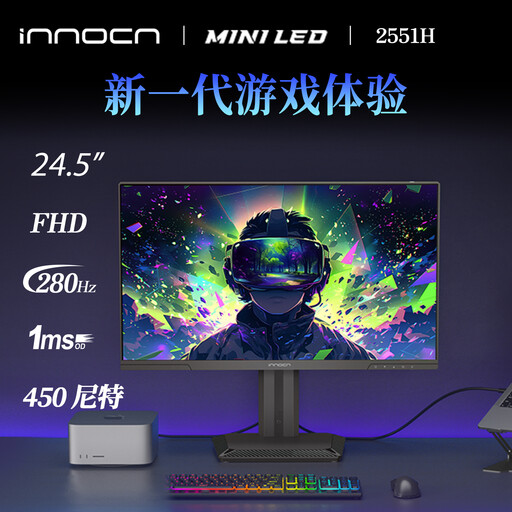 No image available
Consider this Full HD option if competitive play and a smaller screen are priorities.
The title specifies 280 Hz. The listing’s connection details state up to 240 Hz over HDMI and up to 300 Hz over DisplayPort, so check the mode for your intended connection.
 No image available
Consider this model if you want separate detail-focused and speed-focused display modes.
The listing specifies 4K at 240 Hz or Full HD at 480 Hz; these modes cannot be used at their maximums simultaneously. It also lists HDMI 2.1 and DisplayPort 2.1.
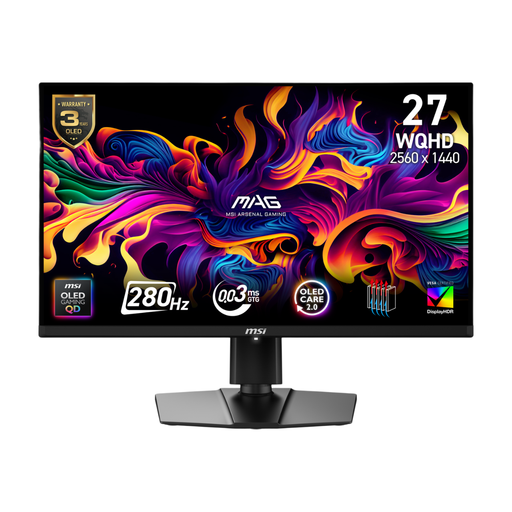 No image available
Consider this QHD option if you want high refresh alongside 2560 × 1440 resolution.
The listing specifies a 280 Hz QD-OLED display and Adaptive-Sync.
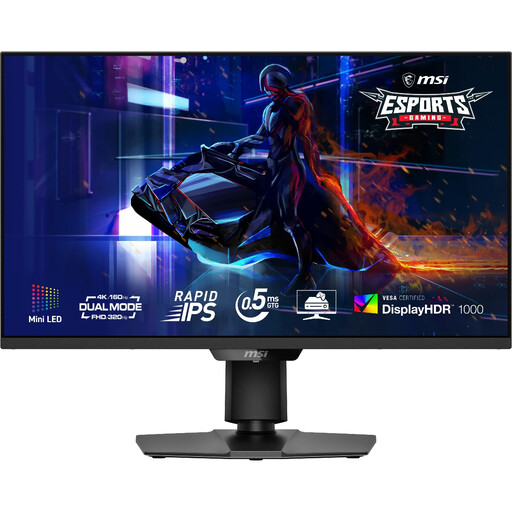 No image available
Consider this model if you want separate 4K detail and Full HD speed modes.
The listing specifies 4K at 160 Hz or Full HD at 320 Hz, not both simultaneously. It also lists Adaptive Sync, HDMI 2.1, DisplayPort 1.4a and USB-C.
In Windows, open Settings, then System, Display and Advanced display, and select the monitor. Microsoft Support says this page shows the current resolution and refresh rate and whether the display supports VRR; available rates depend on the connected display. Check the game’s frame rate separately.
No. HDMI Licensing Administrator explains that individual HDMI 2.1 features are optional. Check the specified resolution, refresh rate and VRR behaviour for the exact monitor input, PC output and connection path.
Choose according to the frame rates your PC can achieve in your games at the resolution and settings you plan to use. QHD or 4K may suit a detail-led choice, while a lower resolution with a higher refresh rate may suit speed-led play; compare them using your own games and intended settings.
Not when its specifications list separate modes. For example, TFTCentral reports that the tested ASUS ROG Swift PG32UCWM supports 4K at 240 Hz or Full HD at 480 Hz. Check the exact monitor’s mode specifications before buying.
Read the care instructions and coverage terms for the exact model. AOC says its UK Q27G4ZD OLED burn-in coverage depends on carrying out screen maintenance according to its instructions; that condition should not be assumed to apply to other models or brands.