Choose a 24–25-inch high-refresh monitor when a compact viewing area and very high frame rates matter more than image detail; choose a 27-inch QHD monitor for a more balanced resolution-to-frame-rate trade-off. Consider 4K or another higher-resolution route only when your GPU, output port and cable can support the intended mode, and check VRR support, response behaviour, stand depth and VESA compatibility before buying.
Who this suits
Competitive PC players chasing high frame rates
You mainly play esports or other fast-paced games and care about motion clarity, low delay and a refresh rate your PC can realistically feed. A compact 24–25-inch route can suit players who prefer to focus on a smaller screen area. TFTCentral and RTINGS both identify smaller, high-refresh displays as a common competitive-gaming format.
Players balancing fast games with sharper visuals
You want responsive play with more image detail than Full HD. A 27-inch QHD monitor is a middle-ground option when your GPU can sustain suitable frame rates at 2560 × 1440; RTINGS describes 1440p as less demanding on a graphics card than 4K.
High-end GPU owners considering 4K high refresh
You are considering 4K high-refresh gaming and need to check output bandwidth, cable capability and real game frame rates before relying on the monitor's highest mode.
Buying priorities
Start with the resolution and refresh mode your PC can use in the games you play, then confirm connection and desk-fit details.
| Priority |
What to check |
Your needs |
| Motion clarity and responsiveness |
Compare refresh rate at the monitor's native resolution; look for independently tested response behaviour where available; compare input lag on a consistent test basis. |
I want fast-moving objects to remain clear and the display to feel responsive in competitive games. A very high refresh figure is most useful when my PC can produce similarly high frame rates. |
| Resolution and frame rate |
Check 1920 × 1080 for lower rendering demand; compare 2560 × 1440 as a middle ground; confirm whether 3840 × 2160 at high refresh is realistic for your GPU. |
I want enough image detail for my games without choosing a resolution that makes useful frame rates difficult to reach. |
| VRR and connection compatibility |
Check the exact FreeSync or G-SYNC compatibility; match GPU output and monitor input; verify the cable for the intended resolution and refresh mode. |
I need variable refresh rate, the graphics card, the monitor input and the cable to work together at the mode I plan to use. |
| Desk and arm fit |
Measure stand depth against usable desk depth; compare the VESA pattern with the arm; check monitor weight without the stand against the arm's load range. |
I need room for the screen, keyboard and mouse, and I want an arm setup that physically supports the monitor. |
Buying pitfalls
-
Paying for refresh rate your PC cannot use
A monitor may support 240Hz, 360Hz or more, but the practical benefit is limited when your games cannot reach similar frame rates at the chosen resolution and settings.
Check frame-rate headroom in the games and settings you actually use, then confirm the monitor's maximum refresh rate at your intended resolution.
-
Assuming a port label proves compatibility
The available resolution and refresh combination depends on the GPU, monitor, cable and the specific implementation at both ends. VESA notes that full DP 2.1 UHBR20 performance requires compatible GPU and monitor hardware plus a certified DP80 cable.
Check the exact GPU port, monitor input, maximum mode, any compression requirement and cable certification rather than relying on connector shape alone.
-
Choosing a monitor arm by screen size alone
Screen diagonal does not establish arm compatibility. Ergotron identifies VESA hole pattern and monitor weight as the primary checks, while larger displays can also need more clearance.
Verify the monitor's VESA pattern, weight without its stand, mounting recesses and the arm's supported load range before buying.
An incompatible arm may require different mounting hardware or another mounting solution.
-
Making HDR or panel type the main competitive specification
For fast competitive play, refresh rate, response performance, input lag and attainable frame rate are central to motion and responsiveness. HDR image quality also depends on brightness, contrast, panel technology and room reflections.
Choose the performance route first, then assess HDR as a separate image-quality requirement using documented specifications and independent tests where available.
Relevant brand references
ASUS ROG
Relevant for buyers considering premium high-refresh QHD or 4K gaming monitors, including ROG Swift OLED models covered in current independent gaming-monitor testing.
- RTINGS identifies the ROG Swift OLED PG27AQWP-W as its 1440p gaming pick, with a 540Hz native-QHD mode and a 720Hz-at-720p dual mode.
- These high-end modes require suitable GPU performance and connections, and may be unnecessary for conventional Full HD or QHD competitive play.
Dell Alienware
Relevant for PC players seeking a conventional 25-inch Full HD esports-style display rather than a higher-resolution premium OLED route.
- RTINGS identifies the Alienware AW2523HF in its 1080p roundup as a 25-inch, 1920 × 1080, 360Hz monitor with FreeSync VRR and G-SYNC compatibility.
- Full HD offers less image detail than QHD or 4K, although its lower rendering demand can make high frame rates more achievable.
BenQ ZOWIE
Relevant for buyers considering a compact competition-oriented format with QHD rather than the more common Full HD small-screen route.
- RTINGS identifies the ZOWIE XQ2566X as a 24-inch TN LCD monitor with 2560 × 1440 resolution and a 360Hz maximum refresh rate.
- A compact TN display may be less suitable for buyers prioritising broad viewing angles, HDR image quality or a large desktop workspace.
Joybuy gaming monitor options
These Joybuy options cover 27-inch QHD, higher-resolution and adaptive-sync routes for competitive PC gaming.
 No image available
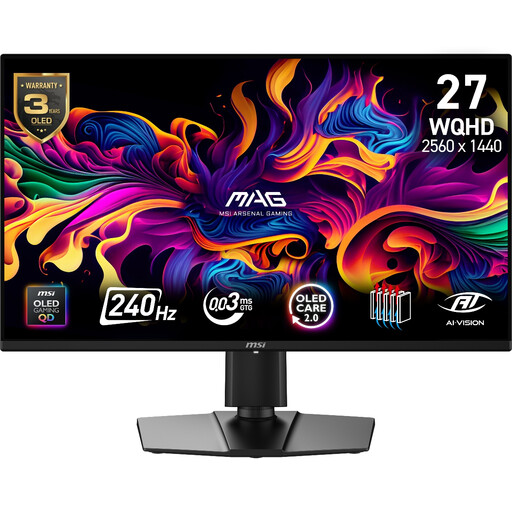
MAG 274QP QD-OLED X24 27-inch QHD 240Hz Monitor
A 26.5-inch QHD option for competitive players seeking a 27-inch balance of detail and refresh rate.
Stated specifications include 2560 × 1440, 240Hz, 0.03ms GtG, Adaptive-Sync with a 48–240Hz range, HDMI 2.1, DisplayPort 1.4a and VESA 100 × 100 mm.
Check that your GPU, games and cable can sustain QHD at 240Hz, and confirm monitor-only weight before choosing an arm.
Joybuy
 No image available
LG UltraGear G8 27G850A 27-inch 4K Dual-Mode Monitor
This dual-mode screen suits players who want to switch between detailed 4K play and a Full HD high-refresh mode.
Its stated modes are 4K at 240Hz and Full HD at 480Hz, with 1ms GtG, AMD FreeSync Premium Pro, DisplayPort 2.1 and HDMI 2.1.
Confirm the exact GPU, port and cable support for your chosen mode; check VESA details, monitor-only weight and stand footprint if using an arm or shallow desk.
Joybuy
 No image available
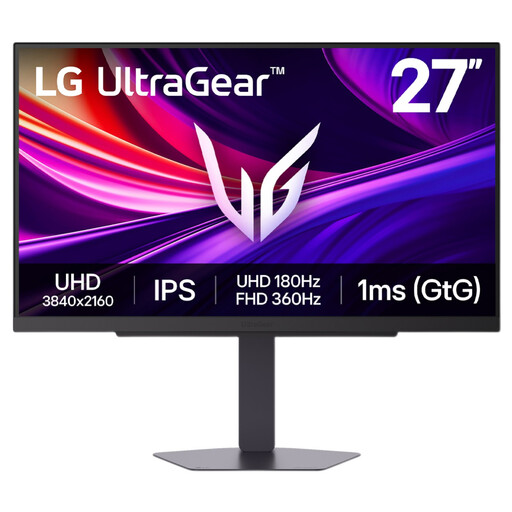
LG UltraGear 27G810A-B 27-inch 4K Dual-Mode Monitor
A choice for players who want 4K detail for some games and a Full HD competitive mode for others.
Stated modes are 4K at 180Hz and Full HD at 360Hz, with G-SYNC compatibility, FreeSync Premium, HDMI 2.1, DisplayPort 1.4 and VESA 100 × 100 mm.
The 360Hz mode uses Full HD rather than native 4K; check GPU, cable and port support for the mode you intend to use.
Joybuy
 No image available
Samsung Odyssey G6 S27DG612 27-inch QHD OLED Monitor
A 27-inch QHD route for players who want sharper-than-Full-HD detail alongside a 240Hz refresh rate.
Stated specifications include 2560 × 1440, 240Hz, 0.03ms GtG, FreeSync Premium Pro, G-SYNC compatibility, HDMI 2.1 and DisplayPort 1.4.
Check game frame rates at QHD, confirm the VESA pattern before arm mounting, and review manufacturer guidance for OLED panel care and static desktop use.
Joybuy
 No image available
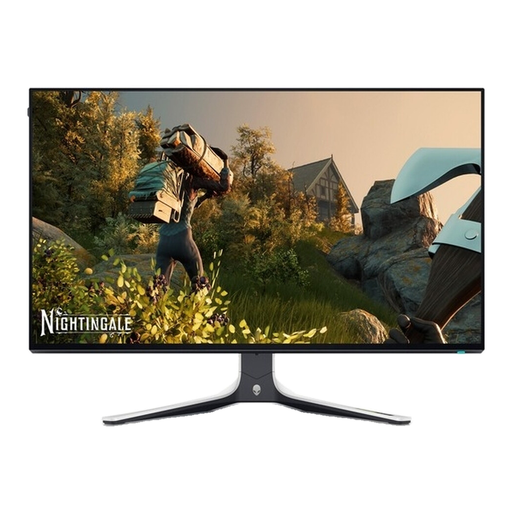
Alienware AW2724HF 27-inch Full HD 360Hz Monitor
This Full HD option prioritises a stated 360Hz mode for players who value very high frame rates over QHD detail.
The listing states a 27-inch Full HD Fast IPS panel, 360Hz, 0.5ms response time, FreeSync Premium, HDMI and DisplayPort.
At 27 inches, Full HD is a different screen-density trade-off from QHD; confirm that your PC can sustain the intended refresh mode and measure desk or arm fit before buying.
Joybuy
FAQs
What should I check before assuming my PC can run a monitor at its maximum refresh rate?
Check the monitor's maximum refresh rate at the resolution you intend to use, then compare your GPU output, monitor input and cable capability. A high-refresh monitor can display many frames, but its practical benefit is limited when your preferred games run far below that frame rate; high-resolution high-refresh modes can also need higher-bandwidth ports and cables.
Does FreeSync or G-SYNC support guarantee VRR in every setup?
No. AMD states that FreeSync depends on compatible Radeon graphics and a certified display, and some monitor presets or settings can disable it. NVIDIA's published desktop G-SYNC requirements specify a direct DisplayPort connection for the documented G-SYNC and G-SYNC HDR cases, so check the exact monitor manual, GPU output, cable and driver settings.
How do I know whether a monitor arm will fit my gaming monitor?
Compare the monitor's documented VESA hole pattern and weight without the stand with the arm's supported pattern and weight range. Ergotron identifies hole pattern and monitor weight as the key compatibility checks, so screen size alone is not enough.


