For long interactive-fiction sessions, start with readable text and a screen you can position comfortably, rather than choosing by refresh rate alone. A larger or higher-resolution display can help when you keep notes beside the game; a higher refresh rate matters more if you also play motion-heavy games. Lighting, screen placement and breaks remain part of the setup: the Health and Safety Executive links display-screen discomfort to workstation design and environment as well as screen use.
Who this choice matters to
Text-first interactive-fiction players
If most of your session involves reading narrative and choices, consider text presentation and reflections before gaming speed. BenQ describes an ePaper Mode on the GW2791, but a reading mode is not a guarantee against discomfort.
Players at one desk for long sessions
Screen position, room lighting and breaks matter alongside the monitor itself. The Health and Safety Executive identifies fatigue, eye strain and physical discomfort as possible consequences of poorly arranged display-screen workstations or environments.
Players switching between devices
If you alternate between a laptop and another device, check the inputs each one needs. For a one-cable laptop setup, also confirm that the laptop supports video over USB-C and can use the monitor’s available charging power.
What to prioritise
Choose for the task that dominates your sessions, then check that the stand and connections work at your desk. Eye-comfort labels describe product features, not a substitute for suitable lighting, positioning or breaks.
| Concern | What to check | Who this matters to |
|---|
| Reading settings and reflections |
Check the exact model’s reading settings and whether its screen finish suits the reflections in your room. |
If I spend most of a session reading passages and choices, I want text settings I can adapt without fighting reflections. Around 36% of consumers put reading comfort first. |
| Screen positioning |
Check height, tilt and swivel adjustment against your desk and chair; consider mounting options if the stand falls short. |
When I stay at one desk for hours, I need to place the screen where I can view it comfortably. Positioning is the primary concern for around 29% of consumers. |
| Detail and workspace |
Compare screen size and native resolution together, particularly if notes or guides will sit beside the game. |
I want the story and my notes visible together without giving either too little space. Around 21% of consumers chiefly want more detail and workspace. |
| Gaming and connections |
Match the inputs and refresh rate to your devices and other games; check laptop video and charging compatibility before relying on USB-C. |
If I also play faster games or connect a laptop, I need those uses to work with the same display. Versatility comes first for around 14% of consumers. |
Buying pitfalls
-
Treating an eye-care badge as a complete comfort solution
Low-blue-light, flicker-free and reading-mode descriptions apply to particular models. The Health and Safety Executive also points to workstation design and environment when discussing display-screen discomfort.
Check the stand, screen position and room reflections as well as the display features, and plan breaks during long sessions.
-
Choosing a larger screen without checking its stand
A larger, higher-resolution screen does not necessarily offer more adjustment. Dell lists tilt adjustment for the 27-inch SE2726D.
Check whether the supplied stand positions the exact model suitably at your desk and whether a compatible mount is an option.
If the stand does not meet your positioning needs, a compatible monitor arm may be an additional purchase.
-
Letting refresh rate decide a reading-led purchase
A higher refresh rate may matter for your other games, but it does not establish that text settings, stand adjustment or connections suit a long narrative session.
Decide how often you play motion-heavy games, then compare refresh rate alongside your reading and desk requirements.
-
Assuming USB-C guarantees one-cable laptop use
A monitor’s USB-C power-delivery rating does not establish that a particular laptop can send video through its USB-C port or use that charging power.
Check the laptop’s video-output and charging specifications against the monitor before depending on one cable.
Relevant brands to consider
BenQ
BenQ’s GW2791 illustrates a text-oriented option: BenQ describes its ePaper Mode as a simulated reading display. Its GW2490T illustrates a different priority, with height, tilt, pivot and swivel adjustment.
- The cited models offer different ways to prioritise reading settings or stand flexibility.
- Check the stand and ports on the exact model; a reading feature does not establish that it has full adjustment.
Dell
Dell’s SE2726D is a 27-inch, 2560 × 1440 model rated at 144 Hz, while its Full HD P2425HE is a USB-C hub monitor offering up to 90 W power delivery.
- These models illustrate a choice between higher resolution and a laptop-focused connection.
- Dell lists tilt adjustment for the SE2726D; USB-C video and charging on the P2425HE also depend on laptop compatibility.
ASUS
ASUS specifies height, tilt, swivel and pivot adjustment for the VA24DQSB, making it a useful model to examine when screen positioning is the priority.
- The VA24DQSB specification lists 130 mm of height adjustment.
- Check whether this model’s screen size, resolution and connections meet your other uses rather than assuming adjustment answers every requirement.
Joybuy monitors for different setups
These monitors offer different starting points for reading-led play, from a text-oriented 27-inch display to larger screens for keeping notes alongside the game. Compare their stated specifications with your desk position, reflections and connected devices.
 No image available
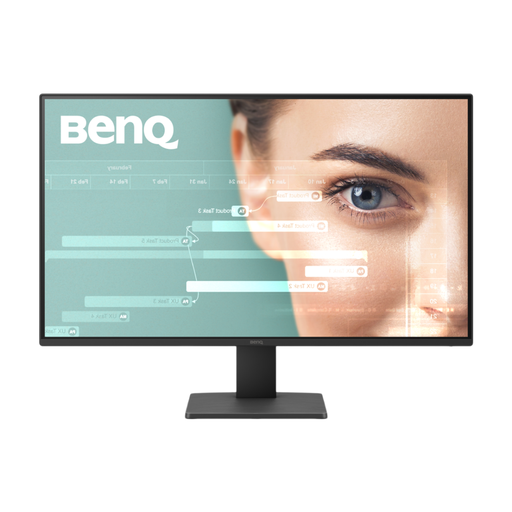
BenQ GW2791 27-inch Full HD IPS monitor
Consider this model if narrative text is your main use and you want a dedicated reading setting. BenQ describes ePaper Mode on the GW2791; its stated refresh rate is 100 Hz. Check whether the screen can be positioned suitably at your desk.
View on Joybuy
 No image available
Dahua 32-inch 4K 165 Hz curved OLED gaming monitor
Consider the larger screen if you want space for narrative and adjacent windows and also play other games. The product name specifies 3840 × 2160 resolution, 165 Hz and USB-C 65 W. Check the screen finish against room reflections and confirm USB-C compatibility with your device.
View on Joybuy
 No image available
Philips Evnia 6000 34M2C6500 34-inch ultrawide monitor
The 3440 × 1440 ultrawide format is worth considering if you want the game and notes visible together and have room for a 34-inch screen. The product name specifies height, swivel and tilt adjustment, with 175 Hz via DisplayPort or 100 Hz via HDMI. Check how its screen finish works with your lighting.
View on Joybuy
 No image available
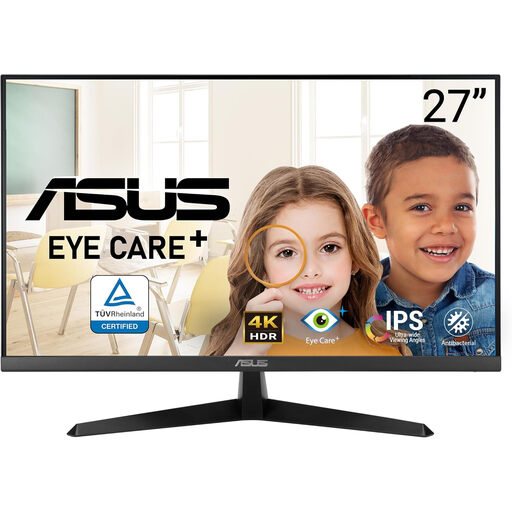
ASUS Eye Care VY27UQ 4K UHD 60 Hz monitor
This is an option to compare if resolution matters more to you than a high refresh rate: its product name specifies 4K UHD and 60 Hz. Check whether its positioning options suit your desk and whether 60 Hz meets your needs in other games.
View on Joybuy
 No image available
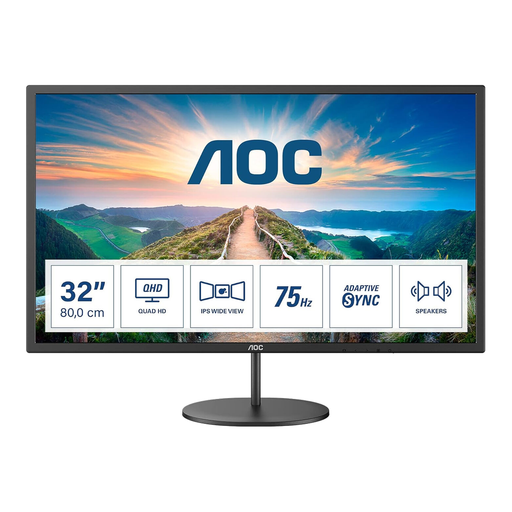
AOC Q32V4 31.5-inch 2K IPS monitor
Consider its larger screen if you want room for text and notes without choosing an ultrawide format. The product name specifies an IPS display, Adaptive-Sync and built-in speakers. Confirm that the stand offers the positioning you need before buying.
View on Joybuy
Common questions
Do I need 144 Hz for interactive fiction?
No: 144 Hz need not be the deciding specification for a reading-led session. Consider a higher refresh rate if you also play motion-heavy games, but check text presentation, screen positioning and connections first.
How should I set up a monitor for a long session?
Position the screen to suit your desk and chair, reduce troublesome reflections and take regular breaks. The Health and Safety Executive advises short breaks more often rather than longer breaks less often in its guidance on display-screen work.
Will a low-blue-light or flicker-free monitor prevent eye strain?
Do not treat those features as a promise that eye strain will be prevented. They are model-specific display features; the Health and Safety Executive also identifies screen use, workstation design and environment as factors in discomfort.
What should I check before connecting a laptop through USB-C?
Confirm that the laptop’s USB-C port supports video output and that the monitor’s charging power suits the laptop. Dell specifies up to 90 W power delivery for the P2425HE, but that figure alone does not establish compatibility with your device.


