What to prioritise
For a seated lunar-landing setup, decide whether cockpit detail, device compatibility, mixed-game speed or the physical desk arrangement is your main priority before comparing maximum refresh rates.
| Concern | What to check | Who this matters to |
|---|
| 4K detail and dark scenes |
Check for native 3840 × 2160 resolution and whether your game and device support the HDR mode you want. |
When I need to read cockpit instruments against dark scenery, I put legibility and contrast ahead of maximum speed; around 35% of consumers put simulation detail first. |
| Device and input compatibility |
Match the intended resolution, refresh rate and VRR mode to the exact PC or console, monitor input and cable. |
If I play on PS5 or a particular PC, I need the screen to accept the signal my device can deliver; roughly 29% of consumers make compatibility their primary concern. |
| Simulation and fast-game use |
Compare the resolution and refresh rate of each mode, not just the highest figure on the product page. |
I want detailed simulation sessions and a faster setting for other games, provided I can accept reduced resolution there; about 21% of consumers prioritise that flexibility. |
| Seated fit and OLED care |
Measure desk space and screen placement, then check stand or mounting options and the model’s OLED-care instructions. |
My chair, controls and screen need to fit comfortably, and persistent cockpit graphics affect how I use an OLED panel; around 15% of consumers put setup and care first. |
Joybuy monitors for seated simulation
These 32-inch-class 4K OLED monitors are options for a detail-led seated simulation desk. Compare their stated features, supported input modes and physical fit against your own setup.
 No image available
Dahua 32-inch 4K 165Hz curved OLED gaming monitor
Consider this for a seated cockpit layout if a curved screen suits your viewing position.
The product name lists 3840 × 2160 resolution, HDR400 and 65W USB-C. Confirm the input mode and VRR support you need for your device.
View on Joybuy
 No image available
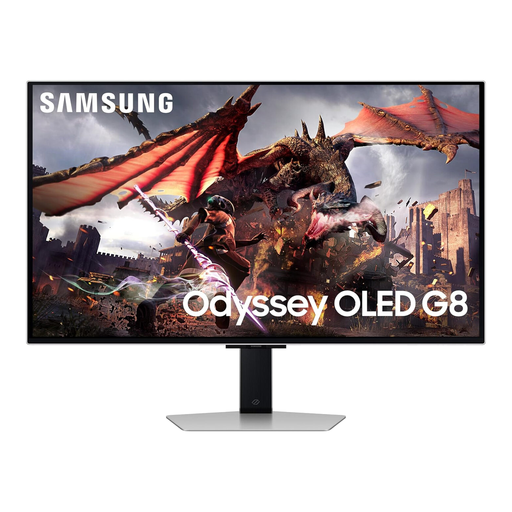
Samsung Odyssey Gaming OLED G8 LS32DG802SUXXU 32-inch Ultra HD monitor
Consider this if an Ultra HD OLED screen is your starting point for seated simulation.
Check the exact input modes, HDR and VRR features, and stand fit against your source device and desk before choosing it.
View on Joybuy
 No image available
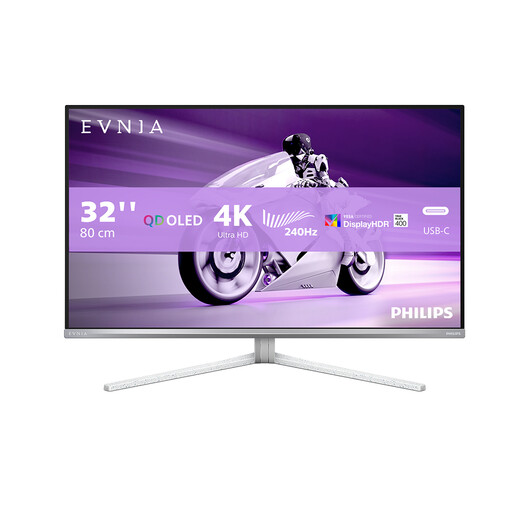
PHILIPS Evnia 32M2N8900 32-inch UHD OLED gaming monitor
Consider this for a detail-first seated setup if a 32-inch UHD OLED screen fits your desk.
Confirm whether the offered variant is 32M2N8900 or 32M2N8900AM, along with its supported refresh modes and stand adjustments.
View on Joybuy
Frequently asked questions
Do I need a 240Hz monitor for a seated lunar-landing simulation?
No: 240Hz is not a requirement for this seated simulation scenario. Prioritise readable detail, comfortable placement and the picture modes your device supports; 240Hz becomes more relevant if you also play fast PC games and your PC can use that mode.
What should I check when connecting a monitor to PS5?
Check the exact monitor input and its compatibility with the PS5 modes you intend to use. PlayStation states that PS5 supports HDMI 2.1, 4K 120Hz output and VRR on compatible displays; the game and display settings still affect the signal used.
How should I plan the screen position for long seated sessions?
Plan the screen, chair, desk, controls and lighting together rather than choosing by diagonal size alone. The Health and Safety Executive’s workstation guidance considers equipment, furniture and working conditions; for your setup, check viewing position, available desk space and reflections.
What should I check about returns, faults and disposal?
Check the retailer’s change-of-mind returns policy separately from its process for faulty goods, and ask which collection route accepts an unwanted monitor. The UK Consumer Rights Act 2015 addresses faulty goods; the WEEE framework concerns the management of waste electrical and electronic equipment. A retailer’s voluntary returns policy does not replace statutory remedies for faults.


