What to check before buying
Decide how much of your time goes to editing versus playing, then compare screen space and panel trade-offs. Treat headphone routing and desk fit as separate checks rather than assuming a gaming specification covers them.
| Concern |
What to check |
Who this matters to |
| Editing space and text |
Compare native resolution and screen size, then inspect editor text at the scaling you expect to use. RTINGS notes that text clarity also depends on factors beyond resolution. |
If I keep asset lists and tool panels beside the map, I want enough room without making labels difficult to read. Roughly 29% of consumers put editing space and text first. |
| Persistent editor panels |
Consider how long toolbars and other static elements stay visible. RTINGS identifies burn-in from prolonged static content as an OLED trade-off; check panel-care and warranty terms if choosing OLED. |
When my editor stays open for long stretches, I would rather weigh the panel risk before its gaming appeal. Around 24% of consumers make persistent-interface suitability their primary concern. |
| Gameplay after editing |
Check refresh rate at the resolution and connection you will use, VRR compatibility and the frame rates your system can deliver. |
I also play or test fast-moving maps, so responsiveness matters alongside the editing setup. Roughly 18% of consumers prioritise gameplay motion. |
| Headphone connection |
Choose where the headphones will plug in. For monitor-side wired audio, confirm an earphone or headphone output on the exact model and an audio path through the chosen input. |
I want to plug my headphones into the screen rather than route their cable elsewhere on the desk. Around 12% of consumers put monitor-side headphone connection first. |
| Screen positioning |
Measure desk depth and check stand adjustments or mounting compatibility. The Health and Safety Executive advises positioning the screen about an arm’s length away, with its top around eye level. |
During longer creation sessions, I need the screen to fit my desk and viewing position. Roughly 17% of consumers prioritise adjustability. |
Relevant brands and models
These examples illustrate different monitor specifications, not a judgement about every model from each brand.
ASUS TUF Gaming
The VG27AQML1A illustrates a 27-inch QHD IPS option for editing alongside high-refresh gaming.
- ASUS UK lists 2560 × 1440 resolution, up to 260Hz, an earphone jack, 130mm height adjustment and a 100 × 100mm VESA mount for this model.
- QHD has fewer pixels than 4K; check whether its available panel space suits your editor layout.
Alienware
Dell’s AW2725Q illustrates a 26.7-inch 4K QD-OLED option for consumers weighing finer interface detail against OLED’s static-content trade-off.
- Dell UK lists 4K UHD resolution, 240Hz and height adjustment for the AW2725Q.
- RTINGS identifies static-image burn-in as an OLED risk. Also check how your system handles the games you play at 4K.
LG UltraGear
The 27GS95QE-B is a QHD OLED example for mixed map creation and gaming where dark scenes and motion carry substantial weight.
- LG UK lists a 27-inch QHD OLED panel and 240Hz refresh rate for this model.
- Persistent editor panels bring OLED burn-in risk into the decision; RTINGS also reported VRR flicker in changing-frame-rate dark scenes in its test of this model.
BenQ MOBIUZ
The EX2710Q illustrates a QHD IPS option when a stated headphone jack and adjustable stand matter alongside gaming features.
- BenQ lists 2560 × 1440 resolution, 165Hz, a headphone jack, 100mm height adjustment and a 100 × 100mm VESA mount for the EX2710Q.
- Its listed 165Hz maximum is below the refresh rates of some other models discussed here; decide whether that difference matters to your play.
Joybuy monitor choices
These QHD and 4K IPS and OLED monitors offer different ways to balance map-editing space with gameplay. If you want headphones connected at the monitor, check the exact model’s audio output separately.
 No image available
LG UltraGear G8 27G850A 27-inch 4K Nano IPS, dual-mode 240Hz/480Hz
Consider this 4K IPS model if space for map-editor panels matters alongside high-refresh play.
Its title lists dual-mode 240Hz/480Hz; confirm the resolution and connection for the mode you intend to use, and check the headphone connection you need.
Joybuy
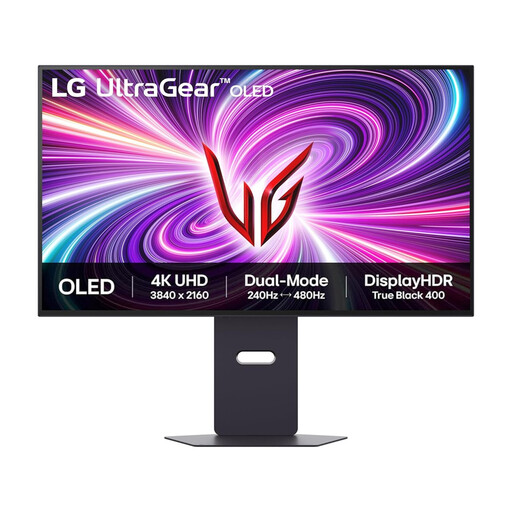 No image available
LG UltraGear OLED 32GS95UV-B 32-inch 4K, dual-mode 240Hz/480Hz
This larger 4K OLED option is worth considering if you want room for editing and also place substantial value on OLED gaming.
Check the resolution and connection for each refresh-rate mode. For long periods with unchanged editor panels, weigh the OLED burn-in risk identified by RTINGS and check this model’s panel-care and warranty terms.
Joybuy
 No image available
Acer X Predator X27U W3 26.5-inch QHD QD-OLED 240Hz
Consider this QHD OLED model when gaming is a strong priority and static map-editor panels occupy less of your time.
The title specifies 2560 × 1440 and 240Hz. Check its headphone output and stand adjustments if those determine how it will fit your desk, and weigh OLED burn-in risk for persistent interfaces.
Joybuy
 No image available
Samsung Odyssey G6 S27DG612 27-inch QHD OLED 240Hz
This QHD OLED option suits a mixed editing-and-gaming shortlist if its 240Hz rating matters to your play.
For lengthy sessions with fixed editor panels, weigh OLED burn-in risk and check panel-care and warranty terms. Confirm the audio output if headphones will plug into the monitor.
Joybuy
 No image available
HKC G27H2DPro 27-inch QHD Fast IPS 220Hz
Consider this QHD IPS option if persistent editing panels and high-refresh gameplay both figure in your choice.
The title lists 2560 × 1440 and 220Hz. Check headphone output and stand adjustment against your desk setup before deciding.
Joybuy
Frequently asked questions
Do I need 4K to create custom game maps?
No: QHD can work if its editor space and text at your preferred scaling suit you. A 4K display provides more pixels than a same-size QHD display, but check the graphics demands of playing or testing your maps at that resolution.
Should I avoid OLED if I use a map editor?
Not necessarily, but long periods with unchanged toolbars and panels make OLED’s static-image burn-in risk important. If that pattern dominates or you do not accept the risk, compare IPS models; if you choose OLED, check the exact model’s care guidance and warranty terms.
Does my gaming monitor need a headphone jack?
Only if you want wired headphones connected to the monitor itself. If you connect them to a PC, controller or another audio device, a monitor jack is not essential; for monitor-side audio, check both the exact model’s output and the audio path from your source.
What stand features matter for longer map-editing sessions?
Check whether the stand’s adjustment range or a compatible mount lets you position the screen at your desk. The Health and Safety Executive advises placing the top of the screen around eye level and viewing it from about an arm’s length away; also consider your chair, keyboard and available desk depth.


