For learning detailed multiplayer maps at a desk, a 27-inch QHD IPS monitor with variable refresh rate is a useful starting point if your PC and connection can make use of its high-refresh mode. A smaller Full HD esports screen suits players who prioritise seeing the whole play area at once, while high-refresh OLED calls for particular attention to frame rates and long periods with static HUD or desktop elements.
Who this choice affects
Map-detail-focused players
If you are learning routes, landmarks and HUD cues, weigh screen size and resolution against your viewing distance and the frame rates your PC can sustain. RTINGS notes that viewing distance affects whether a smaller screen lets you take in the whole display.
Competitive motion-priority players
If tracking opponents during quick camera movement matters most, consider refresh rate alongside response behaviour, input lag and variable refresh rate. RTINGS identifies each as relevant to gaming-monitor performance.
Long-session desk users
If you spend extended sessions at the same desk, check whether the stand lets you position the screen comfortably. Desk layout, reflections and changes of activity also deserve attention; a gaming specification cannot settle those setup questions.
What to prioritise
27-inch QHD IPS
Choose when: You want room to read map and interface detail while retaining high-refresh play; the ASUS VG27AQ3A and LG 27GS85Q-B are manufacturer-specified 180Hz examples.
Accept: QHD places greater demands on graphics hardware than Full HD, and stand adjustment varies by model.
27-inch QHD OLED
Choose when: Competitive motion is your main priority and your PC can produce frame rates that make a higher-refresh mode useful.
Accept: Static maps, HUDs and desktop elements still call for attention to the model's OLED-care guidance during long sessions.
24.5-inch Full HD esports screen
Choose when: You sit close and prefer to keep the entire play area within a compact field of view, a preference RTINGS associates with smaller monitors.
Accept: Full HD provides less pixel detail for maps and interface elements than QHD.
Once you have a screen format in mind, check its motion behaviour, desk fit and connection limits for the devices you actually use.
| Concern | What to check | Who this matters to |
|---|
| Map readability |
Compare native resolution and screen size at your usual viewing distance; consider the frame rates your PC can sustain at QHD. |
If I am learning unfamiliar routes, I want landmarks and HUD markers to remain readable without choosing a screen that overwhelms my setup. Around 31% of consumers put map detail first. |
| Motion and response |
Check refresh rate at native resolution, variable refresh rate and independent response and input-lag measurements where available; a quoted GTG time is not a complete motion test. |
During fast fights, I need to follow targets and camera movement rather than choose on resolution alone; around 31% of consumers make motion and response their primary concern. |
| Long-session setup |
Check height and tilt adjustment separately, plus VESA mounting if the stand will not suit your desk. |
I need a screen position that works at my desk throughout a long session, not just a suitable panel on paper. For around 23% of consumers, setup takes priority. |
| Device compatibility |
Match the monitor's resolution and refresh limits for each input to your GPU or console output and cable. |
When switching between devices, I want to know which advertised mode each connection can actually use; compatibility comes first for around 15% of consumers. |
Buying pitfalls
-
Assuming the headline refresh rate works through every port
Connection limits differ. Dell specifies QHD at 180Hz over DisplayPort 1.4 but up to 144Hz over HDMI 2.1 for the G2725D; LG says the 27GS85Q-B's 200Hz overclock requires a DisplayPort 1.4-capable graphics card and cable.
Match your device output, intended cable and chosen monitor input against the exact model's mode table before buying.
-
Assuming a 27-inch gaming screen has height adjustment
ASUS lists tilt, swivel and VESA 100 × 100 mounting for the VG27AQ3A, but its specification does not list height adjustment. That distinction matters if the supplied stand cannot place the screen where you need it.
Check each stand movement separately and confirm the mounting pattern if you intend to use an arm.
A separate arm or riser may be needed for the intended screen position.
-
Treating generic HDR wording as a certification
VESA says a display may carry its DisplayHDR logo only if it meets the applicable specifications. An HDR label by itself does not identify a DisplayHDR tier.
If certification matters to you, check the exact model and tier rather than relying on generic HDR wording.
-
Choosing OLED by quoted response time alone
ASUS describes OLED-care features for its ROG Strix OLED XG27AQDNG, but those features should not be treated as a guarantee against burn-in. Static HUDs, maps and desktop elements remain relevant to long-session use.
Read the exact model's panel-care guidance and consider how often your normal use leaves the same elements on screen.
Brands to consider
ASUS / ROG
ASUS provides two distinct examples for this decision: the 27-inch QHD 180Hz TUF Gaming VG27AQ3A and the 27-inch QHD 360Hz ROG Strix OLED XG27AQDNG.
- ASUS specifies Adaptive-Sync and ELMB Sync for the TUF model; the ROG model uses QD-OLED and includes OLED-care features.
- The TUF specification does not list height adjustment. OLED-care features on the ROG model are not a guarantee against burn-in.
LG UltraGear
The 27GS85Q-B is a 27-inch QHD Nano IPS option specified by LG at 180Hz, with an optional 200Hz overclock.
- LG lists variable refresh support and a quoted 1ms GTG response time for the 27GS85Q-B.
- LG says 200Hz requires a DisplayPort 1.4-capable graphics card and cable; its older 27GR83Q-B is marked discontinued.
BenQ ZOWIE
The XL2546X illustrates a compact 24.5-inch Full HD esports route rather than a larger QHD map-detail screen.
- BenQ specifies a Fast TN panel, 240Hz operation and height adjustment for the XL2546X.
- Its Full HD resolution provides less map-detail resolution than the QHD alternatives discussed here.
Dell
The G2725D is a useful model-specific illustration of why a monitor's input matters as much as its headline refresh rate.
- Dell specifies QHD at 180Hz through DisplayPort 1.4 and up to 144Hz through HDMI 2.1 for the G2725D.
- Dell marked this model unavailable on its UK product page; check its current listing and exact revision before considering it for purchase.
Samsung Odyssey
Samsung identifies the 27-inch Odyssey G50D as a QHD Fast IPS, 180Hz model.
- The G50D offers a manufacturer-specified 27-inch QHD Fast IPS format relevant to map-detail and high-refresh priorities.
- Odyssey covers several models and display formats, so check the complete model code rather than treating the range name as a specification.
Joybuy monitors for these needs
These choices cover 27-inch QHD high-refresh monitors, including IPS and OLED formats, plus a larger curved QHD option. Compare each screen's size, connection requirements and positioning against your map-learning setup.
 No image available
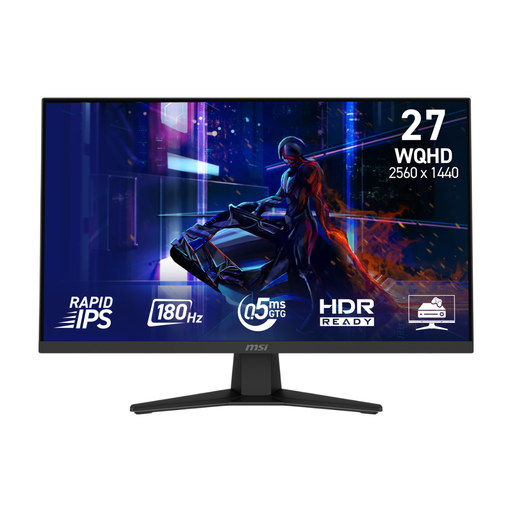
MSI MAG 274QF 27-inch WQHD gaming monitor
Consider this for a 27-inch map-detail screen when variable refresh is also important to you.
The product title specifies WQHD, Rapid IPS, a 180 refresh rate and Adaptive Sync; its 0.5ms response-time figure is a product claim, not an independent motion measurement.
Check the refresh mode available through your intended port and whether the supplied stand reaches the height you need.
View on Joybuy
 No image available
Samsung Odyssey G6 S27DG612 27-inch QHD OLED monitor
Consider this route if competitive motion matters enough to make a high-refresh OLED screen relevant to your PC and playing style.
The product title specifies QHD OLED, 240Hz and a quoted 0.03ms response time; the quoted time is not an independent motion test.
Confirm the mode available through your chosen input and review panel-care guidance for long sessions with static HUD or desktop elements.
View on Joybuy
 No image available
HKC G27H2DPro 27-inch QHD Fast IPS monitor
This is a 27-inch QHD option to assess if you want map detail alongside a high advertised refresh rate.
The product title specifies a 2560 × 1440 Fast IPS panel and 220Hz.
Check the refresh mode for your device and port, as well as the stand's adjustment range. If HDR certification matters, confirm it for this exact model rather than relying on generic wording.
View on Joybuy
 No image available
CRUA 32-inch 1500R curved QHD gaming monitor
Assess this larger curved format against your desk distance if you want QHD detail on a screen wider than the 27-inch options.
The product title specifies 2560 × 1440, 165Hz, Adaptive Sync and VESA 100 × 100mm mounting.
Check whether the curve and screen size suit your position, and confirm the refresh mode and stand adjustment available for your setup.
View on Joybuy
 No image available
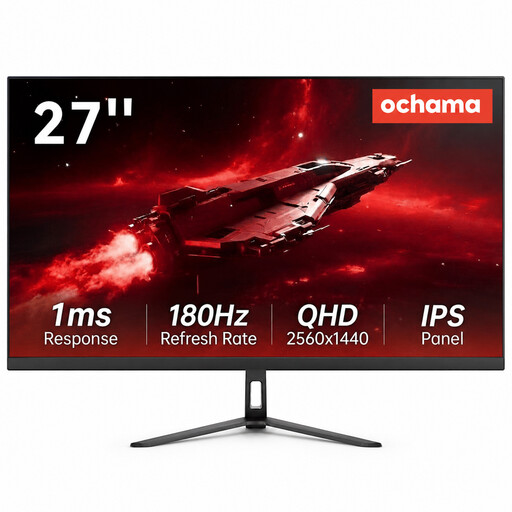
Ochama 27-inch QHD IPS 180Hz gaming monitor
Consider this 27-inch QHD format if map and interface detail are your starting priorities.
The product title specifies an IPS panel and 180Hz. Confirm variable-refresh support, input-specific modes and stand adjustment if those features matter to your setup.
The listing title advertises a keyboard offer; check whether a keyboard is included with the exact item you select.
View on Joybuy
Frequently asked questions
Is 27-inch QHD a sensible starting point for learning multiplayer maps?
Yes, if its size works at your desk distance and your PC can maintain useful frame rates at QHD. The ASUS VG27AQ3A and LG 27GS85Q-B illustrate 27-inch QHD high-refresh options; RTINGS also notes that viewing distance matters when choosing screen size.
Do I need 240Hz or 360Hz for multiplayer games?
Not solely because a game is multiplayer. Consider those refresh rates when tracking fast movement is your priority and your PC can deliver suitable frame rates; RTINGS also identifies response behaviour and input lag as important, so the Hz figure alone cannot settle the choice.
Will a monitor's advertised maximum refresh rate work on every input?
Not necessarily: check the exact model's port-by-port modes and your cable and device output. Dell specifies QHD at 180Hz through DisplayPort 1.4 but up to 144Hz through HDMI 2.1 for the G2725D; LG requires DisplayPort 1.4-capable hardware and cable for the 27GS85Q-B's 200Hz overclock.
What should I do with an old monitor when buying a replacement?
Ask the seller how to use its electrical-equipment take-back arrangement. GOV.UK says retailers must offer to take back waste equipment of the same type as an item bought from them, including when the purchase is made online.


