Choose the console display mode you want before comparing a monitor’s headline refresh rate. For 4K at 120Hz, check the exact HDMI input and connection path; if 1440p suits your desk, confirm that 120Hz works over HDMI rather than relying on a DisplayPort rating. Treat HDR, variable refresh rate (VRR) and audio connections as model-specific features to check against your console and setup.
Who is this for?
4K 120Hz console upgrader
You have a PS5 or Xbox Series X and want to check that the monitor accepts your intended output mode. PlayStation and Xbox Support describe console display settings and connection requirements that make the exact HDMI setup important.
Close-up desk player
You play at a desk or in a small room and are weighing a 1440p screen against 4K. Check the viewing arrangement as well as the HDMI modes: PlayStation provides a 1440p output test, while Xbox Support cautions that a monitor’s DisplayPort refresh support may differ from its HDMI support.
Simple bedroom-setup buyer
You want the screen, stand and audio connections to work in a compact setup. Check speakers and headphone output separately; Overclockers UK lists these as distinct monitor features.
What matters when choosing?
For a PS5 or Xbox at a desk, settle on your intended resolution and refresh mode, then check how the screen and audio fit your space. The concerns below help you identify which requirement you would put first.
| Concern | What to check | Who this matters to |
|---|
| Console video mode |
Check the exact HDMI port’s resolution and refresh combinations. For Xbox Series X 4K at 120Hz, Xbox Support specifies an Ultra High Speed HDMI cable and an HDMI 2.1 display. |
I want to know that my PS5 or Xbox will recognise the mode I plan to use, not just the panel’s maximum refresh rate. Around 36% of consumers put confirmed console-mode compatibility first. |
| Resolution and desk fit |
Measure the available desk space and viewing distance, then check HDMI support at your chosen resolution. PlayStation provides a PS5 test for 1440p output modes. |
When I sit close to the screen, I need its size and resolution to suit my desk without losing the console mode I want. For around 29% of consumers, that screen-and-desk balance is the primary concern. |
| HDR and VRR |
Check the model’s named HDR capability and VRR support for the intended connection. Inspect the console’s detected modes and use a game that supports the feature. |
I play games that offer these features and want to know whether they work in my setup before prioritising them. Around 21% of consumers place HDR or VRR first once basic display compatibility is covered. |
| Audio and arrangement |
Check speakers, headphone output and stand or mounting options separately on the exact model. |
I have limited room for extra equipment, so the audio connection and physical arrangement could decide which monitor I choose. Audio and setup simplicity come first for around 14% of consumers. |
Buying pitfalls
-
Choosing by the highest advertised refresh rate
That figure may describe a DisplayPort connection rather than the HDMI mode your console needs. Xbox Support notes that some monitors offer 120Hz over DisplayPort but not HDMI.
Find the exact model’s HDMI mode table and check your chosen resolution and refresh rate after connecting the console.
-
Assuming an HDMI 2.1 label settles compatibility
The available console mode depends on the particular input and connection path. Xbox Support warns that equipment such as a receiver or soundbar between the console and display can affect video features.
Check the required mode for the exact port, test a direct connection first and inspect the console’s detected display capabilities before adding other equipment.
-
Expecting HDR or VRR to improve every game
These labels do not guarantee the same result across monitors and games. PlayStation says VRR results vary by display and that applying it to unsupported games can cause unexpected behaviour.
Compare the named HDR capability and check VRR with the intended console connection and a supported game.
-
Assuming speakers and a headphone socket come together
They are separate model-specific features; a product image cannot establish which connections are present.
Check the manual for integrated speakers, audio output and the type of 3.5 mm connection you intend to use.
If the needed audio connection is absent, keeping the setup usable may require additional speakers or an adapter.
Brands to consider
MSI
A reference point for comparing listed 1440p and 4K HDMI 2.1 monitors.
- The MAG 272QP X24 is a 1440p model and the MAG 272URDF E16 is a 4K dual-mode model, both with HDMI 2.1.
- Those listings do not establish the same console modes, HDR features or audio connections across MSI models; check the exact model.
ASUS
A reference point for different screen sizes within listed 4K HDMI 2.1 monitor lines.
- Options include the 27-inch ROG Strix XG27UCS and larger ROG Strix XG32UCDS and ROG Swift PG32UCDP.
- Panel, refresh and connection features vary by model; confirm the console’s intended HDMI mode and required audio output separately.
Samsung
A reference point for comparing listed 4K and 1440p OLED monitor specifications.
- The 4K Odyssey G8 LS27FG810SUXXU and 1440p Odyssey G6 LS27HG612SUXXU come with HDMI 2.1 and different stated HDR capabilities.
- A listed HDR standard does not confirm how every game or console output mode will behave.
AOC
A reference point for comparing listed 4K fast-IPS and OLED monitor formats.
- Options include the 31.5-inch U32G4U fast-IPS dual-mode monitor and the 27-inch AGON PRO AG276UZD QD-OLED model.
- Check each model’s manual for the HDMI modes, VRR support and audio connections needed by your console setup.
Joybuy monitors for a console desk setup
These monitors offer different starting points for a 1440p or 4K desk setup. Check each model’s HDMI mode table against your console before choosing, particularly where a high panel refresh rate is advertised.
 No image available
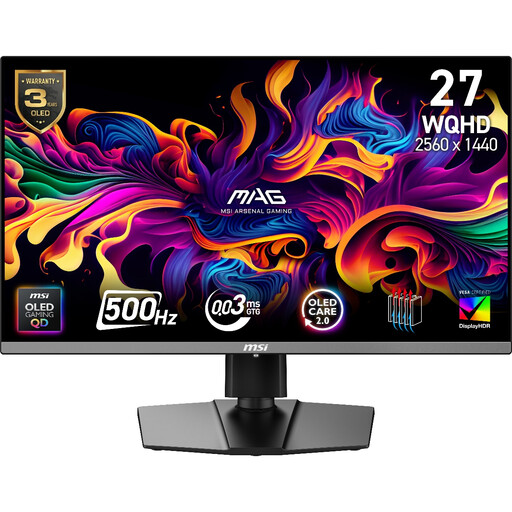
MAG 272QP QD-OLED X50 27-inch WQHD monitor
Consider this for a 1440p console desk setup where you also want to check monitor-side headphone audio. Its title specifies 2560 × 1440 resolution and a 500Hz maximum; that maximum is not a console output mode. Confirm the intended 120Hz HDMI mode and audio connection for your setup.
Joybuy
 No image available
LG UltraGear G8 27G850A 27-inch 4K monitor
Consider this if a 27-inch 4K screen fits your desk. The title specifies a Nano IPS panel and HDMI 2.1, but its dual-mode refresh figures do not establish 4K at 120Hz from your console. Check the HDMI mode table for the exact output you want.
Joybuy
 No image available
Dahua 32-inch curved 4K OLED monitor
Consider this for a larger desk screen if the curve and viewing distance suit your space. Its title specifies 3840 × 2160 resolution and a 165Hz maximum; check the exact HDMI console modes rather than treating that panel figure as a promise of 120Hz console output. Confirm the audio connections you intend to use.
Joybuy
 No image available
Acer X Predator X27U W3 26.5-inch QHD monitor
Consider this for close-up 1440p gaming if its screen size fits your desk. The title specifies a QD-OLED panel and a 240Hz maximum, neither of which confirms 120Hz through the console’s HDMI connection. Check the input mode table and the console’s detected modes.
Joybuy
 No image available
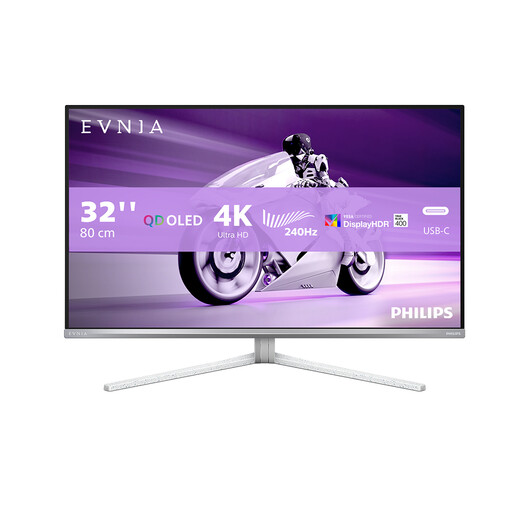
PHILIPS Evnia 32M2N8900 32-inch UHD monitor
Consider this if a 32-inch 4K screen suits your desk and viewing distance. The supplied descriptions conflict on HDMI version and refresh rate, so consult the exact model’s manual and HDMI mode table before relying on a particular console output mode.
Joybuy
Frequently asked questions
How do I check whether a monitor will run my PS5 or Xbox at 120Hz?
Check 120Hz support over HDMI at the resolution you intend to use, then inspect the console’s detected display modes after connection. PlayStation provides a PS5 1440p output test; Xbox Support notes that DisplayPort-only 120Hz support is not sufficient for an HDMI-connected console.
Do I need HDMI 2.1 for a console monitor?
For Xbox Series X 4K gaming at 120Hz, Xbox Support specifies an HDMI 2.1 display and an Ultra High Speed HDMI cable. If you intend to use a lower resolution at 120Hz, check whether the particular monitor accepts that combination over HDMI rather than deciding by its HDMI label alone.
Should a bedroom console monitor have speakers or a headphone output?
Choose the audio connection that fits how you will use the setup, and confirm it on the exact model. Overclockers UK lists monitors with speakers and different 3.5 mm connections, but speakers and headphone output are not interchangeable specifications.


