Fast-motion FPS replay reviewers
If you chiefly revisit aiming, peeking and tracking in games such as CS2 or VALORANT, start with the monitor’s available high-refresh modes and motion settings.


Choose a high-refresh esports monitor if following rapid movement is your main reason for reviewing competitive replays. If you regularly pause footage, use timelines or inspect fine detail, consider a QHD monitor or a model with a higher-resolution mode instead. Check the resolution and refresh rate available through your intended connection, and account for prolonged static controls if you are considering OLED.
If you chiefly revisit aiming, peeking and tracking in games such as CS2 or VALORANT, start with the monitor’s available high-refresh modes and motion settings.
If replay timelines, notes and paused frames share your screen with competitive play, consider desktop space and resolution alongside refresh rate.
If you review matches for extended periods, check how the stand fits your workstation. With OLED, also consider how long timelines and controls remain fixed on screen.
Choose when: Following fast FPS movement matters more to you than inspecting fine detail in paused frames.
Trade-off: Native FHD provides less pixel detail and workspace than QHD or 4K; on the ZOWIE XL2566X+, DyAc 2 and variable refresh rate cannot be used together, according to ZOWIE.
Choose when: You want room for replay timelines and paused-frame inspection alongside high-refresh play.
Trade-off: An OLED choice calls for model-specific care and warranty checks if controls stay fixed on screen for long periods; an IPS model does not have that same OLED-specific consideration.
Choose when: You switch between detailed footage or desktop work and fast competitive sequences.
Trade-off: The higher-resolution and highest-refresh settings are separate modes. Dell, for example, lists the Alienware AW2725QF at 4K and 180Hz or FHD and 360Hz, not both at once.
| Concern | What to check | Who this matters to |
|---|---|---|
| Fast-motion review | Match native resolution and refresh rate to the intended input. Check whether variable refresh rate and blur reduction can run together. | When I revisit quick peeks and tracking, I need to follow movement rather than study a paused frame. Around 36% of consumers would put motion review first. |
| Detail and workspace | Compare resolution and refresh rate as a pair, including each setting on a dual-resolution model. | I need space for a timeline and notes while inspecting paused footage. For around 29% of consumers, detail and workspace would be the primary concern. |
| Static OLED use | For an OLED model, read its panel-care instructions and warranty terms in relation to fixed controls and overlays. | My replay controls may remain in the same place through long sessions, so I need a panel-care routine that fits. Roughly 21% of consumers would prioritise that question. |
| Workstation fit | Check stand adjustment, desk clearance and mounting compatibility if you plan to use an arm. | If I analyse footage for hours, I need to position the screen comfortably at my desk. That would be the first concern for around 14% of consumers. |
A dual-resolution monitor can offer different refresh rates in different modes. Dell specifies 4K at 180Hz and FHD at 360Hz for the Alienware AW2725QF.
Check the resolution-and-refresh pairing you intend to use, then confirm that your device, graphics output and cable support it.
ZOWIE says DyAc and DyAc 2 must be switched off before variable refresh rate is enabled on the XL2566X+.
Check the exact model’s supported combinations and decide which setting matters more for your games and replay playback.
Timelines, overlays and toolbars can remain in the same positions. ASUS describes screen-saving and logo-dimming settings for supported ROG OLED models; those features should not be assumed for every OLED monitor.
Read the candidate model’s care instructions and warranty, and consider how your replay software displays static elements.
Stand position and the wider workstation matter during sustained review. The Health and Safety Executive also addresses display-screen workstation risks in applicable work settings.
Measure your desk and viewing position, check the stand or intended mount, and follow workplace display-screen guidance when replay review is part of your job.
These model lines illustrate different approaches to replay review; a brand name alone does not establish which monitor suits your setup.
An FPS-focused route for consumers who give fast replay motion priority over higher-resolution desktop space.
QHD QD-OLED and dual-resolution IPS options for consumers combining replay review with gaming or desktop work.
A high-refresh QHD IPS example, alongside separate OLED models for which panel-care settings may matter.
These monitors cover dual-mode 4K/FHD choices and QHD OLED or IPS options for consumers balancing fast replay playback with paused-frame review. Check the exact operating mode and connection before choosing.
 No image available
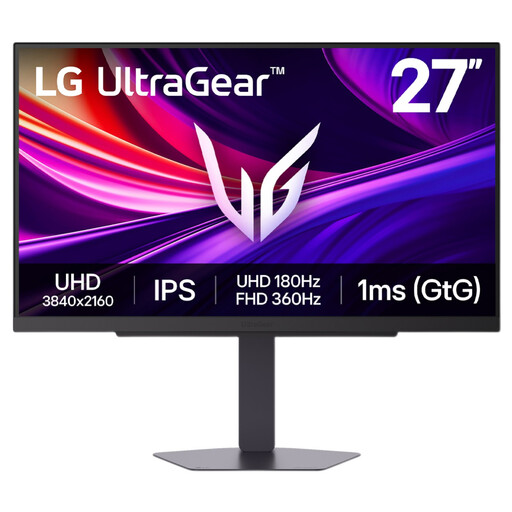
Consider this IPS model if you switch between detail-focused review and high-refresh playback.
The product title specifies 4K UHD, dual-mode 240Hz/480Hz operation, DisplayPort 2.1 and HDMI 2.1. Confirm which refresh rate applies to the mode and input you plan to use.
Check the exact variant before buying: the product title names 27G850A, while the listing details identify 27G850A-B.
 No image available
Consider this IPS model if your review sessions alternate between higher-resolution viewing and a faster FHD mode.
The product title identifies a 4K UHD dual-mode monitor with a stated maximum of 360Hz. Confirm the refresh rate available at each resolution through your intended input.
 No image available
Consider this QHD OLED model if you want a high-refresh screen for replay viewing and are prepared to check how static controls fit your usage.
The product title states 240Hz and a manufacturer-quoted 0.03ms response time. Check this model’s OLED-care instructions, warranty and available refresh rate through your intended input.
 No image available
Consider this model if QHD paused-frame viewing and high-refresh playback both matter to you.
The product title states 2560 × 1440, 240Hz and a manufacturer-quoted 0.03ms response time. For extended use with fixed overlays, check this exact model’s OLED-care and warranty terms; confirm its stand adjustments if desk positioning matters.
 No image available
Consider this IPS option if QHD replay viewing and a high-refresh mode are your priorities.
The product title specifies 2560 × 1440 and 220Hz. Confirm the refresh rate available through your intended input, and check stand adjustment or mounting compatibility if your desk requires either.
No: a 400Hz FHD monitor is most relevant when following rapid movement is your main concern. If you spend more time pausing footage or using notes and timelines, QHD or a dual-resolution model may fit your workflow better; confirm that your playback device can output the mode you choose.
No. ZOWIE says DyAc 2 must be turned off before enabling variable refresh rate on the XL2566X+, so decide which setting matters more for your play and replay review.
It may suit your workflow, but check the exact monitor’s care instructions and warranty before leaving static controls visible for long sessions. ASUS describes screen-saving and logo-brightness settings for supported ROG OLED models; that guidance is not a guarantee for every OLED monitor.
Workstation setup deserves attention alongside monitor specifications. The Health and Safety Executive says its display-screen equipment guidance applies to workers who use such equipment daily; follow the applicable workplace assessment and setup guidance rather than relying on stand adjustment alone.
Ask the seller which market the exact variant is intended for and what applicable safety and conformity information accompanies it. Department for Business and Trade guidance treats placing products on the market in Great Britain and Northern Ireland separately, so do not assume that information for one market covers the other.