Cockpit-view immersion seekers
You want instruments and the outside approach in view together from your chair, and are prepared to check your simulator’s ultrawide support and your PC’s performance.


A 34-inch curved ultrawide is a sensible starting point if you want cockpit instruments and docking cues across one seated view, provided your simulator handles its wider format well. Consider a 49-inch Dual QHD screen if you can accommodate its width and higher rendering demand; choose an adjustable 27-inch 4K monitor if fine detail and a more compact setup matter more than horizontal space. Check the game, graphics card and connection before choosing a refresh-rate mode.
You want instruments and the outside approach in view together from your chair, and are prepared to check your simulator’s ultrawide support and your PC’s performance.
You put readable cockpit detail and a screen you can align directly in front of your chair ahead of maximum display width.
You want to assess high-refresh and variable-refresh options for changing frame rates, while checking that your graphics card and connection support the mode you intend to use.
For seated docking, decide how much of the cockpit and approach you want visible at once, then check whether your game, PC and desk can support that choice.
Consider it when: You want a wider cockpit view without moving to a 49-inch display.
Trade-off: Check how your simulator places its interface at ultrawide resolutions and whether your PC can maintain the frame rate you want.
Consider it when: A broad, single-screen cockpit view is your priority and your seated setup has room for it.
Trade-off: Its 5120 × 1440 image has more pixels to render than 3440 × 1440, and the full screen needs to remain comfortable to scan from your chair.
Consider it when: You favour fine cockpit detail and a more compact screen that you can position centrally.
Trade-off: A conventional screen gives you less horizontal cockpit space; 4K gaming still calls for a capable graphics setup.
| Concern | What to check | Who it matters to |
|---|---|---|
| Cockpit visibility | Check the simulator’s handling of your intended aspect ratio, including the HUD and menus, and the PC’s frame rate at the screen’s resolution. | I want to see instruments alongside the docking approach without losing sight of either. Around 40% of consumers put panoramic cockpit visibility first. |
| Motion and compatibility | Check the graphics card, monitor and chosen HDMI or DisplayPort connection for the refresh and variable-refresh mode you plan to use. | If frame rate changes during an approach, I want the display and graphics setup to work together without distracting tearing or stutter. Roughly 30% of consumers prioritise motion consistency and compatibility. |
| Seated placement and detail | Measure the desk and check screen adjustment. The Health and Safety Executive’s general workstation guidance places the screen directly ahead, with its top near eye level and about an arm’s length away. | I need to read fine cockpit information while keeping the whole screen comfortable to view from my chair. About 30% of consumers make placement and detail their primary concern. |
A wide display can be difficult to centre and scan comfortably if the desk is shallow or your chair must sit close to it.
Measure usable width and depth from your normal seated position. Compare the proposed placement with the Health and Safety Executive’s general guidance on screen height and viewing distance.
A monitor’s maximum refresh rate does not establish what your PC can render at the resolution and settings you choose.
Check expected performance in your simulator and confirm that the graphics output, monitor port and cable support your intended display mode.
HUD elements, menus, cutscenes and field of view may behave differently across games, even when the monitor accepts the resolution.
Check recent information for your particular simulator at 21:9 or 32:9 before choosing a wider screen primarily for cockpit visibility.
Electrical products marked with a crossed-out wheelie bin need a separate recycling route, according to UK government guidance.
Use an appropriate electrical-waste collection point or household waste recycling centre, or ask about like-for-like retailer take-back when buying a replacement.
Relevant if you are considering a large, single-screen cockpit layout.
Relevant if a 34-inch curved ultrawide appeals more than a larger super-ultrawide.
Relevant if you prefer a conventional 27-inch screen with adjustable placement.
These models cover 34-inch and 39-inch ultrawides and a 49-inch super-ultrawide for a seated cockpit setup. Compare their stated formats with your simulator, graphics setup and available desk space rather than treating screen size alone as a docking advantage.
 Image unavailable
Consider this 34-inch ultrawide if you want cockpit information and approach cues across a wider view. Check how your simulator displays its interface and whether your PC can deliver the frame rate you want at the monitor’s native resolution.
 Image unavailable
This 34-inch model suits a seated setup where a wider cockpit view is the aim. Its name specifies a VA panel, WQHD resolution and 240Hz refresh rate; check the game’s ultrawide interface and the refresh mode available through your PC’s connection.
 Image unavailable
Consider this 34-inch ultrawide if its wider format fits the way your simulator presents cockpit information. Its name specifies OLED, WQHD and 240Hz; check game and PC compatibility. The product description warns of OLED burn-in risk and advises screen-protection features and avoiding prolonged static images.
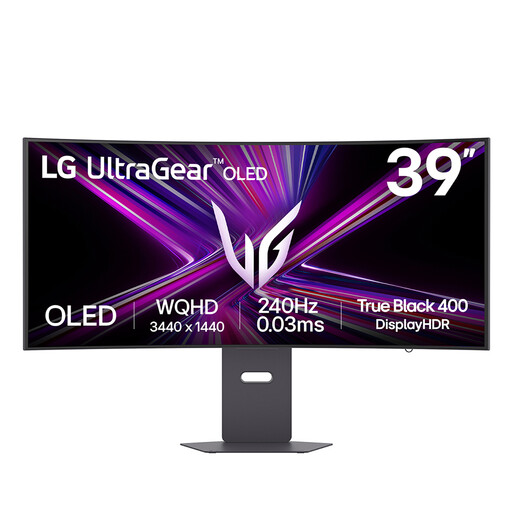 Image unavailable
This 39-inch option is worth considering if you want a larger seated view than a 34-inch screen. Its name specifies OLED, QHD and 240Hz. Measure the desk and viewing distance, and check your simulator’s interface and your PC’s intended display mode.
 Image unavailable
Consider this super-ultrawide if a broad, single-screen cockpit view is your priority and you can position it comfortably. Its name specifies a 49-inch 32:9 QD-OLED display, 1800R curve, Double Quad HD resolution and 240Hz. Check your simulator’s 32:9 interface and your PC’s performance at the intended resolution.
Place the screen directly in front of your usual chair and adjust the screen and seat together. The Health and Safety Executive’s general workstation guidance suggests a screen top near eye level and a viewing distance of about an arm’s length; assess whether you can comfortably scan the full width of a larger monitor.
Neither is a requirement for docking, but compatible variable refresh can help reduce distracting visual artefacts when frame rate changes. AMD describes FreeSync operation with compatible Radeon graphics, while NVIDIA requires a G-SYNC or G-SYNC Compatible display for its corresponding feature; check the exact monitor, graphics card and connection.
A 240Hz specification alone cannot tell you how your simulator will run. Check the frame rate your PC can deliver at your chosen resolution and whether its output and the monitor’s input support the refresh mode you intend to use.
Use an appropriate electrical-waste collection route rather than putting a monitor marked with a crossed-out wheelie bin in household rubbish. UK government guidance identifies collection points and household waste recycling centres; it also describes free like-for-like retailer take-back when you buy a new electrical product.