Small-desk PC circuit learner
You want QHD detail for identifying track reference points, but the screen and its stand must fit your desk. Measure the stand depth and check the display mode available through your PC connection.


For PC practice on a small desk, a flat 27-inch QHD IPS monitor is a sensible starting point if its stand fits and your graphics hardware can run the game at your intended settings. Measure the complete footprint and check the refresh rate available through the port you will use; for a PS5 or Xbox, check the monitor’s HDMI modes rather than relying on its PC refresh-rate headline.
You want QHD detail for identifying track reference points, but the screen and its stand must fit your desk. Measure the stand depth and check the display mode available through your PC connection.
You pay close attention to braking points, corner exits and moving scenery. Compare usable refresh rates, adaptive-sync support and response-time measurements rather than treating every claimed response figure as equivalent.
You want the console and monitor to deliver your intended 1440p, 120Hz and variable refresh rate (VRR) modes where supported. Check the monitor’s HDMI specification and the signal detected by the console.
Start with the space available for the complete monitor, then check whether your PC or console can deliver the picture mode you want through the connection you will use. Treat picture extras as a separate decision once fit and compatibility are settled.
| Concern | What to check | Who this matters to |
|---|---|---|
| Desk fit and positioning | Measure usable desk depth and the complete stand footprint. For an arm, check the VESA pattern, load rating and desk clamp clearance. | If the stand leaves too little room to position the screen comfortably, physical fit comes before a higher refresh-rate figure. Around 37% of consumers put desk fit first. |
| Track detail and motion | Check QHD resolution (2560 × 1440), the refresh rate available through your chosen input and the frame rate your PC can deliver. | When I practise braking points and corner exits, I want to balance visible detail with motion I can follow. Around 27% of consumers make that balance their primary concern. |
| Console signal | Check the monitor’s HDMI support for your intended 1440p, 120Hz and VRR modes, then inspect the console’s detected output. | If I mainly use a PS5 or Xbox, the mode available through HDMI matters more than a DisplayPort maximum. For around 18% of consumers, console compatibility comes first. |
| Picture features and convenience | Decide whether you need built-in audio or a picture preset, and check the exact model’s features and stand adjustments. | At a crowded desk, built-in audio or easier screen positioning may matter once the display fits and connects as intended. Around 18% of consumers prioritise these conveniences. |
On the Alienware AW2725DM, Dell UK specifies QHD up to 144Hz through HDMI and 180Hz through DisplayPort. LG UK describes 180Hz as native on the 27GS75QN-B, with its optional 200Hz overclock requiring a DisplayPort 1.4-capable graphics card and cable.
Check the timing specification for the port you will use, then confirm the detected mode in your PC or console settings.
BenQ UK specifies a 252.5mm depth for the EX2710Q with its stand; ASUS UK specifies 214mm for the VG27AQ3A. Neither measurement tells you whether the screen will sit at the right distance on your particular desk.
Measure the available depth and rear clearance. If you plan to use an arm, check the mounting pattern, monitor weight and desk-clamp fit.
Response-time figures can refer to different measurements and settings: LG identifies a 1ms grey-to-grey claim for the 27GS75QN-B, while BenQ lists separate grey-to-grey and moving-picture response figures for the EX2710Q.
Compare the measurement type and required setting, and consult measured reviews of the exact model if response behaviour is a deciding factor.
A monitor’s high DisplayPort refresh rate does not establish its HDMI behaviour. PlayStation provides a PS5 1440p output test for supported SDR, HDR, 60Hz, 120Hz and VRR modes; Xbox Support says 120Hz selection depends on the connected display’s HDMI support.
Check the exact monitor’s HDMI modes and use the console’s output settings to confirm the signal after connection.
LG UK lists the 27GS75QN-B as a 27-inch QHD IPS monitor with a native 180Hz refresh rate and an optional 200Hz overclock.
Dell UK’s AW2725DM is a 27-inch QHD Fast IPS model with HDMI and DisplayPort inputs.
BenQ UK lists the EX2710Q as a 27-inch QHD IPS 165Hz model with height adjustment, integrated 2.1-channel audio and a Racing picture mode.
ASUS UK lists the VG27AQ3A as a 27-inch QHD Fast IPS 180Hz model with a 214mm depth on its supplied stand.
These QHD gaming monitors offer different listed panel types and refresh rates for a street-circuit setup. None should be chosen for a small desk on screen size alone: check the stand footprint and the display mode available from your own device.
 No image available
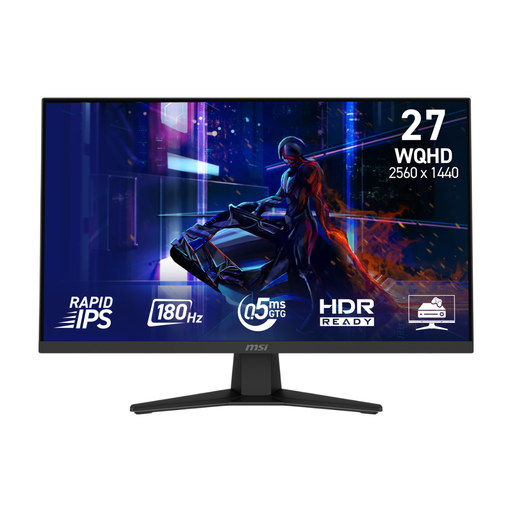
Consider this Rapid IPS, Adaptive Sync option for PC-based QHD play if you can confirm that its complete stand fits your desk. Check the refresh and adaptive-sync modes available through the input you intend to use, especially with a console.
 No image available
This OLED option suits a setup where its listed high refresh rate is a priority, provided the screen can be positioned comfortably. Check the stand depth against your desk and confirm the refresh and VRR modes available through your chosen input.
 No image available
The 26.5-inch QD-OLED model is an option if you want to compare a slightly smaller screen diagonal with 27-inch alternatives. Confirm its actual stand footprint and mounting pattern before planning a small-desk installation, as well as the modes available from your PC or console.
 No image available
This Fast IPS model is worth comparing if you are considering a higher listed refresh rate for QHD PC play. Verify its complete width and stand depth for your desk, and check the refresh and FreeSync modes supported by the input you will use.
 No image available
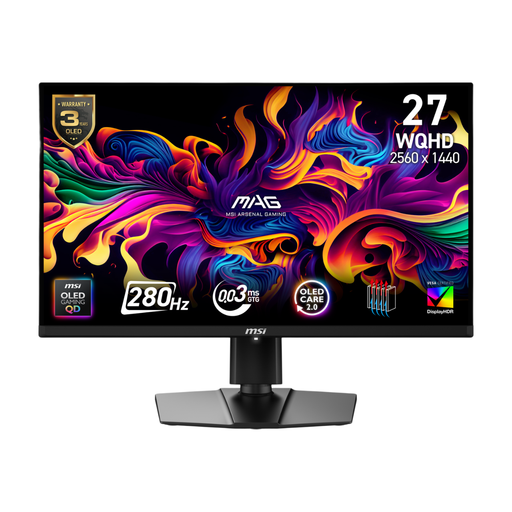
This QD-OLED model offers another listed high-refresh option for PC circuit practice. Measure the intended screen position and stand footprint, then check its mounting details and the refresh and adaptive-sync modes available from your device.
Not necessarily: the complete monitor and stand dimensions matter more than the diagonal alone. BenQ UK specifies the EX2710Q at 614mm wide and 252.5mm deep with its stand, while ASUS UK specifies the VG27AQ3A at 615mm wide and 214mm deep. Compare those dimensions with your available space and check arm compatibility if the supplied stand will not work.
No: the available rate depends on the input and the connected hardware. LG UK describes 180Hz as native on the 27GS75QN-B and requires DisplayPort 1.4-capable graphics hardware and a suitable cable for its 200Hz overclock; Dell UK specifies QHD up to 144Hz through HDMI and 180Hz through DisplayPort on the AW2725DM.
Check the monitor’s HDMI modes against the output you want, then confirm the detected signal in the console settings. PlayStation’s PS5 1440p test checks supported SDR, HDR, 60Hz, 120Hz and VRR output; Xbox Support says 120Hz can be selected when the connected display supports it over HDMI.