Long-session squad players
Players looking for readable QHD detail and steady motion, with a screen they can position comfortably for extended play.


For squad-survival play, a 27-inch QHD monitor with adaptive sync and a 165–180Hz mode is a useful starting point if your PC and chosen connection can support that mode. Consider QHD 240Hz when fast competitive play is your main priority, or a dual-resolution monitor if you would use both its detail-focused and faster modes. For long sessions, check screen positioning and lighting too; monitor features do not replace breaks.
Players looking for readable QHD detail and steady motion, with a screen they can position comfortably for extended play.
Players deciding whether their hardware and connection can make practical use of QHD refresh modes at 240Hz or above.
Players who want a high-detail mode for some games and the option to switch to a faster, lower-resolution mode for competitive sessions.
Choose the resolution and refresh mode you expect to use most, then check that your device, connection and desk setup can accommodate it.
Consider it when: You want QHD detail and responsive motion without making the highest possible frame rate your main goal.
Check: The advertised refresh mode may vary by input; Dell UK lists QHD 180Hz over DisplayPort but QHD 144Hz over HDMI for the Alienware AW2725DM.
Consider it when: Fast competitive motion takes priority and your system can produce suitably high frame rates at your usual settings.
Keep in mind: A higher monitor refresh rate cannot create frames that your game and system do not produce.
Consider it when: You would genuinely switch between detailed play and a lower-resolution competitive mode; Dell UK lists 4K at 180Hz and FHD at 360Hz for the Alienware AW2725QF.
Keep in mind: Switching to FHD changes the image resolution, so decide whether that compromise suits your usual games.
| Concern | What to check | Who this matters to |
|---|---|---|
| Stable motion | Check refresh and variable refresh rate support for your device and intended port. | When tracking opponents through rapid turns, I want motion that stays steady without making the refresh figure my only criterion. Around 33% of consumers put motion stability first. |
| Long-session setup | Check stand adjustments or VESA mounting, then plan screen position, lighting and breaks. | If I play for hours, I need to place the screen comfortably rather than rely on a display setting alone. Long-session setup is the primary concern for around 27% of consumers. |
| Scene detail | Compare native resolution with the frame rates your PC can deliver at your preferred game settings. | I want map, environment and interface detail to remain readable, but not at a resolution my system struggles to drive. Around 27% of consumers prioritise scene detail. |
| Connection flexibility | Check each device’s output and the monitor’s resolution, refresh and adaptive-sync modes by port. | When sharing a screen between devices, I need the mode I intend to use to work through the connection available. For around 13% of consumers, connection flexibility comes first. |
Dell UK lists QHD 180Hz over DisplayPort but QHD 144Hz over HDMI for the Alienware AW2725DM. The port you use can therefore change the mode available.
Before ordering, compare the monitor’s per-port modes with your device output and intended cable.
Manufacturer figures such as Dell’s 1ms GTG in Extreme Mode and MSI’s 0.5ms GTG minimum use different stated conditions. They do not, by themselves, establish which monitor will look clearer in play.
Read the measurement type and mode attached to each figure rather than treating the numbers as an independent motion-performance ranking.
MSI describes anti-flicker and reduced-blue-light features on the MAG 274QF, but a setting alone cannot establish that an extended session will be comfortable. The Health and Safety Executive identifies screen positioning, lighting and breaks as relevant considerations for display-screen use.
Check the stand or mounting options you need, limit glare and take regular breaks.
A dual-resolution monitor changes resolution between its modes, while a high-refresh QHD monitor is a different choice. Either choice is harder to justify if your usual games and hardware cannot make use of its defining mode.
Decide on your usual resolution, game settings and target frame rate before comparing those options.
Dell UK lists Alienware models spanning 27-inch QHD play and switchable 4K/FHD modes.
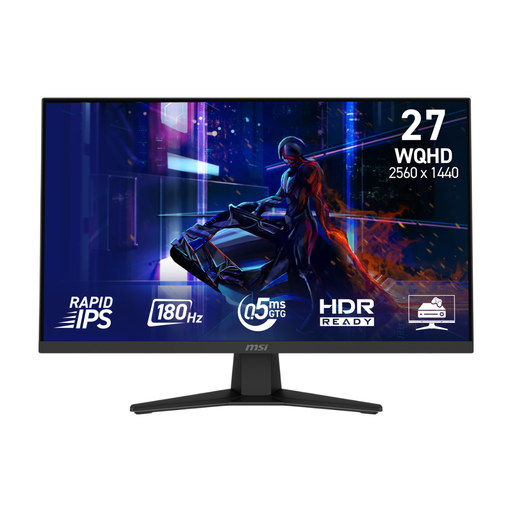
MSI UK lists the MAG 274QF as a QHD 180Hz option with AMD FreeSync.
Acer United Kingdom lists the Nitro VG272U V3 as a 27-inch WQHD IPS monitor with a 180Hz refresh rate.
Samsung UK lists the Odyssey G65B as a QHD 240Hz option for players considering a higher-refresh route.
These monitors cover QHD high-refresh play, a wider OLED format and a switchable 4K/FHD option. Choose by the mode you will use, then check your connection and positioning needs.
 No image available
Consider this model if QHD detail and a 180Hz option fit your squad-play priorities.
The product name specifies Rapid IPS and Adaptive Sync. MSI UK lists a 0.5ms GTG minimum response time for the MAG 274QF; that minimum is not a like-for-like measure of every monitor’s motion performance.
Check the refresh mode available through the port and cable you intend to use, as well as the stand adjustments needed for your desk.
 No image available
Consider this model if you would use both a detail-focused mode and a faster, lower-resolution mode.
Its product name specifies 4K at 240Hz or 1080p at 480Hz, Nano IPS, AMD FreeSync Premium Pro, DisplayPort 2.1 and HDMI 2.1.
Check which combination your graphics hardware, chosen port and cable can deliver, and whether 1080p suits your usual play.
 No image available
Consider the wider screen format if it suits your desk and your preferred view of squad play.
The product name specifies a 34-inch OLED WQHD display and 240Hz refresh rate. Check the mode available through your intended device, port and cable.
The listing warns that the OLED screen is susceptible to burn-in; follow its screen-protection guidance and avoid leaving static images displayed for extended periods.
 No image available
Consider this QHD model if a 240Hz option is useful for your competitive settings.
Its product name specifies a 27-inch OLED display and 240Hz refresh rate. Confirm the refresh and variable-refresh modes available through your device and chosen input.
Check the OLED care guidance for your pattern of long sessions, including time spent with static on-screen elements.
 No image available
Consider this model if you want a QHD 240Hz option and need to plan how the screen will be positioned.
The product name specifies a 26.5-inch 2560 × 1440 QD-OLED display, FreeSync Premium Pro and G-SYNC compatibility.
Check refresh and adaptive-sync modes for your device and chosen input. If you need particular stand adjustments, confirm the ErgoStand’s range before ordering.
A QHD 180Hz mode can suit you if you want detail and responsive motion without prioritising the highest refresh tier, provided your PC can produce suitable frame rates. Check the connection as well: Dell UK lists QHD 180Hz over DisplayPort but QHD 144Hz over HDMI for the Alienware AW2725DM.
Choose QHD 240Hz when fast competitive play is your main priority and your system can make practical use of that refresh rate at your usual settings. If readable detail and a workable long-session setup matter more than pursuing higher frame rates, a QHD 180Hz option remains worth considering.
No: those monitor features are not a substitute for breaks or a suitable screen setup. MSI describes comfort features on the MAG 274QF, while the Health and Safety Executive identifies positioning, lighting and regular breaks as relevant to display-screen use.