Map and interface readers
If you spend time reading unit details, tooltips and dense menus, resolution and usable screen space may matter more to you than an exceptionally high refresh rate.


Choose a 4K monitor if reading dense maps, labels and menus is your priority; consider an ultrawide if you would use the extra horizontal space and have room to position it comfortably. Check that your PC can drive the resolution and refresh rate you want. For long sessions, stand adjustment, viewing position and breaks matter alongside display specifications.
If you spend time reading unit details, tooltips and dense menus, resolution and usable screen space may matter more to you than an exceptionally high refresh rate.
If you play for extended periods, consider whether the stand or a suitable mount lets you position the display comfortably. The Health and Safety Executive advises placing the top of a screen at eye level, about an arm’s length away, and taking short, frequent breaks during display-screen work.
If you want more horizontal room for a map, game panels or other windows, an ultrawide format is worth considering once you have checked your desk space and how your games handle it.
Consider it when: Dense map details and a conventional screen shape take priority over extra width.
Allow for: Your PC’s performance at 4K, particularly if you also want a high refresh rate.
Consider it when: You want more lateral space without moving to a 45- or 49-inch display.
Allow for: The cited Alienware AW3426DW’s 3440 × 1440 resolution has fewer vertical pixels than 4K.
Consider it when: A broad map and room for adjacent windows justify a much larger curved screen.
Allow for: Desk fit, game support for 21:9 and PC performance at 5120 × 2160.
Consider it when: Horizontal workspace matters more to you than 4K-level vertical resolution.
Allow for: A 5120 × 1440 screen needs substantial desk space and suitable game-interface support.
| Concern | What to check | Who this matters to |
|---|---|---|
| Map and interface clarity | Compare native resolution and screen size, then check the game’s interface-scaling options. | If small labels and layered map information are hard to follow, I would put readable detail ahead of a higher refresh-rate target. Around 36% of consumers would make map and interface clarity their primary concern. |
| Long-session positioning | Check stand adjustment, desk depth and VESA mounting if you plan to use an arm. | For a long session, I need to be able to place the screen comfortably rather than work around an awkward stand. Positioning is the main concern for roughly 29% of consumers. |
| PC and connection fit | Check graphics outputs, the cable and expected game performance at your chosen resolution and refresh rate. | If my PC cannot drive the display mode I want, extra refresh capability will not decide the purchase for me. Around 21% of consumers would put PC and connection fit first. |
| Extra-wide workspace | Measure desk width and depth, and check game support for 21:9 or 32:9. | When I want a broad battlefield view alongside other windows, horizontal room is worth more to me than a conventional screen shape. Extra-wide workspace would be the primary need for roughly 14% of consumers. |
A monitor’s maximum display mode does not tell you what your games will run at. RTINGS notes that combining high resolution and high refresh rates calls for capable hardware and suitable high-bandwidth connections.
Check your graphics output, cable and likely game performance at the monitor’s native resolution before deciding how much refresh capability you need.
A 45- or 49-inch display takes more planning to place on a desk. The Health and Safety Executive advises positioning the top of a screen at eye level and the display about an arm’s length away.
Measure the available width and depth, then compare the stand or VESA mounting options with your seated position.
If the supplied stand cannot achieve that position, a compatible monitor arm or a deeper desk may be needed.
Flicker-free, low-blue-light and glare-reduction features are not substitutes for positioning and breaks. The Health and Safety Executive recommends short, frequent breaks during display-screen work.
Use settings that suit your viewing conditions, while making room for movement and posture changes during long sessions.
Historical strategy games can leave menus and other interface elements on screen for extended periods. ASUS describes OLED Care Pro as a way to reduce burn-in risk on its PG32UCDM Gen3, not eliminate it.
Read the exact model’s panel-care instructions and warranty terms before choosing an OLED display for games with persistent interface elements.
The ROG Swift OLED PG32UCDM Gen3 illustrates a 32-inch 4K option for players who prioritise map detail in a conventional format.
The EX3210U illustrates a 32-inch 4K IPS option where physical adjustment is an important part of the choice.
The 45GX950A-B illustrates a large curved ultrawide for players who want more horizontal map and window space.
Dell’s AW3426DW illustrates a 34-inch ultrawide for players who want more width without choosing a 45- or 49-inch screen.
The Odyssey OLED G95SD illustrates a 49-inch super-ultrawide choice for substantial horizontal workspace.
These Joybuy choices focus on conventional-size gaming monitors for map and interface reading, PC compatibility and long-session setup. Compare the exact model’s display mode and positioning options against your own games and desk.
 No image available
Consider this 27-inch option if you want 4K resolution without moving to a larger screen. Its stated dual modes are 4K at 240Hz and 1080p at 480Hz; check which mode your PC and games can use.
The product title also lists DisplayPort 2.1 and HDMI 2.1 connections.
 No image available
The 3840 × 2160 display suits a search for detailed maps on a larger conventional-size screen. Check that your PC can deliver the display mode you want at 4K.
The title lists USB-C with 65 W power delivery. For long sessions with persistent game interfaces, review this model’s OLED-care instructions and warranty.
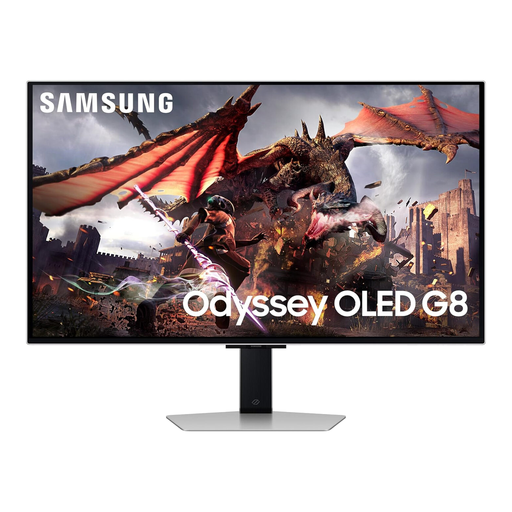 No image available
This is another 32-inch high-resolution format to consider when map detail matters more than extra screen width. Check whether its stand reaches your preferred viewing position.
For games with persistent interface elements, read the exact model’s OLED-care guidance and warranty terms.
 No image available
Consider this 2560 × 1440 option if a 27-inch screen and 240Hz specification suit your setup. QHD has fewer pixels than 4K, so compare interface legibility before giving refresh rate priority.
Check the model’s OLED-care guidance and warranty for extended use with persistent menus.
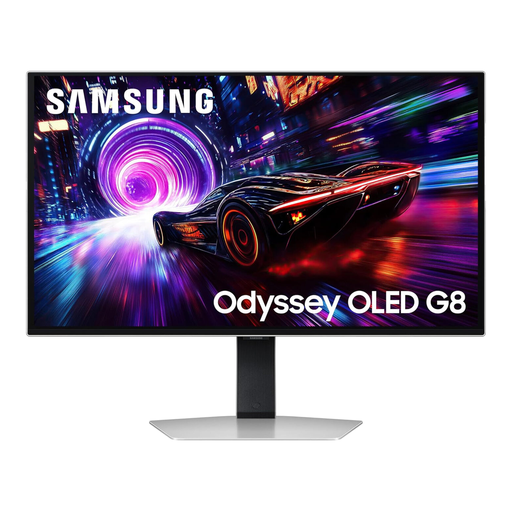 No image available
This 32-inch OLED is worth comparing if you want a conventional-size screen rather than an ultrawide. Confirm the exact unit’s display modes, ports and stand adjustment against your PC and desk.
For extended sessions with static, high-brightness interface elements, follow the model’s OLED-care instructions and check its warranty terms.
Prioritise a resolution and screen format that let you read your maps and interface comfortably, then decide how much refresh capability your PC can use. RTINGS identifies 4K as an option for more detailed games while noting the hardware demands of high-resolution, high-refresh displays; 240Hz is not a requirement for every strategy-game setup.
Position it directly in front of you, with the top of the screen at eye level and the display about an arm’s length away, following Health and Safety Executive display-screen guidance. Check the stand’s adjustment range or a compatible mount if your desk makes that position difficult, and take short, frequent breaks.
No. They are display features, not replacements for breaks or suitable screen placement. The Health and Safety Executive recommends short, frequent breaks during display-screen work; seek appropriate eye-care advice if discomfort persists.