Long-session circuit learners
If you repeatedly study braking markers, road edges and corner sequences, consider both a usable refresh rate and whether the screen can sit at a comfortable height and angle.


For repeated street-circuit practice on a PC, start by considering a 27-inch QHD monitor whose stand you can position comfortably and whose refresh rate your PC can use through its chosen connection. A QHD OLED model may suit a stronger preference for high-refresh specifications, while a 4K/FHD dual-resolution model offers distinct modes for studying track detail and faster practice. Neither route removes the need to check your graphics output, cable and game settings.
The useful specification depends on what interrupts your practice: screen position over a long session, motion during rapid turns, or the choice between detail and refresh rate.
If you repeatedly study braking markers, road edges and corner sequences, consider both a usable refresh rate and whether the screen can sit at a comfortable height and angle.
If rapid camera movement drives your choice, compare refresh-rate and pixel-response specifications only alongside the modes your PC and connection can use.
If you alternate between studying track detail and high-refresh practice, a monitor with separate resolution and refresh modes may fit that pattern. Check which mode you would actually use most.
For a long street-circuit session, decide whether screen positioning, usable motion or a choice of display modes is your primary need. Then check the relevant specification against your seating position and PC rather than comparing headline refresh rates alone.
| Concern | What to check | Who this matters to |
|---|---|---|
| Screen positioning | Check the supplied stand’s height and angle adjustments against your desk and seat. Plan for suitable lighting and breaks; an eye-care label is not a substitute. | When practice runs long, I want to place the screen where I can follow corner detail without staying in an awkward position. Around 42% of consumers put viewing setup first. |
| Motion and sync | Compare refresh limits for the intended port and resolution, then check adaptive-sync compatibility with your graphics hardware. | Through quick turns, I care most about a refresh mode my PC can actually deliver. Usable motion is the primary concern for around 33% of consumers. |
| Detail and display modes | Choose the resolution and refresh combination you expect to use most; check your game settings and connection for that mode. | I want a detailed view for studying the circuit but might switch to a faster, lower-resolution practice mode. Around 25% of consumers prioritise that flexibility. |
BenQ UK specifies 180Hz over DisplayPort but 144Hz over HDMI for the EX271Q. Its headline maximum therefore does not describe every connection.
Before ordering, match the monitor’s per-port limits to your PC or console output, intended resolution and cable.
Manufacturer response-time figures are specifications, not independent measurements of how motion will appear in your game. For long display-screen sessions, the Health and Safety Executive also points to screen position, lighting and breaks.
Use display specifications to narrow the choice, then assess stand adjustment and your room setup separately.
Dell UK specifies the Alienware AW2725QF for 4K at 180Hz or FHD at 360Hz: these are different operating modes, not a single combined mode.
Decide which mode you expect to use, then check whether your graphics hardware, connection and game can provide it.
These manufacturer-listed models illustrate different ways to balance resolution, refresh rate and setup. Their specifications are useful for comparison, but do not establish how each display will perform in your room or game.
BenQ UK lists the 27-inch EX271Q as a 2560 × 1440 IPS monitor with FreeSync Premium and 100 mm of stand height adjustment.
LG UK specifies the 27-inch 27GS93QE-B as a 2560 × 1440 OLED monitor with a 240Hz refresh rate.
Dell UK specifies the 27-inch AW2725QF as a dual-resolution IPS monitor with 4K at 180Hz and FHD at 360Hz modes.
ASUS ROG specifies the 26.5-inch Swift OLED PG27AQDP as a 2560 × 1440 WOLED monitor with a maximum 480Hz refresh rate.
These monitors cover dual-resolution practice, QHD high-refresh play and a wider-format OLED option. Compare their stated modes and physical adjustments against the circuit-learning setup you plan to use.
 No image available
Consider this dual-mode monitor if you want to switch between detail-focused viewing and faster practice. Its title identifies a 27-inch 4K UHD Nano IPS display and DisplayPort 2.1 and HDMI 2.1 connections.
Confirm the exact resolution and refresh combinations for your intended connection before choosing a mode.
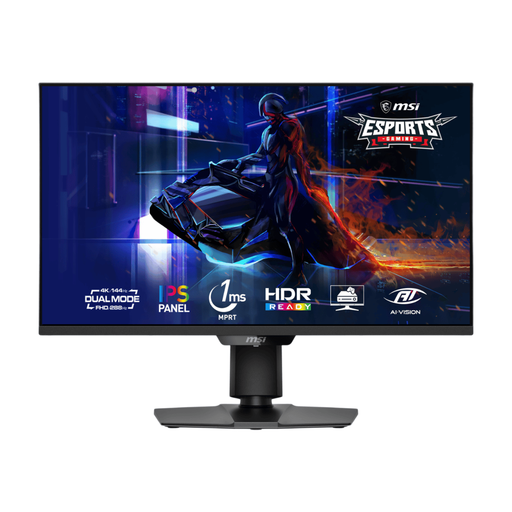 No image available
This is an option if you expect to alternate between a detailed UHD view and higher-refresh FHD practice. Its title specifies UHD at 144Hz and FHD at 288Hz, with Adaptive Sync.
Check which mode is available through your chosen connection and whether your system can drive it.
 No image available
Consider this model if a wider display format is part of your planned setup rather than assuming a 27-inch screen is necessary. Its title specifies WQHD and 240Hz.
Check the resolution and refresh supported by your connection. OLED screen retention is also a consideration: follow the model’s screen-care guidance and avoid leaving static images displayed for extended periods.
 No image available
This model fits a search for a fixed-QHD OLED format rather than separate 4K and FHD modes. Its title specifies 240Hz and a 0.03ms response-time rating; that rating is not an independent motion measurement.
Check that your PC, cable and selected input can deliver the QHD refresh mode you want.
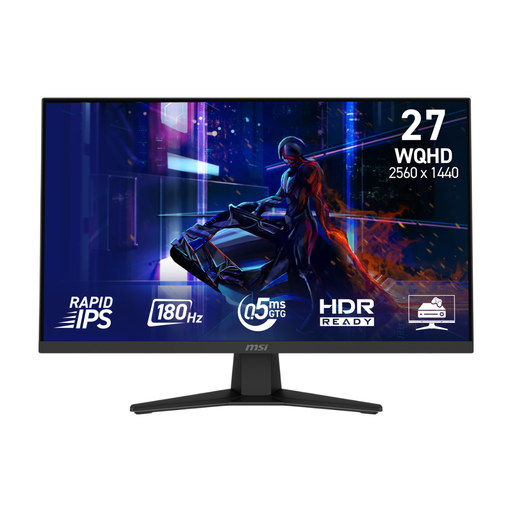 No image available
Consider this fixed-QHD model if you want that resolution without a dual-mode display. Its title specifies a 180Hz refresh rate and Adaptive Sync.
Check the refresh limit for your chosen input and whether the stand’s available adjustments suit your seating position.
Not solely on its headline number: choose a resolution and refresh combination your PC and connection can use. BenQ UK specifies 180Hz over DisplayPort but 144Hz over HDMI for the EX271Q, while Dell UK lists separate 4K-at-180Hz and FHD-at-360Hz modes for the AW2725QF.
No. Treat low-blue-light settings as optional monitor features, not a substitute for screen positioning, suitable lighting and breaks. The Health and Safety Executive discusses those practices in its guidance for extended display-screen work.
Choose the connection after checking the exact monitor mode and your graphics output. For example, BenQ UK lists the EX271Q’s 180Hz maximum over DisplayPort, while LG UK lists QHD at 240Hz over HDMI 2.1 for the 27GS93QE-B. Check the cable and ports needed for the model you select.
Use an appropriate electrical-waste collection route rather than putting a monitor marked with the crossed-out-wheelie-bin symbol in household rubbish. UK government consumer guidance says that, when you buy a new electrical product, the retailer must accept an old one free of charge on a like-for-like basis; check how that retailer arranges take-back.