Choose a 27-inch 4K monitor if inspecting tournament footage and working on a detailed desktop matter more to you than the highest refresh rate; choose a QHD high-refresh monitor if competitive play takes priority. Dell UK, BenQ UK and ASUS UK specify models that illustrate both routes, but you should confirm the resolution and refresh rate available through your device and chosen connection, then check USB-C and stand adjustment separately.
Who is this for?
Footage-detail reviewers
If you pause tournament clips to inspect maps, overlays or fine detail, a 4K display is a useful starting point. The 27-inch Dell S2725QC and BenQ EX2710U are both specified at 3840 x 2160 by Dell UK and BenQ UK respectively; their stated refresh rates differ.
Competitive players who review replays
If active play matters as much as reviewing matches, consider what refresh rate your setup can actually use. Dell UK specifies the QHD S2725DC at 144Hz, while ASUS UK lists the QHD VG27AQML1A at up to 260Hz, with different limits for HDMI and DisplayPort.
Single-monitor home-office users
If a laptop shares your gaming desk, check connections and screen positioning alongside gaming specifications. Dell UK lists USB-C and height, swivel, tilt and pivot adjustment for the 27-inch 4K S2725QC; confirm that your laptop or dock supports the video mode you intend to use.
What matters when choosing?
Decide whether footage detail, high-refresh play or desk integration would settle the choice if you had to prioritise one. Then check the exact display mode and connection rather than relying on the headline refresh rate.
| Concern |
What to check |
Who this matters to |
| Footage detail |
Check native resolution and the refresh rate available at that resolution. Dell UK and BenQ UK specify 27-inch 4K models at 120Hz and 144Hz respectively. |
If I regularly pause clips to inspect small on-screen elements and also work with notes or timelines, I would put resolution first. Around 42% of consumers would make footage detail their primary concern. |
| High-refresh play |
Check the refresh limit for your chosen input and resolution. ASUS UK lists up to 144Hz over HDMI and up to 260Hz over DisplayPort for the QHD VG27AQML1A. |
When I spend substantial time playing competitive matches as well as reviewing them, I would prioritise the gaming mode I can use. Around 33% of consumers would put high-refresh play first. |
| Desk integration |
Confirm the laptop or dock video output, the monitor inputs and the stand or mounting adjustments you need. |
If one screen has to work comfortably with my home-office laptop and gaming setup, connection and positioning could decide the purchase. Around 25% of consumers would make desk integration their primary concern. |
Buying pitfalls
-
Choosing by an HDR label alone
HDR input support and a named DisplayHDR certification are not the same claim. The Video Electronics Standards Association maintains a certified-product list for checking DisplayHDR claims.
If HDR influences your choice, check the exact model and named tier rather than assuming that an HDR or HDR10 label establishes certification.
-
Assuming every input reaches the headline refresh rate
The available mode can change with the connection. ASUS UK lists the VG27AQML1A at up to 144Hz over HDMI and up to 260Hz over DisplayPort.
Before ordering, match the monitor input, your PC or console output and the cable to the resolution and refresh rate you intend to use.
-
Comparing unlike response-time claims
Response-time figures can use different measurement labels and operating modes, so the numbers alone may not describe a like-for-like comparison.
Check the measurement label and stated mode before comparing figures, and assess resolution, refresh rate and connection requirements separately.
-
Checking screen size but not desk fit
A 27-inch screen can still leave you with an unsuitable viewing position if its stand occupies too much of your usable desk or lacks an adjustment you need.
Measure the space available, then check the stand dimensions and adjustment range. If you plan to use an arm, confirm the exact model's mounting pattern before ordering it.
Brands to consider for these monitor routes
Dell
Dell's researched 27-inch Plus models illustrate a home-office route with USB-C alongside gaming-capable refresh rates.
- Dell UK specifies the S2725QC at 3840 x 2160 and 120Hz with USB-C and an adjustable stand; it specifies the QHD S2725DC at 2560 x 1440 and 144Hz.
- These are specifications of two distinct models, not features to assume across Dell monitors. Choose between their resolutions and refresh rates before comparing desk features.
BenQ MOBIUZ
The EX2710U illustrates the 27-inch 4K route for someone who also wants a stated 144Hz gaming mode.
- BenQ UK specifies the EX2710U at 3840 x 2160 and 144Hz, with HDMI 2.1, DisplayPort 1.4 and a DisplayHDR 600 designation.
- If USB-C is essential to your desk setup, check the input list rather than assuming this gaming-focused model provides the same connection as Dell's S2725QC.
ASUS TUF Gaming
The VG27AQML1A illustrates a QHD route for readers who place high-refresh competitive play ahead of 4K resolution.
- ASUS UK specifies a 27-inch QHD Fast IPS panel with a maximum 260Hz refresh rate and a 100 x 100mm VESA mounting pattern.
- ASUS lists up to 144Hz over HDMI and up to 260Hz over DisplayPort for this model. Confirm which input your gaming device can use.
Joybuy monitors for these needs
These monitors offer 4K and QHD choices for reviewing tournament footage alongside gaming. Compare each model's stated modes with your device, connection and desk needs; the QHD models serve a different priority from the 4K choices.
 No image available
LG UltraGear G8 27G850A 27-inch 4K Nano IPS
Consider this model if you want a 4K screen for footage review and also want to assess its separate high-refresh gaming modes.
The title lists dual 240Hz and 480Hz modes, DisplayPort 2.1 and HDMI 2.1. Confirm which resolution each mode uses and whether your device and cable support it.
If HDR affects your decision, check the claimed DisplayHDR 600 designation against the exact model.
View on Joybuy
 No image available
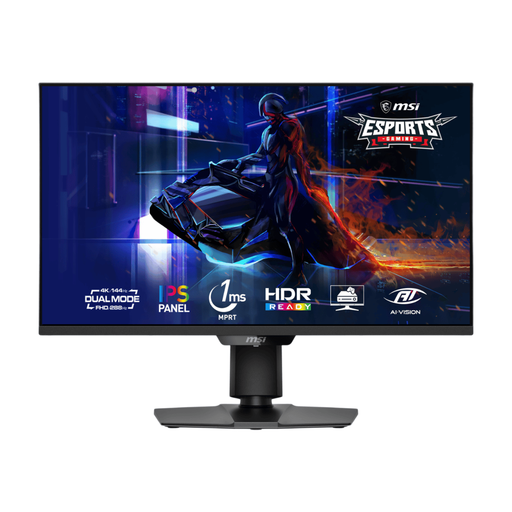
MSI MAG 275UPD E14 27-inch dual-mode monitor
This is a choice to examine if you want a 4K mode for inspecting footage and a separate faster mode for play.
Its title specifies UHD at 144Hz and FHD at 288Hz. Check which of those modes your device and intended input can deliver.
An HDR Ready description should not be treated as a named DisplayHDR certification.
View on Joybuy
 No image available
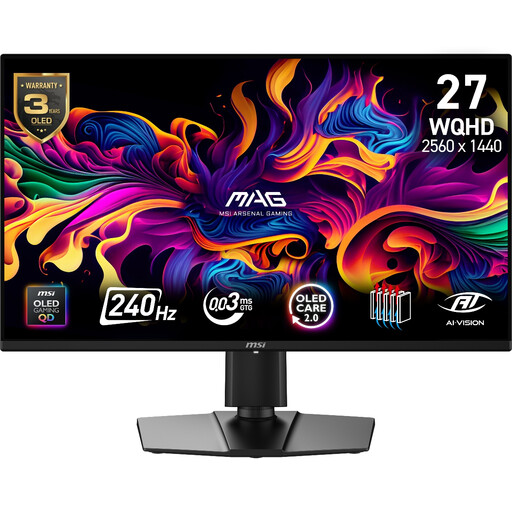
MAG 274QP QD-OLED X24 27-inch QHD monitor
Consider the QHD route here if fast competitive play is a higher priority than a 4K footage-review desktop.
The product title specifies a QD-OLED panel, 2560 x 1440 resolution and 240Hz. Confirm that your device and selected connection support the mode you want.
View on Joybuy
 No image available
Samsung Odyssey G6 S27DG612 27-inch QHD OLED
This QHD option is relevant if you review replays but put high-refresh gaming ahead of 4K detail.
The product title specifies a 240Hz refresh rate. Check the supported mode for your device and chosen connection before relying on that figure.
View on Joybuy
 No image available
HKC G27H2DPro 27-inch QHD Fast IPS
Look at this model if high-refresh play is the deciding need and QHD is sufficient for your footage-review work.
The product title specifies 2560 x 1440 and 220Hz. Confirm that your device and connection support the intended mode; if HDR matters, check the exact model's claimed certification separately.
View on Joybuy
Frequently asked questions
Do I need both 4K and 144Hz to review tournament footage?
No single resolution-and-refresh combination is required for every reviewer. If inspecting fine detail is your priority, compare the 4K modes first; if competitive play matters more, compare QHD high-refresh modes. Dell UK and BenQ UK specify 4K examples at 120Hz and 144Hz, while Dell UK and ASUS UK specify QHD examples at 144Hz and up to 260Hz.
Does an HDR label tell me how a monitor will perform?
An HDR label alone does not establish a named DisplayHDR certification tier. If HDR is important to you, check the exact model and tier against the Video Electronics Standards Association's certified-product list; also make sure the content and connected device support the HDR mode you plan to use.
What should I check before using USB-C with a work laptop?
Check that the monitor has the connection you need and that your laptop or dock can output your intended resolution and refresh rate through it. Dell UK describes the S2725QC as a 4K USB-C monitor, but the presence of USB-C on a monitor does not by itself establish every laptop's video or charging behaviour.
What should I do with an old monitor?
Check a suitable electrical-equipment recycling or take-back route rather than assuming an old monitor belongs in ordinary household rubbish. Ask your local authority or retailer what arrangements apply to the monitor you are replacing.


