Map-detail-first strategists
If you spend long sessions tracking lanes, placements and menus, compare native resolution alongside screen size before giving refresh rate priority. QHD is a route to consider when your connected system can support it.


Start with a 27-inch QHD monitor if reading maps and interface details matters most and your system can run games at that resolution. Full HD asks less of the graphics hardware, while 4K is worth considering if you specifically want finer detail and can support your intended display mode. If wired headphones will plug into the monitor, check for an output on the exact model; using headphones alone does not make that port necessary.
The deciding feature depends on whether you read dense game maps, route your headset through the display or use the same monitor for faster games.
If you spend long sessions tracking lanes, placements and menus, compare native resolution alongside screen size before giving refresh rate priority. QHD is a route to consider when your connected system can support it.
If your wired headphones must plug into the display, look for an explicitly listed headphone output on the exact model. You can choose on other grounds if the headset connects to your PC, console or another audio device instead.
If you switch between tower defence and faster games, a high-refresh Full HD monitor is one option that places less demand on graphics hardware than QHD at the same settings. Accept that Full HD has fewer pixels for map and interface detail.
Choose the resolution your system can use comfortably, decide where the headphones will connect, then check the refresh mode available through your intended connection. QHD, Full HD and 4K are different ways to balance detail and graphics demand; a high refresh-rate figure does not settle that choice on its own.
| Concern | What to check | Who this matters to |
|---|---|---|
| Map and interface clarity | Compare native resolution at your preferred screen size, then check what resolution your PC or console can output. | When I am following several lanes and reading upgrade menus, I want enough detail to make the map and text comfortable to follow. Around 50% of consumers put map and interface clarity first. |
| Headphone connection | Decide where the headset will plug in; if it is the monitor, check the exact model’s output ports and manual. | I want to plug wired headphones into the display rather than reach another device. For around 30% of consumers, that connection route is the primary concern. |
| Smoothness across games | Check the refresh rate at your intended resolution and connection, and adaptive-sync compatibility if you need it. | If I also play faster games, I want a refresh mode my system can actually use without losing sight of the display detail I need. Smoothness comes first for around 20% of consumers. |
Headphone connection is model-specific. BenQ lists a jack for the EX2710Q, and Dell lists a headphones mini-jack for the G2722HS; neither a gaming label nor built-in speakers establishes that another model has one.
Decide whether the headset will connect to the monitor, PC, console or another device, then check the exact monitor’s ports and manual.
A different connection arrangement, such as reaching another audio device, may be needed if the monitor cannot provide the output you require.
High refresh rates are available at both Full HD and QHD in the cited AOC, ASUS, BenQ, Dell and LG models. A 27-inch screen size does not, by itself, provide QHD’s extra pixels for maps and menus.
Compare native resolution first if reading game interfaces is your priority. Choose Full HD deliberately if its lower graphics demand matters more to your setup.
Manufacturers use different measurements: BenQ lists both 2ms GtG and 1ms MPRT for the EX2710Q, while AOC describes the Q27G4XF’s 0.5ms figure as MPRT. Those figures should not be treated as measurements on the same basis.
Keep the measurement method attached to each figure, and consider resolution, headphone routing and stand adjustment separately.
A monitor’s stated maximum does not establish which resolution and refresh combination your PC or console will send through a particular input.
Check the source device, the monitor’s input specifications and the cable you intend to use before choosing a display mode.
Your setup may require a compatible cable or a different connection arrangement to use the mode you have chosen.
These exact models illustrate different specification routes; a feature listed for one model should not be assumed across its brand or range.
The Q27G4XF illustrates a 27-inch QHD IPS route for players prioritising map detail alongside high refresh.
The EX2710Q is a QHD option to examine when the headphones need to connect through the monitor.
The 27GS60F-B illustrates a 27-inch Full HD IPS route for mixed gaming use.
The G2722HS illustrates a Full HD IPS route with an explicitly listed monitor-side headphone connection.
The VG27AQ3A illustrates a 27-inch QHD Fast IPS route with variable-refresh support.
These QHD gaming monitors are choices to examine when map and interface detail is a priority. Decide separately whether your particular setup needs a monitor-side headphone output, and check the display mode your source device can use.
 No image available
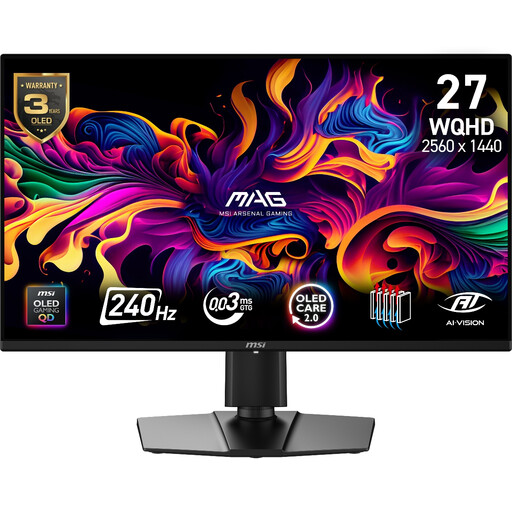
Consider this model if QHD map and interface detail is your priority. Its listed specifications include a 27-inch QD-OLED display, 2560 × 1440 resolution, 240Hz refresh and Adaptive-Sync.
Check whether your source device and connection can use the display mode you want. If your headset must plug into the monitor, confirm its headphone output and audio routing for that connection.
 No image available
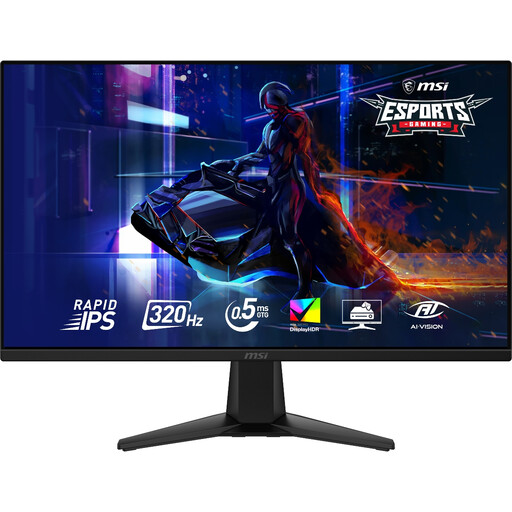
This is another QHD choice for reading game maps while using the same display for faster games. The product name specifies a 27-inch 2560 × 1440 Rapid IPS panel, 320Hz refresh and Adaptive-Sync.
Check which refresh mode your device can deliver at QHD. Confirm the exact model’s headphone output and your intended audio route if the headset will connect to the monitor.
 No image available
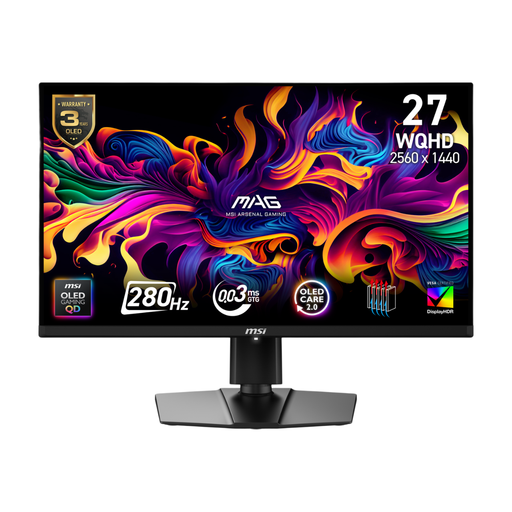
Consider this QHD model if you also want a high listed refresh rate for other games. Its product name specifies a 27-inch QD-OLED display and 280Hz refresh.
Check the refresh mode available from your device and connection. If you plan to plug wired headphones into the display, inspect this exact model’s audio ports before ordering.
 No image available
This model suits a search for QHD map detail in a high-refresh IPS display. Its product name specifies a 27-inch 2560 × 1440 Fast IPS panel and 220Hz refresh.
Check whether your device can use the intended QHD refresh mode. Inspect the exact model’s audio ports if monitor-side headphone connection is part of your setup.
 No image available
Consider this model if QHD detail and a high listed refresh rate both matter to your mix of games. Its product name specifies a 26.5-inch 2560 × 1440 QD-OLED display, 240Hz refresh and FreeSync Premium Pro.
Check the display mode your source device can use and whether the stand adjusts as your desk setup requires. Built-in speakers do not establish a headphone output, so check the exact ports if the headset will plug into the monitor.
You need one only if the headphones will plug into the monitor. BenQ lists a jack for the EX2710Q and Dell lists a headphones mini-jack for the G2722HS, but check the exact model and your audio connection rather than assuming every gaming display has an output.
Choose QHD if map and interface detail takes priority and your system can support the resolution you intend to use. Full HD has fewer pixels to drive; official specifications from AOC, BenQ, ASUS, Dell and LG show that both resolution routes include models with high listed refresh rates, so refresh alone need not decide between them.
No. Keep the measurement method attached to each manufacturer’s figure: AOC describes the Q27G4XF’s 0.5ms claim as MPRT, ASUS lists 1ms GtG for the VG27AQ3A, and BenQ lists both 2ms GtG and 1ms MPRT for the EX2710Q.