Who is each display for?

Desk-based PC players

If PC games are your main use, weigh resolution against the refresh rate your graphics hardware and connection can use. RTINGS notes that players of competitive games may favour higher refresh rates and lower resolutions, while others may prefer 4K detail.

Players switching between PC and console

A monitor can serve both devices, but its PC specifications do not establish what a PS5 or Xbox Series X will output through a particular HDMI input. Check the connected console’s video settings as well as the monitor’s input specifications.

Sofa and shared-screen players

If you usually play away from a desk or share the screen, consider a TV alongside monitors. Check the exact TV model and input for the gaming modes you intend to use, rather than choosing by screen size alone.

What should you check before choosing?

PC-first monitor

Choose when: Most play happens at a desk and your PC’s output and games determine the display mode you want.

Trade-off: RTINGS notes that using high resolution and high refresh rates together calls for a capable PC and suitable high-bandwidth connections.

Console-ready desk monitor

Choose when: A PS5 or Xbox Series X regularly shares your desk display with a PC.

Trade-off: The console’s available modes depend on the connected input and signal path, not just the monitor’s headline specification.

TV for console play

Choose when: Sofa viewing and a screen shared with other entertainment matter more than a desk-sized setup.

Trade-off: Gaming features vary by TV model and HDMI input; LG’s UK gaming-TV guidance identifies refresh rate, input lag and VRR as features to examine.

PriorityWhat to checkYour needs
PC picture and motion Compare native resolution and refresh rate with your PC’s graphics output and the games you play. Check response-time evidence and the connection needed for the intended mode. I play mainly on PC and would rather choose a mode my setup can use than select by the largest refresh-rate number. RTINGS describes the resolution-versus-refresh choice as dependent on the games played.
Console video modes Check the exact HDMI input, cable and connected console’s reported resolution, 120 Hz, HDR and VRR capabilities. PlayStation provides a PS5 test for supported 1440p output modes; Xbox Support describes Series X 4K gaming at 120 Hz using HDMI 2.1 features. My PS5 or Xbox Series X will share the screen, so I need to confirm the mode I intend to use on the actual connection.
Variable refresh rate Identify which VRR standard works with each device and at which resolution and refresh mode. PlayStation specifies HDMI 2.1 VRR-compatible displays for PS5 VRR; VESA’s AdaptiveSync certification is a separate display-testing programme. Frame rates vary in the games I play, and I want to know whether VRR works with my PC, console or both.
Screen placement Check viewing distance, available desk or room space, stand adjustment and support for the screen’s size and weight. For a TV, check the gaming features of the input you will use. Will I sit at a desk, or do I need a larger screen that people can watch from a sofa?
OLED ownership Check the exact model’s panel-care settings and warranty wording if static desktop elements or game interfaces will remain on screen for long periods. ASUS warns that prolonged static high-contrast images can cause OLED burn-in. My screen may show the same interface for extended sessions, so panel care affects how I would use an OLED model.

What can go wrong?

  • Taking an HDMI 2.1 label as a promise of every console mode

    The connected display, selected game, cable and any equipment between them affect the video modes available. PlayStation provides tests for PS5 output, while Xbox Support describes the Series X connection requirements for 4K gaming at 120 Hz.

    Check the intended HDMI input’s documented modes, then inspect the console’s video-output screen on the connected setup where possible.

  • Choosing resolution and refresh rate without checking the PC

    RTINGS notes that high-resolution, high-refresh-rate displays need a capable setup and high-bandwidth connections to be fully used.

    Start with your games, graphics output and available ports, then choose a native resolution and refresh mode that fit that setup.

  • Assuming all VRR labels mean the same compatibility

    PlayStation specifies HDMI 2.1 VRR-compatible displays for PS5. VESA AdaptiveSync certification addresses a separate set of tested display modes and does not, by itself, establish PS5 compatibility.

    Check PS5 HDMI VRR compatibility separately from PC VRR support; on a dual-mode monitor, confirm which resolution and refresh modes carry the stated support.

  • Overlooking static-image use on an OLED monitor

    ASUS warns that prolonged display of static, high-contrast images can cause OLED image persistence or burn-in.

    If your use includes lengthy sessions with static interfaces, check the model’s protection settings and exact UK warranty terms, and follow its panel-care guidance.

Which brand examples are relevant?

ASUS ROG

The ROG Swift OLED PG32UCDM Gen3 (PG32UCDM3) illustrates a PC-first QD-OLED monitor with mixed-device connections. ASUS lists 4K at 240 Hz, DisplayPort 2.1a and HDMI 2.1 for this model.

  • Its stated connections give PC and console buyers specific inputs to assess.
  • Those specifications do not establish every console mode. ASUS also advises OLED panel care because prolonged static imagery can cause burn-in.

Alienware

Dell lists the AW3225QF as a curved 32-inch 4K QD-OLED monitor with a 3840 × 2160 resolution at 240 Hz and adaptive-sync support.

  • Its stated resolution and refresh rate make it a model to assess for a capable PC gaming setup.
  • The AW3225QF’s 1700R curve is a model-specific shape choice; check whether it suits your desk and viewing preference.

LG UltraGear / LG OLED

LG’s 32GS95UE-B illustrates a monitor with 4K/240 Hz and FHD/480 Hz modes, while LG also publishes guidance on gaming-TV features.

  • The two display types provide examples for comparing desk-based and sofa-based use.
  • LG marks the 32GS95UE-B as discontinued. Its TV guidance does not establish that every LG TV or HDMI input supports the same gaming modes.

Joybuy display options

These options include desk monitors for PC or mixed-device use and TVs to consider for room-based console play. Compare each model’s stated modes with the devices and input you plan to use.

LG UltraGear G8 27G850A gaming monitor

LG UltraGear G8 27G850A 27-inch dual-mode monitor

Consider this desk monitor if you want to compare different resolution and refresh modes for PC play while also connecting a console. Its title specifies 4K UHD, a Nano IPS panel, dual-mode 240 Hz/480 Hz operation, DisplayPort 2.1 and HDMI 2.1. Confirm the desired console resolution, 120 Hz and VRR combination on the input you will use.

View on Joybuy
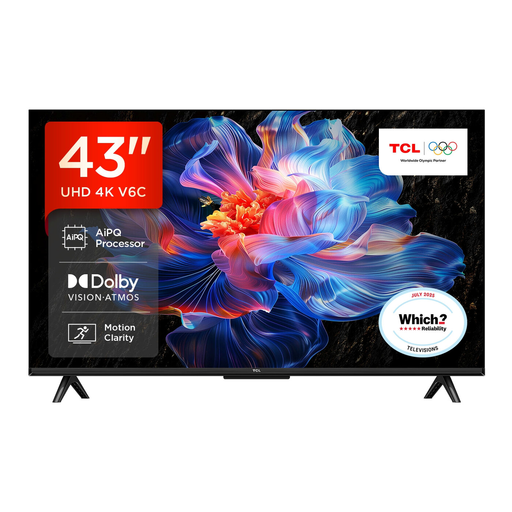
TCL 43V6C 43-inch 4K TV

TCL 43V6C 43-inch 4K Google TV

This TV is an option for console play away from a desk. Its title specifies Direct LED, 4K HDR and a 120 Hz Game Accelerator qualified as FHD; that wording does not establish 4K at 120 Hz. Check the intended console mode on the exact HDMI input.

View on Joybuy
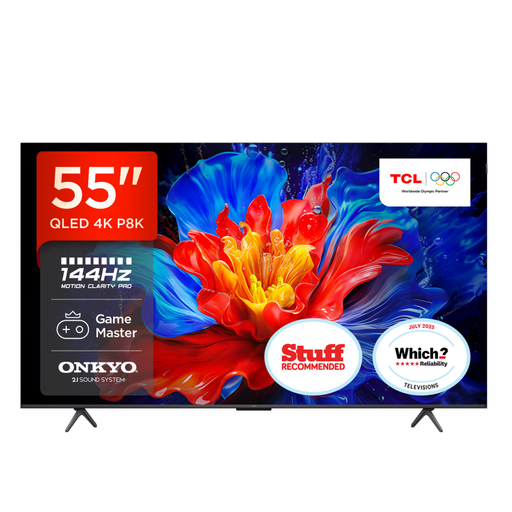
TCL 55P8K 55-inch QLED 4K TV

TCL 55P8K-UK 55-inch QLED 4K TV

The larger TV format may suit a shared room rather than a desk. Its title identifies a QLED 4K HDR PRO model and advertises a 288 Hz Game Accelerator, while the product information describes VRR up to 144 Hz. Check the resolution and input conditions behind those different refresh claims before relying on either for your console setup.

View on Joybuy

Acer Predator X49X 49-inch curved ultrawide gaming monitor

Acer Predator X49X 49-inch 32:9 QD-OLED monitor

This is a PC-oriented choice if you want a particularly wide desk display and have space to support it. Its title specifies a 1800R curve, 240 Hz, HDMI, DisplayPort and USB-C. Check whether your games suit 32:9 and whether the desk or mount is rated for the screen; confirm console-specific modes separately.

View on Joybuy

Dahua 32-inch curved 4K OLED gaming monitor

Dahua 32-inch curved 4K OLED 165 Hz monitor

Consider this desk monitor if 4K PC play and a curved screen appeal to you, with console use assessed separately. Its title specifies 3840 × 2160, 165 Hz, HDR400, USB-C 65 W and a USB hub. Confirm the intended console’s HDMI modes and VRR support, along with the OLED care settings and warranty terms relevant to your use.

View on Joybuy

Common questions

What should I check before buying a monitor for PS5?

Check the intended HDMI input and the PS5’s Screen and Video settings for the connected display’s resolution, HDR and VRR capabilities. PlayStation also provides a 1440p output test for supported SDR/HDR, 60 Hz, 120 Hz and VRR modes; a 120 Hz game mode still requires support from the display and game.

What does Xbox Series X need for 4K gaming at 120 Hz?

Xbox Support says the Series X comes with a 2-metre Ultra High Speed HDMI cable supporting HDMI 2.1 features, including 4K gaming at 120 Hz. Check that the display input supports the mode, and assess any AVR, soundbar or replacement cable in the connection path.

Will every game run at a monitor’s maximum refresh rate?

No. The game, device and connection must support the output mode before the display can use it. RTINGS notes that taking full advantage of high-resolution, high-refresh-rate monitors requires suitable PC hardware and high-bandwidth ports.

Is a VRR label enough to establish PC and PS5 compatibility?

No. PlayStation specifies HDMI 2.1 VRR-compatible TVs and monitors for PS5 VRR, while VESA AdaptiveSync certification describes a separate display standard. Check the supported connection and resolution/refresh mode for each device.

Should I use OLED panel-protection settings?

Follow the exact monitor’s panel-care guidance, especially when static game interfaces or desktop elements remain visible for long periods. ASUS warns that prolonged static high-contrast imagery can cause burn-in and recommends protection features such as Pixel Shift; check the model’s settings and warranty wording.