What matters when choosing?
Decide where you will play before comparing display specifications. Then match the mode you want to the source device, cable and specific display input.
Gaming monitor
Consider it when: close desk play and PC-focused refresh options shape the choice.
Keep in mind: a refresh rate listed for PC use does not establish the mode available from a console through HDMI.
General-purpose monitor
Consider it when: you want a conventional desk screen and its exact model supports your gaming setup.
Keep in mind: screen size and a DisplayPort refresh figure do not establish 120Hz, HDR or VRR support through HDMI.
TV
Consider it when: you play from a sofa or share a larger screen with films and streaming.
Keep in mind: check its game mode and HDMI path; Xbox Support notes that a receiver or soundbar between console and TV can affect video features.
| Concern |
What to check |
Who this matters to |
| Platform and connection compatibility |
Check the source output, cable and any receiver or soundbar, then confirm the desired resolution, refresh rate, HDR and VRR on the display’s intended input. |
I want my console or PC to deliver the mode I am choosing the screen for, without another device in the connection path limiting it. Around 33% of consumers would put compatibility first. |
| Competitive responsiveness |
Compare the model’s stated refresh mode and the input that accepts it; check response-time conditions and whether the PC can run the intended games at that setting. |
For fast desk-based games, I care more about the motion-focused setup than a larger shared screen. Roughly 25% of consumers would make responsiveness their primary concern. |
| Screen scale and picture |
Measure the viewing position and space. For a TV, confirm its game mode and the HDR and HDMI modes relevant to your source. |
If I play from the sofa and share the display for entertainment, screen scale and the picture matter more to me than specialist PC refresh features. Around 25% of consumers would prioritise this need. |
| Desk fit and practical features |
Check dimensions and stand or mounting options, then count the connections and audio outputs your setup needs. |
At a crowded desk, I need a screen I can position and connect without overlooking everyday equipment needs. About 17% of consumers would put practical fit first. |
Gaming monitors on Joybuy
These gaming monitors cover desk-oriented 4K and QHD choices. If you are buying for a console, check its intended resolution, refresh rate, HDR and VRR against the exact HDMI input before choosing; the monitor’s headline PC refresh rate is not a substitute for that check.
 No image available
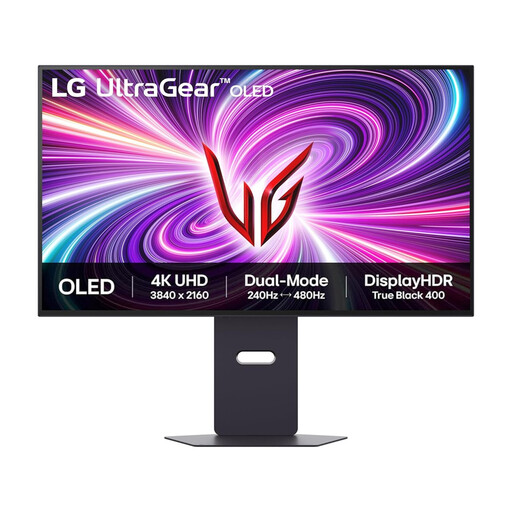
LG UltraGear OLED 32GS95UV-B 32-inch 4K gaming monitor
Consider this for desk gaming if you want to choose between the listed 4K 240Hz and Full HD 480Hz modes. The title also specifies HDMI 2.1, DisplayPort and 7W stereo speakers; confirm the resolution, refresh rate, HDR and VRR combination available through HDMI for your console.
View on Joybuy
 No image available
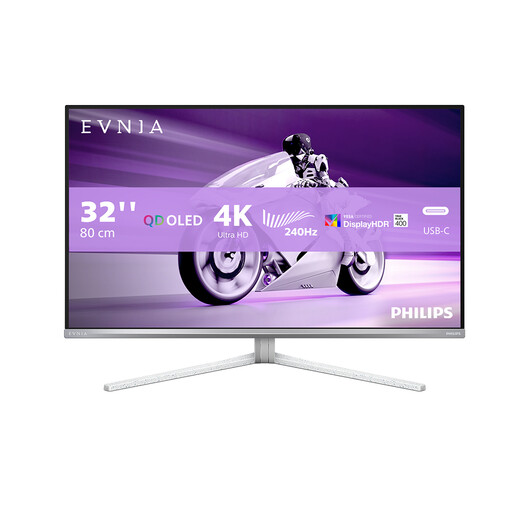
PHILIPS Evnia 32M2N8900 32-inch UHD OLED gaming monitor
Consider this if a 32-inch UHD desk display fits your space and you want the listed 240Hz refresh specification for PC gaming. Its title also lists HDR400, FreeSync Premium Pro and G-Sync compatibility; check the precise input modes and stand adjustment needed for your setup.
View on Joybuy
 No image available
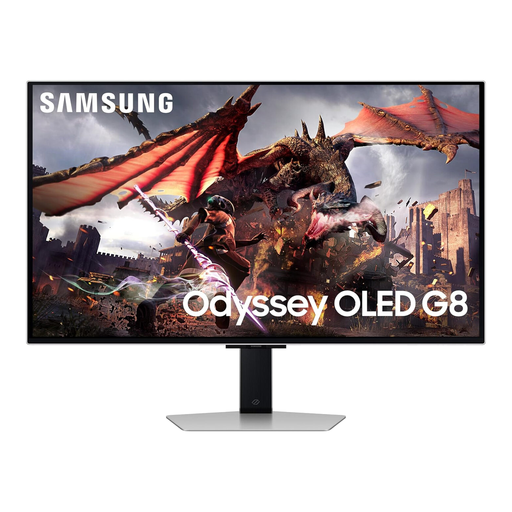
Samsung Odyssey OLED G8 LS32DG802SUXXU 32-inch smart gaming monitor
Consider this if you want a 32-inch Ultra HD monitor with the smart-display format named in the listing. Check the HDMI modes for your console, as well as stand adjustment and audio connections if they matter to your setup.
View on Joybuy
 No image available
Samsung Odyssey G6 S27DG612 27-inch QHD OLED gaming monitor
Consider this for a 27-inch desk setup if QHD and the listed 240Hz refresh specification suit your PC gaming plans. The title specifies a 0.03ms response-time figure; check its measurement conditions and confirm the intended console mode through HDMI separately.
View on Joybuy
Common questions
What should I check before comparing PS5 or Xbox monitor refresh rates?
Check the resolution, 120Hz, HDR and VRR modes supported through the HDMI input you will use. PlayStation lets you inspect the PS5’s connected video output, while Xbox Support distinguishes the requirements for different resolutions and 120Hz modes; also check the cable and any device between console and display.
Can a PS5 use a 1440p gaming monitor?
Yes, if the monitor accepts the PS5’s 1440p output through its HDMI input. PlayStation provides a 1440p test for supported modes, including relevant 60Hz, 120Hz, HDR and VRR combinations, so use that test rather than assuming every 1440p monitor accepts every mode.
When does a TV make sense instead of a gaming monitor?
A TV is a credible option for sofa-distance play, a larger shared screen or a display also used for films and streaming. Check its game mode and HDMI capabilities against your console; Xbox Support cautions that an intervening receiver or soundbar can affect available video features.
How should I check disposal options when replacing a gaming display?
Check your retailer’s take-back arrangements and local-authority recycling guidance for the old screen. GOV.UK identifies the Waste Electrical and Electronic Equipment Regulations 2013, as amended, as the UK framework for waste electrical and electronic equipment.


