Choose a display by the signal your PC or console can output, then weigh refresh rate, screen size and the space where you play. For Xbox Series X gaming at 4K and 120 Hz, Xbox Support specifies a compatible HDMI 2.1 display and Ultra High Speed HDMI cable; a monitor’s higher DisplayPort refresh rate does not establish its console capability. A high-refresh monitor suits PC play when the graphics device can use its intended mode, while a larger display may make more sense for viewing across a room if its inputs support the console modes you want.
Who is choosing a display?
Current-generation console players
If you mainly use a PS5 or Xbox Series X|S, match the display’s HDMI modes to the resolution, 120 Hz output and variable refresh rate (VRR) you intend to use. PlayStation and Xbox Support describe different available modes, so check your particular console and display together.
Competitive PC gamers
If fast PC games are your priority, consider the refresh rate your graphics device can use at your chosen resolution and connection. Check VRR support for that setup rather than relying on the largest Hz figure in a product name.
Shared desk and mixed-use gamers
If you switch between a PC, console and other media sources, count the connections you need and consider screen placement, cable reach and your audio arrangement alongside gaming specifications.
What matters when choosing?
Console-ready 4K monitor
Choose it when: You want compatible PS5 or Xbox Series X games at 4K and 120 Hz on a desk-sized display.
Keep in mind: The required mode must work through the monitor’s HDMI input; its DisplayPort maximum is not enough to establish that.
High-refresh PC monitor
Choose it when: Fast PC play is the priority and your graphics device can use the selected resolution and refresh mode.
Keep in mind: A high PC refresh rate does not establish the same mode or VRR support for a console connection.
Larger room display or gaming TV
Choose it when: You play farther from the screen or share it for console games and video.
Keep in mind: Allow for its physical footprint and check the same console-to-HDMI signal path before choosing a larger screen.
| Concern |
What to check |
Who this matters to |
| Console signal and ports |
Check the exact HDMI input’s resolution and refresh-rate modes, plus the cable required for your console output. |
If I want to play at my console’s intended resolution and 120 Hz, I need the whole connection path to accept that mode. Around 31% of consumers put console compatibility first. |
| PC motion and VRR |
Match the native refresh mode and its required input to your graphics device; check VRR support for that combination. |
When fast PC games are my priority, I want a refresh and VRR mode my system can use. PC motion is the primary concern for roughly 31% of consumers. |
| Resolution and screen fit |
Compare the intended resolution with PC output, then measure the available space and viewing distance. |
If a screen must fit a shallow desk or work from farther across a room, I need its size and resolution to suit that position. Approximately 23% of consumers prioritise this balance. |
| Shared-setup practicality |
Count the sources that need inputs and check cable reach, mounting and audio arrangements. |
When I switch between devices, I want connections and placement that work without disrupting the setup. For about 15% of consumers, that practicality comes first. |
Mistakes to avoid
-
Assuming the highest refresh rate works on every port
A monitor can offer its highest PC refresh rate through DisplayPort while accepting a different mode through HDMI. Xbox Support specifies a compatible HDMI 2.1 path for Xbox Series X at 4K and 120 Hz.
Read the exact model’s HDMI and DisplayPort mode specifications separately, then check the connected device’s display settings.
-
Treating VRR, HDR and refresh rate as the same feature
They describe different capabilities. NVIDIA’s G-SYNC Compatible designation concerns validated basic PC VRR performance, while VESA’s AdaptiveSync logo identifies testing at native resolution and factory-default settings; neither label alone establishes a console’s HDR or 4K/120 mode.
Decide which feature you intend to use and confirm it for the relevant source, input and operating mode.
-
Choosing screen size before measuring the setup
A larger display still needs enough desk or room space, a suitable viewing position and cables that reach the connected devices. For Xbox Series X at 4K and 120 Hz, Xbox Support also specifies the required HDMI cable capability.
Measure the display position and cable run, count your sources and check any stand or arm against the exact monitor’s mounting details.
Relevant brands to consider
LG UltraGear
The line includes models aimed at different PC and console display setups; capabilities vary by model.
- LG lists the 27GP95RP-B as a 27-inch 4K monitor with HDMI 2.1, VRR up to 120 Hz through HDMI 2.1 and a 144 Hz native refresh rate.
- Those modes do not establish the HDMI capabilities of every UltraGear model. Check the exact variant’s input specifications.
ASUS ROG
Relevant to PC setups considering high-refresh displays and additional connection options.
- ASUS lists the ROG Swift OLED PG27UCDM with a 26.5-inch 4K QD-OLED panel, 240 Hz refresh rate, HDMI 2.1, DisplayPort 2.1a and USB-C power delivery.
- Check whether your connected devices can use the modes you value; the model’s OLED-care features are described by ASUS, not a reason to disregard display-care guidance.
BenQ MOBIUZ
Includes larger displays for setups where screen size and integrated audio matter.
- BenQ lists the EX3210U as a 32-inch 4K IPS monitor with 144 Hz refresh rate, HDMI 2.1 and integrated audio features.
- Confirm the exact HDMI mode limits and whether its speakers suit your room before relying on either feature.
BenQ ZOWIE
A PC competitive-gaming line for shoppers considering refresh rate ahead of a 4K console-oriented setup.
- ZOWIE lists the XL2566K with a 24.5-inch TN panel and 360 Hz refresh rate.
- Its PC-focused refresh specification does not establish 4K HDMI 2.1 console suitability; assess ZOWIE’s DyAc+ motion-clarity description as a manufacturer claim.
Gaming monitors on Joybuy
These monitors cover desk setups with different screen sizes, resolutions and refresh-rate priorities. Match the exact input mode to your PC or console before choosing; a monitor specification alone does not establish every connected device’s output mode.
 No image available
LG UltraGear G8 27G850A 27-inch monitor
Consider this for a PC desk setup where switching between resolution and refresh-rate priorities matters; confirm which mode works through the input you will use.
4K UHD Nano IPS; dual-mode 240 Hz/480 Hz; DisplayPort 2.1 and HDMI 2.1.
View on Joybuy
 No image available
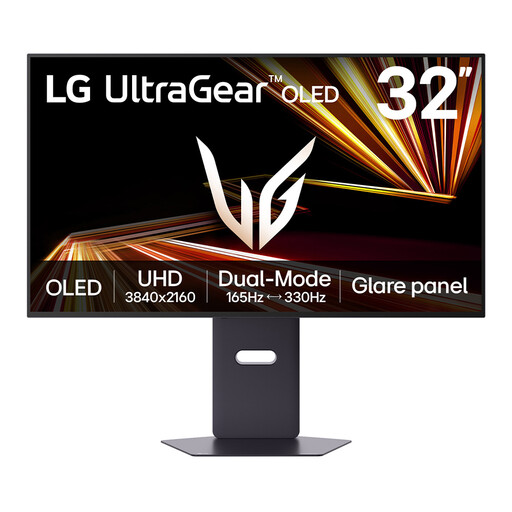
LG UltraGear 32GX850A-B 32-inch OLED monitor
Consider the larger screen for a mixed PC and console position after measuring the desk and checking the intended console mode and cable.
4K UHD; dual mode with a stated maximum of 330 Hz. Follow the model’s OLED-care guidance for prolonged static images.
View on Joybuy
 No image available
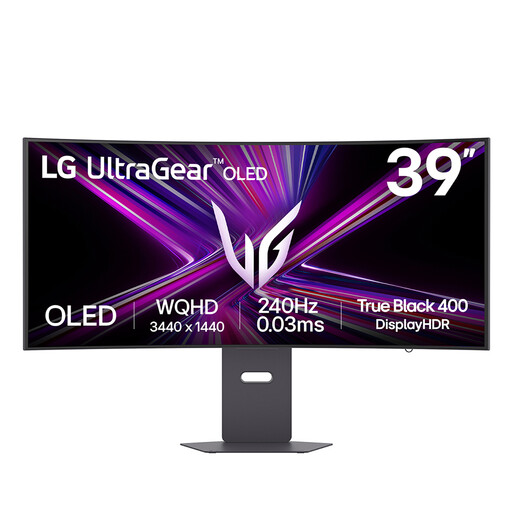
LG UltraGear 39GX900A-B 39-inch OLED monitor
Consider this large-format option for PC gaming if its footprint and viewing position work in your setup; check the intended input mode before connecting a console.
QHD OLED; 240 Hz.
View on Joybuy
 No image available
Samsung Odyssey G6 S27DG612 27-inch OLED monitor
Consider this for PC play where a 27-inch QHD screen and high refresh rate are priorities; confirm the resolution and refresh mode available through your chosen connection.
QHD OLED; 240 Hz; stated 0.03 ms response time.
View on Joybuy
 No image available
LG UltraGear 34GX900A-B 34-inch OLED monitor
Consider this wider PC display if it fits your desk and the games and devices you use suit its format; check each source’s intended input mode.
WQHD OLED; 240 Hz. Follow the model’s OLED-care guidance for prolonged static images.
View on Joybuy
Common questions
Can a PS5 use a 1440p monitor at 120 Hz with VRR?
Yes, if the connected display supports the relevant PS5 output modes. PlayStation says its 1440p output test checks available SDR or HDR modes at 60 Hz or 120 Hz and VRR; select 1440p and run the test rather than assuming every 1440p monitor supports every combination.
What does Xbox Series X need for 4K at 120 Hz?
Xbox Support specifies an Xbox Series X, an Ultra High Speed HDMI cable supporting HDMI 2.1 and an HDMI 2.1-capable display for 4K gaming at 120 frames per second. Check that the display’s particular input accepts the mode, then select 4K UHD and 120 Hz in the console settings.
Is 120 Hz possible without a 4K HDMI 2.1 setup?
A lower-resolution 120 Hz mode may be available even when 4K at 120 Hz is not. Xbox Support advises checking the resolution and refresh-rate combinations your console and connected display offer, including for Xbox Series S or a display without HDMI 2.1.
Does G-SYNC Compatible mean every connection supports VRR?
No. NVIDIA describes G-SYNC Compatible as validation for a basic VRR experience, not a guarantee for every source and input. Check the exact monitor, graphics device, connection and mode you plan to use; for a separate PC display check, VESA’s AdaptiveSync logo identifies testing at native resolution and factory-default settings.


