Which setup sounds like yours?
The starting point is where you sit and what else the screen needs to do, not its largest advertised number.
Close-up PC desk gamers
If you play near the screen and also want room for work, chat or a second display, start with monitors that fit your desk. RTINGS’ monitor guidance discusses different sizes for gaming and multi-monitor use; the resolution and refresh rate you choose still need to work with your PC and connection.
Sofa-based console players
If the screen will also show films and TV for the household, a gaming TV is the more natural route to examine. RTINGS’ monitor-versus-TV guidance favours a larger TV for shared viewing, while its sizing guidance makes seating distance an important check.
Players seeking specific console features
If 4K, 120 Hz, variable refresh rate (VRR) or HDR drives the purchase, check the complete connection rather than the panel specification alone. PlayStation shows detected HDMI-device capabilities on PS5, while Xbox Support sets out the equipment needed for Xbox Series X 4K gaming at 120 Hz.
What should you check before choosing?
Decide where the screen will live first, then check the output mode and gaming settings on the exact display you are considering.
Gaming monitor
Choose it when: You mainly play close to a desk and want a screen suited to PC gaming or a multi-screen workspace.
Consider: A desk-sized monitor may be less useful for viewing from the sofa or serving as the household’s main TV.
Gaming TV
Choose it when: You play from a sofa and need the same screen for games, films and TV.
Consider: Select its size for your seating position, and check its game mode and console features on the exact model.
| Priority | What to check | Your needs |
|---|
| Output compatibility |
Check the intended resolution and refresh rate on the port you will use. Confirm VRR and HDR support where needed, including any cable, soundbar or AV receiver in the path. Xbox Support specifies an Xbox Series X, an Ultra High Speed HDMI cable supporting HDMI 2.1 and a compatible TV for 4K gaming at 120 Hz. |
I want the display to run the mode my console or PC can actually send, not just have the right words on its packaging. |
| Responsive play |
Compare supported refresh modes with your games and hardware. Check response behaviour and input lag in the gaming mode you intend to use; a response-time claim and a refresh-rate figure describe different things. For TV play, confirm how game mode is enabled. |
Fast reactions matter in my games, so I care about how the complete setup behaves during play. |
| Size and distance |
Measure your eye-to-screen distance and available desk depth or sofa position. RTINGS’ size guidance relates TV size to viewing distance and distinguishes monitor sizes by desk use. |
The screen needs to fit where I sit. A size that works across a living room may not feel comfortable on my desk. |
| Shared-room use |
Decide whether one screen must also serve films and TV, and whether a second desk screen has room and a suitable graphics output. Check gaming features on the exact TV rather than assuming they apply across a brand’s range. |
If everyone uses this screen, sofa viewing matters alongside gaming; if I work at a desk, space for another display may matter more. |
Brand lines worth comparing
These manufacturer lines illustrate different monitor and TV options; features must be checked by model rather than assumed from the brand name.
LG
LG’s UltraGear line covers gaming monitors, while its TV range includes models with gaming features.
- LG UK specifies a 27-inch QHD OLED UltraGear model with 240 Hz and HDMI 2.1 technology.
- Ports and gaming modes differ between LG models and model years; check the exact screen you are considering.
Samsung
Samsung’s Odyssey monitors and gaming TV range cover desk and shared-room formats.
- Samsung UK lists Odyssey models with differing resolutions and curved formats, and describes gaming features across its TV range.
- Samsung’s UK support says 4K 120 Hz Game Mode applies only to selected TVs; confirm the feature on the exact model.
Alienware
Alienware includes desk-oriented gaming monitors in Dell UK’s range.
- Dell UK specifies the AW3225QF as a curved 4K QD-OLED monitor with a 240 Hz refresh rate.
- Its larger desktop format needs appropriate space; confirm the required output mode for your particular PC or console.
Joybuy display options
These options include desk gaming monitors and a TV for sofa-based, shared-room use. Compare each screen with your seating distance and intended PC or console output mode.
 No image available
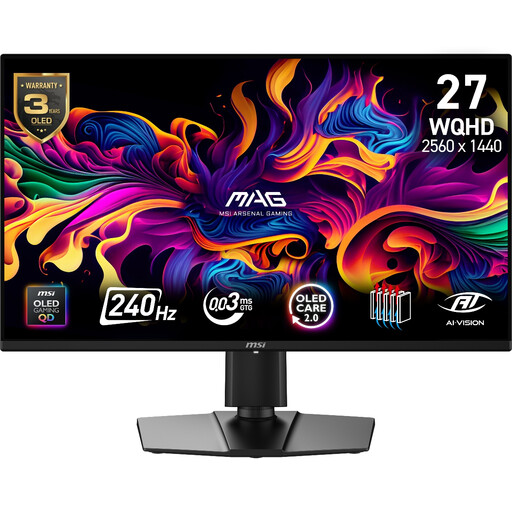
MAG 274QP QD-OLED X24 gaming monitor
A desk option to consider if you want a 2560 × 1440 display with a stated 240 Hz refresh rate. The title also specifies a 0.03 ms response-time claim and Adaptive-Sync; check the output mode available from your own device and connection.
View on Joybuy
 No image available
LG UltraGear G8 27G850A 27-inch gaming monitor
For a desk where you want a choice of resolution and refresh modes, the title specifies 4K at 240 Hz and a separate 480 Hz mode. It lists DisplayPort 2.1 and HDMI 2.1; confirm which resolution and refresh combinations your device supports through the port you intend to use.
View on Joybuy
 No image available
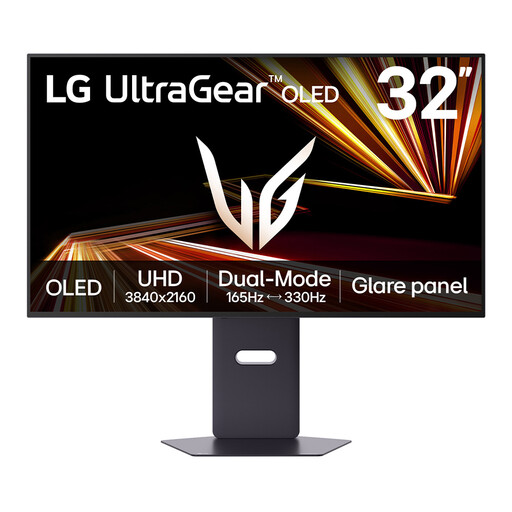
LG UltraGear 32GX850A-B 32-inch OLED monitor
This larger desk monitor is listed as a 4K UHD dual-mode model with a maximum stated refresh rate of 330 Hz. Check which resolution applies to the mode you want, whether your device can use it and whether the screen fits your desk distance.
View on Joybuy
 No image available
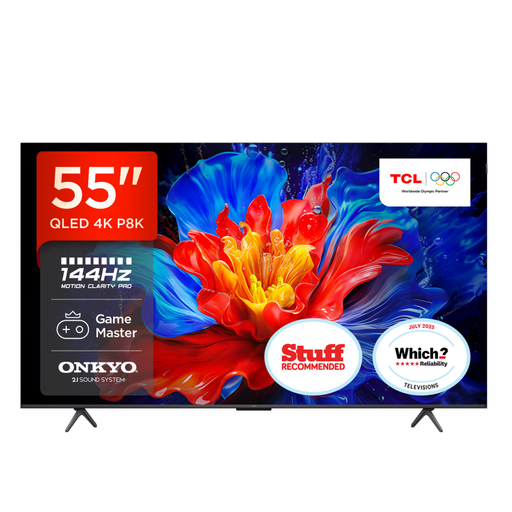
TCL 55P8K-UK QLED 4K smart TV
A 55-inch TV option for gaming from a sofa and other shared-room viewing, provided the size suits your seating distance. Its title uses “288Hz Game Accelerator” wording; check the exact console resolution, refresh and gaming modes on the HDMI input you will use rather than treating that wording as a console output specification.
View on Joybuy
 No image available
Acer Predator X27U W3 26.5-inch QD-OLED monitor
For close-up desk gaming, the title specifies 2560 × 1440 resolution, 240 Hz and FreeSync Premium Pro and G-SYNC Compatible features. Confirm the resolution and refresh mode available through your intended PC or console connection; the stated maximum does not describe the frame rate your games will deliver.
View on Joybuy
Questions before you buy
What should I check for a PS5 display?
Check the connected display’s detected resolution, VRR and HDR capabilities in the PS5 video-output settings. PlayStation says these details are available for the connected HDMI device; compare them with the mode you want before relying on a display’s advertised maximum.
What does Xbox Series X need for 4K gaming at 120 Hz?
Xbox Support specifies an Xbox Series X, an Ultra High Speed HDMI cable supporting HDMI 2.1 and a TV supporting HDMI 2.1 for 4K gaming at 120 Hz. Check the exact display input and any equipment between the console and screen as part of that setup.
Can a soundbar or AV receiver affect console video features?
Yes. Xbox Support says an intermediary such as a soundbar or AV receiver can affect video features and quality. If a desired mode is unavailable, test a direct display connection and check the intermediary’s pass-through support for that mode.
Should I use game mode on a TV?
Use the TV’s game or low-latency mode when responsive play is the priority. Check how the exact model enables it for your input, including whether automatic low-latency switching is supported.
What after-sales details matter for a gaming display?
Check the seller’s return conditions and the manufacturer’s warranty for the exact model before ordering. Pay particular attention to how panel faults and transport damage are handled, and whether any stated warranty coverage applies to the variant you are buying.


