Atmosphere-first survival explorers
You spend long sessions exploring dark interiors, forests and changing weather. Contrast and fine environmental detail matter more to you than pursuing the highest refresh rate.


Choose 4K if your PC can run your survival games at a frame rate you find satisfactory and fine scene detail matters most. QHD OLED puts more emphasis on dark-scene contrast at a lower native resolution, while a dual-resolution IPS monitor lets you switch between 4K detail and a higher-refresh Full HD mode. For a shared work-and-play desk, check lighting, screen position and the refresh rate available through the input you will use.
You spend long sessions exploring dark interiors, forests and changing weather. Contrast and fine environmental detail matter more to you than pursuing the highest refresh rate.
You change game settings to balance image quality and frame rate, and may want different display modes for demanding survival games and faster titles.
Your monitor shares a home-office desk with a laptop or desktop. Stand adjustment, usable inputs and a practical cable arrangement matter alongside gaming specifications.
Start with the resolution your PC can run comfortably, then weigh panel characteristics against daytime desk use. Check the physical setup and your intended connection before relying on a headline refresh rate.
| Concern | What to check | Who this matters to |
|---|---|---|
| Dark scenes and detail | Compare native resolution, panel type and stated brightness conditions; consider the frame rate your PC can deliver at that resolution. | If I spend most of a game exploring dark environments, I want contrast and scenery detail without losing track of what is on screen. Around 27% of consumers put this presentation need first. |
| Frame-rate flexibility | Check native and alternate resolution modes against your games, graphics hardware and intended input. | I want detailed exploration in one game but a faster display mode for more action-heavy play. Roughly 33% of consumers prioritise that flexibility. |
| Desk practicality | Measure the space available and check stand movement or VESA mounting; assess the screen under your daytime lighting. | My monitor has to remain comfortable to position when the gaming session ends and work begins. For around 20% of consumers, desk use is the primary concern. |
| Device compatibility | Match your computer’s output and cable to the monitor’s per-input resolution and refresh specifications; check USB-C video support if needed. | I switch between devices and need the connection I actually use to carry the video mode I want. Approximately 20% of consumers put compatibility first. |
The selected port can change the available range: ASUS lists up to 180Hz over USB-C or DisplayPort, but up to 144Hz over HDMI, for the ROG Strix XG27ACG.
Match your computer’s output and cable to the resolution and refresh specification for the exact input you plan to use.
A USB-C connection depends on what the connected device supports, not just the shape of its socket.
If you plan to send video from a laptop over USB-C, confirm that the laptop supports DisplayPort Alt Mode.
LG states a typical brightness of 275 nits at 100% average picture level for the UltraGear 27GS95QE-B. That condition matters when judging its fit for a bright work area.
Assess your desk lighting and the monitor’s documented settings rather than choosing on contrast or response-time figures alone.
LG says turning off Smart Energy Saving on this model can increase power consumption.
A screen still needs to fit and be positioned for both working and playing. ASUS lists 0–120mm height adjustment and 100 × 100mm VESA mounting for the ROG Strix XG27ACG.
Measure your available desk space and check the stand’s adjustment range before deciding whether you would need a compatible arm.
Dell offers different 27-inch routes within its Alienware gaming-monitor line, including 4K QD-OLED and dual-resolution IPS models.
LG’s 27GS95QE-B represents a QHD OLED option for buyers considering dark-scene presentation and high refresh.
ASUS ROG includes both a dual-resolution model and a conventional QHD Fast IPS model relevant to mixed gaming and desk use.
These options cover QHD OLED, dual-resolution IPS and 4K OLED choices, including larger screens. Compare their size and native resolution with your desk space, daytime work and gaming PC before choosing.
 No image available
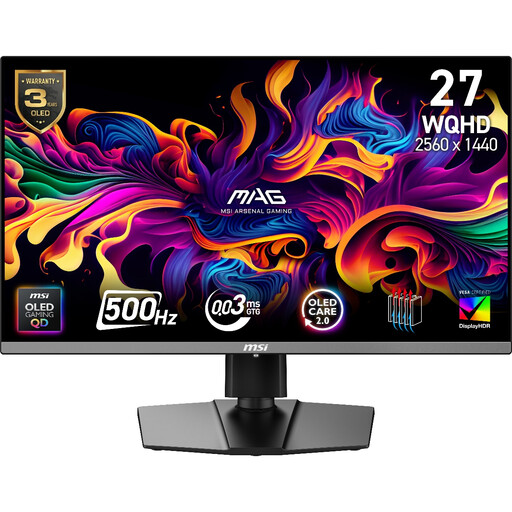
Consider this QD-OLED model if you favour WQHD gaming over a 4K native resolution. Its product name specifies 2560 × 1440, 500Hz, 0.03ms and AMD FreeSync; check whether your PC and chosen connection can deliver the mode you want.
 No image available
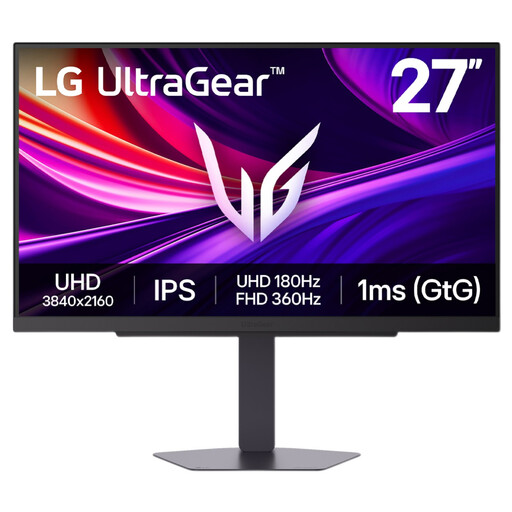
The dual-mode design is worth considering if you want to change modes between detailed survival games and faster play. The product name specifies 4K UHD and a maximum of 360Hz; confirm the resolution paired with each mode and what your PC and input can output.
 No image available
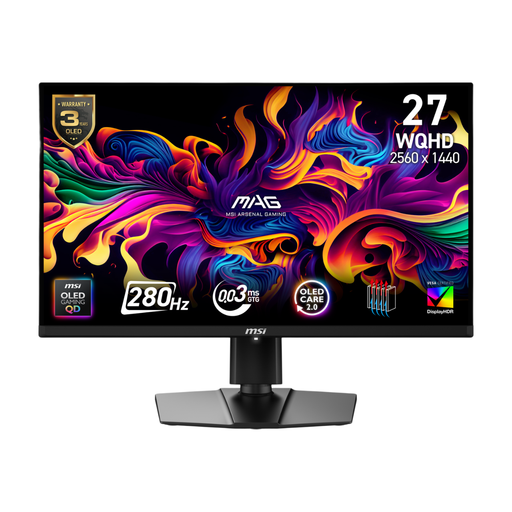
This QD-OLED option suits a search for QHD resolution and a high stated refresh ceiling. Its product name specifies 280Hz and 0.03ms; confirm the refresh rate available through your connection and the monitor’s physical dimensions if desk fit is tight.
 No image available
The 34-inch format is an option if you have room for a wider gaming and work display. Its product name specifies WQHD and 240Hz. Check desk fit and your connection, and follow the screen-protection advice for prolonged static images.
 No image available
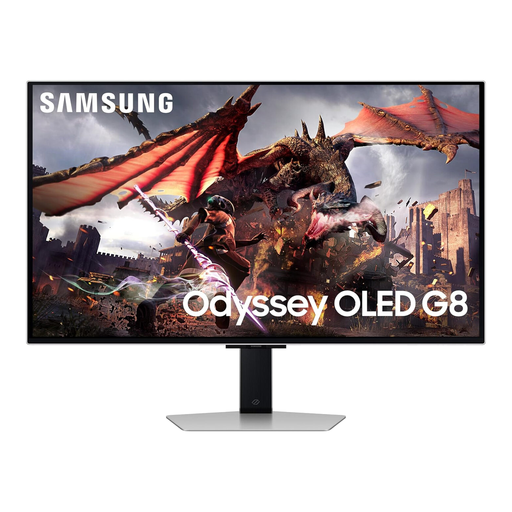
Consider this larger OLED screen if a 32-inch Ultra HD display fits your work-and-play desk. Check the exact model’s per-input refresh specifications, brightness conditions and stand adjustments against your room and source device.
Choose 4K if your PC runs your preferred games at a frame rate you find satisfactory and fine scene detail is the priority; choose QHD if you favour a lower native rendering load. Dell specifies 4K and 240Hz for the Alienware AW2725Q, while LG specifies 2560 × 1440 and 240Hz for the UltraGear 27GS95QE-B. Neither refresh figure guarantees your game’s frame rate.
No. The connected device must support video over USB-C, such as DisplayPort Alt Mode where required, and the monitor’s chosen input must support the desired mode. For its ROG Strix XG27ACG, ASUS specifies up to 180Hz over USB-C or DisplayPort and up to 144Hz over HDMI.
Check the setting’s documented effect on the exact monitor before changing it. LG says Smart Energy Saving is enabled by default on the UltraGear 27GS95QE-B and that turning it off can increase power consumption; assess the screen under your usual room lighting.
Use an appropriate electrical-equipment reuse or recycling route rather than putting an old monitor in ordinary residual waste. GOV.UK describes the UK Waste Electrical and Electronic Equipment framework as encouraging recovery, reuse and recycling; check collection options with your local authority or retailer.