Scenery-first explorers
If you spend long sessions looking across landscapes and into darker areas, screen positioning, reflections and visible detail may matter more to you than the highest advertised refresh rate.


For long exploration-game sessions, start with a screen you can position comfortably, then choose the resolution and format your PC or console can use. A 27-inch 4K IPS monitor suits detail-focused play on a conventional desk; QHD IPS puts less demand on a PC, while QD-OLED and ultrawide screens warrant closer checks on panel care, space and game compatibility.
If you spend long sessions looking across landscapes and into darker areas, screen positioning, reflections and visible detail may matter more to you than the highest advertised refresh rate.
If you are weighing 4K against QHD, check what frame rates your PC can sustain in the games you play and which monitor modes work with your connection.
If you play on PS5, check the modes available through the monitor’s HDMI input. PlayStation’s guidance describes tests for supported 1440p, 120Hz, HDR and variable refresh rate output; a monitor’s headline refresh rate alone does not establish the mode your console will use.
Choose the screen format for the scenery and desk setup you want, then check the exact signal your gaming device can deliver.
Consider it when: You want 4K detail in a conventional 16:9 format for PC or console play.
Trade-off: Driving games at 4K asks more of a PC than QHD; check the modes available through your chosen input.
Consider it when: Contrast and dark-scene presentation are priorities alongside 4K detail.
Trade-off: If maps or game interfaces remain static for long periods, follow the exact model’s OLED care guidance.
Consider it when: You want a wider view in PC games that support the intended aspect ratio.
Trade-off: Allow enough desk space and confirm format support rather than assuming every game or device fills the screen.
Consider it when: Sustaining higher PC frame rates matters more to you than 4K detail.
Trade-off: Check whether the supplied stand can place the screen at a comfortable height.
| Concern | What to check | Who this matters to |
|---|---|---|
| Long-session setup | Stand adjustment or suitable VESA mounting; desk position and reflections. | I want to keep the screen comfortably positioned through a long session without fighting glare. Around 36% of consumers put workstation fit first. |
| Scenery and HDR | Native resolution and panel type; a named VESA DisplayHDR certification if HDR matters to you. | Detailed landscapes and dark scenes shape my choice more than a headline speed figure. For around 29% of consumers, image presentation is the primary need. |
| Device compatibility | Resolution, refresh rate and variable refresh rate through the input you will use. | I need the monitor’s modes to work with my actual PC or console, not just appear on its specification sheet. Compatibility comes first for around 21% of consumers. |
| Wide-field view | Aspect ratio, desk width and support for that format in your games and device. | I would make room for a wider screen if my games can use its format. Around 14% of consumers prioritise that wider view. |
A monitor’s fastest mode may apply only at a particular resolution or through a particular input. PS5 output also depends on the connected display and game.
Check the intended device, cable and port against the resolution, refresh rate, HDR and variable refresh rate combination you want.
VESA cautions that a generic HDR claim does not necessarily give consumers meaningful, comparable performance information.
Compare the exact model specifications and any named VESA DisplayHDR or DisplayHDR True Black certification rather than relying on an unspecified badge.
Health and Safety Executive display-screen guidance addresses posture, screen arrangement, glare and breaks. A low-blue-light or flicker-free label does not replace a workable setup.
Measure the desk and check the stand’s adjustments and VESA mounting before choosing a monitor for long sessions.
If the supplied stand cannot reach the position you need, a compatible arm or a change to the desk setup may be necessary.
LG warns that prolonged static imagery can leave faint marks on its OLED monitors, a consideration when a game keeps a map or interface on screen.
Read the care instructions for the exact OLED model and use its maintenance functions as directed.
Its monitor range includes conventional 4K IPS and OLED routes; compare individual models rather than treating the range as one specification.
Dell’s cited QD-OLED models offer different conventional and ultrawide screen formats.
The EX271Q is a 27-inch QHD route for buyers comparing connectivity as well as gaming resolution.
The VG27AQ5A is a QHD Fast IPS option to assess if high-refresh PC play is your priority.
These monitors cover conventional 4K, QHD and a wider 32:9 format for exploration-game play. Match each one to your desk and gaming device rather than treating the different formats as interchangeable.
 No image available
Consider this conventional 27-inch format if 4K scenery detail and flexible display modes matter to you.
The product title lists dual-mode 240Hz/480Hz operation, HDMI 2.1, DisplayPort 2.1 and AMD FreeSync Premium Pro. Confirm which resolution and variable refresh rate settings work through the input you plan to use.
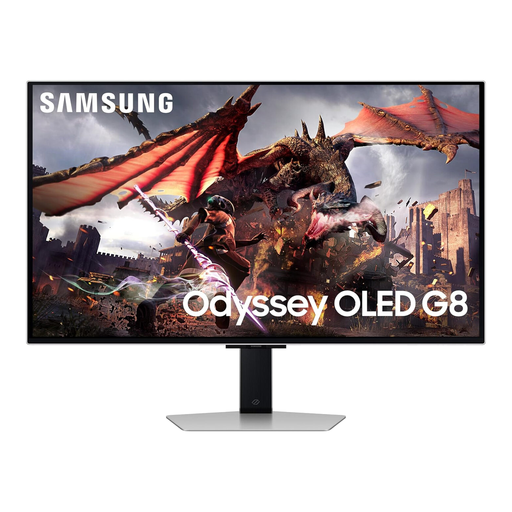 No image available
Consider the larger OLED format if dark-scene presentation is central to your choice and you have space for a 32-inch screen.
Check the input modes you need for your PC or console and the care instructions for this exact OLED model, particularly if game interfaces stay on screen for long periods.
 No image available
Consider this curved OLED screen if you want a larger 4K format for exploration games.
The product title lists 3840 × 2160 resolution, 165Hz and USB-C at 65W. Check the input modes and variable refresh rate support you need, along with care instructions for this model’s panel.
 No image available
Consider its wider format if your PC games support 32:9 and your desk can accommodate a 49-inch screen.
The product title specifies 5120 × 1440 resolution, a 165Hz VA panel, AMD FreeSync and 75 × 75 VESA mounting. Check your games’ aspect-ratio support, the intended input mode and the screen’s desk footprint.
 No image available
Consider QHD if high-refresh PC play takes priority over 4K scenery detail.
The product title specifies 2560 × 1440 resolution and a Fast IPS panel. Check the stand adjustment, the modes available through your chosen input and whether the screen finish suits your room lighting.
Choose 4K if scenery detail is your priority and your device can deliver the modes you want; choose QHD if lower graphics demand and high-refresh PC play matter more. Check your games and hardware rather than judging either resolution by the monitor specification alone.
Check the monitor’s HDMI modes, then inspect the connected display information on your PS5. PlayStation says supported 1440p displays can be tested for SDR or HDR at 60Hz or 120Hz and variable refresh rate; the mode you can use still depends on the display and game.
No: screen positioning, lighting and breaks still matter. Health and Safety Executive guidance concerns display-screen work rather than gaming specifically, but its advice on posture, glare and changes of activity is useful when arranging a home setup.
Follow the instructions for the exact model, especially if maps, menus or other static elements remain visible for long periods. LG says prolonged static imagery can cause faint marks on its OLED monitors and recommends its Image Cleaning function.