For competitive PC games, a compact 1080p high-refresh monitor makes sense if your games run at very high frame rates and motion clarity matters more to you than image detail; TFTCentral describes this as a specialist esports route. Choose high-refresh 1440p if you also want sharper detail and your PC can maintain the frame rates you want, or consider dual mode if you will use both its resolution settings. Whichever route you take, check the refresh rate available through your chosen connection and confirm that any variable refresh rate (VRR) feature works with your graphics hardware and monitor settings.
Who is each monitor route for?
FPS players with consistently high frame rates
If fast shooters are your main games and you prefer a compact view to extra pixel detail, consider a 24–25-inch 1080p high-refresh screen. TFTCentral describes smaller, lower-resolution monitors as a competitive-play option; check that your PC can make use of the refresh mode you choose.
Players who also want sharper game visuals
If you play competitive games alongside more visually detailed titles, consider high-refresh 1440p. Its image is sharper than 1080p; your graphics card and game settings still need to deliver a frame rate that suits your competitive play.
Players whose frame rates fluctuate
If frame rates change across games or scenes, check VRR compatibility rather than choosing on the advertised maximum Hz alone. NVIDIA and AMD each specify compatible display and graphics-hardware requirements for their respective technologies.
What should you check before choosing?
Compact 1080p esports screen
Consider it when: fast FPS play and a compact view matter more to you than image detail.
Trade-off: TFTCentral notes that specialist TN panels do not offer the viewing angles and all-round image quality of IPS.
High-refresh 1440p
Consider it when: you want sharper visuals for other PC games as well as competitive play.
Trade-off: check your frame rates at 1440p, not just at the settings you use for 1080p.
Higher resolution or dual mode
Consider it when: you would use a detailed display mode for some games and a faster mode for others.
Trade-off: confirm your PC can drive the modes you intend to use and that the screen size suits your playing space.
| Priority |
What to check |
Your needs |
| Usable refresh rate |
Check your usual game frame rates at the intended resolution and settings. Confirm the monitor’s maximum Hz for the exact input and display mode. |
I mainly play fast shooters and want a refresh mode my PC can put to use. |
| Size and resolution |
Compare a compact 24–25-inch 1080p view with the detail of 1440p. For a larger or dual-mode screen, check each resolution and refresh combination separately. |
Sharper detail matters for my other games, but I do not want to overlook my competitive-game frame rates. |
| VRR compatibility |
Check the display, graphics card, driver, connection and monitor settings against the applicable NVIDIA G-SYNC or AMD FreeSync requirements. |
My frame rate varies, so I want to know whether VRR will work with my actual PC setup. |
| Motion features and panel |
Check whether blur reduction can operate alongside VRR on the exact model. Compare panel viewing angles and image quality as well as motion-oriented features. |
I want a screen that suits both fast play and the other ways I use my PC. On the ZOWIE XL2566X+, for example, ZOWIE says DyAc 2 must be off to use VRR. |
Which buying mistakes matter?
-
Choosing by the headline Hz figure alone
A high refresh setting is less relevant to your competitive-play decision if your PC cannot deliver the frame rates you want in your main games at the chosen resolution.
Check your usual frame-rate range using your preferred game settings, then confirm the monitor’s refresh mode for your intended input.
-
Assuming a VRR label guarantees compatibility
VRR requires a compatible display and graphics setup. Features can interact too: ZOWIE says DyAc 2 must be disabled to use VRR on the XL2566X+.
Check your graphics-card requirements and the exact monitor manual for connections, settings and features that cannot run together.
-
Treating all fast panels as alike
TFTCentral notes that TN panels can serve high-end gaming but do not offer the viewing angles and all-round image quality of IPS. That distinction matters if the monitor will also serve other games or uses.
Decide how much you value the specialist esports format before comparing TN with IPS, OLED or dual-mode alternatives.
Which brands illustrate the options?
These model examples show different monitor routes; a brand name alone does not establish which screen suits your PC.
ASUS ROG
The ASUS ROG UK specification for the XG248QSG describes a specialist 24.1-inch FHD Super TN monitor with an overclocked 610Hz refresh setting.
- A compact format for buyers considering the ultra-high-refresh esports route.
- Confirm that your PC and connection can use the intended overclocked mode; the FHD format places less emphasis on image detail.
ZOWIE by BenQ
ZOWIE UK lists the XL2566X+ as a Fast TN 400Hz esports monitor with DyAc 2.
- A model to examine if its compact, motion-focused format fits your FPS setup.
- ZOWIE’s support guidance says DyAc 2 must be switched off before enabling VRR on the XL2566X+.
Alienware
PCMag UK’s 2026 tested-picks overview places the Alienware AW2525HM in its everyday 1080p gaming category.
- An example of a 1080p route to compare with specialist esports models.
- Check the exact UK model specification, connections and supported modes before deciding whether it fits your PC.
LG UltraGear
A Joybuy UK campaign listing describes the LG UltraGear OLED 32GS95UV-B with 4K 240Hz and FHD 480Hz modes.
- Its listed modes illustrate a choice between higher detail and a faster FHD setting on the same model.
- Check the exact model’s modes, connections and display-care guidance against your planned use.
Joybuy monitor options
These Joybuy options span higher-resolution, dual-mode and high-refresh PC gaming monitors. Compare their stated formats with your games, available connections and preferred screen size; the list is not a like-for-like set of compact esports screens.
 No image available
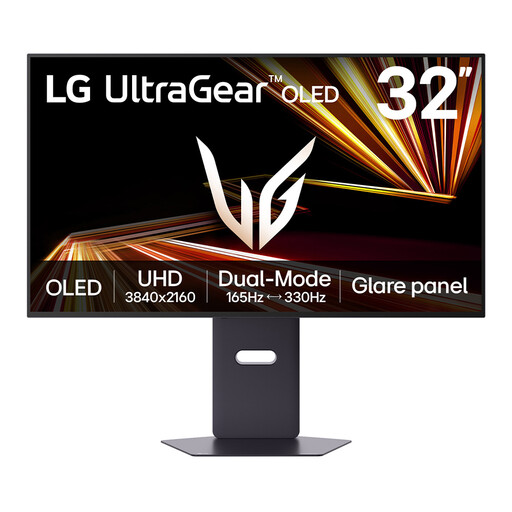
LG UltraGear 32GX850A-B 32-inch OLED 4K UHD Dual Mode
Consider this model if you want to switch between detailed and faster competitive gaming, and prefer a 32-inch screen. Its title states Dual Mode and a maximum of 330Hz; confirm which resolution, connection and settings enable the mode you intend to use. Follow the listing’s OLED care guidance if your use involves prolonged static images.
View on Joybuy
 No image available
HKC G27H2DPro 27-inch QHD Fast IPS, 220Hz
The 2560×1440 resolution makes this a 1440p option for players who also value image detail. Its title specifies 220Hz; check which input provides that mode and whether your PC can sustain the frame rates you want at QHD.
View on Joybuy
 No image available
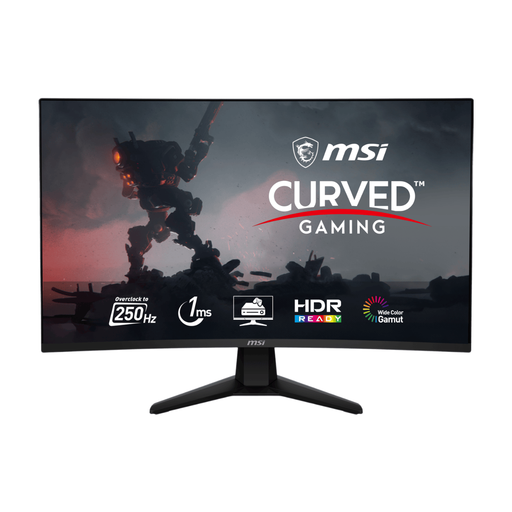
MSI MAG 32C6X 32-inch curved FHD, 250Hz (OC)
This is a larger FHD option rather than a compact 24–25-inch esports screen. Its title specifies an overclocked 250Hz setting and Adaptive Sync; check the connection and settings needed for your intended refresh mode, plus compatibility with your graphics card.
View on Joybuy
 No image available
CRUA 32-inch 1500R curved QHD, 165Hz
Consider this larger curved format if you want 2560×1440 detail alongside a stated 165Hz refresh rate. The title names Adaptive Sync, HDMI and DisplayPort; check which connection supports the mode you want and whether your graphics card can use the sync feature.
View on Joybuy
 No image available
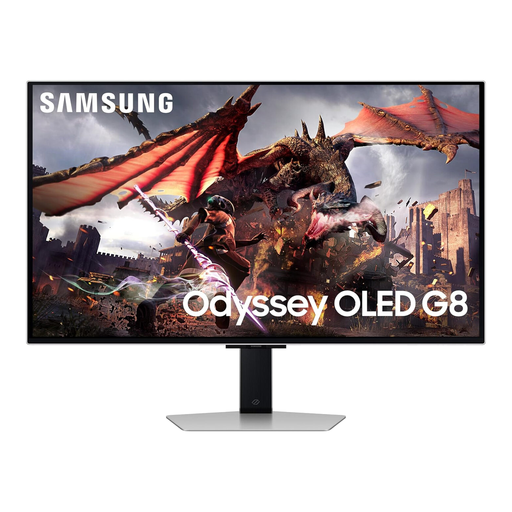
Samsung Odyssey Gaming OLED G8 LS32DG802SUXXU 32-inch Ultra HD
This 32-inch Ultra HD model is worth considering if higher-resolution gaming is part of your decision. Check its exact refresh modes by resolution and input, your PC’s achievable frame rates, and VRR compatibility if variable refresh is important to you.
View on Joybuy
Frequently asked questions
Is an ultra-high-refresh monitor worthwhile if my PC reaches fewer frames per second?
Choose the refresh tier after checking the frame rates in the games and settings you actually use. TFTCentral describes compact, lower-resolution screens as one way competitive players pursue higher frame rates, but a monitor’s maximum Hz alone cannot tell you how your PC will perform.
What do I need for G-SYNC or FreeSync to work?
Check the monitor and graphics card against the relevant technology’s compatibility requirements, then confirm the connection, driver and display settings. NVIDIA requires a G-SYNC or G-SYNC Compatible display for G-SYNC use; AMD’s FreeSync guidance requires a capable monitor and supported Radeon graphics.
Can blur reduction and VRR run together?
That depends on the exact monitor and feature combination. For the ZOWIE XL2566X+, ZOWIE says DyAc or DyAc 2 must be turned off to enable VRR; check another model’s manual rather than applying that rule to every screen.
Will my current cable support the monitor’s highest refresh mode?
Confirm the required cable and the supported resolution-and-refresh combination for both the monitor input and graphics-card output before deciding whether to replace it. VESA’s DisplayPort guidance does not mean every device or connection implements every mode associated with a connector standard.


