
24/7 Customer Support

Free returns

Same-day & Next-day Delivery

Quality Guaranteed

Unlock Your Welcome Offers: FREE Delivery | Up to 80% OFF | Free 30-day JoyPlus trial
Download the APP
Choosing between gaming monitors can be surprisingly complicated. Refresh rates, response times, panel types and HDR labels often appear together in product listings, but they do not all improve your experience in the same way. A monitor that suits a competitive PC player may be unsuitable for a console gamer, content creator or someone working from a smaller UK desk.
The main goal is to match the display to your hardware, games and available space rather than paying for specifications you cannot use.
A 240Hz gaming monitor can display up to 240 frames per second, but your PC or gaming laptop must produce those frames consistently. If a graphics card delivers 90fps in your preferred games, the extra refresh-rate headroom may offer limited practical value.
Check the monitor’s maximum refresh rate at each resolution. Some models support 240Hz at 1440p but use a lower rate at 4K, while dual-mode displays may switch between 4K 240Hz and Full HD 480Hz.
Manufacturers may quote 0.03ms, 0.5ms or 1ms figures using different measurement methods. GtG and MPRT are not directly interchangeable. A low number alone does not guarantee clear motion, because overdrive settings, refresh rate and pixel behaviour also affect ghosting.
Look for the measurement type, supported refresh rate and adaptive-sync compatibility rather than comparing one number in isolation.
A display may support a high refresh rate through DisplayPort but not through every HDMI input. This matters if you connect a desktop PC, games console and gaming laptop.
Ergonomics are also easy to overlook. A monitor with height, tilt, swivel or VESA support is easier to position comfortably. OLED displays require additional care: avoid leaving static taskbars, game interfaces or desktop screens visible for long periods, and use the manufacturer’s panel-care functions where provided.
IPS-class panels commonly provide broad viewing angles and balanced colour performance. VA panels can offer strong native contrast, making them suitable for darker games and films. OLED and QD-OLED gaming monitors provide individually lit pixels, deep blacks and very fast pixel transitions, but static-image management and price should be considered.
QD-OLED combines OLED contrast with Quantum Dot colour reproduction. Check the stated colour gamut, HDR certification and panel-care features rather than assuming every OLED product has the same brightness or protection.
Refresh rates such as 180Hz, 240Hz and 250Hz can make cursor movement and fast camera pans appear smoother when your system supplies suitable frame rates. Adaptive Sync, AMD FreeSync or G-SYNC Compatible support can help reduce visible tearing and stuttering when frame output fluctuates.
For UK gaming setups, check:
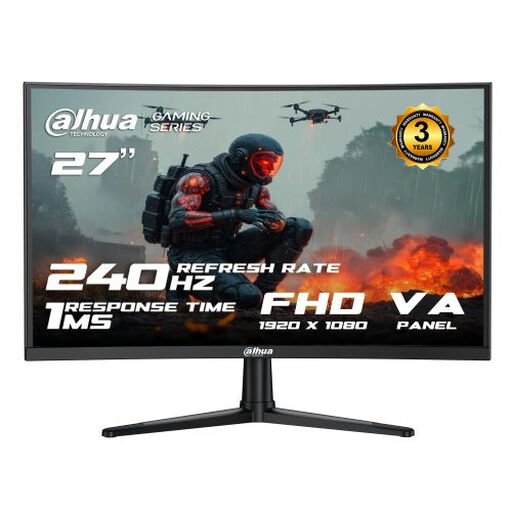
Why This Fits Their Persona: A sensible entry point for UK players who want a high refresh rate without moving to a higher-resolution graphics setup. Its 27-inch curved format also suits general gaming and streaming.
The specification states 240Hz at 1920×1080 through HDMI 2.0 and DisplayPort, making the resolution and connection requirements clear.
240Hz refresh rate, 1ms MPRT response time, Adaptive Sync and a 100×100mm VESA mount.
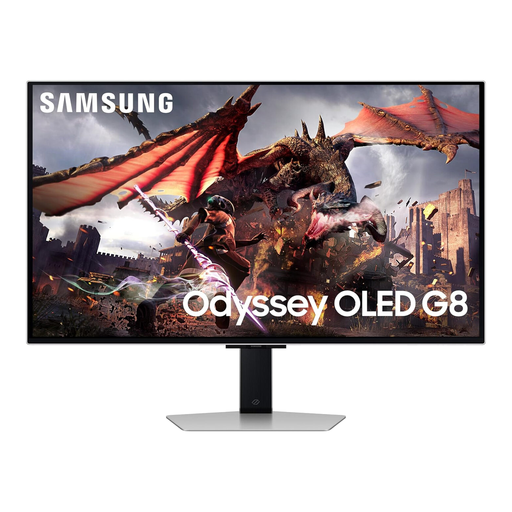
Why This Fits Their Persona: Designed for players and creators who want 4K detail, OLED contrast and smart-monitor functions in a large desktop display.
The listing identifies 4K QD-OLED technology, HDMI 2.1, USB connectivity and OLED Glare Free technology, while buyers should still use panel-care features for static content.
32-inch UHD resolution, 240Hz refresh rate, 0.03ms stated response time and an adjustable stand.
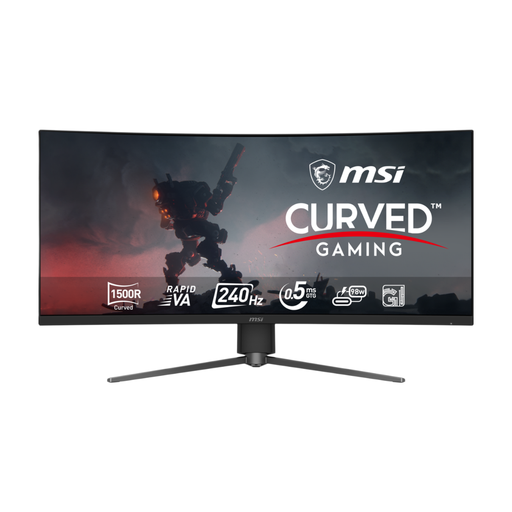
Why This Fits Their Persona: A wide-screen option for sim-racing, open-world gaming, multitasking and streamers who need space for gameplay and supporting windows.
It specifies 3440×1440 support at 240Hz through DisplayPort 1.4a, HDMI 2.1 and USB-C, rather than leaving the connection limits unclear.
34-inch UWQHD curved panel, 240Hz refresh rate, 0.5ms stated GtG minimum response time and 98W USB-C power delivery.
We have compiled a complete, real-time list of products that fully satisfy these strict selection criteria and UK safety regulations.
After installation, open your operating system or graphics-driver settings and select the advertised refresh rate manually. Use the correct cable and input, then enable Adaptive Sync on both the monitor and compatible graphics hardware.
Place the screen on a stable, level surface with ventilation space. For wall mounting, confirm the VESA size and the bracket’s load rating. A monitor marked with CE or other compliance information should still be used according to its supplied instructions, with suitable UK power accessories and safe cable routing.
It can be worthwhile for competitive PC gaming when your system regularly produces high frame rates. For slower-paced games, console gaming or general work, 144Hz to 180Hz may provide a more balanced purchase.
Yes, but static content should be managed carefully. Use automatic screen-off settings, pixel-shift or panel-care tools where available, and avoid leaving fixed desktop elements visible for extended periods. Check the individual warranty terms for panel coverage.
Power consumption varies by screen size, brightness, HDR mode, panel technology and refresh rate. Larger ultrawide and high-brightness OLED displays may use more power than smaller Full HD models. Check the manufacturer’s typical and maximum consumption figures when estimating running costs.