What matters when buying?
For consumers replacing a monitor for PC or console gaming, establish the output mode their device can use before deciding which display feature deserves priority.
| Concern |
What to check |
Who this matters to |
| Competitive motion |
Compare resolution and maximum refresh rate for the exact HDMI or DisplayPort input you will use. Check VRR compatibility with your graphics hardware. |
If I mainly play fast PC games, I want the monitor’s usable refresh rate to match the frames my setup can deliver. Around 31% of consumers would put that need first. |
| Console modes |
Check the monitor’s HDMI modes and VRR support for your console. For Xbox Series X at 4K/120Hz, Xbox Support specifies an HDMI 2.1-capable display and an Ultra High Speed HDMI cable. |
When I connect a PS5 or Xbox Series X, I want the intended 120Hz mode to work through HDMI, not just appear in a panel specification. That is the primary concern for around 31% of consumers. |
| Detail and HDR |
Check the graphics output needed at the monitor’s native resolution and refresh rate. Compare a named VESA DisplayHDR tier and model-specific panel or backlight details rather than relying on an HDR label alone. |
For visually detailed games, I would favour resolution and clearly described HDR capability, while accepting a greater demand on my PC’s graphics output. Around 25% of consumers would prioritise image detail and HDR. |
| Desk and connections |
Measure the available space and check stand or mounting requirements. Count the HDMI and DisplayPort inputs needed for your devices and check which modes each input supports. |
If my PC and console share a desk, I need a screen that fits and enough suitable connections to avoid an awkward setup. Desk and connection practicality comes first for around 13% of consumers. |
Joybuy gaming monitors
These models offer PC-gaming choices across QHD, WQHD and 4K resolutions, including high-refresh and dual-mode options. If one will also serve a PS5 or Xbox Series X, check its supported HDMI modes for the console before choosing.
 No image available
LG UltraGear G8 27G850A 27-inch 4K dual-mode monitor
Consider this model if you want to choose between a 4K mode and a faster Full HD mode for PC games.
The product name specifies 4K at 240Hz, 1080p at 480Hz, Nano IPS, DisplayHDR 600, DisplayPort 2.1 and HDMI 2.1. Check which input supports your intended mode and confirm the panel specification for this exact variant before buying.
View on Joybuy
 No image available
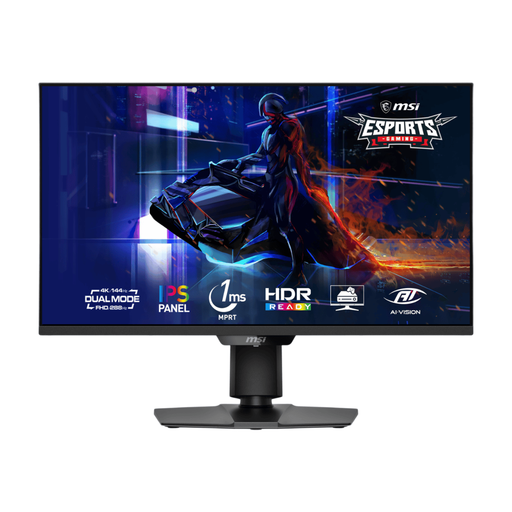
MSI MAG 275UPD E14 27-inch UHD/FHD dual-mode monitor
This is a choice for PC players who want separate modes for UHD detail and higher-refresh Full HD play.
The product name specifies UHD at 144Hz, FHD at 288Hz and Adaptive Sync. Check the input timing specifications for each mode and the console output modes if you plan to use it with a PS5 or Xbox Series X.
View on Joybuy
 No image available
LG UltraGear 34GX900A-B 34-inch OLED WQHD monitor
Its 34-inch WQHD format is worth considering for a PC desk where a wider gaming display will fit.
The product name specifies OLED and 240Hz. Check the space available, the modes supported by your intended input and how a console would display content on this screen. Follow the model’s screen-protection guidance for its OLED panel.
View on Joybuy
 No image available
Samsung Odyssey G6 S27DG612 27-inch QHD OLED monitor
This model suits a PC setup where you want QHD resolution alongside a high advertised refresh rate.
The product name specifies OLED and 240Hz. Before using it for console play or adaptive sync, check the exact model’s HDMI modes and VRR support.
View on Joybuy
 No image available
HKC G27H2DPro 27-inch QHD Fast IPS monitor
Consider this model for high-refresh PC play if QHD is your preferred resolution rather than 4K.
The product name specifies 2560 × 1440 and 220Hz. Check the supported refresh rate on the input you will use, as well as the stand and mounting measurements needed for your desk.
View on Joybuy
Common questions
How can I check whether a PS5 will use 120Hz and VRR?
Check the connected display information under Screen and Video in the PS5 settings, then confirm the mode you intend to use. For a 1440p monitor, PlayStation says Test 1440p Output can check SDR and HDR at 60Hz or 120Hz, as well as VRR, when the display supports 1440p output.
What does Xbox Series X need for 4K at 120Hz?
Xbox Support says 4K gaming at 120Hz requires an Xbox Series X, an Ultra High Speed HDMI cable supporting HDMI 2.1 and an HDMI 2.1-capable display. Check the monitor’s exact HDMI input and the console’s display options; a 120Hz panel specification alone does not establish the full 4K connection path.
How do I check an advertised PC mode such as 4K/144Hz?
Compare the exact monitor model’s per-input specifications with your graphics card’s output and intended connection. LG says its 27GR93U needs a graphics card supporting DisplayPort 1.4 with DSC or HDMI 2.1 for 4K/144Hz; after connection, confirm the available mode in your PC’s display settings.
Does an HDR label tell me how HDR will look?
No: an HDR label by itself does not give you a comparable performance level. VESA describes DisplayHDR as a specification with transparent testing, so check the exact certified tier and the model’s panel or local-dimming details when comparing HDR-focused monitors.


