
24/7 Customer Support

Free returns

Same-day & Next-day Delivery

Quality Guaranteed

Unlock Your Welcome Offers: FREE Delivery | Up to 80% OFF | Free 30-day JoyPlus trial
Download the APP
Choosing between gaming monitors can be surprisingly difficult. Refresh rates, resolution, OLED panels, HDR labels and adaptive-sync standards all affect the buying decision, but marketing language can make modest differences sound essential.
For UK buyers, three common pitfalls are worth avoiding:
The right display depends on how you play, create and work. Use the specifications below to narrow your options before comparing price.
Resolution affects sharpness and the amount of workspace available.
Check your desk depth, viewing distance and graphics hardware together. A large panel positioned too close can feel uncomfortable, while an ultrawide display may require a reinforced monitor arm.
A high refresh rate monitor updates the image more frequently, which can make camera movement and fast gameplay appear smoother.
For console gaming, verify the console’s output limits. HDMI 2.1 may be important for compatible 4K and high-refresh-rate console modes, while DisplayPort is commonly used for PC gaming.
An IPS panel generally offers wide viewing angles and balanced colour performance. VA panels can provide higher stated static contrast, which may suit darker rooms. An OLED gaming monitor can produce very deep blacks and rapid pixel response, but buyers should use its panel-care features and avoid displaying static images for extended periods.
For content creation, look at colour-gamut figures such as sRGB, DCI-P3 or Adobe RGB, as well as calibration information. A monitor for content creation should also offer suitable connectivity and ergonomic adjustment.
HDR specifications need context. A HDR gaming monitor should be assessed by its brightness rating, contrast behaviour, black levels and certification rather than the HDR label alone. You can compare suitable models through the HDR monitor range.
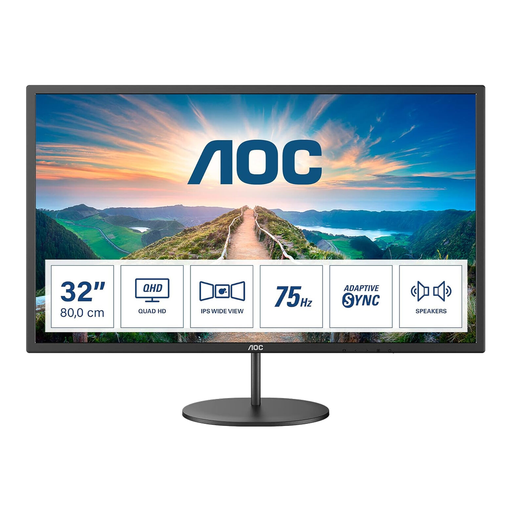
Why This Fits Their Persona: A sensible option for UK students, casual PC gamers and home-office users wanting a large QHD screen without moving to a premium high-refresh OLED model.
Its 75Hz refresh rate is clearly positioned for everyday use, so buyers are not paying for an unused esports specification.
31.5-inch QHD IPS panel, AdaptiveSync, built-in 2 × 2W speakers and VESA 100 × 100mm compatibility.
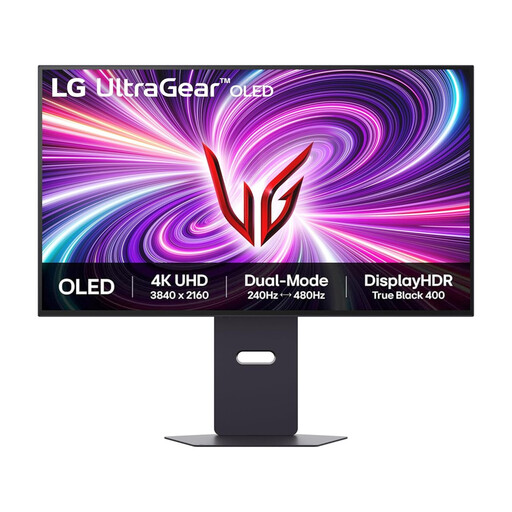
Why This Fits Their Persona: Designed for PC gamers who want 4K detail, OLED contrast and fast competitive performance in one 32-inch display.
It combines a specified 4K 240Hz mode with a separate Full HD 480Hz mode, making the performance options clear rather than implying one setting delivers both simultaneously.
4K UHD OLED panel, 0.03ms stated GtG response time, HDMI 2.1, DisplayPort 1.4 and compatibility with G-SYNC and FreeSync Premium Pro.
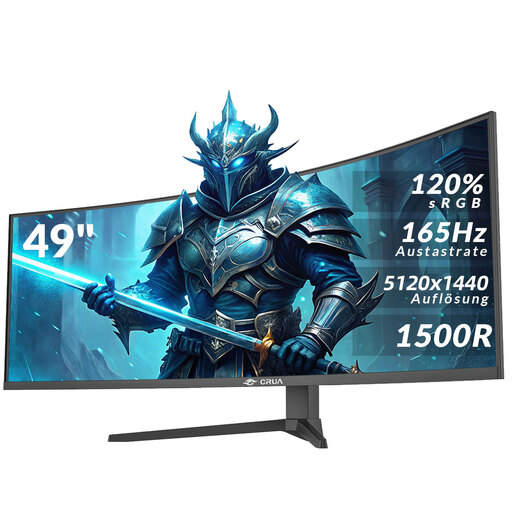
Why This Fits Their Persona: A suitable format for multitaskers, simulation players, editors and home-office users who want one expansive screen instead of several smaller monitors.
The 49-inch width and 1500R curve are clearly stated, helping buyers measure their desk before ordering. Moving the monitor requires two people.
DQHD 5120 × 1440 resolution, 165Hz refresh rate, 32:9 aspect ratio, HDMI 2.1 and DisplayPort 1.4 connections.
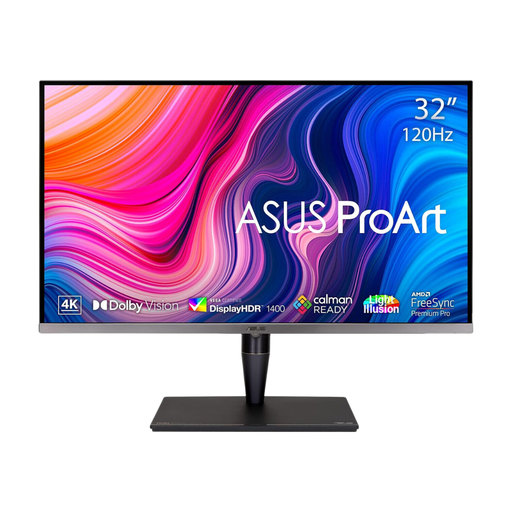
Why This Fits Their Persona: Intended for colour-sensitive photography, video editing, graphic design and other professional monitor workflows where calibration features matter more than esports refresh rates.
The specification lists calibration support and colour-gamut coverage, giving creators measurable criteria to compare instead of relying only on the word “professional”.
32-inch 4K UHD resolution, Mini LED backlighting, 120Hz refresh rate, USB-C, hardware calibration support and broad colour coverage.
We have compiled a complete, real-time list of products that fully satisfy these strict selection criteria and UK safety regulations.
Before ordering, confirm the following:
It can appear smoother during quick camera movement and scrolling, provided the computer produces enough frames. The difference is more relevant to fast PC games than to films or standard office applications.
Yes, an OLED monitor can display text and applications clearly, but static menus and taskbars should not remain unchanged for long periods. Use screen-saving and panel-care settings, and consider an IPS professional monitor if your work involves static content throughout the day.
Power use varies with screen size, brightness, refresh rate and panel technology. A large ultrawide or HDR display generally requires more power than a smaller Full HD monitor. Check the product’s stated typical and maximum consumption, then use automatic sleep settings when the screen is idle.