
24/7 Customer Support

Free returns

Same-day & Next-day Delivery

Quality Guaranteed

Unlock Your Welcome Offers: FREE Delivery | Up to 80% OFF | Free 30-day JoyPlus trial
Download the APP
Buying gaming monitors can look straightforward until the specification sheet becomes a wall of refresh-rate figures, response times and display technologies. A screen advertised as “fast” may only reach its headline refresh rate through DisplayPort, while an impressive HDR label may not tell you how bright the display is in real use.
For UK buyers, the sensible approach is to match the monitor to your equipment, games and desk rather than paying for features you cannot use.
A 180Hz gaming monitor may support 180Hz through DisplayPort but only 144Hz through HDMI. This matters if you are connecting a gaming laptop, console or older graphics card.
Always check:
For example, the MSI MAG 274QF reaches 180Hz through DisplayPort and 144Hz through HDMI, while the Philips Evnia 34M2C6500 supports 175Hz through DisplayPort and 100Hz through HDMI.
A quoted 0.5ms or 1ms figure does not always describe the same measurement. MPRT and GtG are different methods, and the result can depend on the selected overdrive mode. An extremely low number may also introduce visible overshoot, such as bright trails behind moving objects.
Look at response time alongside:
HDR support is not a guarantee of identical brightness, contrast or highlight detail. OLED panels can produce individually controlled pixels, while VA panels generally offer a different contrast profile. A monitor with a stated peak brightness of 1,000cd/m² is not equivalent to one rated at 300cd/m², even if both mention HDR.
Check the stated brightness, HDR standard, contrast technology and whether HDR is supported at the refresh rate you plan to use.
A 4K gaming monitor provides 3,840 × 2,160 pixels and can show fine detail, but it also requires more graphics power than QHD. A QHD gaming monitor at 2,560 × 1,440 is often a practical middle ground for PC gaming, offering more detail than Full HD without the same rendering demand as 4K.
For desktop use:
A curved gaming monitor can improve immersion, particularly on ultrawide formats. However, curvature is a preference rather than a universal benefit. Check the desk depth, viewing distance and whether your software handles a 21:9 or 32:9 aspect ratio correctly.
Refresh rate describes how often the display updates each second. A 144Hz gaming monitor, 165Hz gaming monitor, 180Hz gaming monitor or 240Hz gaming monitor can show smoother motion than a 60Hz screen when the computer produces enough frames per second.
Adaptive-sync technologies, including FreeSync monitors and G-Sync compatible monitors, coordinate the display refresh rate with GPU output. This can reduce tearing and stuttering, but compatibility depends on the monitor, graphics card, connection and settings.
For console gaming, check the console’s maximum output. A monitor capable of 165Hz will not make a console exceed its supported frame rate, although it may still offer useful image quality and connectivity for a PC.
Content creators, graphic designers and video editors should check colour gamut, bit depth, factory calibration information and connectivity rather than relying on a gaming label alone. Features such as HDR10, DisplayHDR, 99% sRGB or 99% DCI-P3 describe different aspects of colour and dynamic range.
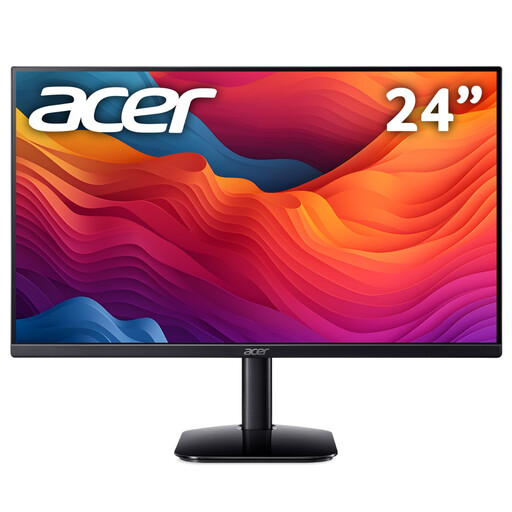
Why This Fits Their Persona: Its 23.8-inch Full HD format is suitable for a small-footprint UK desk, first gaming setup or everyday home-office use without requiring a high-end graphics card.
The listed 144Hz refresh rate is paired with AMD FreeSync, while the specifications distinguish 1ms MPRT from 4ms GtG response time.
Full HD resolution, 144Hz refresh rate, VA panel, 99% sRGB coverage and HDMI/VGA connectivity.
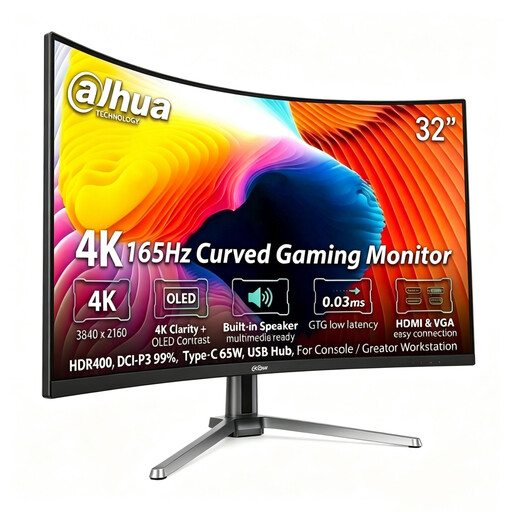
Why This Fits Their Persona: This suits PC gamers, console owners and creator workstations seeking 4K detail, OLED contrast and USB-C connectivity in one display.
The port specification clearly lists 165Hz at 4K through DisplayPort 1.4 and HDMI 2.1, rather than leaving the connection limits unclear.
QD-OLED panel, 3,840 × 2,160 resolution, 165Hz refresh rate, 99% DCI-P3 and USB-C with 65W power delivery.
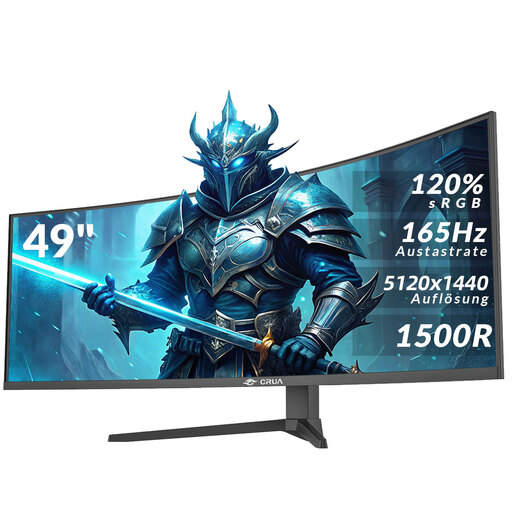
Why This Fits Their Persona: Its 32:9 layout is aimed at multitaskers, simulation players, video editors and home-office users who want one very wide workspace.
The product information specifies the 5,120 × 1,440 resolution, 165Hz refresh rate and heavy-duty desk or mount requirements, helping buyers assess compatibility before purchase.
49-inch 1500R VA display, 165Hz, HDR10, AMD FreeSync, two HDMI 2.1 ports and two DisplayPort 1.4 ports.
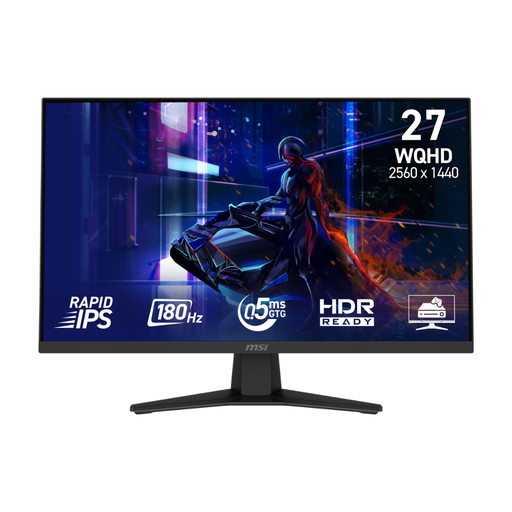
Why This Fits Their Persona: A suitable match for fast-paced PC games and console owners who want QHD clarity without moving to a 4K panel.
The product listing separates its DisplayPort and HDMI refresh-rate limits and identifies the 0.5ms figure as a minimum GtG measurement.
27-inch Rapid IPS panel, 2,560 × 1,440 resolution, 180Hz through DisplayPort, Adaptive Sync and HDMI CEC console mode.
We have compiled a complete, real-time list of products that fully satisfy these strict selection criteria and UK safety regulations.
Before ordering, measure the desk width and depth, particularly for a curved gaming monitor or ultrawide gaming monitor. Check the stand’s height, swivel and tilt range, or confirm that the VESA mounting pattern matches your monitor arm.
After installation:
It can be, but the console may operate below 165Hz. Check the console’s supported resolution, frame rate and HDMI standard. The extra refresh-rate capacity is more useful when the same monitor is also connected to a gaming PC.
Potentially. Power consumption depends on panel technology, brightness, HDR use, connected USB devices and operating settings. OLED and large ultrawide displays may have different power demands from smaller Full HD models. Check the product’s typical and maximum consumption figures if running costs are important.
Lifespan varies with build quality, usage, ventilation and panel technology. Keep the screen away from moisture and direct heat, avoid pressing the panel, and follow the manufacturer’s cleaning and maintenance instructions. OLED buyers should also review any included pixel-care guidance, particularly if the monitor will display static desktop elements for long periods.