
24/7 Customer Support

Free returns

Same-day & Next-day Delivery

Quality Guaranteed

Unlock Your Welcome Offers: FREE Delivery | Up to 80% OFF | Free 30-day JoyPlus trial
Download the APP
Buying a gaming monitor involves more than choosing the largest screen or highest refresh rate. UK shoppers also need to consider desk space, graphics-card capability, console compatibility, connectivity and long-term panel care. A display that looks impressive on a specification sheet may still be unsuitable for your games or hardware.
This guide explains the main buying traps, breaks down the specifications that matter and matches selected gaming monitors to different user profiles.
A 240Hz gaming monitor or 320Hz display can produce very smooth motion, but your PC must generate enough frames to take advantage of it. In demanding games, a mid-range graphics card may not consistently reach those frame rates at 1440p or ultrawide resolutions.
For many users, a 1440p gaming monitor running at 144Hz to 180Hz may provide a more practical balance. Competitive players with suitable hardware can consider 240Hz or higher.
A quoted 0.03ms response time monitor and a 1ms MPRT display do not necessarily use the same measurement method. GtG, MPRT and manufacturer response-time modes describe different testing conditions.
Check the full specification, not just the smallest number. Look for the panel type, adaptive-sync support and independent certification where available. A fast number does not automatically guarantee a clear image in every setting.
HDR can improve highlights and contrast, but the result depends on brightness, contrast technology, local dimming and the content itself. OLED gaming monitors generally offer individually controlled pixels and deep blacks, while some LCD models rely on more limited backlighting.
A certification such as VESA DisplayHDR 400 or DisplayHDR True Black 400 gives useful context, but it should not be treated as a guarantee of a cinema-like HDR experience.
At 27 inches, 1440p is a commonly practical format. A 32-inch or 34-inch panel can make QHD or UWQHD feel more immersive, while 49-inch Dual QHD requires substantial desk width and a suitable viewing distance.
OLED and QD-OLED gaming monitors can provide deep blacks, high contrast and very fast pixel response. However, static interface elements may require more careful use. Enable the panel’s protection features, use screen-saving settings and avoid leaving fixed images displayed for extended periods.
VA panels typically offer strong contrast and are available in curved gaming monitors at different price points. IPS and Rapid IPS panels are often selected for wide viewing angles and fast gaming performance. Compare the actual specifications rather than assuming one panel category suits every use.
A high refresh rate monitor updates the image more frequently, which can make cursor movement and fast gameplay appear smoother. Adaptive-sync technology helps coordinate the monitor’s refresh rate with compatible graphics output.
Look for FreeSync gaming monitor support if you use compatible AMD hardware. A G-SYNC compatible monitor may suit NVIDIA graphics cards, although compatibility can vary by connection and settings. Console users should check whether the display supports the PlayStation or Xbox resolution and VRR modes they intend to use.
Check whether the monitor includes the connections you need:
Also measure the stand depth, screen width and VESA mounting pattern before ordering. Large curved and ultrawide gaming monitors can occupy more desk space than expected.
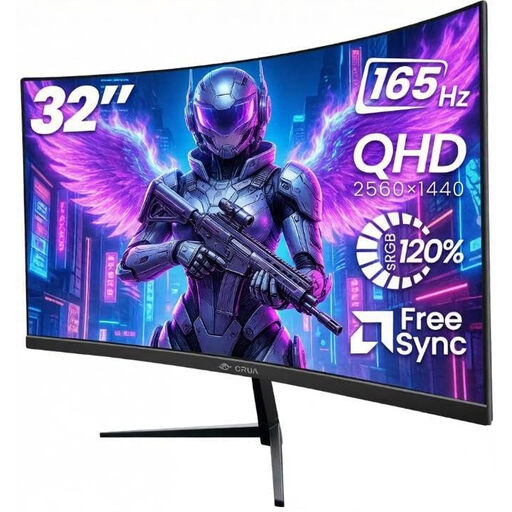
Why This Fits Their Persona: A practical option for UK home offices, bedrooms and entry-level gaming desks where a larger screen and flexible inputs are useful.
Its 2560 × 1440 resolution and 165Hz refresh rate offer a clear upgrade without moving to the higher graphics demands of 4K.
32-inch 1500R VA panel, Adaptive Sync, dual HDMI and dual DisplayPort inputs, plus VESA 100 × 100mm mounting.
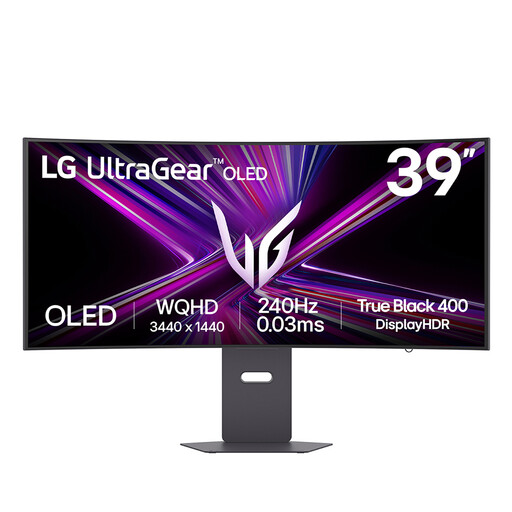
Why This Fits Their Persona: Suits players seeking an immersive PC and console gaming monitor with OLED contrast, a wide aspect ratio and extensive connectivity.
The specification lists 3440 × 1440 resolution, 240Hz, HDMI 2.1 and both G-SYNC Compatible and FreeSync Premium Pro support, making the key compatibility points clear.
39-inch 800R W-OLED display, 0.03ms GtG response time, DisplayHDR True Black 400 certification and USB-C with 65W power delivery.
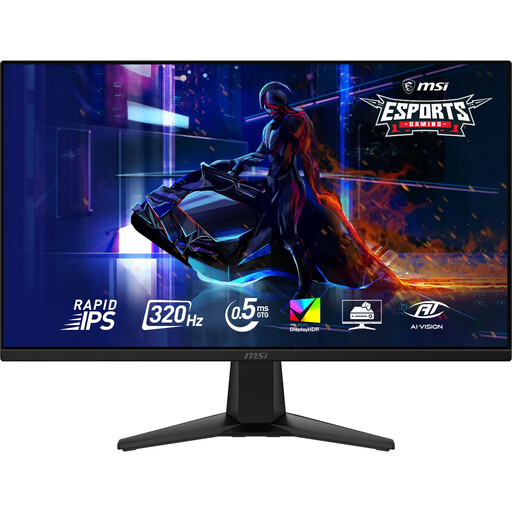
Why This Fits Their Persona: Designed around high frame-rate PC gaming, particularly competitive FPS titles where motion clarity and refresh rate are priorities.
It uses a stated 0.5ms GtG response time rather than presenting an unexplained 0.03ms figure, helping buyers compare like with like.
Rapid IPS panel, 320Hz refresh rate, 2560 × 1440 resolution, Adaptive-Sync and HDMI 2.1 support.
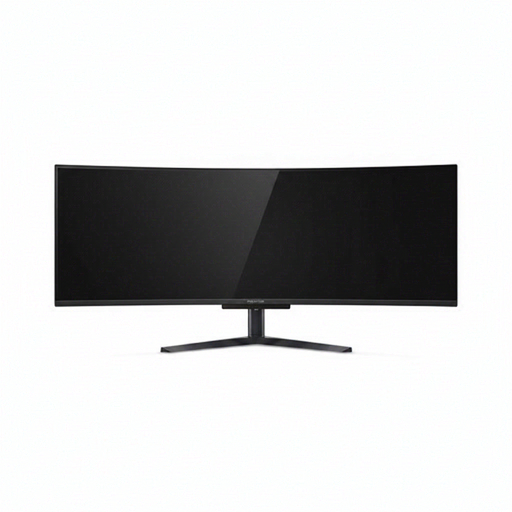
Why This Fits Their Persona: Its 32:9 layout suits racing and flight simulation enthusiasts, streamers and users replacing a multi-monitor workspace with one continuous display.
The 49-inch size is matched with 5120 × 1440 Dual QHD resolution, while the 1800R curve and adjustable stand address viewing position and workspace planning.
QD-OLED panel, 240Hz refresh rate, 0.03ms response time, USB-C with 90W Power Delivery, KVM and PIP/PBP features.
We have compiled a complete, real-time list of products that fully satisfy these strict selection criteria and UK safety regulations.
Running cost depends mainly on power consumption, brightness, screen size and daily usage. Larger OLED and ultrawide displays may use more electricity than smaller LCD models. Check the manufacturer’s typical wattage and use power-saving settings when the monitor is idle.
Yes, provided the monitor has suitable inputs and supports the console’s output modes. HDMI 2.1 is useful for compatible newer consoles, while features such as HDMI CEC, VRR and console-specific resolution support can make switching easier. Always check whether the advertised refresh rate applies to HDMI or only DisplayPort.
OLED panels can benefit from built-in pixel-shift, logo-dimming and panel-refresh functions. Avoid leaving static desktop icons or game interfaces on screen for long periods, enable automatic sleep settings and follow the manufacturer’s care instructions. With the right settings and normal varied use, the panel can remain suitable for gaming, streaming and everyday desktop work.