PC squad players seeking smoother motion
If tracking enemies and teammates during rapid movement is your priority, start by matching a QHD monitor’s refresh mode to the frame rates your PC can deliver through the intended connection.


For PC co-operative shooters, a QHD monitor around 165Hz is a sensible starting point if your graphics card and chosen connection can deliver the mode you want. Consider 240Hz or higher when your games can make use of it, and choose OLED if contrast matters enough to accept its model-specific brightness and power-setting trade-offs. For console play, check the exact HDMI input and supported 120Hz, VRR and resolution modes before choosing by refresh-rate headline alone.
If tracking enemies and teammates during rapid movement is your priority, start by matching a QHD monitor’s refresh mode to the frame rates your PC can deliver through the intended connection.
If you mainly play on PS5 or Xbox Series X|S, check the monitor’s HDMI inputs and supported resolution, 120Hz and variable refresh rate (VRR) modes against the console settings you plan to use.
If contrast and HDR presentation matter most during atmospheric co-op sessions, compare the exact panel and HDR certification. For an OLED model, also consider how your preferred brightness setting affects power use.
Decide whether the monitor is primarily for PC or console play, then check the output modes your system can deliver. Compare motion, HDR and desk features within that compatible set.
| Concern | What to check | Who this matters to |
|---|---|---|
| Motion in fast firefights | Check the native resolution, refresh rate through your chosen input and VRR support; match the target to frame rates in the games you play. | When tracking enemies through rapid camera movement, I want a refresh mode my PC can actually feed. Around 33% of consumers put this motion need first. |
| Console modes and ports | Check the exact HDMI input and the 120Hz, VRR and resolution modes you want; confirm detected modes in the console’s video settings. | If my PS5 or Xbox is the main system, I need the intended mode to work through the input I will use. Console compatibility comes first for around 27% of consumers. |
| Dark scenes and HDR | Compare the exact panel and VESA DisplayHDR certification tier for the model, rather than relying on a generic HDR label. | For co-op games with dark interiors, I care more about contrast and the specific HDR capability than a higher refresh-rate number alone. Around 20% of consumers make presentation their primary concern. |
| Desk fit and everyday use | Measure the available space, then check stand adjustment, mounting, audio connections and power information where relevant. | I need the screen to fit my desk and my usual setup without overlooking features I use between matches. Practical setup is the leading concern for around 20% of consumers. |
A monitor’s headline rate does not establish its output mode on every input or console. Xbox Support says Xbox Series X 4K gaming at 120Hz requires a compatible HDMI 2.1 display and an appropriate Ultra High Speed HDMI cable; the game must support the mode you intend to use.
Check the specification for the exact input, then inspect the detected video modes in your console settings after connection.
VESA DisplayHDR tiers identify specific certification requirements. VESA cautions that wording such as “HDR-400” is not equivalent to DisplayHDR 400 certification.
If HDR influences your choice, look for the exact VESA DisplayHDR or DisplayHDR True Black tier of the model you are considering.
A monitor’s refresh ceiling cannot create matching game frame rates. The useful mode depends on the resolution, PC, connection and shooter you actually play.
Set a resolution and frame-rate target for your PC before deciding whether a higher-refresh model offers a mode you can use.
LG says Smart Energy Saving is enabled by default on the 27GS95QE-B and that switching it off for a brighter OLED experience may increase power consumption. That statement is specific to this model and setting.
Check the operating settings and power information for the exact OLED monitor you choose.
On the LG 27GS95QE-B, using that brighter setting may increase electricity use.
A QHD QD-OLED option for PC players considering very high refresh rates: Dell UK specifies the Alienware AW2725D as a 26.7-inch, 2560 × 1440 monitor with a 280Hz refresh rate.
LG UK specifies the 27GS95QE-B as a 27-inch QHD OLED monitor with 240Hz operation, including QHD at 240Hz through HDMI 2.1.
BenQ UK specifies the EX2710Q as a 27-inch 2560 × 1440 IPS monitor with a 165Hz refresh rate.
These models cover QHD OLED screens with stated 240Hz refresh rates and larger ultrawide options, including a stated 165Hz model. Choose by the screen format your desk and PC can accommodate, then confirm the required mode on your intended input; this selection is not a substitute for checking a console-specific 4K/120Hz setup.
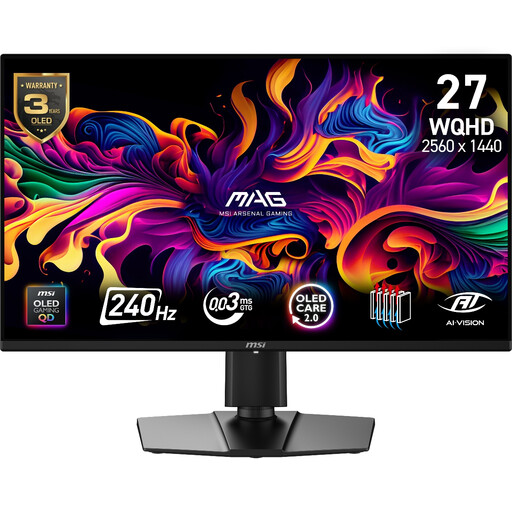 No image available
Consider this for QHD PC play if your system can make use of its stated 240Hz mode; check the connection and game output before relying on that ceiling.
The product name specifies a 2560 × 1440 QD-OLED screen, 0.03ms response time and Adaptive-Sync. If HDR certification matters, check the exact certification rather than treating HDR Ready wording as a VESA tier.
 No image available
This is another QHD OLED choice for PC play where high refresh is the priority. Confirm the maximum mode through the input you intend to use.
The product name states 240Hz and 0.03ms response time. If brightness or power use influences your choice, compare the operating information for this exact model.
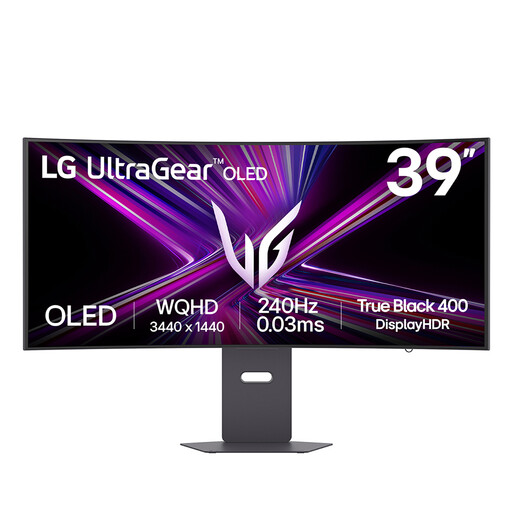 No image available
Consider the larger screen if an ultrawide PC setup suits your desk and you can drive the resolution in your games. Check the intended refresh mode by input before purchase.
The product name states a 240Hz refresh rate. Measure the available desk space rather than assuming a 39-inch screen will fit like a conventional 27-inch monitor.
 No image available
This offers a smaller ultrawide OLED format than the 39-inch model above. Check desk fit, PC output and the refresh mode supported by your chosen input.
The product name states a 240Hz refresh rate. Do not assume a console will use the same screen format or refresh mode as your PC.
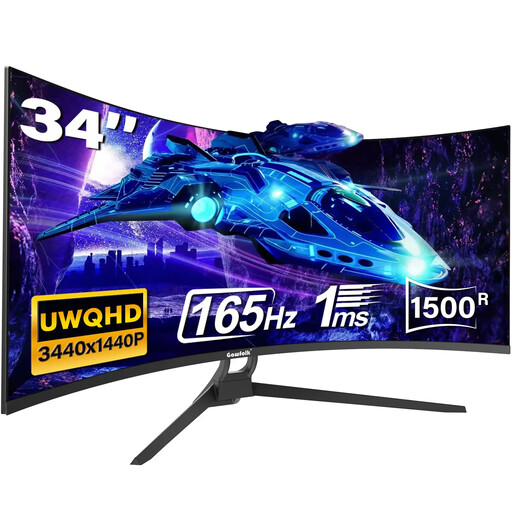 No image available
Consider this for an ultrawide PC setup if the screen fits your desk and your system can drive the intended mode. Confirm the physical ports and their supported refresh rates before choosing a cable.
The product name states a 21:9 screen with 1500R curvature and HDR10. Its HDMI and Type-C descriptions differ, so do not rely on a particular connection or console mode without checking the exact product details.
Choose 1440p if high-refresh PC play is your priority and you want a lower graphics demand than 4K; consider 4K when your system supports your intended mode and you place more weight on image detail. Check the frame rates your games and PC can deliver at the chosen resolution, or the console mode you intend to use.
Connect the monitor and check Settings > Screen and Video > Video Output on the PS5. PlayStation says its 1440p output test can check supported SDR and HDR 60Hz and 120Hz modes, as well as VRR; the game must also support the mode you want.
Xbox Support says Xbox Series X requires a compatible HDMI 2.1 display and the appropriate Ultra High Speed HDMI cable for 4K gaming at 120Hz. Check the monitor’s specific HDMI input and the modes detected in the console’s 4K TV details screen.
No: a generic HDR label does not identify a VESA certification tier or establish how a particular monitor will present a game. If HDR matters to your choice, check the exact DisplayHDR or DisplayHDR True Black certification for that model; VESA distinguishes its certified labels from similar-sounding wording.
Check the seller and exact listing before ordering, including delivery arrangements, the stated change-of-mind return policy, model-specific warranty information and what comes in the box. Ask about dead-pixel or collection arrangements if they matter to you; a retailer’s voluntary policy should not be confused with remedies for faulty, damaged or misdescribed goods.