Competitive PC players
If fast-paced games dominate your playing time, weigh refresh rate and motion clarity against the frame rates your PC can deliver. TFTCentral discusses smaller screens and lower resolutions as options for competitive play.


Choose a gaming monitor around the games and device you use most: a smaller, high-refresh display is a direct fit for competitive PC play when your PC can deliver the frame rates, while higher resolution puts more emphasis on detail in story-driven games. If you also play on a console, check the exact HDMI modes and your console’s reported output options before relying on 4K, 120Hz or variable refresh rate (VRR).
If fast-paced games dominate your playing time, weigh refresh rate and motion clarity against the frame rates your PC can deliver. TFTCentral discusses smaller screens and lower resolutions as options for competitive play.
If you mainly play cinematic, open-world or role-playing games, consider image detail, contrast and a screen size that fits your desk. The resolution trade-off matters, while LG positions some UltraGear displays around this style of play.
Your choice depends on which resolution, refresh-rate and VRR modes the monitor accepts from your particular console. PlayStation and Xbox Support provide settings for checking the connected display’s capabilities.
Start with your main game type and source device, then check whether the screen and connections work for the way your desk is set up.
| Concern | What to check | Who this matters to |
|---|---|---|
| Competitive responsiveness | Check refresh rate at your intended resolution and the frame rates your PC reaches in your games. Compare response-time figures only when their measurement methods match. | If fast matches are my priority, I want motion that keeps pace with what my PC can produce, even if I choose a smaller or lower-resolution screen. Around 30% of consumers put competitive responsiveness first. |
| Story-game image detail | Compare native resolution with screen size and viewing distance; inspect panel and HDR specifications on the exact model. | For cinematic games, I care more about detail and screen presentation than chasing the highest refresh-rate figure. Image detail is the primary concern for around 30% of consumers. |
| Console compatibility | Check the monitor’s HDMI modes for your console, including the intended resolution, 120Hz and VRR; inspect the console’s connected-display settings. | If I play mainly on a console, I need the modes I intend to use to work through my complete setup. Around 30% of consumers make console compatibility their main concern. |
| Desk and connections | Measure the screen and stand against your desk, then check adjustment options and inputs for the devices you will connect. | When space is tight or I switch between a PC and console, fitting and connecting the monitor matters most. Around 10% of consumers prioritise the daily setup. |
MPRT and grey-to-grey (GtG) describe different response-time measurements. MSI lists 1ms MPRT and 4ms GtG for its MAG401QR, so those figures should not be compared as though they used one method.
Check which method the manufacturer uses and consult independent pixel-transition testing if response behaviour is central to your choice.
A monitor’s refresh-rate specification does not mean your games will run at that frame rate. TFTCentral notes that some competitive players choose lower resolutions to pursue higher frame rates.
Check performance for your GPU, games, resolution and preferred graphics settings before deciding how much refresh rate you need.
Xbox Support specifies an Xbox Series X, an Ultra High Speed HDMI cable and an HDMI 2.1-capable display for 4K gaming at 120 frames per second. PlayStation also provides settings to test the modes a connected display supports.
Connect your console directly to the monitor and test your intended resolution, refresh rate, HDR and VRR settings while you can still resolve a setup problem.
A suitable replacement cable may be needed; Xbox Support also cautions that an AV receiver or soundbar between the console and display can affect video features.
A gaming specification will not tell you whether the stand fits your desk or whether your PC and console can remain connected as intended.
Measure the stand footprint and check adjustment, mounting options and the functions of each input on the exact model.
ASUS lists TUF Gaming and ROG monitor ranges with differing refresh rates, connections and adaptive-sync options.
LG lists UltraGear monitors across QHD and 4K options, including OLED models and differing refresh-rate tiers.
Alienware is Dell’s gaming-monitor line. Dell lists the AW2726DM as a 2560 × 1440, 240Hz QD-OLED model.
MSI lists conventional and ultrawide gaming monitors with different panels and connection specifications.
These models cover 4K and QHD choices for mixed gaming, plus a Full HD high-refresh option. For console use, check the exact HDMI output modes of the model you choose rather than relying on its PC refresh-rate specification.
 No image available
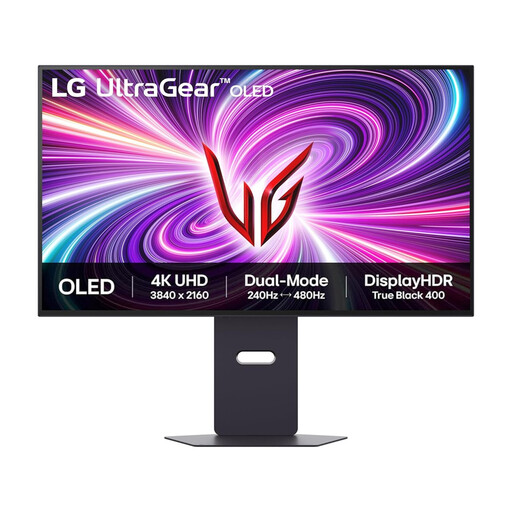
Consider its dual modes if you alternate between detail-focused and fast PC games; check which mode your device and game can use.
The product name specifies 240Hz and 480Hz dual-mode refresh rates, 1ms GtG, AMD FreeSync Premium Pro, DisplayHDR 600, DisplayPort 2.1 and HDMI 2.1.
For console play, confirm the exact resolution, refresh-rate and VRR modes available through HDMI.
 No image available
Its stated 4K and Full HD modes offer different settings to consider for story-driven and competitive PC games; allow room for a 32-inch screen.
The product name specifies 4K at 240Hz or Full HD at 480Hz, a 0.03ms response-time figure, NVIDIA G-SYNC, AMD FreeSync Premium Pro, 7W stereo speakers and HDMI 2.1.
Check that your device can use the intended mode, and confirm the monitor’s exact HDMI modes for your console.
 No image available
Consider this QHD option if you want one PC monitor for both fast and story-driven games without making 4K your resolution target.
The product name specifies a 240Hz refresh rate and a 0.03ms response-time figure.
Check stand adjustments if positioning matters, and confirm the intended resolution, refresh rate and VRR mode before using it with a console.
 No image available
Consider the curved 32-inch format if it suits your desk and you place particular importance on a 4K screen for story-driven play.
The product name specifies 3840 × 2160 resolution, 165Hz, 0.03ms GtG, HDR400 and USB-C with 65W power delivery.
If variable refresh or console play matters to you, confirm adaptive-sync compatibility and the exact HDMI and VRR modes for your setup.
 No image available
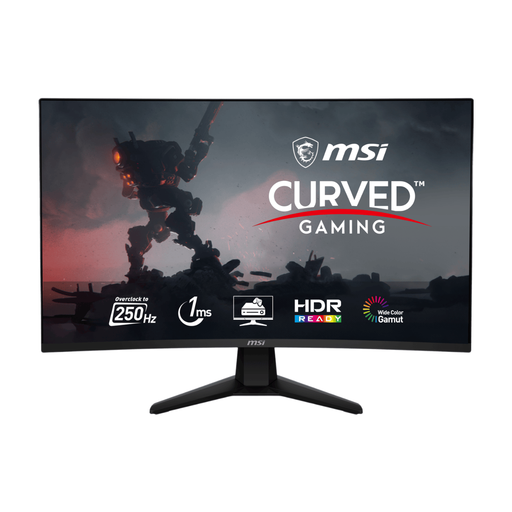
Consider this Full HD model when competitive PC play matters more to you than higher-resolution story-game detail; check how its 32-inch screen fits your viewing distance.
The product name specifies an overclocked 250Hz refresh rate and Adaptive Sync. Check the supported rate on the connection you intend to use.
For console play, confirm the supported output and VRR modes with your particular console.
Yes, for the 4K-at-120Hz setup described by Xbox Support: it requires an Xbox Series X, an Ultra High Speed HDMI cable and an HDMI 2.1-capable display. Check the monitor’s supported HDMI modes rather than assuming its headline refresh rate applies to that console input.
It can use supported modes when the connected monitor accepts them. PlayStation says PS5 settings can test 1440p output at 60Hz or 120Hz, alongside HDR and VRR capability; run that test with the monitor you intend to use.
Start with your GPU and the exact monitor’s compatibility label. AMD describes FreeSync for compatible Radeon graphics, while NVIDIA distinguishes G-SYNC Compatible validation from displays using dedicated G-SYNC hardware; check the connection and mode you plan to use.
Use an appropriate electrical-equipment collection route rather than ordinary household waste. GOV.UK describes the UK’s waste electrical and electronic equipment regulations as supporting recovery, reuse and recycling; check local-authority, retailer or authorised collection options available to you.