Start with the resolution and refresh rate your console or PC can send through the monitor input you will actually use. For a compatible 4K/120 console setup, check the HDMI mode and cable; for PC gaming, weigh resolution against attainable frame rate and check the graphics output and adaptive-sync connection. Screen size and stand adjustment still need to work at your desk.
Who this choice affects
Console players targeting 120 Hz
If you play on a PS5, PS5 Pro or Xbox Series X|S at a desk, check the monitor’s HDMI modes and the cable needed for your chosen resolution and refresh rate. PlayStation and Xbox describe these capabilities in terms of the connected display, not just its advertised panel speed.
PC players balancing detail and speed
Match the monitor’s resolution and refresh mode to your graphics output, connection and the frame rates you expect to use. Adaptive-sync support also needs to suit your graphics platform; AMD and NVIDIA describe compatibility for their respective technologies.
People sharing a desk between games and work
Check screen width, viewing distance, stand adjustment and available inputs alongside gaming modes. The Health and Safety Executive advises positioning a desk screen with its top around eye level and the screen about an arm’s length away.
What to check before buying
Identify your console or PC output and preferred game mode before comparing monitors. Then check the space and adjustments needed to use the screen at your desk.
| Concern | What to check | Who this matters to |
|---|
| Device and port compatibility |
Compare your device’s output with the resolution, refresh rate and VRR modes supported by the monitor’s intended HDMI or DisplayPort input; check the required cable. |
I want the mode I choose to work from my own console or PC, rather than relying on the panel’s headline specification. Around 36% of consumers put connection and mode compatibility first. |
| Refresh rate and variable refresh rate |
Check the selected game’s frame-rate mode and whether the monitor’s usable refresh and variable refresh rate (VRR) work with your source and input. |
When I prioritise responsive play, I need a refresh mode my setup can actually deliver. For around 29% of consumers, usable refresh or VRR is the primary concern. |
| Resolution and screen size |
Measure desk width and depth, then compare the native resolution with the modes your source supports. |
I want enough image detail and screen space without crowding my desk or giving up the frame-rate target I care about. Around 21% of consumers place resolution and fit ahead of the other concerns. |
| Positioning and shared use |
Check stand adjustment, mounting requirements and the inputs needed if a PC and console will share the screen. |
At a desk used for both gaming and other tasks, I need to position the screen comfortably and connect my devices conveniently. Desk ergonomics and shared use come first for around 14% of consumers. |
Common buying mistakes
-
Assuming the highest refresh rate works on every input
Refresh limits can change with resolution and connection. Dell UK, for example, specifies separate 4K at 180 Hz and FHD at 360 Hz modes for the Alienware AW2725QF; neither figure describes every possible console connection.
Read the exact model’s per-input mode table, then check the mode shown in your console or PC display settings after connecting it.
-
Relying on an HDMI 2.1 label alone
Xbox Support specifies an HDMI 2.1-capable display and an Ultra High Speed HDMI cable for Xbox Series X 4K/120. PlayStation describes PS5 VRR for HDMI 2.1 VRR-compatible displays. Check the particular input and feature you intend to use rather than treating the connector label as confirmation of every mode.
Look for an explicit specification for your target resolution, refresh rate and VRR mode on the intended HDMI port.
-
Choosing screen size before measuring the desk
A screen and its stand must fit the available depth as well as width. The Health and Safety Executive’s desk-screen guidance places the top around eye level and the display about an arm’s length away.
Measure the desk and check stand adjustments before choosing a size. If considering an arm, also check the monitor’s mounting pattern and weight.
An arm or alternative stand may be needed if the supplied stand cannot reach a suitable position.
-
Treating adaptive-sync logos as universal compatibility
AMD describes FreeSync for compatible Radeon graphics over HDMI or DisplayPort, while PlayStation specifies HDMI 2.1 VRR-compatible displays for PS5 VRR. A display certification does not establish that your particular console or graphics connection supports the mode.
Match the monitor’s VRR specification to your device and input, then check that the connected device recognises the feature.
Relevant brands to consider
Compare exact models within these gaming-monitor lines: a feature documented for one display should not be assumed to apply across its brand.
LG UltraGear
A line to examine when comparing FHD, QHD and 4K desk-gaming options.
- LG UK specifies HDMI 2.1 4K and VRR up to 120 Hz for the 27GP950-B.
- Check the console modes and inputs of any other UltraGear model separately.
Alienware
Relevant to PC players considering a deliberate switch between resolution and refresh modes.
- Dell UK specifies distinct 4K at 180 Hz and FHD at 360 Hz modes for the AW2725QF.
- Those modes are specific to the AW2725QF and do not establish another model’s inputs or console capabilities.
ASUS ROG
Worth examining when documented console HDMI modes and PC DisplayPort connectivity are both priorities.
- ASUS ROG UK specifies HDMI 2.1, DisplayPort 2.1 and native 4K/120 support on PS5 and Xbox Series X for the PG32UQXR.
- Confirm your console, cable and selected input mode; the PG32UQXR specification does not describe every ROG display.
AOC AGON
A line to compare for QHD, high-refresh desk gaming with attention to stand adjustment.
- AOC UK specifies a 27-inch QHD, 180 Hz panel and height-adjustable stand for the Q27G4XND.
- That specification does not establish a 4K/120 HDMI console mode for the Q27G4XND.
BenQ ZOWIE
Relevant to PC-focused players considering a smaller FHD, high-refresh display.
- BenQ ZOWIE UK specifies a 24-inch-class, 144 Hz XL2411K with height adjustment and tilt.
- For 144 Hz over HDMI on this model, BenQ specifies a PC HDMI 2.0 output and HDMI 2.0 cable; it is not a 4K console route.
Gaming monitors on Joybuy
These desk-gaming monitors offer different screen sizes and stated resolution and refresh combinations. Compare each model’s intended input with your console or PC before choosing a mode; the product descriptions here do not establish every port-specific console or VRR capability.
 No image available
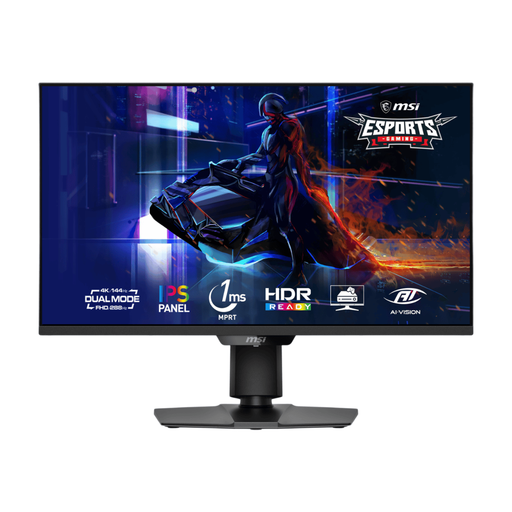
MSI MAG 275UPD E14 27-inch gaming monitor
Consider this if you want to switch between a detail-focused mode and a faster FHD mode at your desk.
The product name specifies 4K UHD at 144 Hz and FHD at 288 Hz, with Adaptive Sync. Check which modes are available through the input used by your console or PC.
View on Joybuy
 No image available
Philips Evnia 6000 34M2C6500 34-inch monitor
Consider this wide display for a desk where gaming and other screen-based tasks share space, provided the 34-inch format fits.
Its stated resolution is 3440 × 1440, with up to 175 Hz through DisplayPort and 100 Hz through HDMI. Height, swivel and tilt adjustment are listed; check adaptive-sync operation for your chosen connection.
View on Joybuy
 No image available
LG UltraGear G8 27G850A 27-inch gaming monitor
Consider its dual modes if you want to choose between 4K detail and a lower-resolution, higher-refresh option.
The product name lists a 4K Nano IPS panel, 240 Hz and 480 Hz dual modes, AMD FreeSync Premium Pro, DisplayPort 2.1 and HDMI 2.1. The 480 Hz option involves Full HD rather than 4K; confirm the available mode on your intended input.
View on Joybuy
 No image available
Samsung Odyssey G6 S27DG612 27-inch gaming monitor
Consider this model if a 27-inch QHD gaming screen fits your desk and intended PC or console mode.
Its product name specifies a QHD OLED panel and 240 Hz refresh rate. Check the refresh and adaptive-sync modes supported by the input you plan to use.
View on Joybuy
 No image available
CRUA 32-inch 1500R curved QHD gaming monitor
Consider the larger curved screen if you have room for it and can position it suitably at your desk.
The product name specifies 2560 × 1440 resolution, 165 Hz, Adaptive Sync, HDMI and DisplayPort, and a 100 × 100 mm VESA mounting pattern. Check the HDMI mode separately if connecting a console; the stated maximum refresh is tied to DisplayPort.
View on Joybuy
Frequently asked questions
Can a PS5 use a 1440p gaming monitor at 120 Hz and with VRR?
It can use supported 1440p output modes, but check your exact display and connection. PlayStation’s PS5 video-output settings include a 1440p test for SDR and HDR at 60 Hz or 120 Hz and for VRR when supported; a monitor’s PC refresh specification alone does not confirm those HDMI modes.
What do I need for Xbox Series X gaming at 4K and 120 Hz?
Xbox Support specifies an Xbox Series X, an Ultra High Speed HDMI cable supporting HDMI 2.1 and an HDMI 2.1-capable display for 4K/120. Check that the monitor supports the mode on the HDMI input you intend to use.
Do I need a different cable for a new gaming monitor?
That depends on the mode and the outputs at both ends of the connection. Check your device and monitor specifications before replacing a cable; Xbox Support specifies an Ultra High Speed HDMI cable for Xbox Series X 4K/120, while PC HDMI and DisplayPort requirements vary by model and mode.
What if a monitor I buy in the UK is faulty?
Contact the trader with your order details and evidence of the fault. GOV.UK’s Consumer Rights Act guidance describes repair or replacement for faulty goods discovered more than 30 days after purchase or delivery; statutory remedies are separate from a voluntary manufacturer warranty.


