Shared-desk student gamer
You use one desk for digital board games, coursework and everyday media. Compare screen detail, stand adjustment and the space taken up by the base before prioritising gaming-specific features.


For digital board games, coursework and everyday use on one student-room desk, start with a 27-inch QHD monitor whose stand fits your space and adjusts to your viewing position. Consider 4K if fine interface detail is your priority and your computer supports the display mode; give a high refresh rate more weight if you also regularly play fast-moving games.
You use one desk for digital board games, coursework and everyday media. Compare screen detail, stand adjustment and the space taken up by the base before prioritising gaming-specific features.
You want fewer connections to manage in a small room. A single-cable setup depends on compatible video output from your laptop, suitable monitor charging capability and the right cable.
You give close attention to maps, cards and text-heavy interfaces. A 4K option is worth considering if your computer can supply the intended display mode and the monitor also fits your desk.
For a screen shared between digital board games and study, settle the questions of interface detail and desk fit before deciding whether USB-C convenience or fast-game use changes your choice.
| Concern | What to check | Who this matters to |
|---|---|---|
| Interface detail and workspace | Compare native resolution at the screen size you want: the cited 27-inch QHD models are 2560 × 1440, while the cited 4K models are 3840 × 2160. | If I regularly read cards, maps and coursework on the same screen, I want enough detail for both tasks. Around 38% of consumers put interface detail and workspace first. |
| Desk fit and viewing position | Measure usable desk width and depth against the full dimensions with the stand; check its adjustment range and any mounting requirements. | When my desk has to serve both study and play, I need the monitor to fit and sit at a workable height. For around 31% of consumers, that setup is the primary concern. |
| Laptop connections | Check laptop video output over USB-C, the monitor’s power-delivery rating and cable requirements. | If I connect a laptop each day, I want to know whether one cable can handle the display and charging. Around 23% of consumers prioritise that connection. |
| Fast games as a second use | Match the refresh rate to the other games you play and the display modes your computer or console can deliver. | I also play fast-moving games regularly, so refresh rate matters beyond my board-game sessions. That is the leading need for around 8% of consumers. |
A USB-C connector alone does not establish that the laptop can send a display signal. VESA describes DisplayPort over USB-C as using an alternate mode, while LG specifies a particular supplied cable for its 27UP85ZK-W USB-C functions.
Check the laptop’s documented display-output support, then confirm the monitor’s charging rating and cable requirements.
An incompatible connection may mean using a separate display cable or laptop charger.
Refresh rate and resolution answer different questions. BenQ lists its 27-inch GW2790 at 1920 × 1080 and 100Hz, while its GW2790QT is a 2560 × 1440 model.
Compare native resolution for text, maps and study work, then decide how much refresh rate matters for your other games.
Two 27-inch screens need not occupy the same amount of desk space or offer the same adjustments. A mounting option does not establish that an arm will suit your desk or accommodation.
Measure the clear desk area and compare full dimensions with the stand. If considering an arm, check the monitor’s mounting pattern, the arm’s requirements and any accommodation rules.
Dell’s S2725DC and S2725QC illustrate two current 27-inch USB-C routes: QHD and 4K.
The LG 27UP85ZK-W is a 27-inch 4K IPS option for a desk where USB-C connections matter.
BenQ’s GW2790QT and GW2790 show why the exact model matters when comparing 27-inch screens.
These monitors cover QHD options for a shared study-and-play desk, a 4K option for detail-focused viewing, and QHD models with higher refresh rates for regular fast-game use. Check each model’s stand and connections against your own room and computer.
 No image available
Consider this WQHD IPS option when board-game interfaces and coursework share a screen. Check the stand dimensions against your desk and confirm the USB-C charging capability if you plan to connect a laptop.
 No image available
This QHD IPS model suits a desk used for text-heavy games and study; its stated refresh rate is 100Hz. If USB-C is important, check the connections on the specific regional variant, as well as the space needed for its stand.
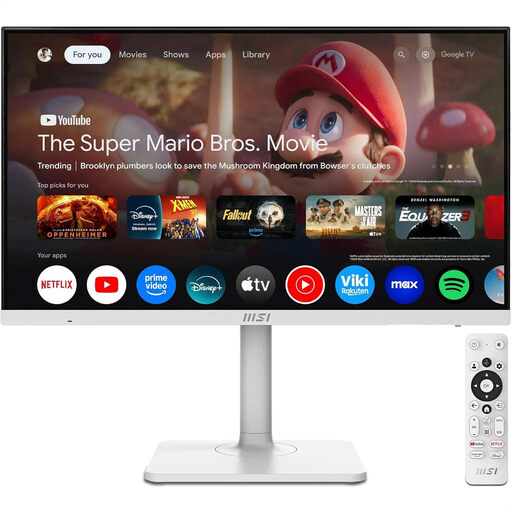 No image available
Consider its 4K IPS display when fine map and interface detail takes priority. The product name specifies USB-C with 65W power delivery; check that your laptop supports video through the connection and that 65W meets its charging needs.
 No image available
This QHD OLED model is worth considering if you also regularly play fast-moving games; its stated 240Hz refresh rate is not a requirement for turn-based board games. Check its connection options if you need video and charging through one laptop cable.
 No image available
Its stated 2560 × 1440 resolution suits a QHD route for game interfaces and coursework, while 220Hz matters chiefly if fast-moving games are a regular second use. Check the stand’s adjustment and full footprint before choosing it for a compact desk.
No particular high refresh rate is required by this use alone. Prioritise resolution, desk fit and connections, then consider a higher refresh rate if fast-moving games are also a regular use and your computer can supply the display mode.
No: the connector alone does not guarantee video output. Check the laptop’s documented display-output capability and the monitor’s charging rating and cable requirements; LG, for example, specifies its included cable for the listed USB-C functions of the 27UP85ZK-W.
Only if the monitor and arm are compatible and the accommodation permits the proposed attachment. Check the exact mounting pattern, the arm’s load and fixing requirements, and the rules for your desk or wall; BenQ lists a 100 × 100 mm VESA pattern for the GW2790QT, but that alone does not establish that an arm will suit your room.
Keep it out of general waste and ask the retailer which electrical-waste take-back arrangement applies to your replacement purchase. Confirm whether you can bring the old monitor to a store or need to arrange another collection or recycling route.