Who these monitors suit

Movement-first competitive players

If you spend sessions practising tracking, flicks and fast camera movement, your main decision is how much refresh-rate headroom you can actually use and whether a particular blur-reduction mode suits your setup. A smaller FHD screen may be an acceptable trade-off.

Competitive players who also want QHD space

If the same display is for competitive games, reading and desktop work, a 27-inch 2560 × 1440 screen may suit you better than a smaller FHD layout. Check the frame rates your PC can sustain at QHD before choosing a high-refresh mode.

Long-session players considering OLED

If you value OLED contrast alongside fast play, allow for the care routine as well as the gaming specifications. LG warns that leaving the same image displayed for a long time may cause faint marks on its OLED monitors.

What matters when choosing

Smaller FHD esports display

Consider it when: Following rapid movement matters more to you than extra desktop detail, and your PC can produce the frame rates needed for the intended high-refresh mode.

Trade-off: The smaller FHD image offers less screen space and detail than QHD. Dell's AW2524HF is marketed as a 500Hz model, but the refresh available depends on the input and mode.

27-inch QHD high-refresh IPS

Consider it when: You want a 2560 × 1440 image for both competitive games and everyday desktop use while retaining a high refresh ceiling, as illustrated by ASUS ROG's 360Hz XG27AQNGV.

Trade-off: QHD has more pixels to render than FHD at the same frame-rate target. Check whether your graphics hardware supports any model-specific motion feature you plan to use.

27-inch QHD OLED

Consider it when: You want OLED contrast and a fast quoted pixel response alongside competitive play; LG lists its 27GS95QE-B as a QHD 240Hz OLED model.

Trade-off: Persistent HUDs, pause screens and desktop windows make static-image habits and the model's panel-care guidance part of the decision.

Concern What to check Who this matters to
Fast-motion clarity Compare your usual in-game frame rate with the refresh mode available through your intended port. Check whether blur reduction and variable refresh rate (VRR) can operate together. When I practise tracking and quick camera turns, I want to use the high-refresh mode rather than choose by the number on the box alone; around 36% of consumers put attainable motion performance first.
QHD detail Check frame rates in your games at 2560 × 1440 and the connection required for the monitor's QHD high-refresh mode. If I also read or work at this screen, I want the added image detail without abandoning competitive refresh rates. Roughly 29% of consumers make QHD detail their main concern.
Long-session setup Check stand adjustments and base depth; for an arm, confirm the monitor's mounting specification and the arm's suitability. My desk position needs to work through a long session, and I cannot rely on a refresh-rate specification to solve a poor setup; approximately 21% of consumers prioritise adjustability and desk fit.
OLED image and care Review the exact OLED model's refresh mode, static-image guidance and panel-care functions. I want OLED contrast during games, but I also leave HUDs or desktop windows visible and need a care routine I can live with; around 14% of consumers put OLED image quality and care first.

Common buying mistakes

  • Choosing by the advertised refresh rate alone

    Dell markets the AW2524HF as a 500Hz monitor, while its displayed specifications distinguish refresh behaviour by input and mode. The number is not a substitute for checking the connection you will use.

    Compare the current model manual with your GPU output, cable, selected port and typical in-game frame rate before deciding which mode you can use.

  • Assuming blur reduction and VRR work together

    ZOWIE says DyAc, DyAc+ and DyAc 2 must be turned off to use VRR on the relevant models. Choosing one mode can therefore mean giving up the other during play.

    Check the exact monitor's menu restrictions and decide which mode better fits your usual games.

  • Ignoring static images when choosing OLED

    LG warns that leaving the same image on an OLED monitor for a long time may cause faint marks. Persistent game HUDs, pause screens and desktop windows are worth considering during a long session.

    Read the model-specific panel-care guidance and decide whether its image-cleaning routine fits how you use the screen.

    Managing static content and running panel-care functions can take attention and time.

  • Expecting the stand to solve the whole desk setup

    Stand adjustment helps position a screen, but desk fit and opportunities to change activity still matter. The Health and Safety Executive's display-screen guidance addresses workstation design and breaks for qualifying work use; it does not make a monitor specification a substitute for either.

    Measure your available desk space and check the stand or mounting options. Plan breaks or changes of activity during extended sessions.

Relevant monitor brands

ZOWIE by BenQ

The XL2566X+ represents ZOWIE's FHD esports-focused approach with a 400Hz Fast TN panel and DyAc 2.

  • A route to consider when a focused competitive setup matters more than QHD desktop space; motion-clarity benefits attributed to DyAc 2 are ZOWIE's own claims.
  • ZOWIE says its DyAc modes must be off to use VRR on the relevant models.

Alienware

Dell UK presents the 24.5-inch FHD AW2524HF as a high-refresh Fast IPS gaming monitor.

  • Dell lists height, tilt, swivel and pivot adjustments for this model.
  • Its 500Hz branding does not describe every input and mode; check the refresh setting available for your connection.

ASUS ROG

The 27-inch QHD ROG Strix Pulsar XG27AQNGV represents a high-refresh IPS route with a stated ceiling of 360Hz.

  • ASUS describes an esports display mode for using a smaller competitive image on this QHD screen.
  • Check graphics-hardware compatibility before planning around its named G-SYNC Pulsar feature.

LG UltraGear

LG's 27GS95QE-B is a 27-inch QHD OLED model listed at 240Hz with a quoted 0.03ms grey-to-grey response time.

  • It offers an OLED route for consumers weighing contrast alongside competitive refresh.
  • LG warns that long-lived static images may cause faint marks and provides image-cleaning guidance.

Joybuy monitors for competitive play

These Joybuy choices cover FHD competitive play, QHD OLED and displays with separate high-detail and faster FHD modes. Choose by the mode you intend to use, then check how the screen and stand fit your long-session setup.

LG UltraGear G8 27G850A monitor

LG UltraGear G8 27G850A 27-inch dual-mode monitor

Consider this model if you want to switch between a detailed image and an FHD mode for competitive play.

Its title lists a 4K Nano IPS panel, 240Hz/480Hz dual modes, DisplayPort 2.1 and HDMI 2.1. Confirm which resolution and refresh combination your GPU, cable and chosen input can deliver.

View on Joybuy

Samsung Odyssey G6 S27DG612 monitor

Samsung Odyssey G6 S27DG612 27-inch QHD OLED

Consider this model if QHD OLED image quality matters alongside competitive movement practice.

The product title states 240Hz and a quoted 0.03ms response time. Check the required connection for your intended refresh mode and the model's guidance for prolonged static content.

View on Joybuy
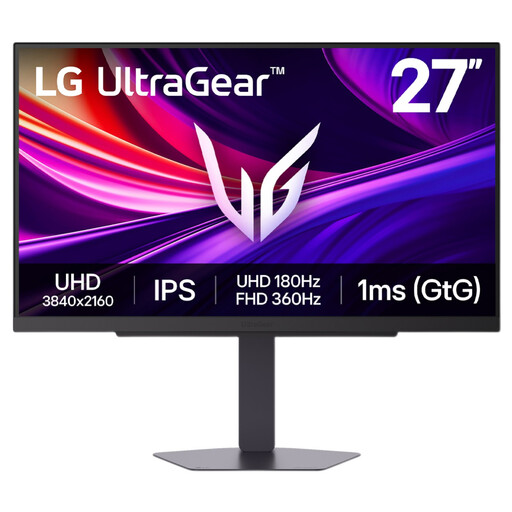
LG UltraGear 27G810A-B monitor

LG UltraGear 27G810A-B 27-inch IPS dual-mode monitor

Consider this model if you want to choose between a 4K image and a faster FHD setting for competitive games.

The product title identifies a 4K IPS display and dual mode with a stated maximum of 360Hz. Check the resolution and refresh rate available through the input you plan to use.

View on Joybuy
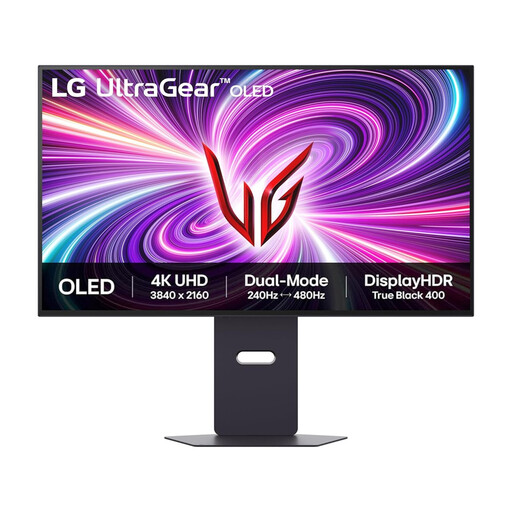
LG UltraGear 32GS95UV-B OLED monitor

LG UltraGear 32GS95UV-B 32-inch OLED dual-mode monitor

Consider this larger OLED model if you want separate high-detail and fast-movement modes and have room for a 32-inch screen.

Its title specifies 4K at 240Hz or FHD at 480Hz and a quoted 0.03ms response time. Confirm the input requirements for each mode and review the model's static-image care guidance.

View on Joybuy
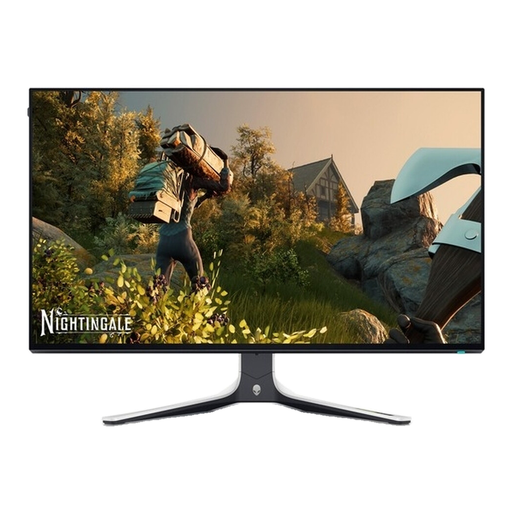
Alienware AW2724HF 27-inch gaming monitor

Alienware AW2724HF 27-inch FHD Fast IPS monitor

Consider this FHD model for a 27-inch competitive-play setup, while checking its exact operating mode before choosing it for a refresh-rate target.

Confirm the AW2724HF's refresh-rate and response specifications for your intended connection, and check the stand adjustments against your desk setup.

View on Joybuy

Frequently asked questions

Will a high-refresh monitor automatically run at its advertised maximum?

No. The available refresh rate depends on the monitor mode and connection as well as your graphics hardware and cable. Dell's AW2524HF, for example, is marketed as a 500Hz monitor, but its displayed specifications distinguish refresh behaviour by input and mode.

Can I use VRR and blur reduction at the same time?

Not on every monitor. ZOWIE says DyAc, DyAc+ and DyAc 2 must be turned off to enable VRR on the relevant models, including the XL2566X+ family. Check the exact model's instructions rather than assuming the features can run together.

Is an adjustable stand enough for a comfortable long session?

An adjustable stand can help position the screen, but it cannot address every part of a desk setup or replace breaks. The Health and Safety Executive's display-screen guidance for qualifying work use also addresses workstation design and changes of activity; those are useful practical checks for a long personal gaming session.

What should I do about static HUDs on an OLED monitor?

Review the exact monitor's panel-care instructions and how long you tend to leave the same image displayed. LG warns that prolonged static images may cause faint marks on its OLED monitors and describes an Image Cleaning function; that warning does not mean every static image will cause permanent damage.

What should I check about warranty and an old monitor?

Keep the purchase and warranty paperwork, and check the warranty's duration and claims process. Citizens Advice explains that warranties and guarantees add to legal rights rather than replacing them. If you are replacing a monitor, ask the retailer about its electrical-equipment take-back arrangements and applicable collection conditions.