What should you check first?
Start with the games and device you use, then check which resolution, refresh rate and connection work together; leave room on the desk for the screen you choose.
| Priority |
What to check |
Your needs |
| Motion clarity |
Compare typical in-game frame rates with the monitor's refresh rate. Check the operating conditions of any blur-reduction mode and look for independent response-behaviour tests of the exact model. |
I mainly play fast FPS games and want to follow moving targets clearly. A 360 Hz label alone will not tell me how my games or the panel behave in use. |
| Resolution |
Compare Full HD and 2560 × 1440 at the settings you intend to use. Confirm that your graphics card and connection support the chosen resolution and refresh rate together. |
More image detail matters to me beyond competitive matches, but I do not want to choose a 1440p mode without checking the frame rates my PC can sustain. |
| PC variable refresh rate |
Check the exact monitor's variable refresh rate (VRR) support, graphics-card compatibility and supported input. AMD describes FreeSync with compatible Radeon graphics; NVIDIA distinguishes G-SYNC Compatible validation from a display with a G-SYNC processor. |
My game frame rate varies, so I want a VRR mode that works with my graphics card and the cable connection I will use. |
| Console HDMI modes |
Check supported modes on the monitor's HDMI input, not just DisplayPort. PlayStation says PS5 can test supported 1440p SDR/HDR output at 60 Hz or 120 Hz and VRR; Xbox Support describes HDMI 2.1 features for Series X 4K gaming at 120 Hz. |
I play on PS5 or Xbox Series X and need to know which modes the console and monitor can use together. A game must also support the frame rate I want. |
| Desk fit |
Measure desk depth and stand footprint, then check height adjustment or VESA mounting. The UK Health and Safety Executive advises placing a screen about an arm's length away, with its top approximately level with your eyes. |
A larger or ultrawide screen needs to fit where I sit; I want to position it comfortably rather than choose by panel specifications alone. |
Competitive gaming monitors on Joybuy
These models offer high-refresh options for PC gaming, including dual-mode, 1440p and ultrawide formats. If you will connect a console, check the exact HDMI output mode you need for the model you are considering.
 No image available
LG UltraGear G8 27G850A 27-inch 4K dual-mode monitor
Consider this if you want to switch display modes for games with different detail and speed priorities. Its product name specifies a Nano IPS panel, 4K UHD, dual-mode 240 Hz/480 Hz operation, DisplayPort 2.1 and HDMI 2.1. Check which resolution and refresh-rate combinations work through your intended input.
View on Joybuy
 No image available
Samsung Odyssey G6 S27DG612 27-inch QHD OLED monitor
For PC play where 1440p detail matters alongside high refresh, this model's name specifies QHD OLED and 240 Hz. It also states a 0.03 ms response-time figure, which does not by itself describe motion behaviour or input lag. Check the modes available on your chosen connection, plus the OLED-care guidance and applicable warranty terms.
View on Joybuy
 No image available
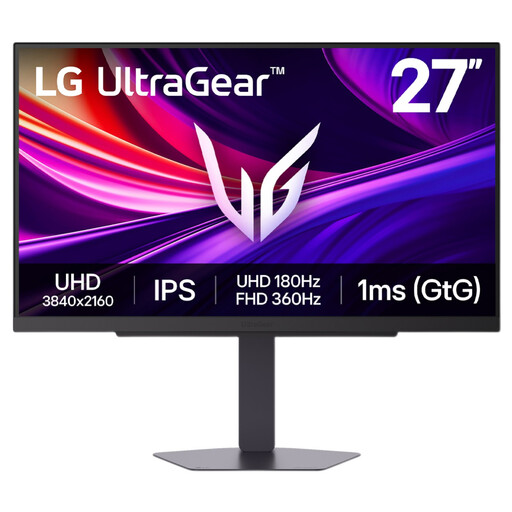
LG UltraGear 27G810A-B 27-inch 4K IPS dual-mode monitor
This is a dual-mode option to assess if you alternate between detail-focused and faster games. Its product name identifies a 4K UHD IPS screen and a maximum 360 Hz refresh rate. Confirm the resolution, refresh rate and VRR mode available through the input you will use, particularly for a console.
View on Joybuy
 No image available
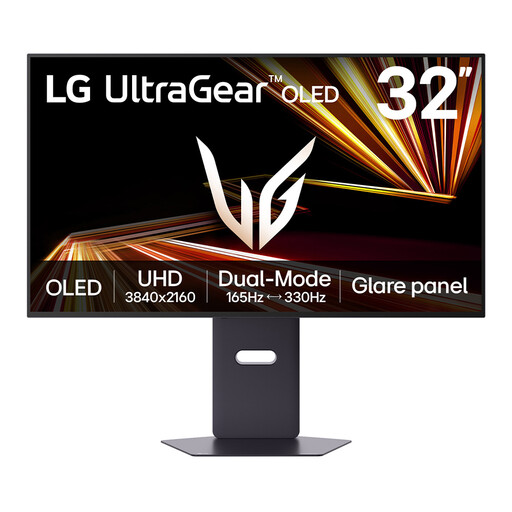
LG UltraGear 32GX850A-B 32-inch 4K OLED dual-mode monitor
Consider the larger screen only if it fits your desk and preferred viewing distance. Its product name specifies 4K UHD OLED, dual-mode operation and a maximum 330 Hz refresh rate; check which modes your device can use. Read the OLED panel-care guidance and applicable warranty terms if your setup also involves prolonged static images.
View on Joybuy
 No image available
LG UltraGear 34GX900A-B 34-inch OLED WQHD monitor
This ultrawide option is worth assessing if its screen format suits your games and desk. Its product name specifies a 34-inch OLED WQHD display at 240 Hz. Check game support for your preferred screen format, input-specific modes and the applicable OLED-care and warranty terms.
View on Joybuy
Common questions
Will a 360 Hz monitor make every game run at 360 fps?
No. The monitor's refresh-rate capability does not make the PC or game produce 360 frames per second. Check frame rates at your intended resolution and settings, then confirm the active output mode in your system and monitor settings.
What should I check for a PS5 monitor?
Check the exact HDMI modes and test the display in the PS5's Screen and Video settings. PlayStation says its 1440p test checks supported SDR/HDR output at 60 Hz or 120 Hz and VRR; 120 Hz output also depends on the display and game, while PS5 VRR requires a compatible HDMI 2.1 display.
What does Xbox Series X need for 4K at 120 Hz?
Check that the monitor supports the required mode over HDMI. Xbox Support says Series X uses HDMI 2.1 features for 4K gaming at 120 Hz and includes a 2-metre Ultra High Speed HDMI cable; if you need a longer cable, it advises a certified Ultra High Speed HDMI cable. Check the console's reported video modes after connection.
Does FreeSync or G-SYNC compatibility matter for PC gaming?
It matters if you want variable refresh rate to work with your graphics card and chosen connection. AMD describes FreeSync with compatible Radeon graphics over supported HDMI or DisplayPort connections; NVIDIA says G-SYNC Compatible displays are validated for a basic VRR experience, which is distinct from having a G-SYNC processor. Check support on the exact monitor model.
How much desk space should I allow for the monitor?
Measure the screen and stand against your desk depth and seating position before ordering. As general display-screen-equipment guidance, the UK Health and Safety Executive advises placing a screen about an arm's length away with its top approximately level with your eyes; check stand adjustment or VESA mounting if that position is difficult to achieve.


