
24/7 Customer Support

Free returns

Same-day & Next-day Delivery

Quality Guaranteed

Unlock Your Welcome Offers: FREE Delivery | Up to 80% OFF | Free 30-day JoyPlus trial
Download the APP
Buying a gaming monitor involves more than choosing the largest screen or the highest refresh-rate figure. A monitor that looks impressive on a product page may not deliver its advertised performance with your computer, console or chosen connection.
UK buyers should pay particular attention to three common pitfalls:
Full HD gaming monitors at 1920 × 1080 remain suitable for smaller screens, entry-level gaming PCs and consoles. At around 24 inches, Full HD can look reasonably sharp while placing less demand on your graphics card.
A QHD gaming monitor, also called WQHD, typically offers 2560 × 1440. This gives a visible improvement in desktop space and game detail without the rendering demands of 4K. A 27-inch QHD IPS gaming monitor is a useful middle ground for competitive games, general gaming and everyday work.
A 4K gaming monitor uses 3840 × 2160 pixels. It is appropriate for high-detail single-player games, creative work and compatible consoles, but check whether your PC and cable can support the desired refresh rate at 4K.
Refresh rate indicates how many times the screen can update each second. A 180Hz gaming monitor can display more updates than a 60Hz model, while a 240Hz gaming monitor is aimed at players who prioritise rapid visual feedback in esports titles.
The benefit of a high refresh rate depends on your system producing enough frames per second. If a game runs at 90fps, a 240Hz display cannot show 240 unique frames from that game.
Response time describes how quickly pixels change colour. A fast response gaming monitor can reduce visible trailing during movement, but the result also depends on the selected overdrive setting, panel type and game content. OLED models commonly advertise very low GtG figures, while IPS and VA displays can offer a useful balance of speed, colour and price.
For console use, confirm HDMI version, supported resolution and refresh rate. HDMI 2.1 is particularly relevant when targeting higher refresh rates at 4K on compatible consoles. DisplayPort is often the practical choice for high-refresh PC gaming.
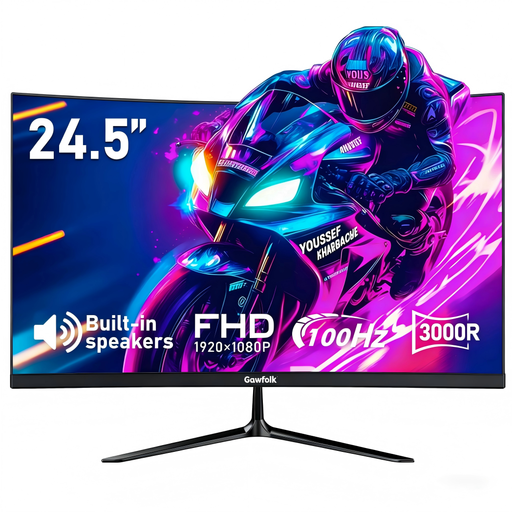
Why This Fits Their Persona: A practical option for a small footprint, first gaming setups and mixed PC, laptop or console use in a UK home.
Its 100Hz specification is clearly paired with Full HD resolution, avoiding a high-refresh claim that requires a demanding 4K signal.
24.5-inch 1920 × 1080 VA display, 3000R curvature, built-in speakers and AMD FreeSync support.
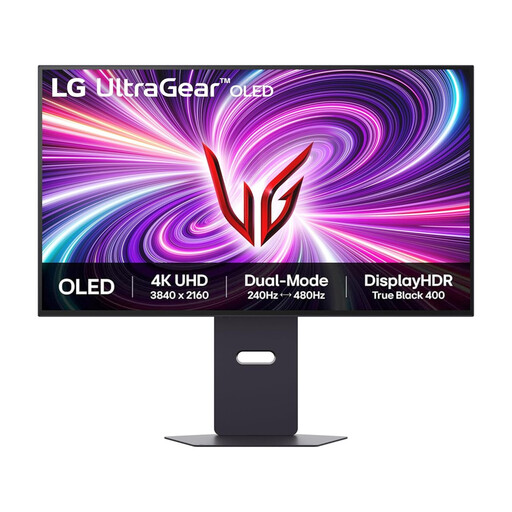
Why This Fits Their Persona: Suits players who want 4K detail, OLED contrast and a large screen for games, films and content creation.
The product specifies both operating modes: 240Hz at 4K UHD and 480Hz at Full HD, making the trade-off clear.
31.5-inch 3840 × 2160 OLED panel, 0.03ms GtG, HDMI 2.1, G-SYNC Compatible and AMD FreeSync Premium Pro.
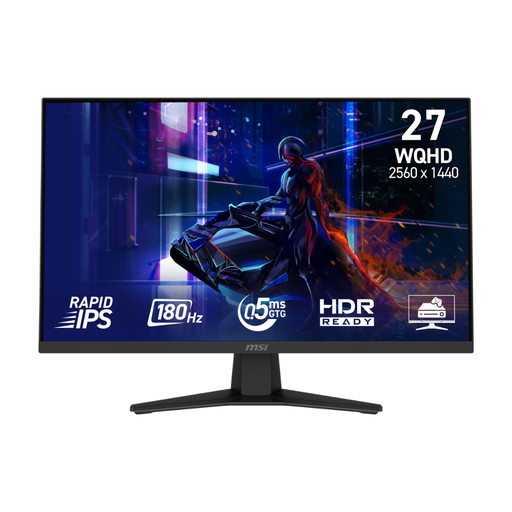
Why This Fits Their Persona: A balanced choice for PC players who want QHD sharpness and high refresh performance without moving to a larger ultrawide display.
Its connection limits are specified: DisplayPort supports WQHD at 180Hz, while HDMI supports up to 144Hz.
27-inch 2560 × 1440 Rapid IPS panel, 180Hz refresh rate, 0.5ms GtG and 100mm VESA mounting.
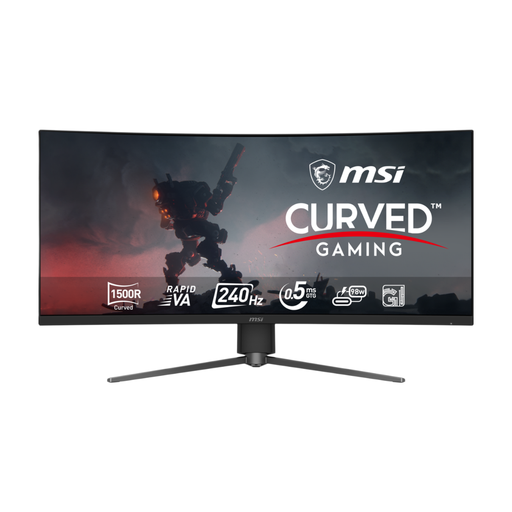
Why This Fits Their Persona: Designed for streamers, multitaskers and players who want an ultrawide layout for immersive games and side-by-side applications.
The UWQHD resolution, 240Hz rate and connection requirements are listed together, helping buyers check desk space, GPU output and cable compatibility.
34-inch 3440 × 1440 curved Rapid VA display, 240Hz refresh rate, HDMI 2.1 and USB-C with 98W power delivery.
We have compiled a complete, real-time list of products that fully satisfy these strict selection criteria and UK safety regulations.
Yes, provided your PC can produce higher frame rates and the connection supports the setting. It can make cursor movement and compatible games appear smoother than 60Hz, while also remaining suitable for browsing, study and office work.
They can be, but buyers should follow the manufacturer’s care instructions. Avoid leaving static images on screen for extended periods, use available screen-care features and allow adequate ventilation.
Running costs depend on screen size, brightness, refresh rate, HDR usage and daily hours. A larger ultrawide or HDR gaming monitor may use more power than a smaller Full HD model. Check the product’s power information and use standby or energy-saving settings when appropriate.