What should you check?
Start with the output you want from your existing device, then check the monitor input and cable that will carry it. After that, weigh motion, image presentation and desk fit against the games you actually play.
| Priority | What to check | Your needs |
|---|
| Device compatibility |
Check the PC or console output, the specific monitor input and the resolution and refresh-rate combination available through it. For Xbox Series X 4K at 120Hz, Xbox specifies HDMI 2.1 and an Ultra High Speed HDMI cable; PlayStation specifies an HDMI 2.1 VRR-compatible display for PS5 VRR. |
I want to know that the mode I plan to use will work through the connection I have, rather than choosing by the monitor’s maximum figure. |
| Motion and VRR |
Compare refresh rate in Hz with the output your games and hardware can provide. For VRR, check the relevant device requirements: AMD requires a FreeSync-capable display and supported AMD graphics hardware, while NVIDIA identifies monitors it validates as G-SYNC Compatible. |
Fast games matter to me, so I would weigh a higher refresh rate and compatible VRR against what my PC or console can actually output. |
| Detail and HDR |
Check the intended resolution mode, then look beyond a generic HDR label. VESA says its DisplayHDR specification assesses measures including luminance, colour gamut and bit depth; compare the individual model’s applicable certification or independent testing where available. |
For games where detail and HDR presentation matter more to me than the highest refresh-rate figure, I would check the display’s HDR credentials and my device’s supported output. |
| Desk and connections |
Measure the space for the screen and stand, check the adjustments you need, and count the ports required for your devices. Which? identifies ports and ergonomic adjustment as practical monitor-selection factors. |
My monitor needs to fit my desk and connect the devices I use without relying on a screen format or stand that does not suit the setup. |
Gaming-monitor ranges to know
These ranges cover different screen formats and gaming features; check the individual model rather than assuming every monitor in a range has the same capabilities.
ASUS ROG
ASUS ROG lists gaming monitors with differing resolution, refresh-rate and connection options.
- The ASUS ROG listing describes an individual dual-mode model with 4K at 240Hz, FHD at 480Hz, DisplayPort 2.1a and HDMI 2.1.
- Those specifications belong to that model, not every ROG display; confirm the input modes and device compatibility of the one you are considering.
Alienware
Dell’s Alienware monitor line includes QD-OLED gaming options.
- Dell lists the AW2726DM as a 26.5-inch QHD QD-OLED model with a 240Hz refresh rate.
- Those manufacturer specifications do not establish its image quality relative to other monitors or compatibility with every PC and console mode.
LG UltraGear
LG’s UltraGear range includes 4K, OLED, curved and ultrawide gaming monitors.
- The range offers different screen formats to consider for console, PC and desk setups, according to LG UK.
- Check each model’s HDMI modes, VRR support and screen dimensions against your own setup.
AGON by AOC
AOC’s UK gaming-monitor catalogue spans Full HD, QHD and dual-mode formats.
- AOC lists the U27G4R with 3840 × 2160 at 160Hz or 1920 × 1080 at 320Hz as model-specific modes.
- Catalogue modes do not establish HDR performance or which modes a particular console connection can use.
Gaming monitors on Joybuy
These gaming-monitor options cover different screen sizes, resolutions and refresh-rate approaches for a home setup. Check the usable input mode against your PC or console before choosing.
 No image available
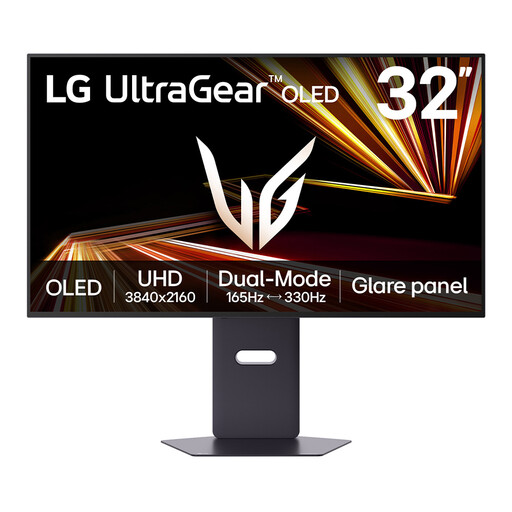
LG UltraGear 32GX850A-B 32-inch OLED 4K dual-mode monitor
Consider this if you want a 32-inch OLED gaming screen with 4K UHD and a choice of display modes. The product title states a maximum of 330Hz; check which resolution and connection provide the mode you want. For extended static desktop content, consider the stated OLED burn-in risk and the screen-protection guidance.
View on Joybuy
 No image available
LG UltraGear 34GX900A-B 34-inch OLED WQHD 240Hz monitor
This 34-inch OLED WQHD option is worth considering if you want a larger gaming screen with a stated 240Hz refresh rate. Check desk space, the screen format you want for your games and the refresh mode available through your intended input.
View on Joybuy
 No image available
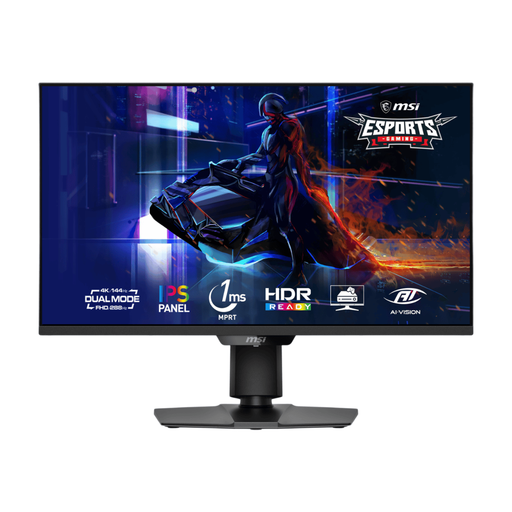
MSI MAG 275UPD E14 27-inch UHD 144Hz/FHD 288Hz monitor
This dual-mode model offers a stated UHD 144Hz mode and FHD 288Hz mode for choosing between resolution and refresh rate. Its title also specifies Adaptive Sync; check the mode and compatibility available through the input you intend to use.
View on Joybuy
 No image available
Samsung Odyssey G6 S27DG612 27-inch QHD OLED 240Hz monitor
For a 27-inch QHD OLED gaming setup, this model has a stated 240Hz refresh rate. Confirm the resolution and refresh combination available to your device through the input you will use, and compare HDR credentials separately if HDR is a priority.
View on Joybuy
 No image available
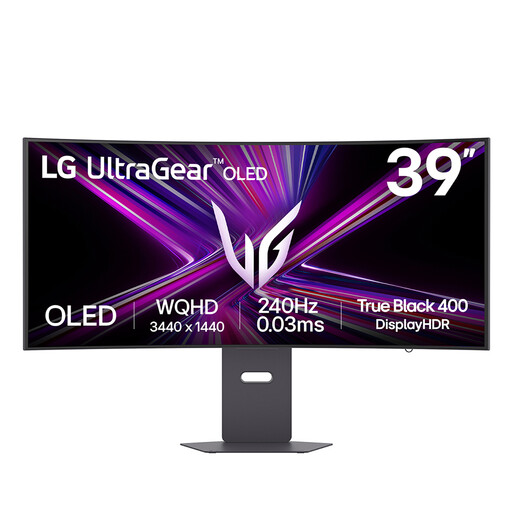
LG UltraGear 39GX900A-B 39-inch OLED QHD 240Hz monitor
Consider this 39-inch OLED QHD model if you have room for a larger gaming display and want its stated 240Hz refresh rate. Measure your desk and confirm your preferred game format, VRR compatibility and usable input mode before choosing it.
View on Joybuy
Common questions
Do I need HDMI 2.1 for a PS5 gaming monitor?
It depends on the output mode you want. PlayStation says PS5 supports 4K 120Hz output and requires an HDMI 2.1 VRR-compatible display for PS5 VRR. Its 1440p display test checks supported SDR or HDR, 60Hz or 120Hz, and VRR modes; check the monitor’s individual HDMI input rather than assuming every high-refresh screen offers the same PS5 options.
Can Xbox Series X use 120Hz without a 4K HDMI 2.1 monitor?
Yes, at a lower resolution where the display supports the mode. Xbox says 120Hz can be enabled without 4K when the display does not support HDMI 2.1. For Series X 4K gaming at 120Hz, Xbox specifies an HDMI 2.1-capable display and an Ultra High Speed HDMI cable; check the monitor input and cable you will use.
Will a high-refresh monitor make every game look smoother?
No: the game and source device also need to produce a suitable output mode for the monitor’s refresh rate to be useful. If VRR matters, check device-specific compatibility too. NVIDIA identifies displays it validates as G-SYNC Compatible, while AMD says FreeSync requires a capable monitor and supported AMD graphics hardware.
How should I compare HDR gaming monitors?
Look beyond a generic HDR label. VESA says its DisplayHDR specification assesses characteristics including luminance, colour gamut and bit depth. Compare the individual model’s applicable certification and independent testing where available, while checking that your games and device support the HDR mode you intend to use.


