Choose a gaming monitor around the output your PC or console can use, then match resolution and refresh rate to your games. For Xbox Series X gaming at 4K and 120 Hz, Xbox Support specifies a compatible console, HDMI 2.1 display and Ultra High Speed HDMI cable; PC players should check the GPU output, the chosen monitor input and variable refresh rate (VRR) compatibility. If the screen will also serve as a work display, ports, adjustment and OLED static-image care can matter as much as gaming specifications.
Who needs which features?
Competitive PC players
If fast multiplayer games drive the purchase, check the frame rates your PC can deliver at your chosen resolution. Confirm the refresh rate and VRR mode available through the input you will actually use; a monitor’s headline refresh rate may not apply to every connection.
PS5 or Xbox Series X players seeking 4K/120 Hz
Check the console, game, cable and exact monitor input together. Xbox Support sets out the HDMI 2.1 display and cable requirements for Series X at 4K/120 Hz; PlayStation provides PS5 video-output information and tests for supported 1440p modes.
Shared-desk gamers
For a screen used with both a gaming device and a work laptop, check laptop video support, monitor ports and stand or mount adjustment. ASUS UK’s ROG Strix XG27ACS specifications illustrate why input choice matters: its stated maximum is 180 Hz through DisplayPort or USB-C, but 144 Hz through HDMI.
What should you check?
Start with the output mode you want from your main gaming device, then consider picture characteristics and how the screen must fit into everyday desk use.
| Priority | What to check | Your needs |
|---|
| Device and connection |
Match the console or GPU output to the specific monitor input, cable and desired resolution. Check HDR and VRR support across that connection, not just on the product label. |
I want the mode I select to work with my own PC or console, rather than assuming every HDMI or DisplayPort input offers the same options. |
| Fast-game motion |
Compare refresh rates in Hz at the intended resolution and input. Check supported VRR modes; treat manufacturer response-time figures as specified measurements, not independent motion tests. |
Fast multiplayer play matters to me, but an advertised refresh rate is useful only if my games and PC can take advantage of it. |
| HDR and OLED use |
Look for the exact VESA DisplayHDR or DisplayHDR True Black tier rather than relying on a generic HDR label; VESA says its logo is reserved for displays meeting its specifications. For OLED, review the model’s static-image care guidance. |
For cinematic games, I care about the picture as well as motion. If the screen will show a taskbar or other fixed elements for long periods, I also need to consider OLED care. |
| Shared-desk fit |
Check whether USB-C carries video from your laptop, the refresh rate available through that input, and the stand’s adjustments. If using an arm, match the monitor’s VESA mounting pattern and the mount’s capacity. |
One screen needs to accommodate both my gaming device and my everyday computer without making the desk awkward to use. |
What is easy to overlook?
-
Assuming the headline refresh rate works through every input
Maximum refresh can change with the connection. ASUS UK specifies 180 Hz through DisplayPort or USB-C for the ROG Strix XG27ACS, versus 144 Hz through HDMI.
Before buying, note your GPU or console model, cable and intended monitor port. Check the resolution, refresh rate and VRR mode for that complete connection.
-
Treating every HDR label as equivalent
VESA distinguishes its DisplayHDR specifications from an unqualified HDR claim; the labels alone do not establish comparable performance.
Check whether the exact model carries a stated VESA DisplayHDR or DisplayHDR True Black tier if HDR performance is important to your choice.
-
Overlooking static content on an OLED work screen
LG UK says leaving the same image on an OLED monitor for a long time may leave faint marks. Taskbars and persistent game interfaces can be relevant to how the screen is used.
Review the exact model’s image-care instructions and warranty terms, especially if it will display fixed desktop elements for long periods.
-
Assuming a console enables every advertised mode
PlayStation says PS5 120 Hz output applies to supporting displays and games. A monitor’s advertised maximum does not establish the output your console will use.
After connecting a PS5, inspect its video-output information and test relevant 1440p modes. For Xbox Series X at 4K/120 Hz, follow Xbox Support’s display and Ultra High Speed HDMI cable requirements.
Relevant brand references
Alienware
Dell UK lists the AW2725D for QHD high-refresh use and the AW2725Q for 4K gaming; both are QD-OLED models.
- Dell specifies 280 Hz for the AW2725D and 240 Hz for the AW2725Q.
- For long periods of static desktop use, check image-care features and warranty terms for the exact model.
ASUS ROG
The UK ROG Strix XG27ACS is a QHD Fast IPS option with USB-C DisplayPort Alt Mode and an adjustable stand.
- ASUS specifies a 180 Hz maximum through DisplayPort or USB-C.
- Its stated HDMI maximum is 144 Hz through HDMI 2.0; this model is not a 4K/120 Hz HDMI 2.1 console route.
LG UltraGear
LG UK specifies the 27GS95QE-B as a 27-inch QHD OLED gaming monitor with 240 Hz and HDMI 2.1.
- LG lists G-SYNC Compatible, FreeSync Premium Pro and VESA AdaptiveSync support for this model.
- LG advises image care because leaving a static image on an OLED monitor for a long time may leave faint marks.
Samsung Odyssey
Samsung UK lists its Odyssey OLED G6 G60SD as a 27-inch QHD QD-OLED model with a 360 Hz refresh rate.
- Its stated specifications include a 0.03 ms GTG response time; this is a manufacturer figure, not an independent motion test.
- Check the precise model’s inputs, warranty and static-image settings for work-heavy use.
Gaming monitors on Joybuy
These options cover high-refresh PC gaming and screens with features relevant to mixed PC and console setups. Check the output modes of your own device against the exact monitor input before choosing.
 No image available
LG UltraGear G8 27G850A 27-inch 4K Nano IPS
For PC gaming where both resolution and refresh rate matter, the listing names a dual-mode 240 Hz/480 Hz display, AMD FreeSync Premium Pro, DisplayPort 2.1 and HDMI 2.1. Confirm which resolution and refresh-rate modes your chosen input and device can use.
View on Joybuy
 No image available
LG UltraGear 34GX900A-B 34-inch WQHD OLED, 240 Hz
The 34-inch WQHD OLED format is worth considering for a wider PC gaming and desktop setup. Check its physical fit, the modes available through the input you plan to use, and image-care guidance if static desktop content will be common.
View on Joybuy
 No image available
Samsung Odyssey G6 S27DG612 27-inch QHD OLED, 240 Hz
This QHD OLED model is an option for a PC setup targeting high refresh at that resolution; its title states 0.03 ms GTG, a manufacturer response-time figure. Check the output and VRR modes of the exact input, along with OLED care terms for prolonged desktop use.
View on Joybuy
 No image available
Acer Predator X49X 49-inch 32:9 QD-OLED, 240 Hz
Its 49-inch, 32:9 curved Dual QHD format suits consideration for a wide PC workspace as well as gaming. Measure the desk, check how your games handle the format, and confirm the desired mode through the chosen input; review OLED care for static desktop use.
View on Joybuy
 No image available
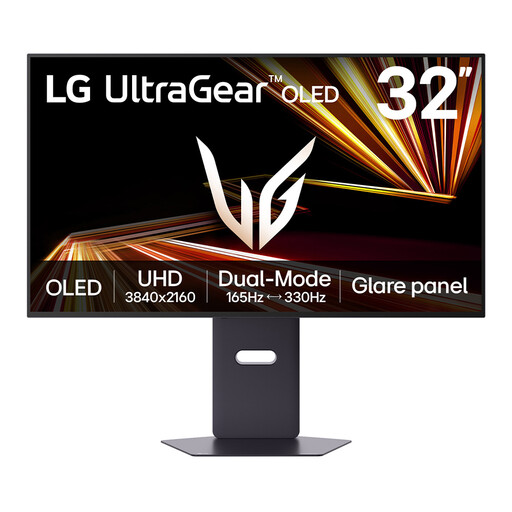
LG UltraGear 32GX850A-B 32-inch 4K OLED Dual Mode
Consider this larger 4K OLED screen if gaming picture detail and a dual-mode option matter to you. Refresh-rate figures for its modes conflict across the supplied product descriptions, so confirm the exact supported rates, input modes and OLED care terms before choosing it.
View on Joybuy
Common questions
Do I need HDMI 2.1 for Xbox Series X gaming at 4K/120 Hz?
Yes, for the setup specified by Xbox Support: an Xbox Series X, an Ultra High Speed HDMI cable supporting HDMI 2.1 and an HDMI 2.1-capable display. Xbox says a Series S or a display without HDMI 2.1 can still use 120 Hz at a lower resolution.
How can I check the video mode my PS5 is using?
Open Settings, then Screen and Video, then Video Output. PlayStation says the connected-device information shows resolution, VRR and HDR; its 1440p test can check supported 60 Hz, 120 Hz and VRR output. A game must also support 120 Hz for that mode to be useful in play.
Is an HDR label enough reason to choose a monitor?
No. VESA says only displays meeting its specifications may carry the DisplayHDR logo, so check the exact model and certified tier rather than treating a generic HDR claim as an equivalent performance measure.
Can an OLED gaming monitor also be used for desktop work?
Yes, but account for how long fixed interface elements will stay on screen. LG UK says prolonged display of the same image on an OLED monitor may leave faint marks and recommends its Image Cleaning function; check the care instructions and warranty for the exact model you are considering.


