Choose a gaming monitor around the signal your PC or console can actually deliver. A high-refresh 1080p or 1440p display suits reaction-led PC games when the computer can sustain the frame rates; 4K puts more emphasis on detail but demands more graphics performance at high frame rates. For a shared PC and console desk, check the exact HDMI modes and available space before deciding, and weigh OLED’s contrast against the care needed for prolonged static images.
Who is the monitor for?
The useful starting point is the games and devices that will spend the most time on the screen.
Competitive PC players
If quick reactions matter most, look at motion behaviour and input lag at the resolution and refresh rate your PC can sustain. A larger maximum refresh-rate figure alone does not describe how the monitor performs in your usual games.
Single-player and mixed-genre players
Image detail, panel characteristics and a comfortable screen size may matter alongside speed. Allow for the space taken by the stand and the distance between your seat and screen.
Players sharing a desk between PC and console
Check the monitor’s supported HDMI resolution, refresh rate and variable refresh rate (VRR) modes for the console you use. A high refresh rate advertised for PC use does not establish the same signal support through HDMI.
What should you check before choosing?
Set a target resolution for your usual games, then check whether your hardware and connection can use the refresh rate you want. Screen fit and panel care can narrow the choice further.
| Priority | What to check | Your needs |
|---|
| Resolution |
Compare 1920 × 1080, 2560 × 1440 and 3840 × 2160 against your PC’s achievable frame rates. RTINGS.com notes that 4K offers more detail, while high-resolution, high-refresh play calls for more capable hardware and suitable connections. |
I play a mixture of fast and detailed games, so I want enough detail without choosing a resolution my PC struggles to run at my target frame rate. |
| Motion and response |
Check refresh rate, tested input lag and motion behaviour at the modes you will use, including 120Hz if a console is involved. RTINGS.com defines input lag as the delay before a received signal starts appearing on screen; it is not the same measurement as a quoted pixel-response time. |
Fast games are my priority, and I want controls to feel responsive and moving objects to remain clear at the settings I actually use. |
| Console connection |
Check the exact HDMI resolution, 120Hz, HDR and VRR combinations supported by the monitor. Xbox Support says Xbox Series X 4K gaming at 120fps requires an Ultra High Speed HDMI cable and an HDMI 2.1-capable display; PlayStation provides a PS5 test for supported 1440p modes. |
My PC and console will share a screen, so I need to know which features work through the monitor’s HDMI input, not just its PC connection. |
| Desk fit |
Measure usable desk width and depth, including the stand or monitor-arm position. Samsung UK suggests that 24- to 27-inch screens can help players keep the whole image in view, while 32- to 34-inch screens offer a more expansive view. |
A larger image appeals to me, but the screen still needs to fit alongside my other equipment at a comfortable viewing distance. |
| OLED use |
Check the exact model’s panel-care functions and warranty terms. ASUS ROG warns that prolonged static high-contrast images can cause OLED image persistence or burn-in; its published warranty coverage differs between models. |
I would value OLED contrast for games, but I also leave desktop windows or game interface elements on screen for long periods. |
Which buying mistakes matter?
-
Choosing the highest Hz figure in isolation
A monitor’s maximum refresh rate is only useful at a mode your PC and connection can deliver. RTINGS.com also treats input lag and motion behaviour as distinct considerations for responsive gaming.
Start with your usual games and achievable frame rates, then compare independent motion and input-lag results at the resolution and refresh rate you intend to use.
-
Assuming an HDMI port guarantees every console mode
The supported resolution, refresh rate, HDR and VRR combinations depend on the whole connection. Xbox Support says equipment between an Xbox and display, such as a soundbar or AV receiver, can affect video features.
Check the monitor’s stated HDMI modes for your console. Connect the console directly when checking its detected display capabilities; PlayStation provides connected-device information in PS5 video settings.
A longer connection may also call for a suitable Ultra High Speed HDMI cable, as Xbox Support advises.
-
Assuming all OLED protection and cover are alike
Prolonged static high-contrast content can cause OLED image persistence or burn-in, according to ASUS ROG. Protection features and warranty terms need to be checked for the individual model.
If the screen will regularly show static desktop elements, follow its panel-care guidance and read the exact model’s warranty terms before buying.
-
Overlooking the stand and cable layout
Screen size alone does not tell you whether the stand fits your desk. Power connections matter too: Electrical Safety First advises against overloading or daisy-chaining extension leads.
Measure the usable desk area and plan where the PC, console and cables will sit. Check the rating of any extension equipment and fully unwind a cable reel when using it at its rated current.
Brand and model references
These examples help identify specifications and care questions worth checking; characteristics of one model do not apply automatically to a brand’s other monitors.
Alienware
Alienware has models in PCMag UK’s 2026 1080p and 1440p gaming-monitor categories. Dell UK also lists the separate AW2726DM as a 26.5-inch QHD QD-OLED display at 240Hz.
- The AW2726DM gives shoppers a specific QHD, 240Hz QD-OLED configuration to compare with their PC output.
- Dell’s 0.03ms grey-to-grey figure is a stated response-time specification, not a substitute for motion testing or confirmation of console modes.
ASUS ROG
PCMag UK included the ROG Swift PG27UCDM in its 2026 4K gaming-monitor roundup. ASUS ROG also publishes model-specific information about OLED protection and warranties.
- ASUS ROG describes panel-care functions including Pixel Shift and pixel cleaning for applicable OLED monitors.
- Its UK support information states 36 months of coverage including panel burn-in for the PG32UCDM, but lists different terms for some earlier models. Check the model being considered.
LG UltraGear
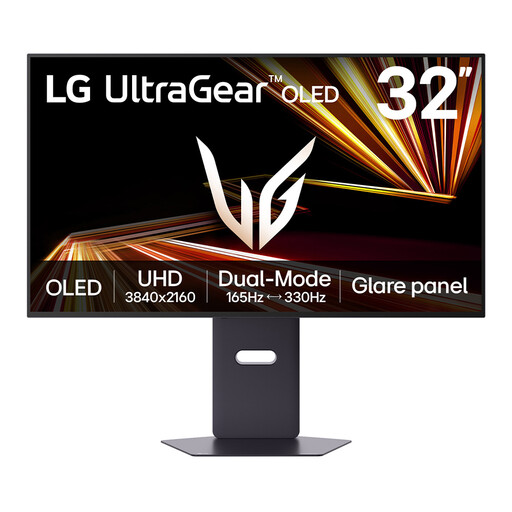
LG UK lists the 32GX850A-B as a 4K OLED monitor with UHD 165Hz and FHD 330Hz modes.
- Its two stated modes offer a concrete choice between UHD detail and a higher refresh rate at FHD.
- FHD at 330Hz does not mean 4K at 330Hz. Confirm the HDMI modes needed by your console on the exact product page.
AOC
PCMag UK included the Q27G4ZD as its everyday 1440p selection in its 2026 gaming-monitor roundup.
- The named model provides a specific 1440p reference for comparing desk-gaming options.
- That selection does not establish the panel behaviour, ports or console modes of other AOC models; compare the exact specifications and relevant tests.
Gaming monitors on Joybuy
These Joybuy options cover 4K, 1440p and OLED approaches to desk gaming, including dual-mode and ultrawide designs. Match each monitor’s stated mode to your PC or console, then check desk fit and any model-specific connection or panel-care requirements.
 No image available
LG UltraGear G8 27G850A 27-inch 4K Nano IPS
Consider this dual-mode monitor if you switch between detailed PC games and faster play. Its listed features include 240Hz/480Hz dual modes, DisplayPort 2.1 and HDMI 2.1; check which resolution and connection support the mode you intend to use, particularly for a console.
View on Joybuy
 No image available
LG UltraGear 32GX850A-B 32-inch 4K OLED
This larger OLED option suits a desk with room for a 32-inch screen and a player who wants to switch between detailed and higher-refresh PC modes. LG UK specifies UHD at 165Hz or FHD at 330Hz for this model; check its exact console HDMI modes and panel-care terms separately.
View on Joybuy
 No image available
Samsung Odyssey G6 S27DG612 27-inch QHD OLED 240Hz
The 27-inch QHD format is worth considering if you want OLED alongside a high stated refresh rate without moving to a 4K screen. The title lists 240Hz and a 0.03ms response figure; check independent motion results, your intended console signal modes and this model’s OLED-care terms.
View on Joybuy
 No image available
LG UltraGear 34GX900A-B 34-inch OLED WQHD 240Hz
This ultrawide option is for a PC desk where a 34-inch screen fits and the wider format suits your games. Its title states OLED, WQHD and 240Hz; measure the desk before choosing it, and check console display modes and model-specific OLED-care guidance if those matter to your setup.
View on Joybuy
 No image available
Dahua 32-inch curved 4K OLED 165Hz
Consider this curved display if you have space for a larger 4K gaming screen. Its title lists 3840 × 2160 resolution, 165Hz, USB-C 65W and a USB hub; check the exact console refresh and VRR modes, as well as the model’s OLED protection and warranty terms.
View on Joybuy
Frequently asked questions
Can a PS5 use a 1440p monitor at 120Hz?
Yes, if the connected display supports that output. PlayStation provides a PS5 1440p test covering SDR and HDR at 60Hz and 120Hz, plus VRR where supported; use the console’s connected-device information to check the signal it detects.
What does Xbox Series X need for 4K gaming at 120Hz?
Xbox Support specifies an Xbox Series X, an Ultra High Speed HDMI cable supporting HDMI 2.1 and an HDMI 2.1-capable display for 4K gaming at 120fps. The game and display settings must also support the mode you intend to use.
Does HDMI 2.1 guarantee HDR, VRR and 4K at 120Hz together?
No. Check the monitor’s exact supported HDMI modes and the console’s detected signal rather than relying on the port label alone. Xbox Support also notes that a soundbar or AV receiver between console and display can affect video features.
Is OLED practical on a desk used for games and static windows?
It can be, provided its panel-care requirements suit how you use the desk. ASUS ROG warns that prolonged static high-contrast images can cause OLED image persistence or burn-in; check the chosen model’s protection settings and warranty rather than assuming the same cover across an OLED range.


